
Concurrency & performanceHistorical technical note
UIKit performance tuning in practice
Uses a list interface as an experiment and Instruments' Core Animation tools to examine layer blending, image dimensions, colour formats and offscreen rendering. It connects common scrolling-performance problems with targeted adjustments.
Originally credited to bestswifter; edited and archived by Bison.
Source listed in the originalOn this page
Editor: Bison
Contributor: bestswifter
Performance optimization is a recurring topic when using UIKit. Many articles discuss scrolling optimization but give techniques without explaining the principles, or explain them obscurely without opportunities to practice. Consider whether you can clearly answer these questions:
1. Why should controls be made opaque whenever possible? What happens if they are transparent, and how can we detect the impact?
2. Why should cell images use the correct dimensions and format? What happens when they do not, and how can that impact be detected?
3. Why can shadows and rounded corners affect scrolling smoothness?
4. How does shouldRasterize relate to offscreen rendering, and when should it be used?
This article uses Instrument to analyze factors affecting performance, propose optimizations, and explain their principles. The initial demo is available from my Github. I strongly recommend downloading it and following the debugging and optimization steps. If it helps, give it a Star. Many images follow, so be mindful of your data allowance.
Basic concepts
After opening the project, focus on CustomTableCell.swift. It implements the custom UITableViewCell and its internal layout. The code is fairly casual because performance optimization is the main topic.
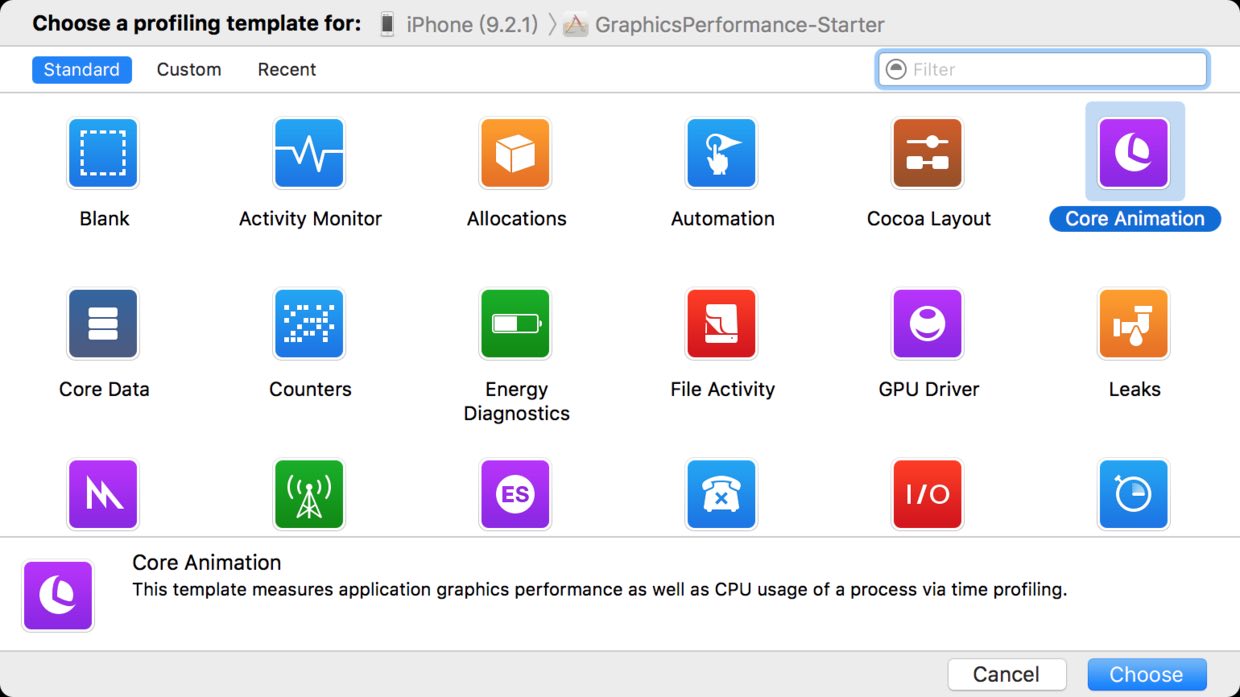
First, press Command + I to open Instrument. This article mainly uses the Core Animation tool:
This debugging must be done on a physical device. Click the red circle at the upper left to begin recording. For beginners, here is a brief explanation of the interface:
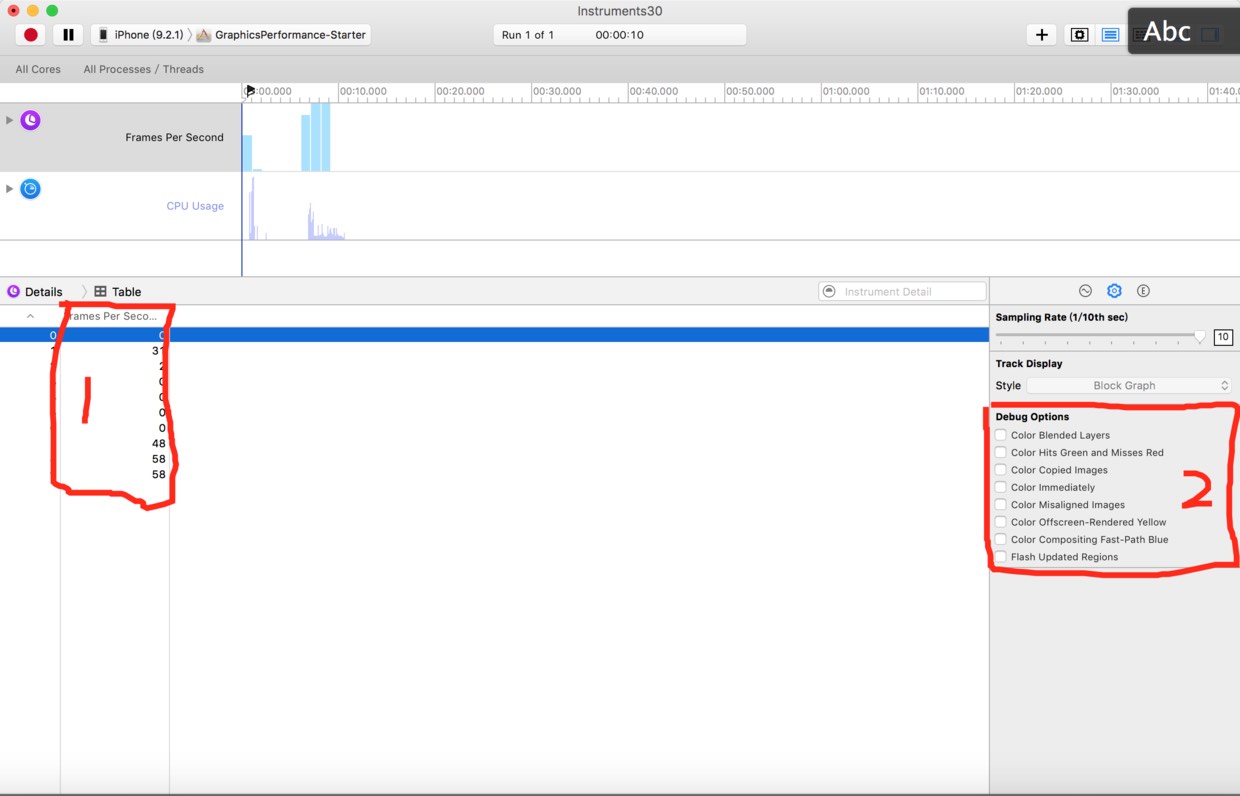
We need to understand two areas:
1. This records real-time fps. Some values are 0 because the screen is not scrolling.
2. This is the most important area. Next, we will examine and try each debugging option.
Anyone familiar with games may know fps. Every screen has a refresh rate: the recommended iphone rate is 60Hz, meaning the GPU refreshes the screen 60 times per second, with 16.67ms between refreshes. The screen contents remain unchanged during that interval, called a frame. fps means frames per second: how many frames appear each second. Refresh rate matters little for static content, but during animation or scrolling, fps directly reflects smoothness.
Debugging and optimization
Layer blending
First, understand pixels. Each point on the screen is a pixel composed of R, G, and B values, sometimes with alpha. When several layers cover an area, they jointly affect its final appearance. For example, a blue upper layer (RGB=0,0,1) at 50% opacity over a red lower layer (RGB=1,0,0) produces purple (RGB=0.5,0,0.5). This blending consumes GPU resources, particularly when more than two layers are involved. If only the upper blue layer needs to be visible, set its opacity to 100%. The GPU can then ignore the layers below and avoid unnecessary calculations.
The first debugging option, “Color Blended Layers”, detects layer blending and highlights it red. We should minimize these red areas and try to eliminate them when found. Start debugging and enable the option to see the following on the phone:
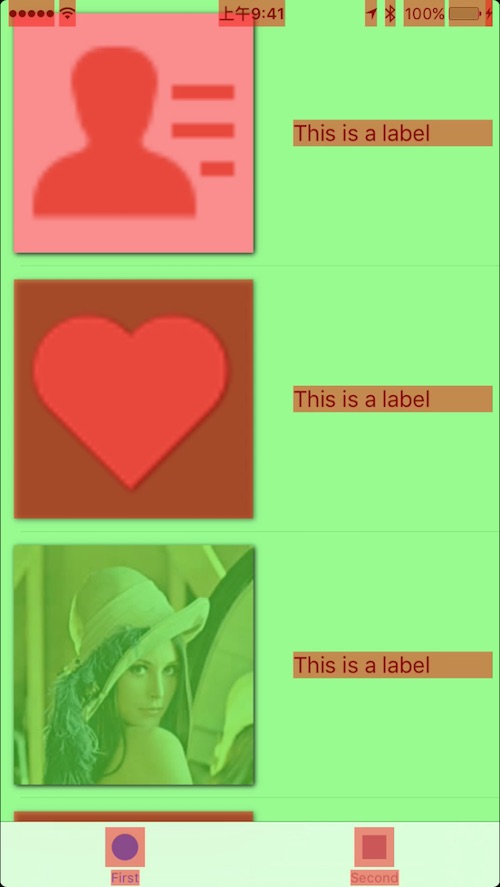
Many articles recommend opaque = true to avoid layer blending, but this often makes little difference: UIView's opaque property defaults to true. Unless transparency is explicitly enabled, there should be no blending. For example, the demo has no transparent controls.
For UIImageView, both the view itself and its image must be opaque; the image must not contain an alpha channel. That is why the third image is green while the first two are red. I know very little about PS or image editing, so I cannot demonstrate how to remove their red highlighting. I found a portrait online to illustrate that an image's own properties affect the result. If you are sure the code is correct but still see blending, ask the designer or backend developer to address the image.
I think backgroundColor matters more than opaque. If it is unset, the control is still treated as transparent. Our first optimization is therefore to add this line to CustomTableCell's init method:
label.backgroundColor = UIColor.whiteColor()
Although this line makes no visible difference against a white background, debugging again shows that the label is no longer red. Neglecting background colors therefore became the first culprit affecting scrolling performance.
P.S. Labels containing Chinese text still exhibit blending because they have an additional sublayer. If you know a good solution, please let me know.
Rasterization
Rasterization prerenders a layer into a bitmap and caches it. Caching expensive static content such as shadows can improve performance. This line in the demo rasterizes the label's layer:
label.layer.shouldRasterize = true
The second debugging option in Instrument is “Color Hits Green and Misses Red”. Cache hits appear green and misses red, so more green and less red is preferable. Enabling it produces the following:
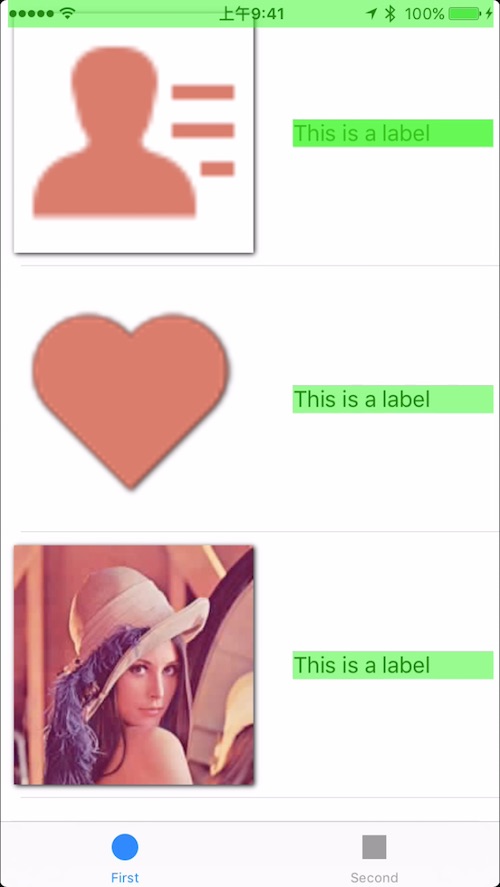
Caching is the central idea behind rasterization. Experimenting reveals several interesting behaviors:
1. Small vertical scrolling movements keep it green.
2. With larger vertical scrolling movements, newly appearing labels are red initially, then turn green.
3. After remaining still for one second, it turns red when scrolling begins again.
Rasterization turns the layer into a bitmap stored in the cache. While scrolling, the bitmap is read directly without rendering, producing green highlighting. A newly appearing label has no cached bitmap, so it appears red. The third observation is important: cached objects remain valid for only 100ms and are removed if unused for 0.1s. That explains the red highlighting after pausing and scrolling again.
Rasterization's cache is a double-edged sword: writing to it and reading it back can cost more time. Rasterization therefore suits relatively complex static effects. Instrument shows frequent cache misses in this example, so it can be disabled unless specifically needed. Our second optimization is to comment out this line:
// label.layer.shouldRasterize = true
Rasterization causes offscreen rendering; we will discuss that shortly.
Color format
Pixel layout in memory differs from image storage on disk. Consider a simple case: each pixel contains R, G, B, and alpha, each occupying 1 byte, so every pixel takes 4 bytes. A 1920*1080 image—the iPhone6 Plus resolution—contains 2,073,600 pixels and therefore occupies more than 8Mb of memory. A PNG or JPEG of the same resolution is usually smaller, because JPEG applies a complex, reversible transformation to pixel data. When opening a JPEG, the CPU performs calculations to decompress it into pixels. This takes time and should not happen during scrolling; images should be prepared beforehand. A WWDC slide illustrates this:
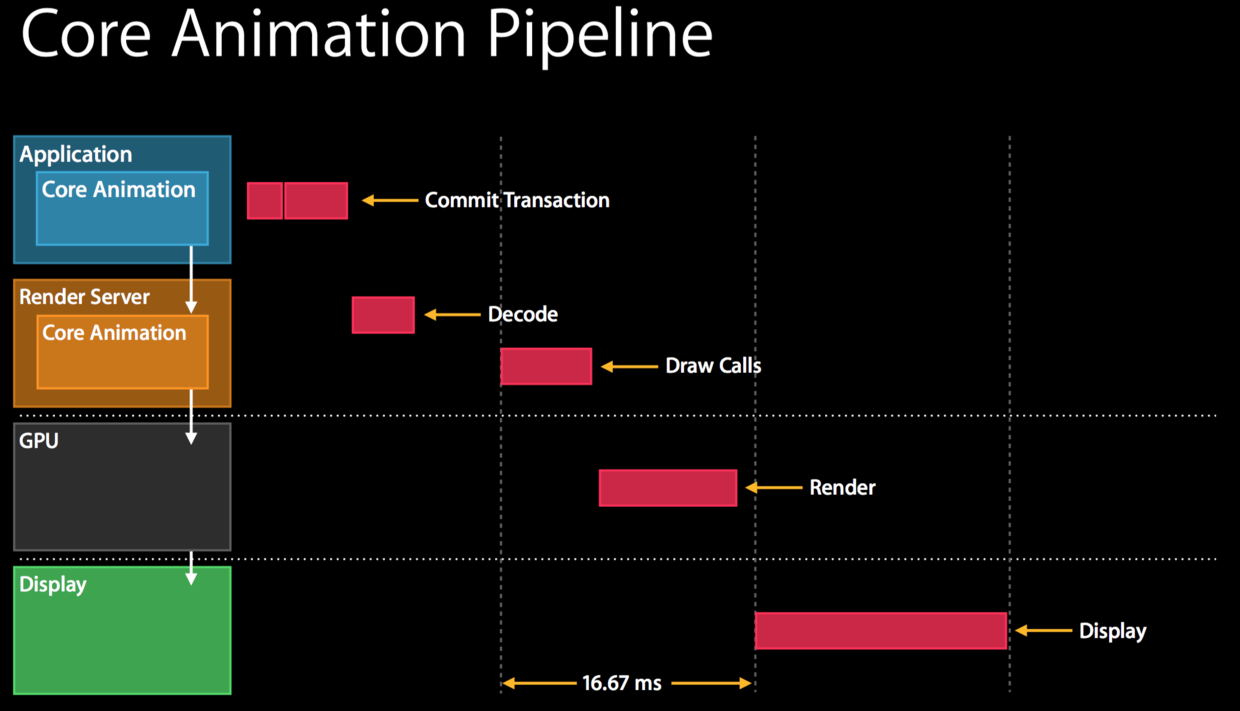
Commit Transaction and Decode occur within the same frame. If together they take longer than 16.67s, Draw Calls is delayed until the next frame, lowering fps. Here is the detailed Commit Transaction process:
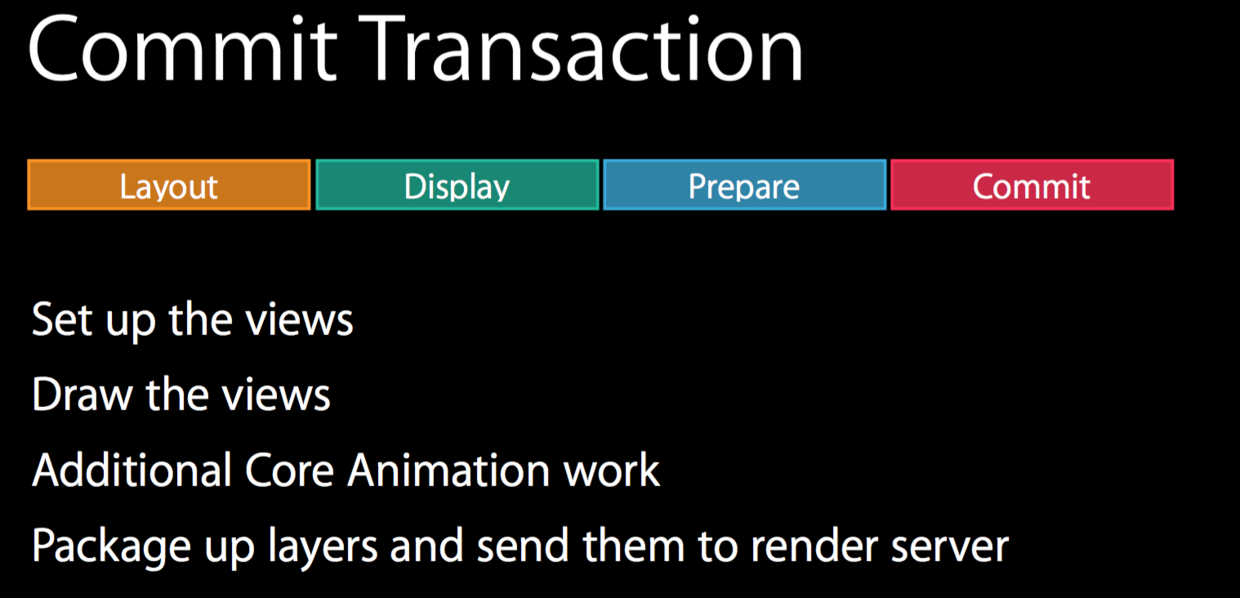
During the third step, Prepare, the CPU mainly does two things:
1. Decompress PNG, JPEG, or another image format to obtain pixel data.
2. If the GPU does not support the color format, the CPU must convert it.
For example, an app may download an image whose format the GPU does not support, requiring the CPU to convert it first. The third option, “Color Copied Images”, detects this on-the-fly conversion and marks affected images blue.
Unfortunately, I am not familiar with image formats or the relevant tools, so I could not reproduce a case that triggers this option. Remember: an image marked blue during debugging indicates an image-format issue.
Image dimensions
The fourth option has fewer uses, so we will move to the fifth: “Color Misaligned Images”. It marks images yellow when scaling is needed and purple when they are not pixel-aligned. Enable it and debug to see the following:
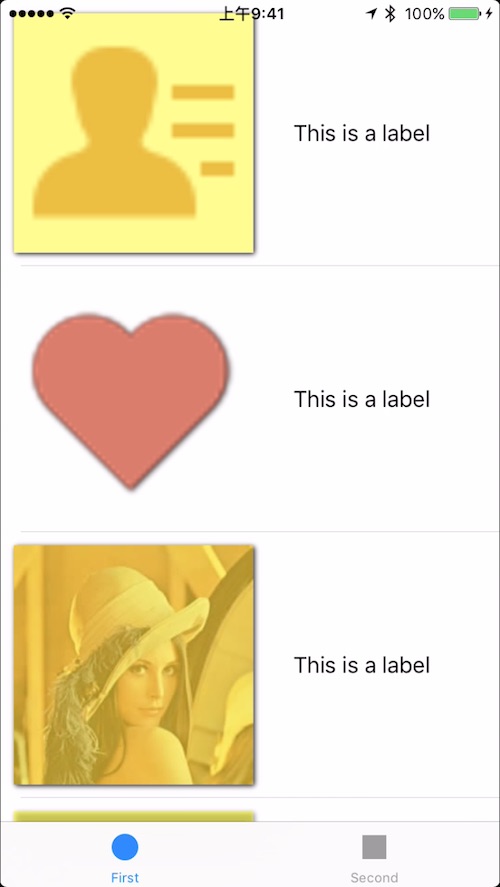
Each UIImageView in the demo is 180x180, but only the second image is 360x360 pixels. All the others therefore need scaling. Scaling takes time, so both local and downloaded images should match their frames as closely as possible. The third optimization is to adjust every image's pixel dimensions to avoid unnecessary scaling.
Offscreen rendering
Offscreen rendering means rendering takes place away from the screen, which may sound unhelpfully obvious. To explain it properly, first consider a normal render pass (Render-Pass):
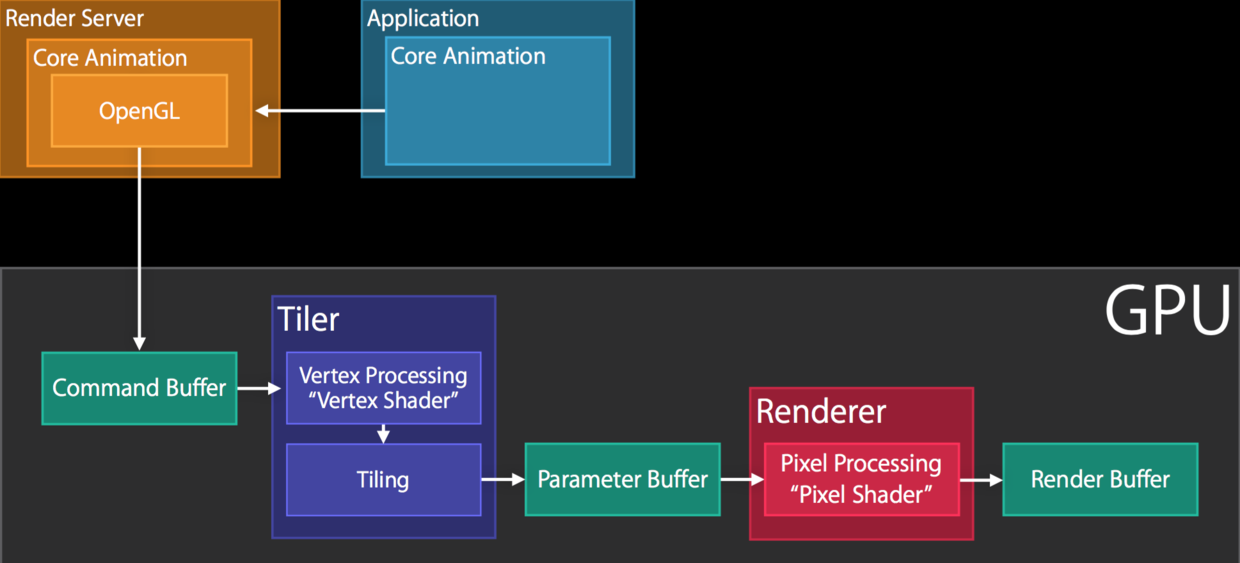
Normally, OpenGL submits a command to the Command Buffer, the GPU renders it, and the result goes into the Render Buffer. Some complex effects cannot be rendered directly and require separate passes followed by compositing—for example, adding a mask:
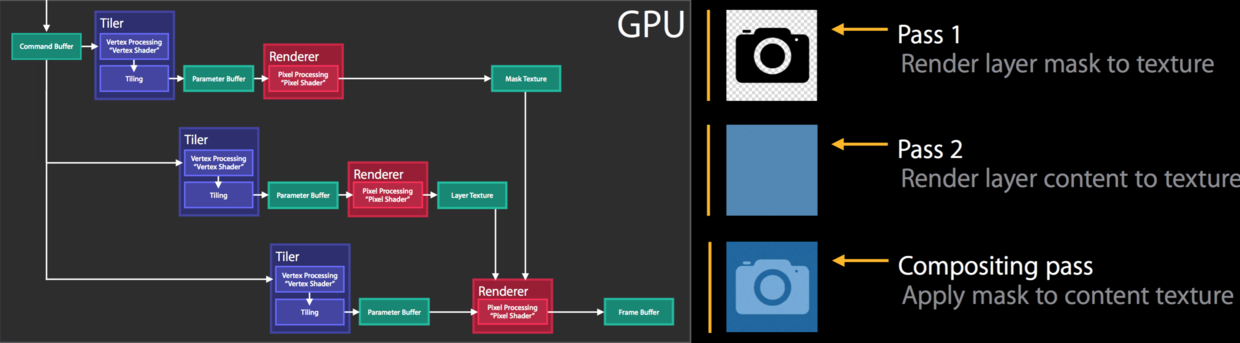
In the first two render passes, the GPU renders the texture—the camera icon—and the layer—the blue mask—separately. Neither result goes directly into the Render Buffer, making this offscreen rendering. They are combined and placed into the Render Buffer only in the third pass. Offscreen rendering temporarily stores results and retrieves them when needed, consuming more resources than normal rendering.
The sixth option, “Color Offscreen-Rendered Yellow”, highlights areas requiring offscreen rendering. Usually, we should minimize yellow. Offscreen rendering can be triggered automatically or manually. The following may trigger it:
Override drawRect
A mask or shadow is present (layer.masksToBounds, layer.shadow*); blur is also a form of mask.
layer.shouldRasterize = true
The first two trigger offscreen rendering automatically; the third enables it manually.
Start debugging and enable “Color Offscreen-Rendered Yellow”. You will see the following:
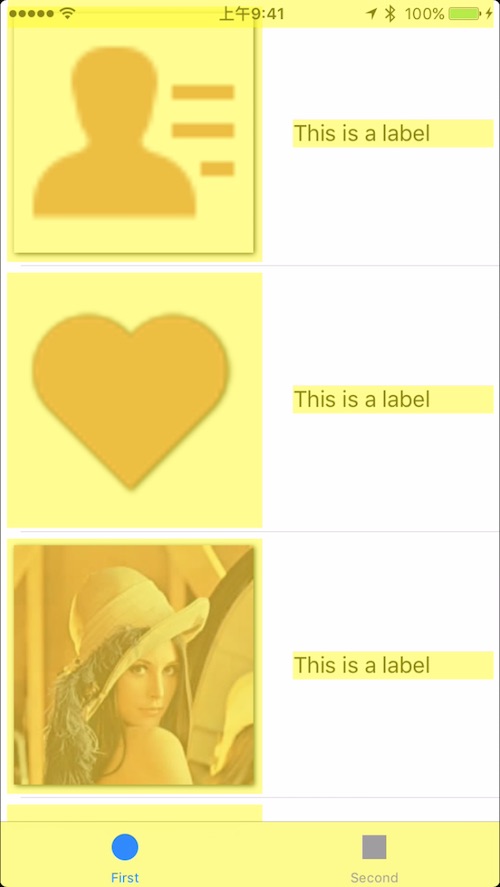
Without the second optimization, the label is yellow too. The tabbar and statusBar are yellow because they use blur. The image is also yellow, indicating offscreen rendering. Looking at the source shows that its shadow is the main cause. For the fourth optimization, add one line below the four lines configuring the shadow:
imgView.layer.shadowPath = UIBezierPath(rect: imgView.bounds).CGPath
This line specifies the shadow path. Without an explicit path, Core Animation calculates it automatically, triggering offscreen rendering. Providing the path avoids that calculation and therefore avoids the offscreen rendering.
Setting cornerRadius alone does not cause offscreen rendering, but it often accompanies layer.masksToBounds = true. As summarized earlier, masksToBounds causes offscreen rendering. Avoid rounded corners during scrolling when possible. If they are necessary, rasterization can cache them:
// 设置圆角
label.layer.masksToBounds = true
label.layer.cornerRadius = 8
label.layer.shouldRasterize = true
label.layer.rasterizationScale = layer.contentsScale
Fast path
Remember the earlier diagram of offscreen rendering and render passes? Its final step combines the preceding passes. Having the CPU perform this compositing can greatly reduce GPU work. This technique may be useful when drawing maps.
The seventh option, “Color Compositing Fast-Path Blue”, marks paths drawn by hardware. More blue is better.
Changed regions
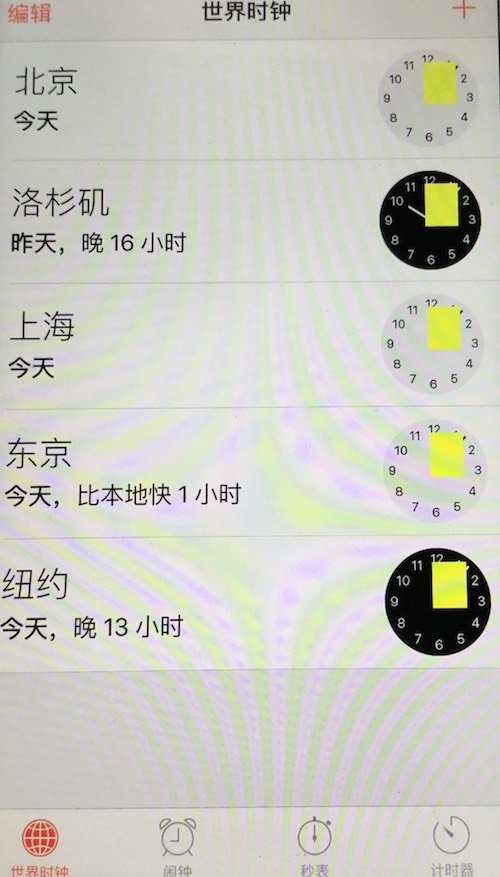
When refreshing a view, minimize the region that must be redrawn. Unchanged content should not be redrawn. The eighth option, “Flash updated Regions”, highlights redrawn areas. The system Clock app is a typical example: most of the time, only the region containing the second hand needs redrawing.
Summary
If you followed these steps, you should have learned quite a bit. Learning without reflection leads to confusion, while reflection without learning is unproductive. After practicing, summarize what you learned. Scrolling optimization mainly involves three areas:
Avoiding layer blending
1. Set the control's opaque property to true and ensure backgroundColor is opaque and matches its parent view.
2. Do not set alpha below 1 unless specifically needed.
3. Ensure UIImage has no alpha channel.
Avoiding on-the-fly conversion
1. Match image dimensions to the frame; do not scale images while scrolling.
2. Ensure the GPU supports the image's color format, avoiding CPU conversion.
Use offscreen rendering cautiously
1. Offscreen rendering affects performance in most cases.
2. Overriding drawRect, setting rounded corners, shadows or blur, and rasterizing can all cause offscreen rendering.
3. Add a shadow path when configuring a shadow.
4. Enable rasterization if rounded corners are needed while scrolling.
Putting it into practice
This article's demo is available at my Github and follow the optimization process yourself. The demo is an intentionally constructed environment, though. I will continue applying these techniques to my own Jianshu-inspired app; you are welcome to learn and discuss them with me.
References:
Draw pixels to the screen; original article: Getting Pixels onto the Screen
Advanced Graphics and Animations for iOS Apps: This is WWDC 2014 Session 419. I strongly recommend watching it.
How to implement an interface properly
Mastering UIKit Performance
Some additional high-quality questions and answers:
What triggers “Color Copied Images” and “Color Hits Green and Misses Red” in Instruments?
UILabel is marked as red when Color Blended Layers is selected
What triggers offscreen rendering, blending and layoutSubviews in iOS?
Recommended reading: Bison's guide to iOS multithreading, part 3