
Audio & video developmentHistorical technical note
Integrating ijkplayer for live video on iOS
Records downloading the source, initialising dependencies, compiling FFmpeg, packaging IJKMediaFramework and adding it to an iOS project. The focus is on the role of each directory and build step in the ijkplayer integration.
Originally credited to jianshu_wl; edited and archived by Bison.
Source listed in the originalOn this page
ijkplayer is an ffmpeg-based framework for live video that supports Android and iOS. Many integration guides exist, but I find them insufficiently detailed. Here is a detailed iOS integration guide that you can follow even if you have never used ijkplayer before.
Editor: Bison
Contributor: jianshu_wl
I. Download ijkplayer
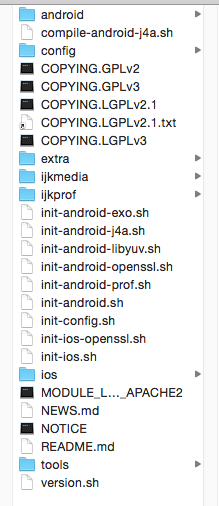
Extract the download. Its folder structure is shown below:
II. Compile ijkplayer
Although this is called compiling ijkplayer, we are actually compiling ffmpeg. Since ijkplayer is already downloaded, some steps in the github README.md's Build iOS section are unnecessary.
Let's compile step by step:
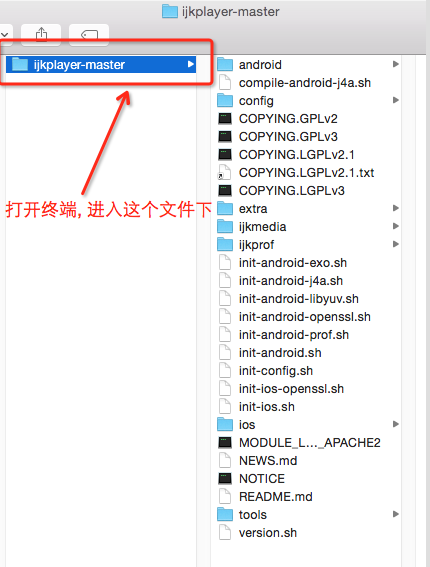
1. Open the terminal and cd into jkplayer-master, the extracted download folder, as shown:
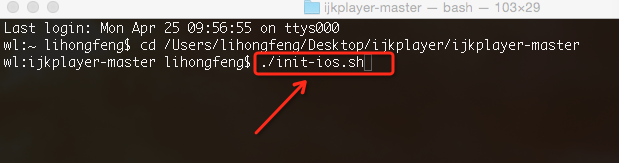
2. Run ./init-ios.sh to download ffmpeg. This takes some time, so be patient. See below:
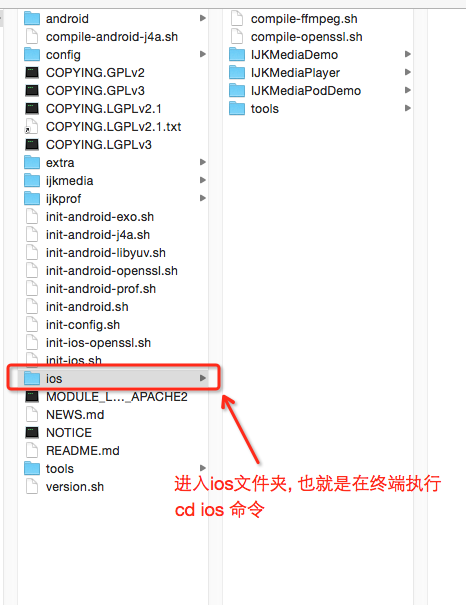
3. After the download in step 2 completes, run cd ios to enter the ios directory, as shown:
4. In the ios folder, run ./compile-ffmpeg.sh clean followed by ./compile-ffmpeg.sh all to compile ffmpeg. These correspond to the two README.md steps shown below:
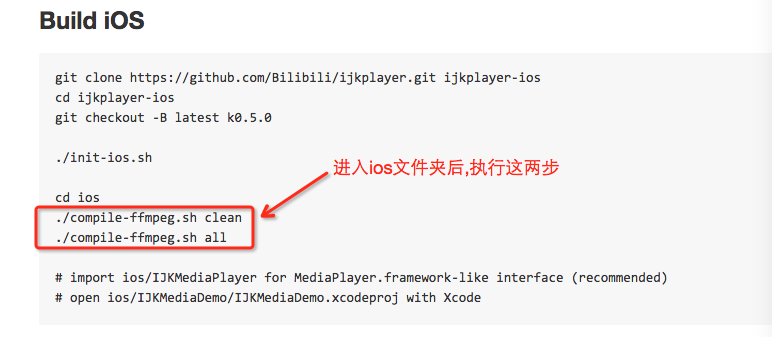
Compilation takes a while; please wait.
III. Package IJKMediaFramework.framework
There are two ways to integrate ijkplayer. One is to import IJKMediaPlayer.xcodeproj directly, as IJKMediaDemo does. That approach is not covered here; it is shown below:
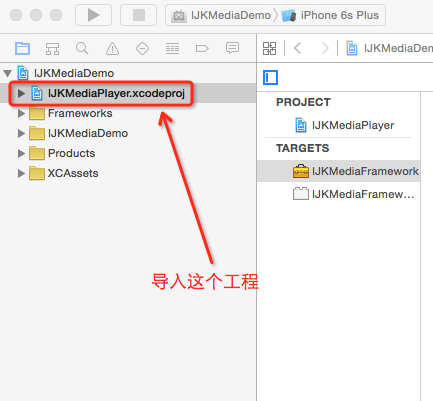
The second integration approach packages ijkplayer as a framework and imports it into the project. Follow these steps to package IJKMediaFramework.framework:
First, open IJKMediaPlayer.xcodeproj at the following location:
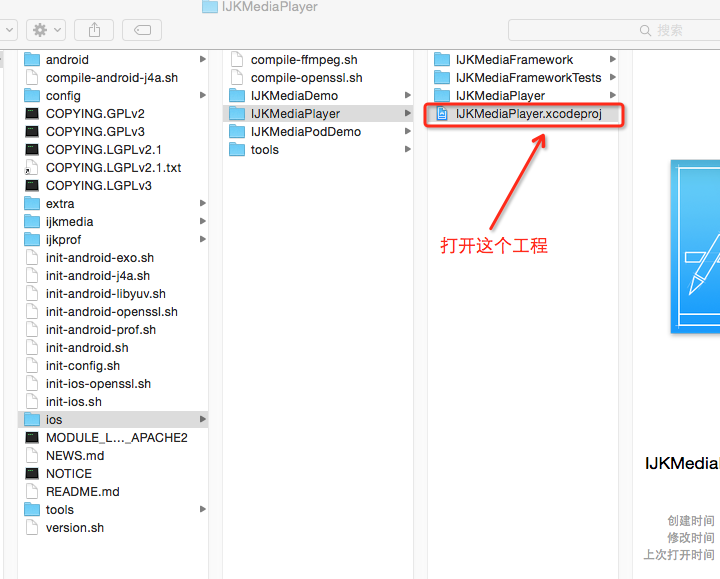
After opening it, you will see:
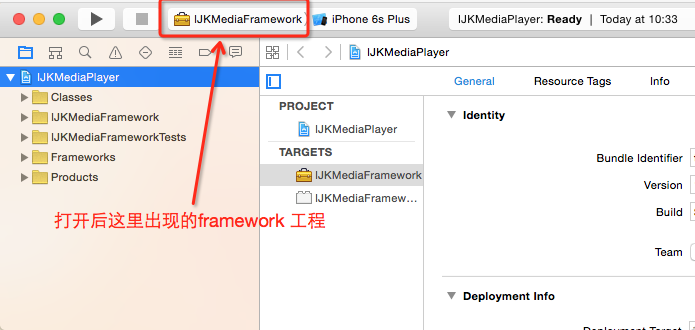
2. After opening the project, configure its scheme as shown:
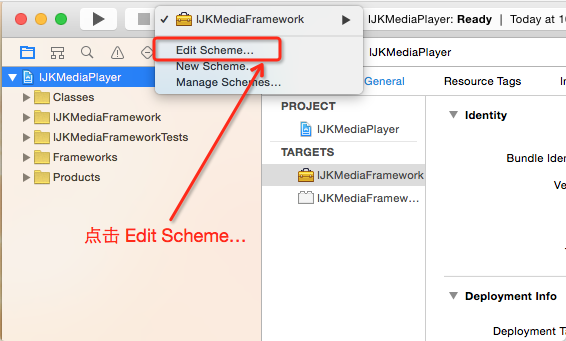
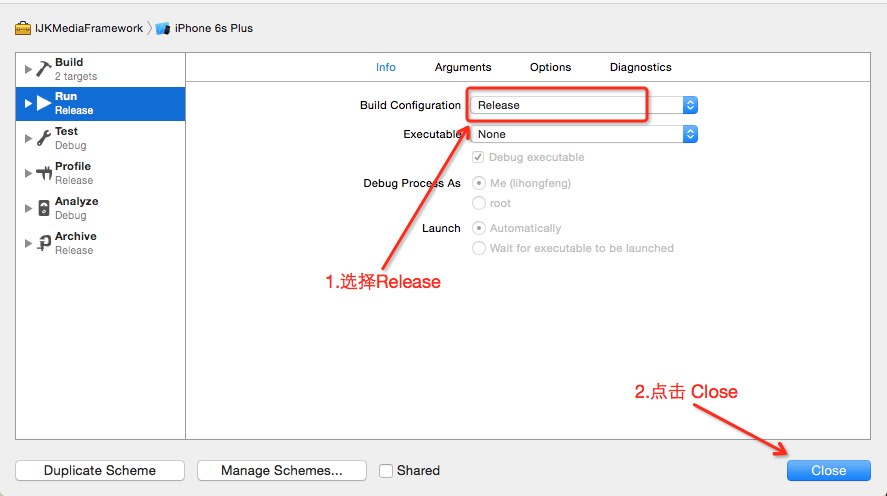
3. Once the scheme is configured, build separately for a device and simulator. When both builds finish, open Finder as shown:
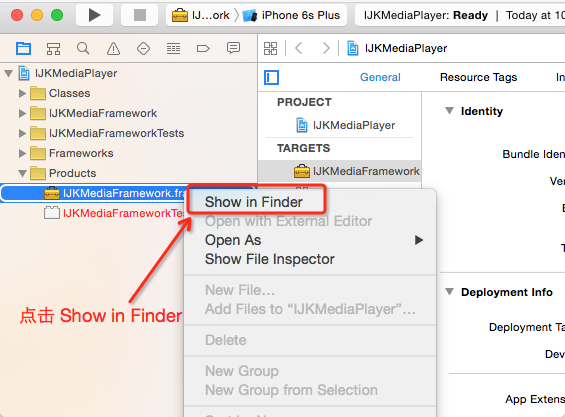
In Finder, you can see separate device and simulator build results:
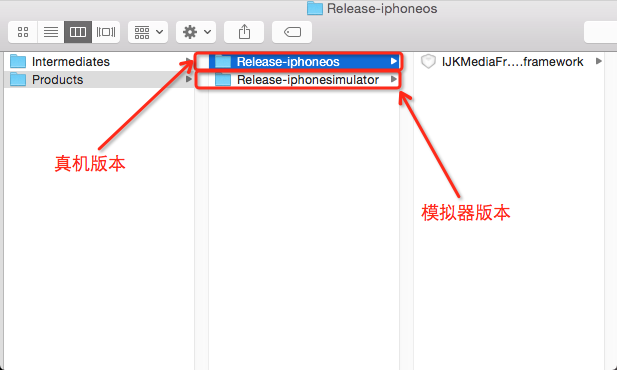
Now merge the device and simulator frameworks. Make sure you merge the correct file, shown here:
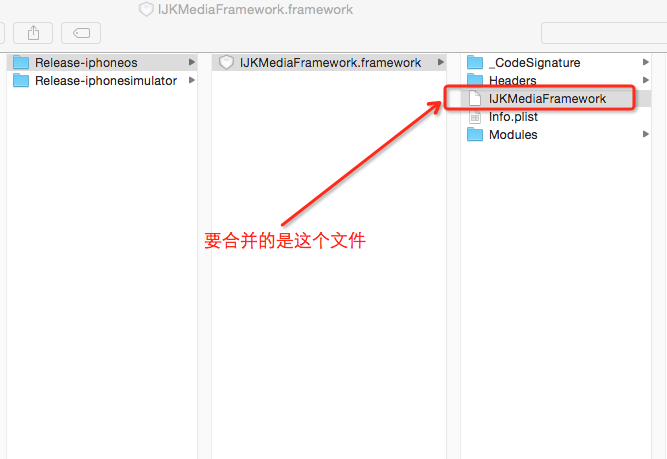
Open the terminal and merge them using this command format:
lipo -create "真机版本路径" "模拟器版本路径" -output "合并后的文件路径"
After merging, it looks like this:
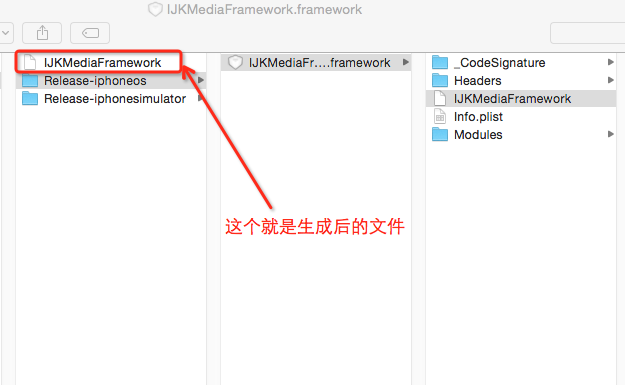
This is important: replace the original IJKMediaFramework with the merged IJKMediaFramework, as illustrated below. Please examine the image carefully.
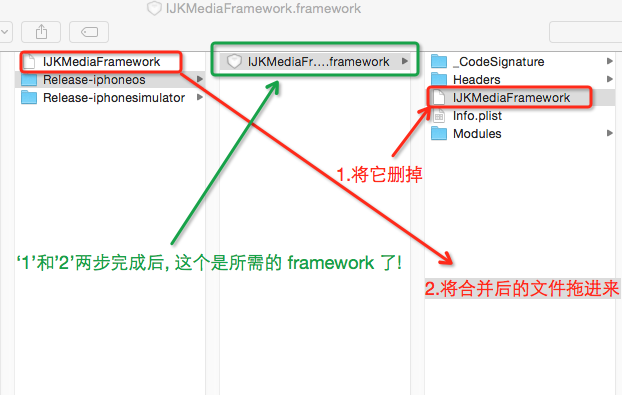
After steps 1 and 2 in the image, the IJKMediaFramework.framework outlined in green is the framework we need. Copy it out; we will import it into the project shortly.
IV. Integrate ijkplayer into an iOS project
Create a project and import the merged IJKMediaFramework.framework and its required dependency frameworks, as shown:
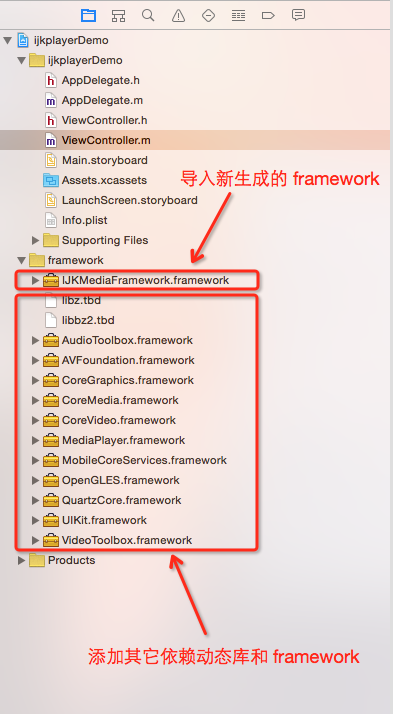
After importing the framework, test it in ViewController.m. First, import IJKMediaFramework.h and compile. If no errors occur, integration has succeeded.
Next, test IJKMediaFramework in ViewController.m with a simple live-video example. The running result is shown here, and a downloadable Demo appears later.

ijkplayer integration is now complete!
Recommended reading: Rich text with hyperlinks on iOS