
Audio & video developmentBison recommends
Give Your NAS Music Library More Than Filenames: MusicScraper Adds Covers and Lyrics
Bison recommends MusicScraper for adding artwork, lyrics and music metadata to a NAS library, with Docker setup, matching advice and licensing context.
Original tool recommendation and deployment guide by Bison, based on official public documentation.
Source listed in the originalOn this page
Your music is already on your NAS, but the player still shows rows of blank covers. Finding an album by artist becomes another struggle with inconsistent tags. You put care into collecting the files, yet listening still feels unfinished. This time, I am recommending a tool worth adding to your NAS: MusicScraper (Music Scraper). Let it organize cover art, lyrics and track information, and make your collection feel like a music library.
I am Bison, an independent developer. When I choose tools, I care about two things: whether they solve a specific problem and whether they fit into everyday use after deployment. Based on its published features, MusicScraper has a clear appeal: it connects metadata lookup, tag completion and ongoing organization around music files you already own. This recommendation and installation guide follows official documentation; I have not tested it against a local music library.
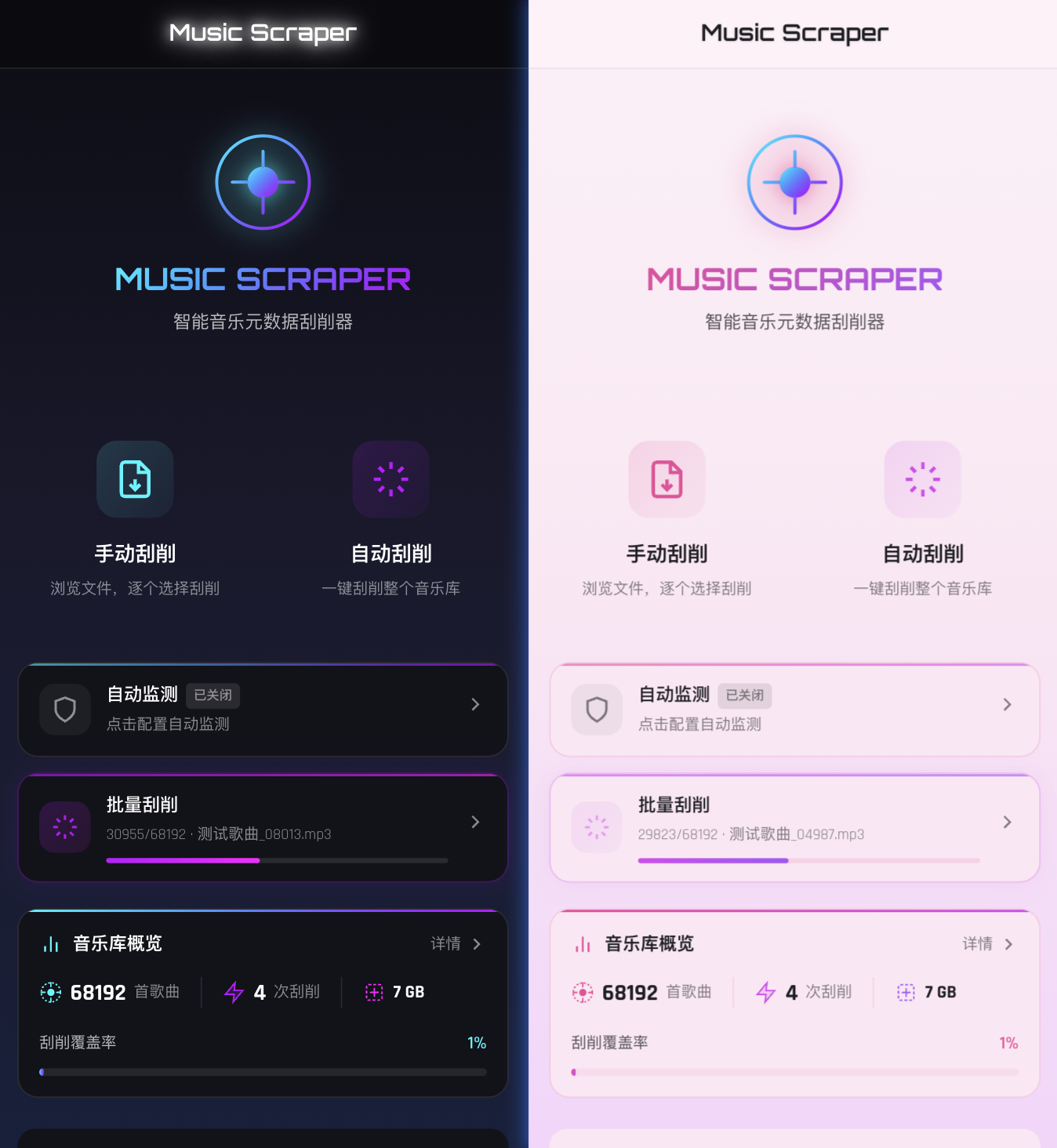
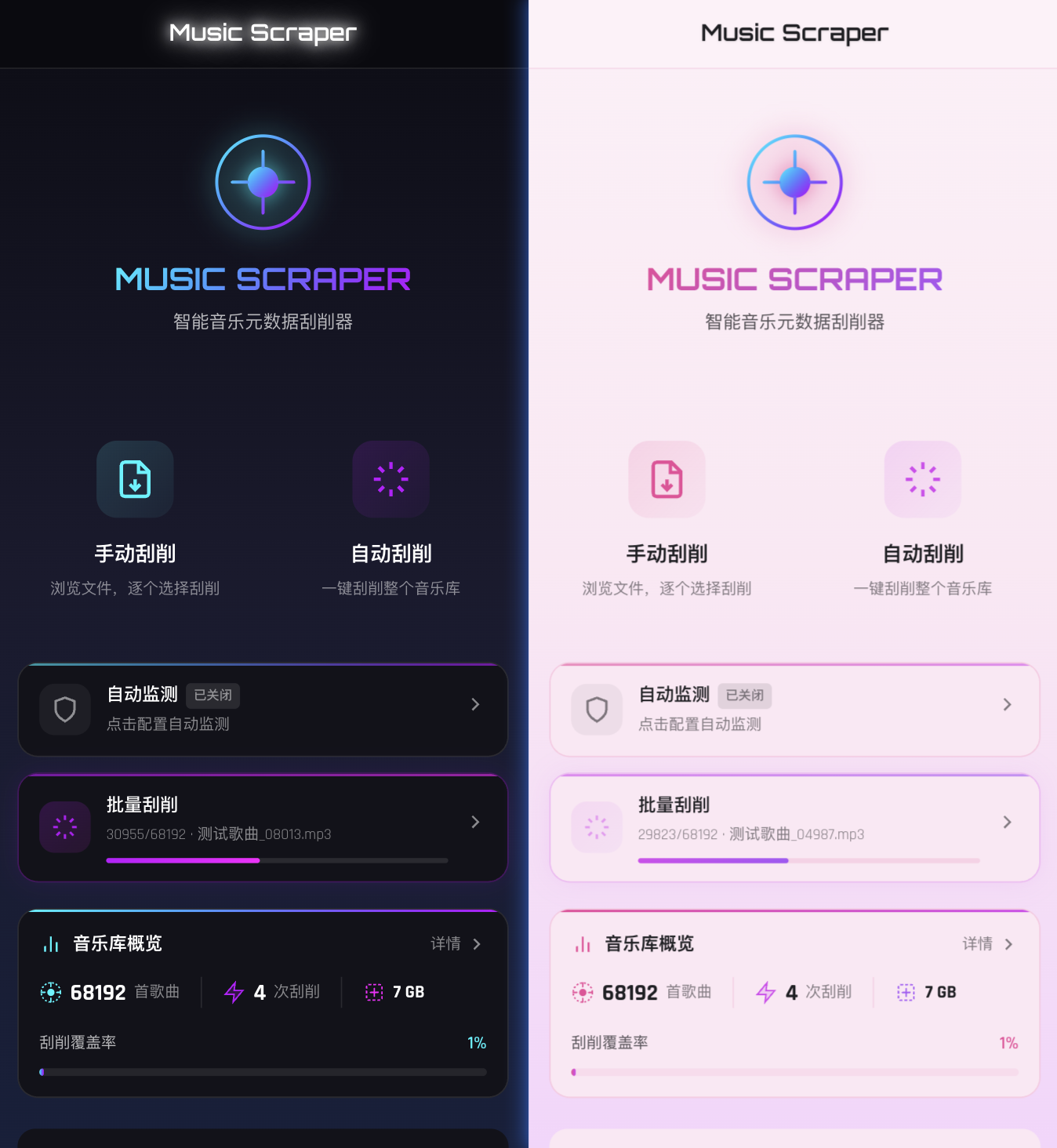
Why I recommend it: better information makes listening easier
Picture a track in your collection: the file plays, but its title is just a number, there is no album cover, and finding the lyrics means opening another page. These are the gaps MusicScraper addresses. It matches local audio files with music metadata, then writes the fields you select.
For NAS music collectors, the value comes in three forms: cover art makes albums easier to recognize, consistent artist and album tags make categories clearer, and lyrics save you another switch away from your music. Whether a particular tag is read, or embedded or separate lyrics are displayed, still depends on your player. After organizing the files, rescan the library in your usual playback app.
My recommendation is straightforward: if you already maintain a local music collection, start by organizing one album you often listen to with MusicScraper. Getting your favorite tracks into shape makes this kind of tool's value easier to appreciate before adding more files to the drive.
Three features that make it worth installing
Multiple sources mean less searching track by track
The official documentation lists QQ Music, NetEase Cloud Music, Kugou, Kuwo, Apple Music and an open database among its sources, alongside confidence-based matching and supplementation across sources. When one source lacks lyrics or cover art, another may fill the gap. That is useful for personal collections spanning genres, languages and decades. See the Docker Hub feature description for source details and capabilities.
Automatic matching still needs your judgment: tracks with the same title, live recordings, remasters and cover versions may correspond to different entries. Check the artist, album and version before confirming a write. For obscure tracks, changing sources or searching manually is more useful than repeatedly waiting for the same automatic result.
Complete a batch, then monitor new additions
MusicScraper supports batch processing of folders and directory monitoring that detects new or modified music files and triggers scraping. Organize an initial batch, then configure monitoring around your own habits to reduce repeated work after each import. The official guide also describes field selection, matching thresholds and options to skip existing information, so you can enable them gradually to suit your library. Find the relevant controls in the official usage guide.
The approach I recommend is: process a few copies first, check the results, expand to one directory, and then enable ongoing monitoring. Taking time to choose which fields to write makes later organization easier.
Manage covers and lyrics together, including from your phone
The official web interface adapts to mobile screens. On the same local network, you can operate the NAS service from a desktop or phone browser. Lyrics can be saved as separate LRC files or embedded in supported formats, and manual editing lets you correct matching results.
Format support depends on the operation: common formats such as MP3, FLAC and M4A support writing tags, cover art and lyrics; WAV has limited tag support; DSF, DFF and DTS currently support metadata reading only. Recognizing a format does not mean every field can be edited. See the official audio format table for the detailed limits.
Install with Docker: copy the configuration and set your directories
The deployment instructions on the official GitHub page link directly to minzgo/music-scraper. The Docker Hub image is the installation source specified by the project documentation and supports amd64 and arm64. The example below uses the latest tag so Docker can select the matching architecture. Your NAS still needs a Docker or container environment capable of running that image.
Save the following as compose.yaml in your NAS container project directory. Replace /你的音乐目录 with the actual absolute path, and create a data subdirectory first to hold configuration, databases and other application data. For your first attempt, mount a small test music directory.
services:
  music-scraper:
    image: minzgo/music-scraper:latest
    container_name: music-scraper
    ports:
      - "7301:7301"
    volumes:
      - /你的音乐目录:/app/music
      - ./data:/app/data
    environment:
      - TZ=Asia/Shanghai
    restart: unless-stopped
Run these commands from the directory containing the configuration file:
docker compose pull
docker compose up -d
Then open http://你的NAS_IP:7301 in your browser. If your NAS provides a Compose or project management interface, you can import this configuration there. The music directory needs write permission to save tags and lyrics. If host port 7301 is already occupied, change the left side of the port mapping and use the new port when connecting. This configuration follows the Docker Hub basic deployment instructions.
/app/music holds music files, while /app/data holds application data; they serve different purposes. Backing up application data preserves settings and related information, while audio tags are written back into the music files. Keep a backup or snapshot of the original music before batch operations as well. Enable a login password and configure two-factor authentication if needed.
After installation, use these five steps to see the results
- Choose a copy of an album you often play. Familiar music makes it easier to judge whether the artwork and version match.
- Open the file browser and scrape one track first. Select a source, review the results, check the title, artist and album, and then choose the fields to write.
- Check the audio and lyrics. Confirm that the tag changes match your expectations, rescan in your usual player, and inspect the artwork, categories and lyric display.
- Expand to batch processing of the album directory. Set options to skip existing information as needed, and review failure and skipped-file records to avoid blindly overwriting tags you have maintained.
- Enable monitoring after confirming the results. Apply the same workflow to new additions. If something goes wrong, check file permissions, data sources and matching results in turn.
This is what I suggest doing now: organize one album first, then decide how to expand to your whole library. The installation links and configuration are already here; you do not need to wait for a bigger collection to start organizing.
Go further with Music Toolbox for automatic classification
If you also want organized output directories arranged by artist, album or other categories, explore the companion Music Toolbox. The official description includes hard-link organization, classification and renaming, with the option to link these actions to scraping tasks.
Keep the deployment scope clear: the single-container configuration above installs the basic scraper; hard-link organization requires a separate toolbox service. Hard links require the source files and output location to share a filesystem, and they share file contents, so they are not independent backups. When you are ready, follow the Docker Hub joint deployment instructions to configure communication between the services and their directory mounts.
Check the license terms before getting started
The official activation documentation describes a trial and device-bound activation, with different expiry permissions for automatic, batch and manual scraping. It lists a 30-day trial after first installation, but documentation and image releases follow different schedules. Check the current version's interface and the author's information for the actual trial duration, activation method and any fees. This article does not describe it as a permanently free tool with every feature unlocked.
If you want your existing collection to look better and become easier to find, MusicScraper is worth trying early. The reason for recommending it is specific: it brings cover art lookup, lyric retrieval and tag correction into one NAS web tool, then reduces repeated work through batch processing and monitoring.
Give the music you carefully collected more than a place on your drive. Deploy MusicScraper now, start with one album, and organize a library you want to open every day.
Sources checked on November 14, 2026. This tool promotion and deployment guide was written by Bison, with feature descriptions based on the project's public documentation. Version examples differ between the GitHub README and Docker Hub, so check the image tags and activation page before installation. Further reading on this site: audio and video development notes and Bison's development and tool articles.