
Web & development notesHistorical technical note
Setting Up React Native for iOS Development on a Mac
Records a React Native setup on macOS: installing Homebrew, Node.js, watchman, and flow, creating a project, opening the iOS project, and refreshing code in the simulator.
Originally credited to Bison. Content is retained as published.
On this page
1. If your Mac does not have Homebrew Install in this order:
- Open Terminal and enter:
ruby -e "$(curl -fsSL https://raw.githubusercontent.com/Homebrew/install/master/install)"
- Update Ruby; older versions cannot install some components.
brew install ruby
2. Install Node.js
Here I download and install it directly.Node.js: https://nodejs.org/en/download/ Simple and convenient.
3. Install watchman and flow Execute these two commands separately:
brew install watchman

brew install flow
3. Install React-Native
sudo npm install -g react-native-cli
Then enter your login password. Success produces this message:

The environment is configured. Create a test project with the following code:
react-native init testProject
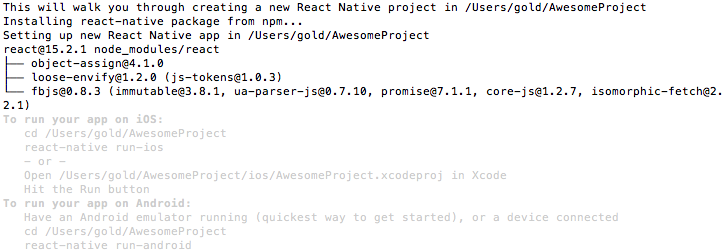
testProject is the project name and can be changed. Wait After a while,depending on network conditions, project initialisation completes. Success looks like this:
4. Enter the project directory
cd testProject
The directory structure is:
golddeMac-mini: testProject gold$ ls -l
total 24
drwxr-xr-x  10 gold  staff   340  7 27 10:46 android
-rw-r--r--   1 gold  staff  1103  7 27 10:46 index.android.js
-rw-r--r--   1 gold  staff  1069  7 27 10:46 index.ios.js
drwxr-xr-x   5 gold  staff   170  7 27 10:46 ios
drwxr-xr-x   5 gold  staff   170  7 27 10:46 node_modules
-rw-r--r--   1 gold  staff   238  7 27 10:46 package.json
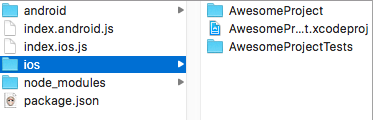
android and ios contain the respective platform projects. index.android.js and index.ios.js are their corresponding JavaScript files.
5. Run the project
For iOS, open the project in Xcode and run it. Edit index.ios.js, then press ⌘ + R in the simulator to reload JavaScript and see the changes.
Debugging on an iOS device is simple too: change the HTTP address.
jsCodeLocation = [NSURL URLWithString:@"http://localhost:8081/index.ios.bundle"];
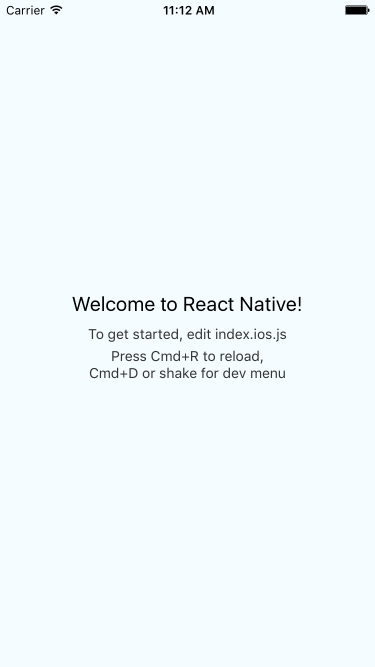
Successful execution looks like this:
References: Official React Native documentation
Questions are welcome in the comments. If helpful, give it a like. Time permitting, I will continue sharing what I learn about React Native.