
Web & development notesHistorical technical note
WeChat Mini Programs from Scratch, Part 3
Connects an article list to a network request, reads the response, updates the page with setData, and adjusts WXML field bindings. It also records the limitations encountered at the time with image URLs and HTML5 detail pages.
Originally credited to Bison. Content is retained as published.
On this page
WeChat Mini Programs from Scratch, Part 1
WeChat Mini Programs from Scratch, Part 2
The first two chapters built a mini program structure and displayed an article list. This article covers network requests for that list and connecting the returned data.
First, find index.js, then consult WeChat mini program network-request documentation The sample code is easy to find:
wx.request({
  url: 'test.php',
  data: {
     x: '' ,
     y: ''
  },
  header: {
      'Content-Type': 'application/json'
  },
  success: function(res) {
    console.log(res.data)
  }
})
url is the interface to request.
data contains our request parameters.
header sets the request headers; Referer cannot be set there.
success is the callback invoked after a successful response from the developer's server, with res = {data: ‘content returned by the developer server’}.
console.log( res.data ) prints the response data.
The default request method is get. We will use that here. The code is:
onLoad: function () {
    console.log('onLoad')
    var that = this
    wx.request( {
      url: 'http://sep9.cn/qt5wix',
      data: {},
      header: {
        'Content-Type': 'application/json'
      },
      success: function( res ) {
        console.log( res.data )
      }
    })
  }
Run it to check whether the request returns data. The result is shown below:
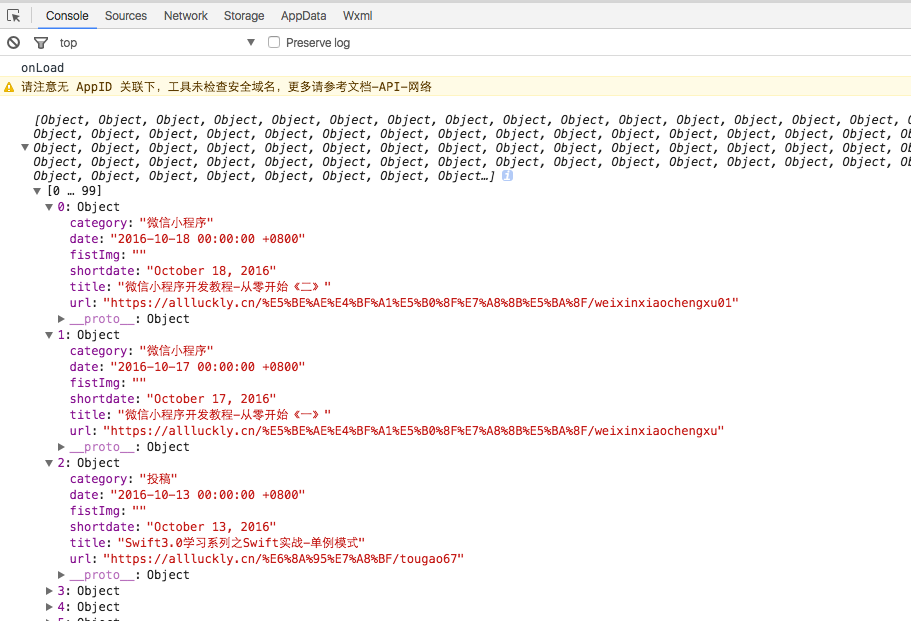
The request succeeded. Simple, right? 😄 Now let us populate the corresponding UI.
First, add this code in the successful-response handler:
success: function( res ) {
        console.log( res.data )
          that.setData( {

          })
      }
The that.setData( { }) method mainly assigns the data.
The returned data is res.data. Printing it shows the same structure as our hard-coded data, but with different field names. Assign the fetched values to the existing data source, then change its fields to match the network response. The final code follows:
//index.js
//获取应用实例
var app = getApp()
Page({
  data: {
    newList:[
    ]
  },
  //事件处理函数
  bindViewTap: function() {
    wx.navigateTo({
      url: '../logs/logs'
    })
  },
  onLoad: function () {
    console.log('onLoad')
    var that = this
    wx.request( {
      url: 'http://sep9.cn/qt5wix',
      data: {},
      header: {
        'Content-Type': 'application/json'
      },
      success: function( res ) {
        console.log( res.data )
          that.setData( {
            newList: res.data
          })
      }
    })
  }

})
Change the field bindings in index.wxml to match the server response, then run it. The result follows:
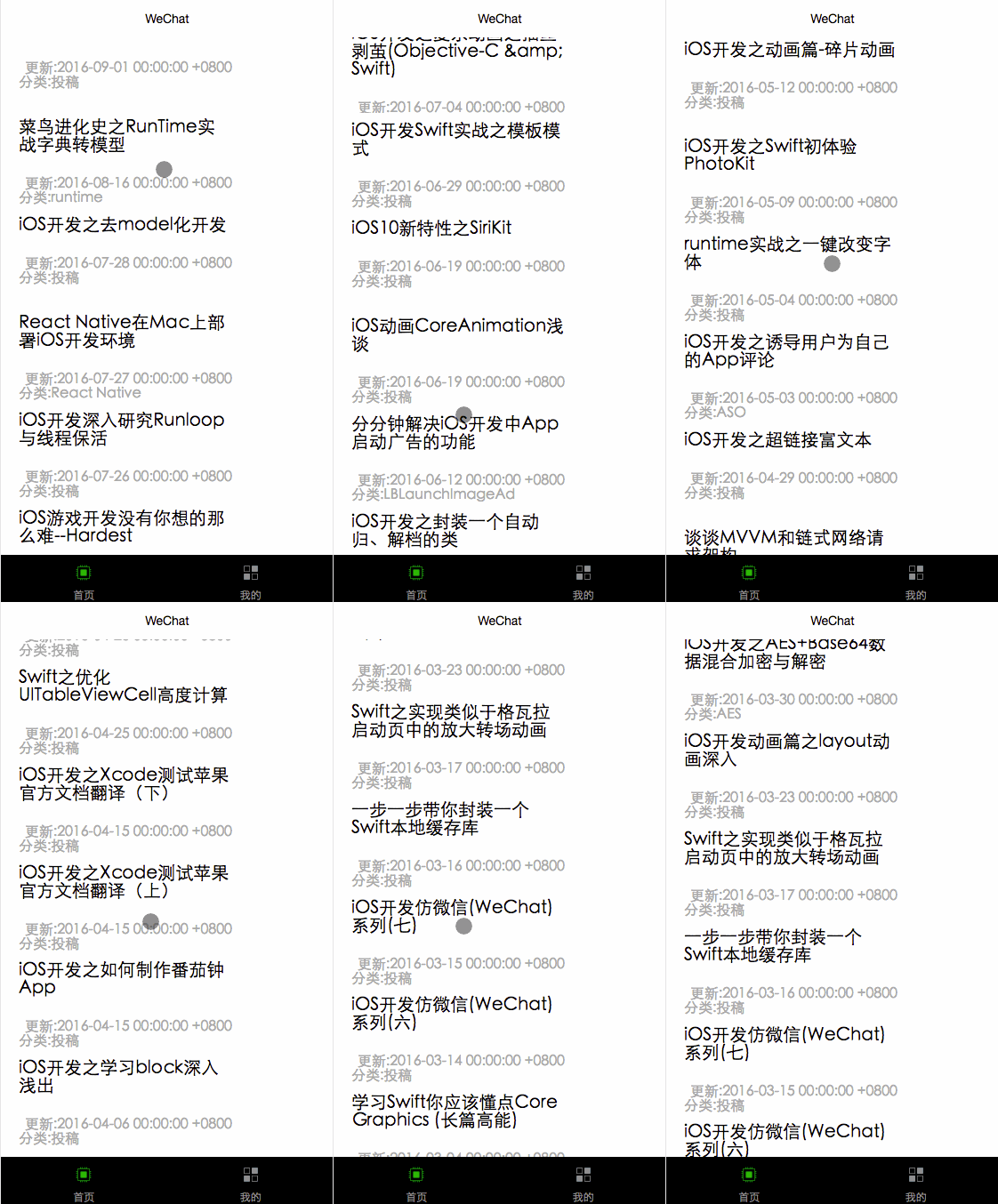
For some reason, the image URLs returned by this interface do not display in the mini program. To bring the result closer to the intended design, I added some web images locally to the data source:
data: {
    newList:[{fistImg:"http://img0.imgtn.bdimg.com/it/u=1640246403,1832676351&fm=21&gp=0.jpg"} ,
             {fistImg:"http://a.hiphotos.baidu.com/image/pic/item/c8ea15ce36d3d539be4d77b83f87e950352ab05c.jpg"} ,
             {fistImg:"http://h.hiphotos.baidu.com/image/pic/item/8d5494eef01f3a2922e765c99b25bc315c607c8d.jpg"} ,
             {fistImg:"http://c.hiphotos.baidu.com/image/pic/item/3b292df5e0fe9925ae23d95736a85edf8db1718d.jpg"} ,
             {fistImg:"http://g.hiphotos.baidu.com/image/pic/item/faedab64034f78f099a529f47b310a55b3191c0e.jpg"} ,
             {fistImg:"http://g.hiphotos.baidu.com/image/pic/item/bd315c6034a85edf9ba34e244b540923dd54758d.jpg"} ,
             {fistImg:"http://f.hiphotos.baidu.com/image/pic/item/00e93901213fb80e0ee553d034d12f2eb9389484.jpg"} ,
             {fistImg:"http://img1.imgtn.bdimg.com/it/u=2955244448,132069077&fm=21&gp=0.jpg"} ,
             {fistImg:"http://image.tianjimedia.com/uploadImages/2014/127/32/VP974HZ0AXL2.jpg"} ,
             {fistImg:"http://img0.imgtn.bdimg.com/it/u=1640246403,1832676351&fm=21&gp=0.jpg"} ,
             {fistImg:"http://img0.imgtn.bdimg.com/it/u=1640246403,1832676351&fm=21&gp=0.jpg"} ,
             {fistImg:"http://img0.imgtn.bdimg.com/it/u=1640246403,1832676351&fm=21&gp=0.jpg"} ,
             {fistImg:"http://img0.imgtn.bdimg.com/it/u=1640246403,1832676351&fm=21&gp=0.jpg"} ,
             {fistImg:"http://img0.imgtn.bdimg.com/it/u=1640246403,1832676351&fm=21&gp=0.jpg"} ,
             {fistImg:"http://img0.imgtn.bdimg.com/it/u=1640246403,1832676351&fm=21&gp=0.jpg"} ,
             {fistImg:"http://img0.imgtn.bdimg.com/it/u=1640246403,1832676351&fm=21&gp=0.jpg"}
    ]
  }
I picked a few images to see how it looks. 😄
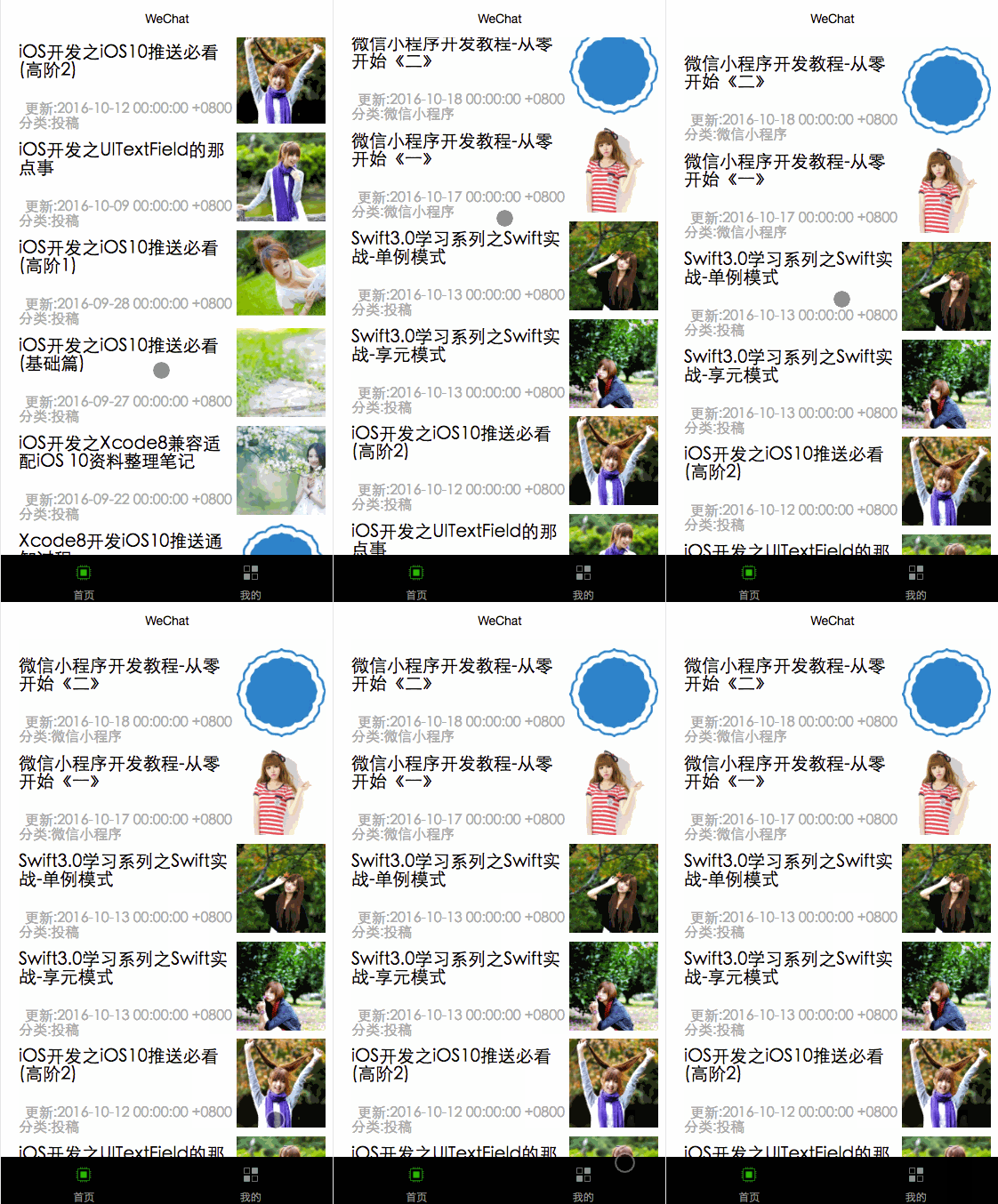
I wanted to build the detail page too, but the interface returns H5 content, and mini programs apparently cannot load H5 directly. If you know how, please leave a comment. I know nothing about H5 myself. 😄
This article is an original work by Bison. Credit the source when reproducing it; otherwise, legal responsibility will be pursued.
Recommended reading: Implement an iOS launch-screen advertisement in minutes