
Web & development notesHistorical technical note
WeChat Mini Programs from Scratch, Part 2
Adds an article detail page to the existing list, using navigator for navigation and parameters. It then adjusts spacing, image placement, and text layout in WXSS to refine the list into the intended page design.
Originally credited to Bison. Content is retained as published.
On this page
From WeChat Mini Programs from Scratch, Part 1
, we learned to set up a WeChat Mini Program and display an article list. This article covers tapping list items and refining the UI to achieve the intended result.
First, create the files required by the detail screen, as shown:
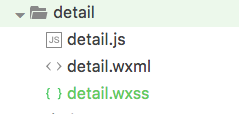
For now, create a simple detail page; the main goal is learning navigation.
First, put some arbitrary content on the detail page:
<!--detail.wxml-->
<view class="container">
666666
</view>
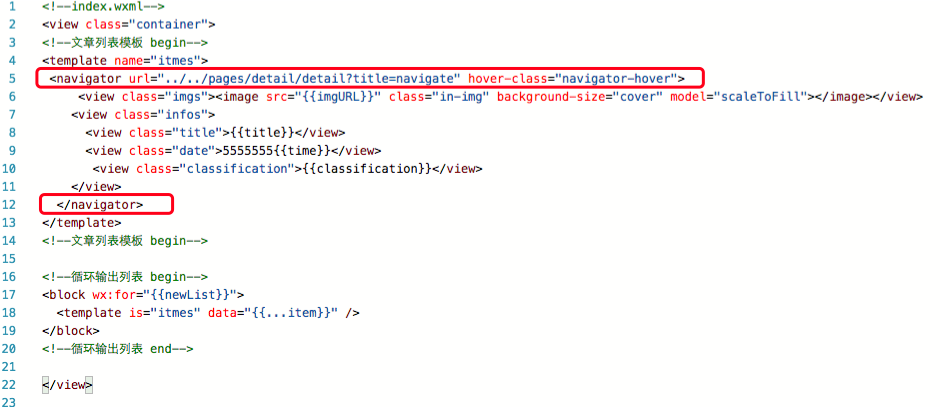
The detail page will display 666666. Then write the navigation code in index.wxml; the main code follows:
<navigator url="navigate?title=navigate" hover-class="navigator-hover">
跳转到新页面
</navigator>
Here, url is the in-app navigation link, title=navigate is the field passed to the destination, and hover-class specifies the class used while pressed. With hover-class="none", there is no pressed-state effect. The complete code is in the outlined area of the image below.
Run it to see the following result.
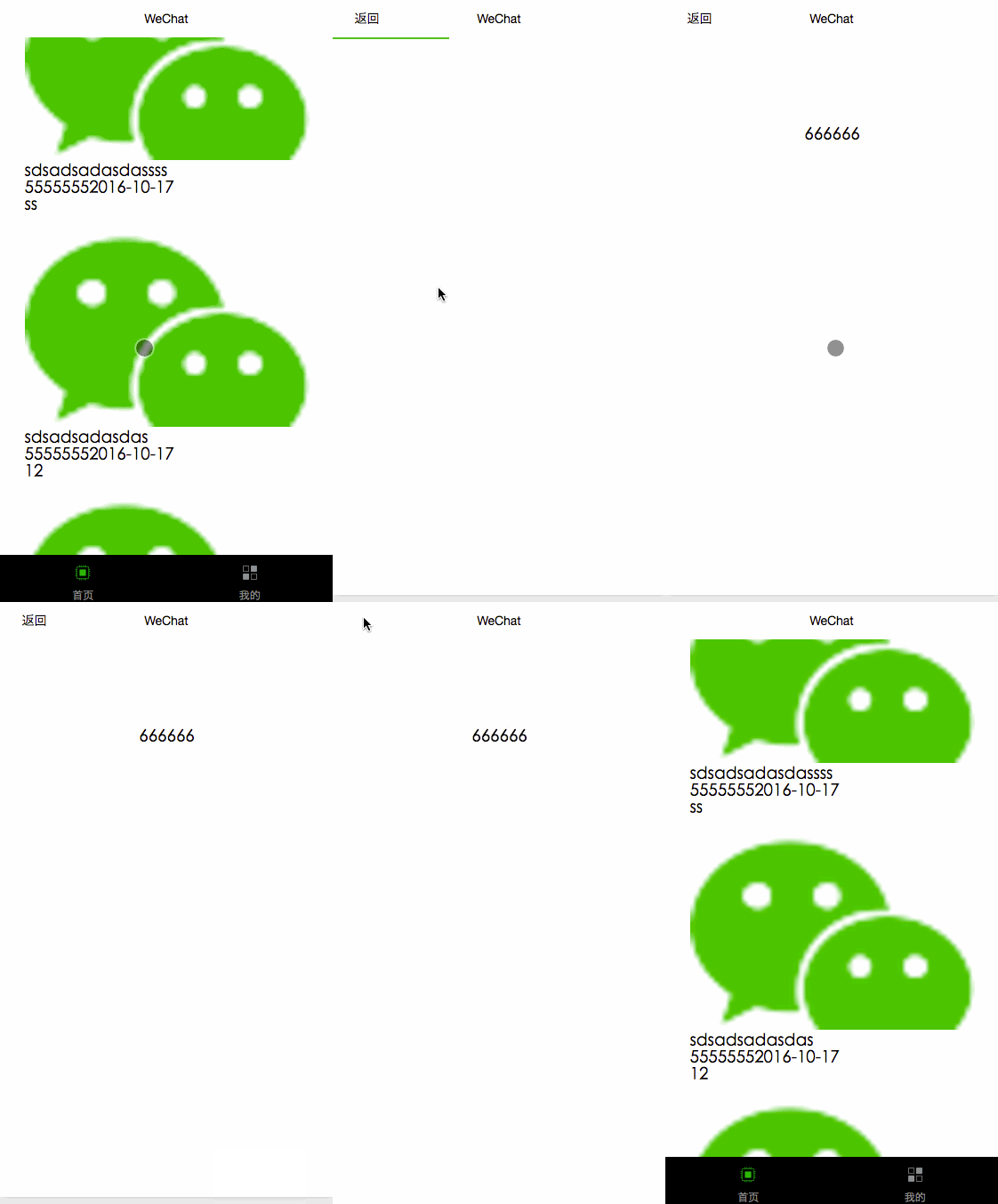
The image shows that navigation is working. Next, improve the homepage UI, mainly in index.wxss, defining settings for each control's class name. Start with the whole page, using the following code:
/**index.wxss**/
.list {
  height: 100%;
  display: flex;
  flex-direction: column;
  padding: 20rpx;
}
padding specifies inner spacing. The homepage's class is list, so use .list{} to style it. Next style the navigator block and each list item, which I named cell to feel familiar to iOS developers. The full code follows:
navigator{ overflow: hidden;}

.cell{
  margin-bottom:  20rpx;
  height: 200rpx;
  position: relative;
}
Next, set the image's position in the cell:
.imgs{
  float: right;
}
.imgs image {
  display: block;
  width: 200rpx;
  height: 200rpx;
}
The code right-aligns the image and sets both width and height to 200rpx. Run it to check whether the image changes.
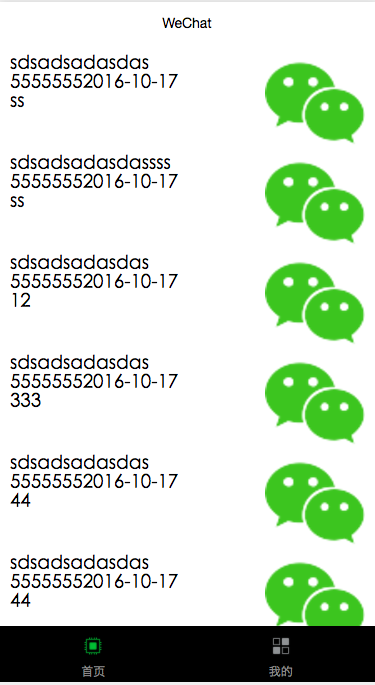
The image should now roughly match our target. Next, adjust the title and remaining UI. Place those elements in class=”infos”; first, configure that whole area's layout:
.infos {
  float: left;
  width: 480rpx;
  height: 200rpx;
  padding: 20rpx 0 0 20rpx;
}
Then configure each component as follows:
.title {font-size: 20px;}

.date {
  padding-top: 50rpx;
  float: right;
  font-size: 16px;
  color: #aaa;
  position: relative;

}
.classification{
  padding-top: 50rpx;
  font-size: 16px;
  color: #aaa;
  position: relative;
}
Finally, run it and inspect the result:
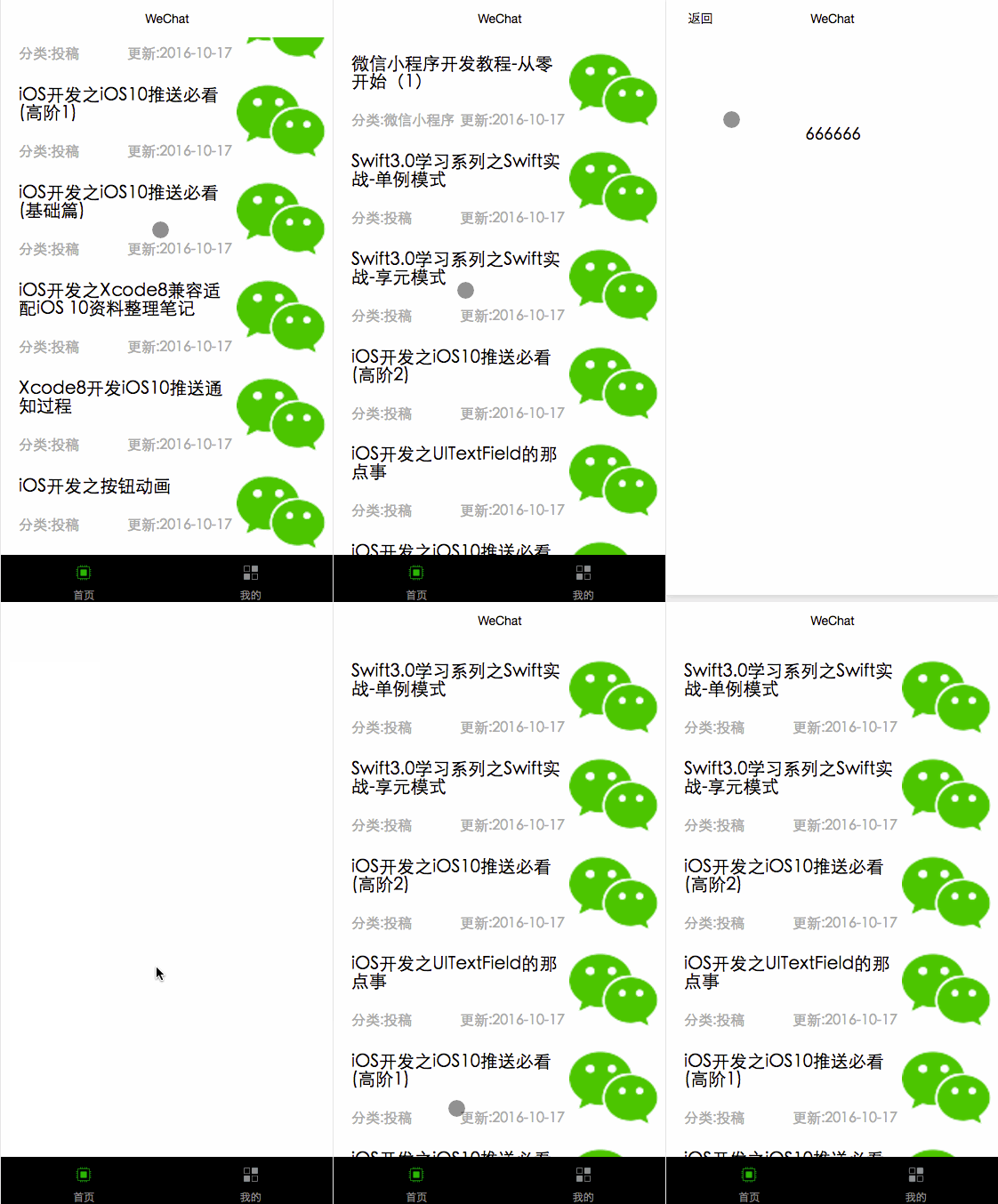
When I have time, I will cover network requests and combine them with this demo write
This article is an original work by Bison. Credit the source when reproducing it; otherwise, legal responsibility will be pursued.
Recommended reading: Implement an iOS launch-screen advertisement in minutes