
Data & networkingHistorical technical note
Remote notifications with JPush: a detailed integration guide
Prepares remote notifications through App ID configuration, push capabilities and certificate requests, then integrates the JPush SDK. Development and production settings, certificate export and client callbacks document an early push-notification setup workflow.
Originally credited to WzxJiang; edited and archived by Bison.
Source listed in the originalOn this page
Editor: Bison
Contributor: WzxJiang
Yesterday, our company project needed remote notifications. Implementing everything ourselves would be troublesome, so we used JPush. Below, I explain how to create push certificates and use JPush for remote notifications.
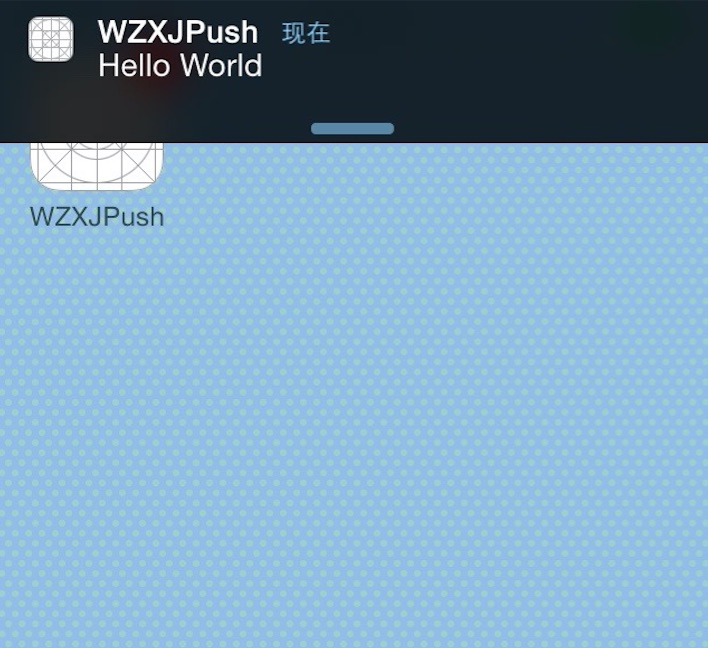
First, let's download the push certificates. These initial steps are simple; skip ahead if you already know them. Jianshu does not support jumping within the page.
Most online push-certificate tutorials are several years old. Downloading a certificate is now straightforward.
First, open Apple Developer Center
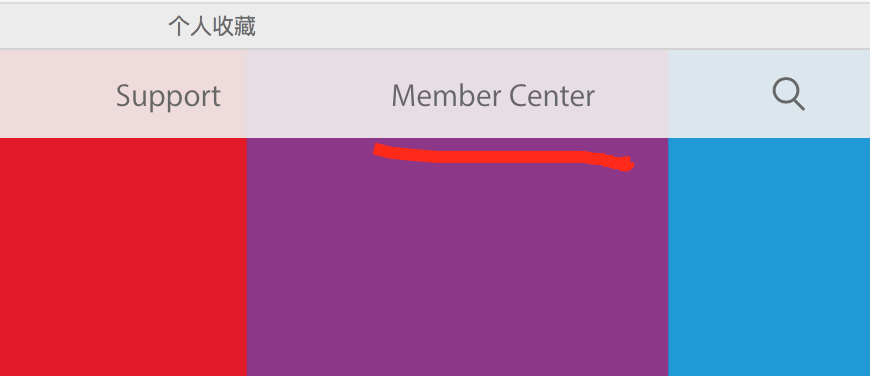
- Click Member Center.
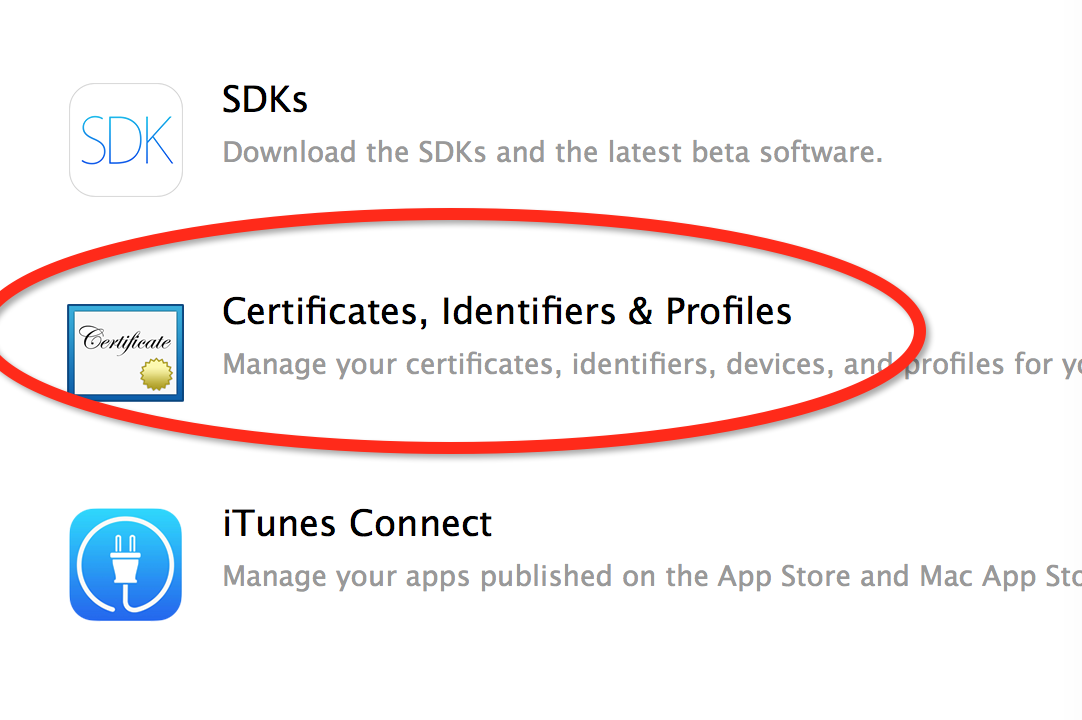
- After signing in, click Certificates,Identifiers & Profiles.
- Click either one.
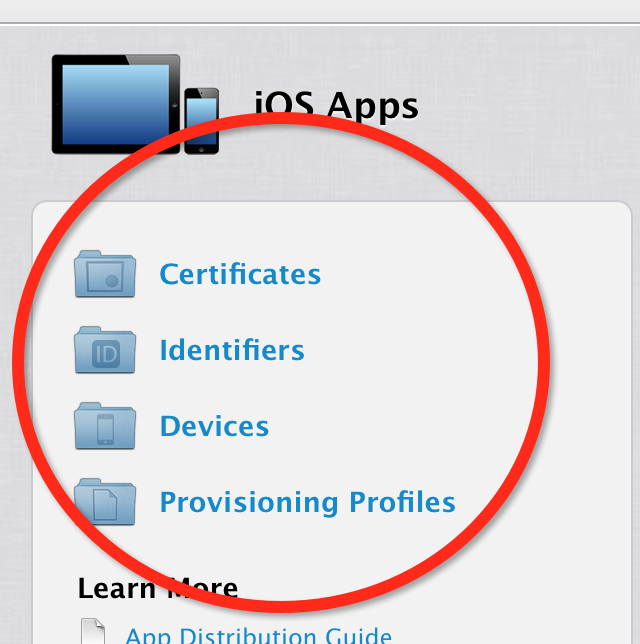
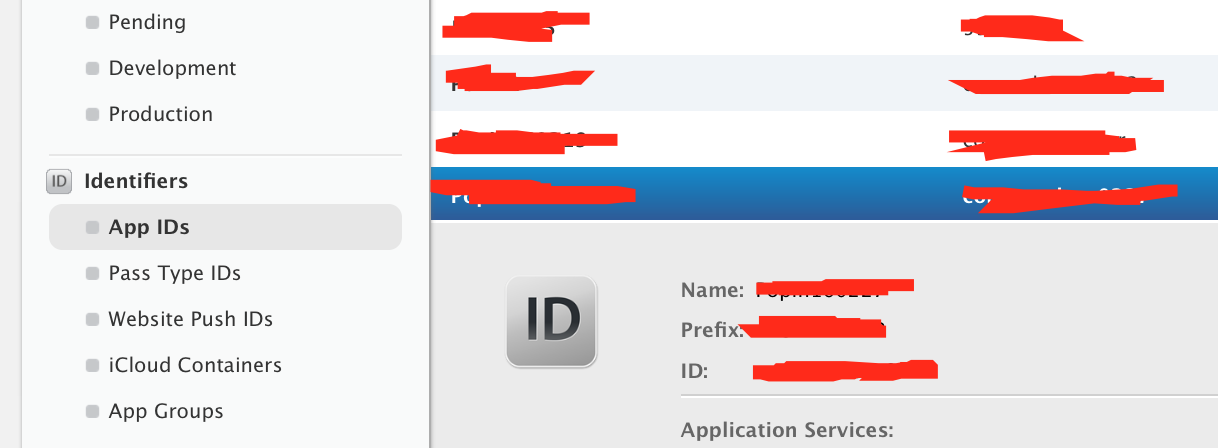
- Create an App ID.
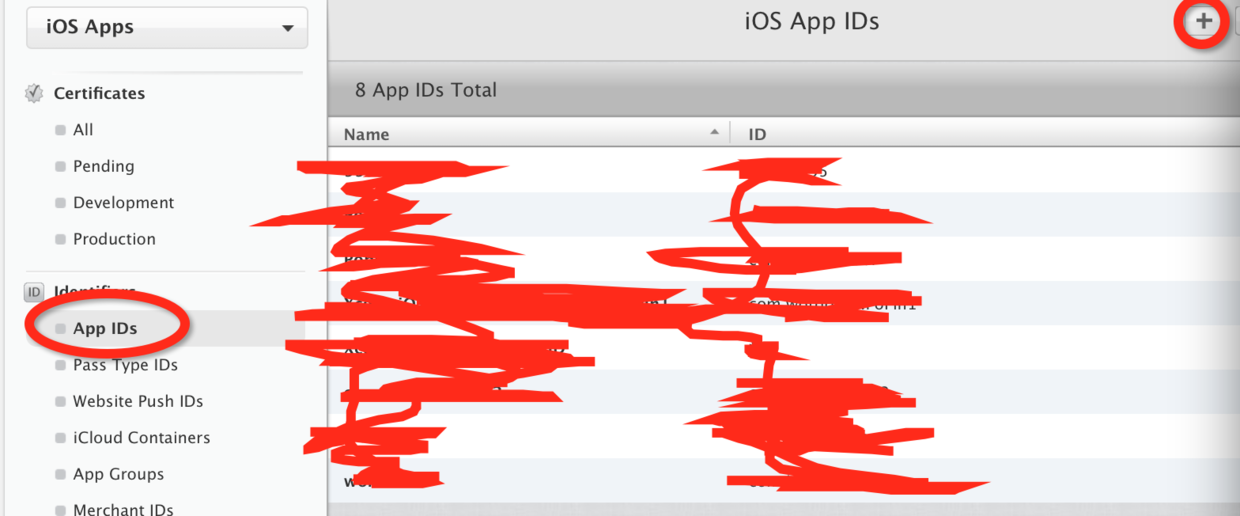
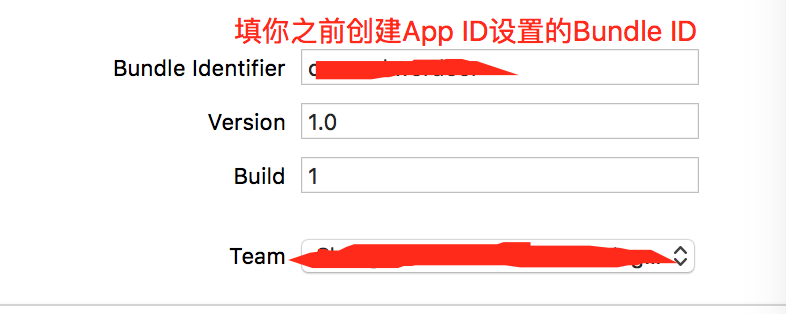
- The App ID name can be anything, but pay close attention to Bundle ID: the app project receiving notifications must use exactly this Bundle ID.
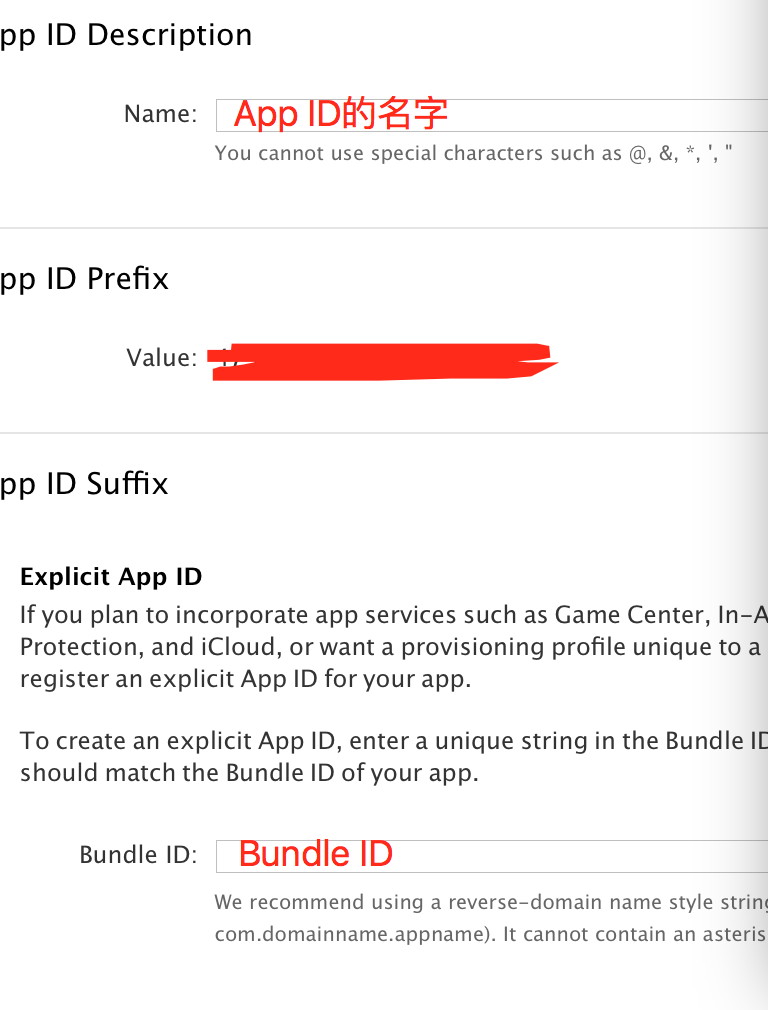
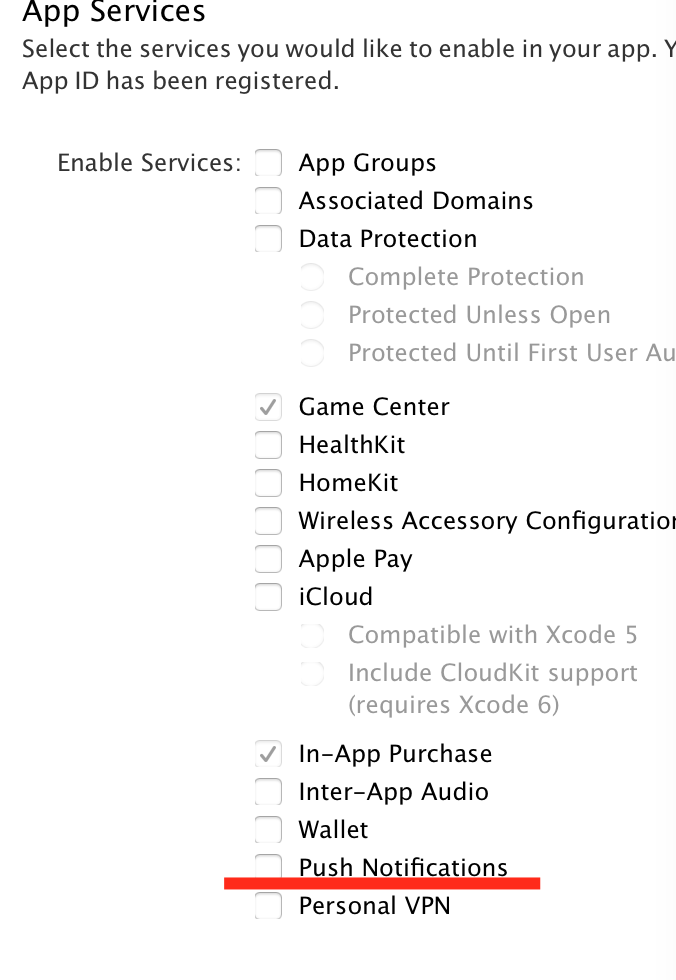
- Under App Services, select Push Notifications now or change it later, then continue.
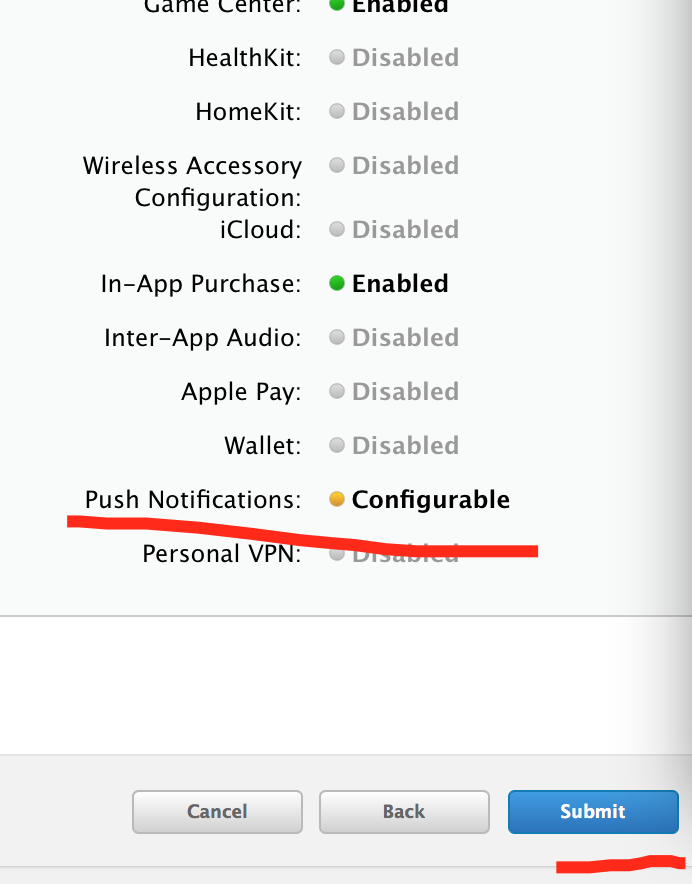
- Submit. I had already selected Push Notifications, so it is orange here; otherwise it should be gray.
- Then click the App ID you just created and choose Edit.
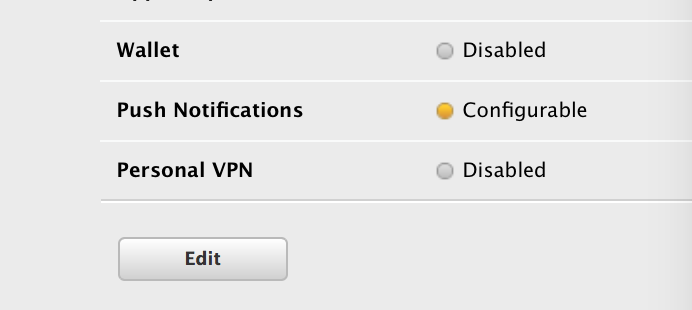
- Create development and production certificates.
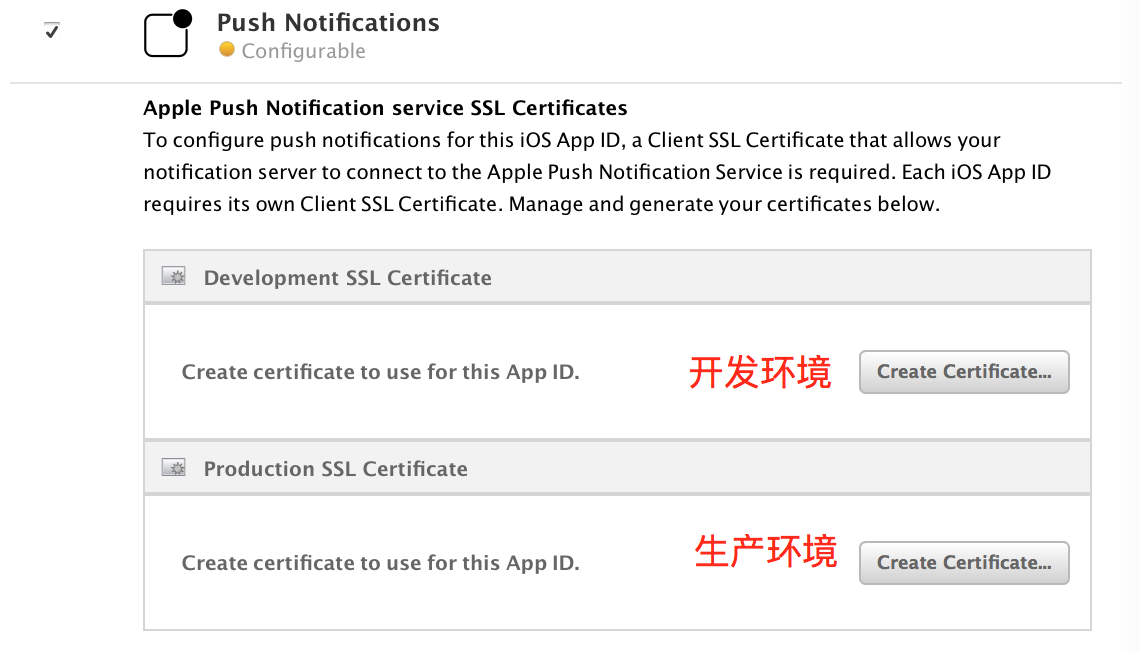
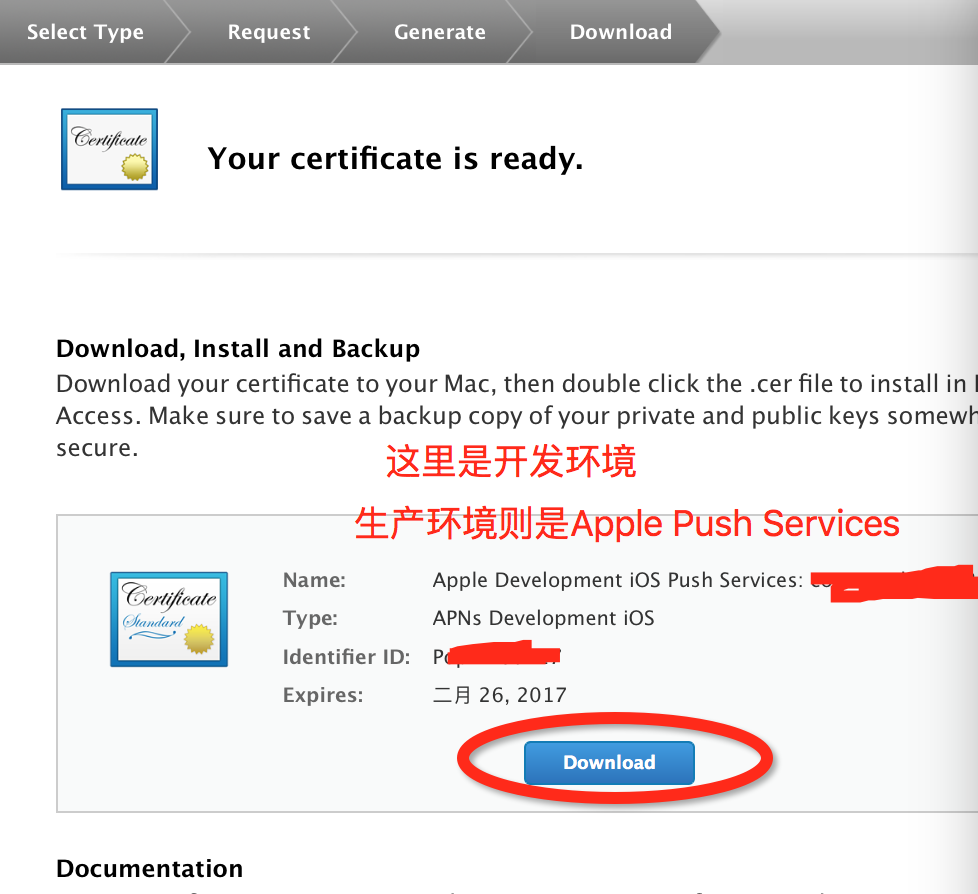
Here is the distinction between environments: an app compiled and installed through Xcode uses development; an app downloaded through a QR code or the App Store uses production.
– Clicking Continue here asks you to upload a certificate.
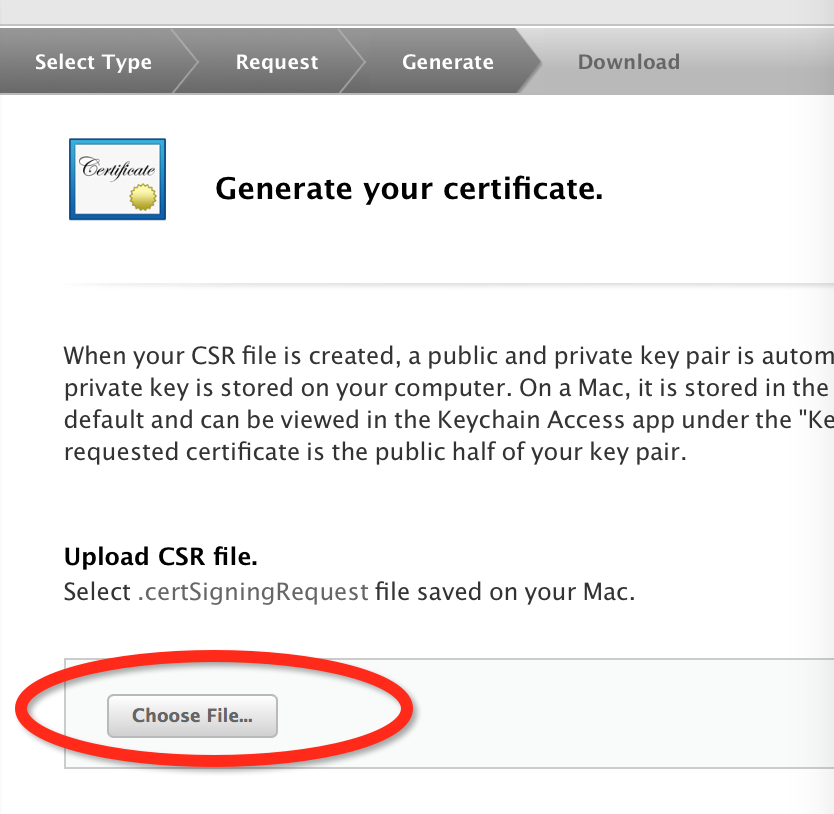
Now let's create this certificate.
-
Open the Mac's built-in Keychain Access: Launchpad → Other → Keychain Access.
-
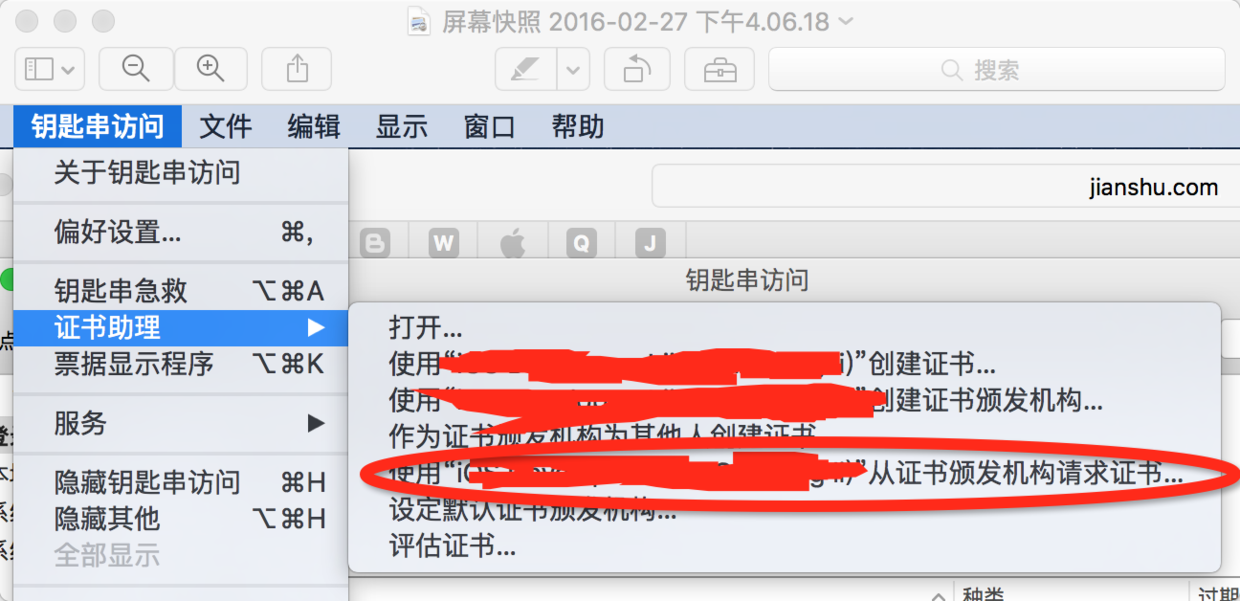
After opening it, use Certificate Assistant at the upper left and select Request a Certificate From a Certificate Authority.
- Be sure to save it to disk.
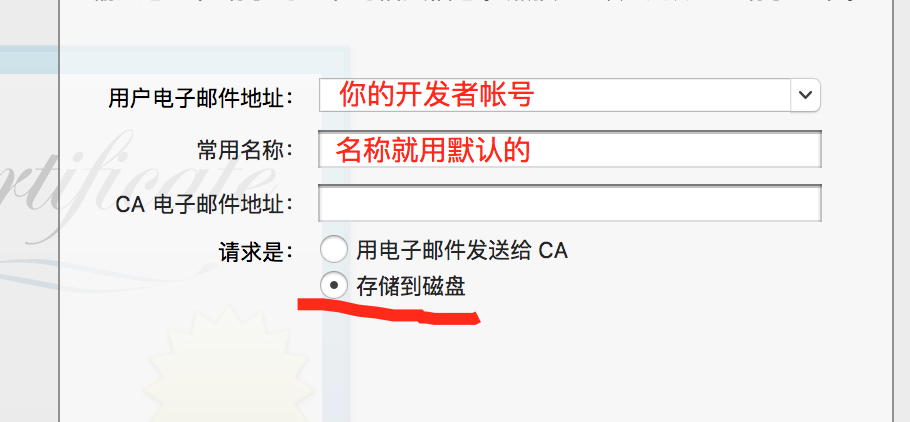
-
Then save it anywhere you like.
-
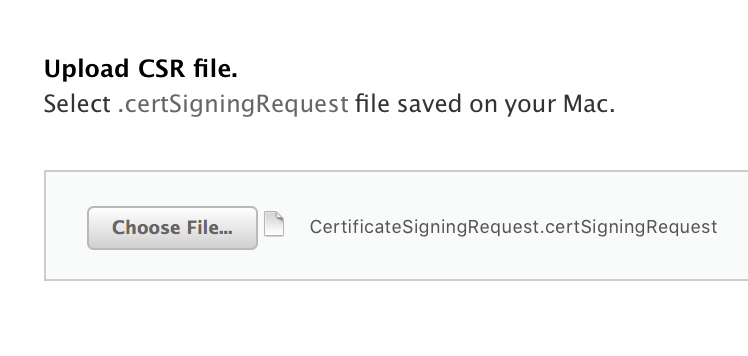
Upload the certificate you saved earlier.
- Download it and click Done to return to the initial screen. Select your App ID again and click Edit. The development and production push-certificate processes are the same; follow the steps to create and download both certificates.
-
Push Notifications should now be green.
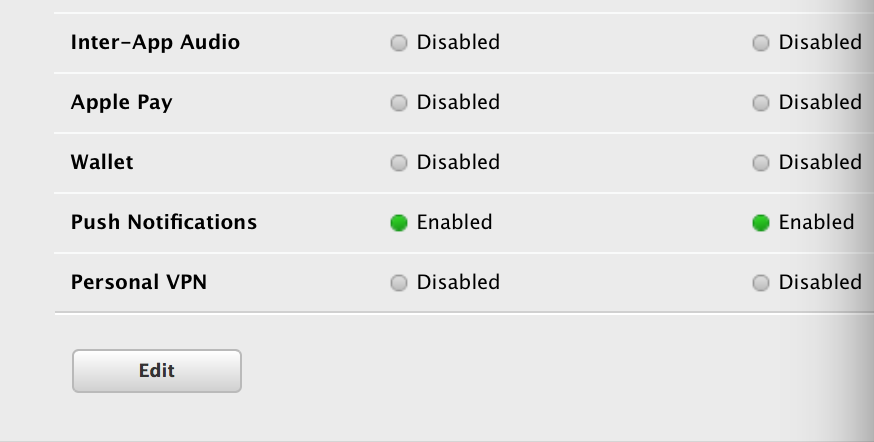
-
Open Keychain Access; you will find these two additional certificates.
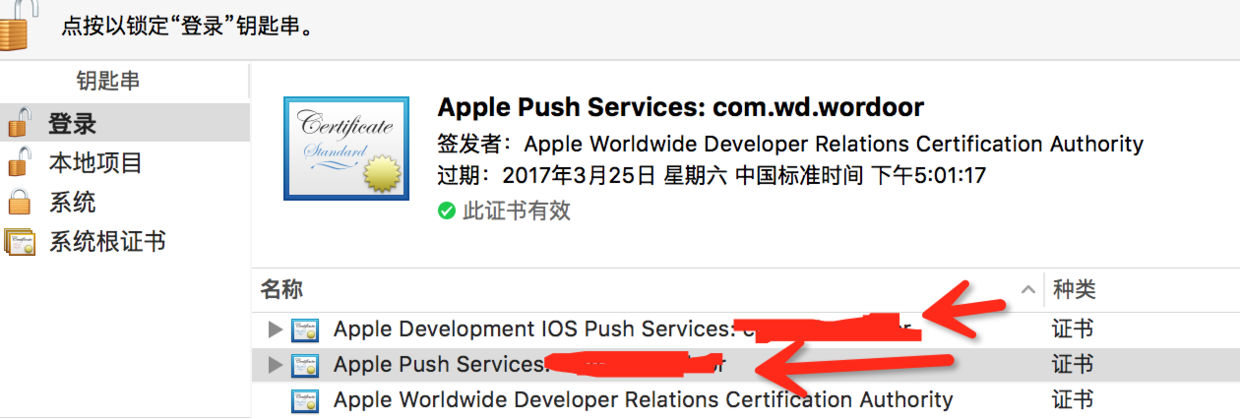
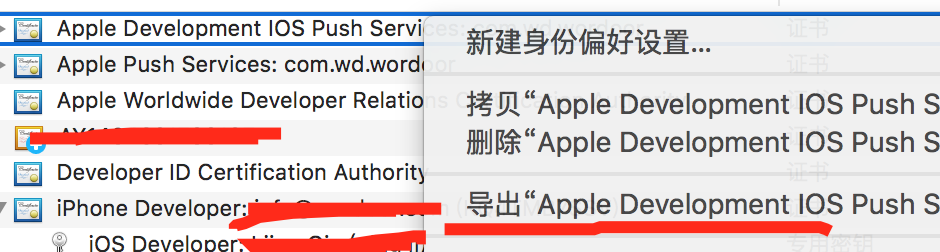
- Right-click each one and export it.
- Set a password
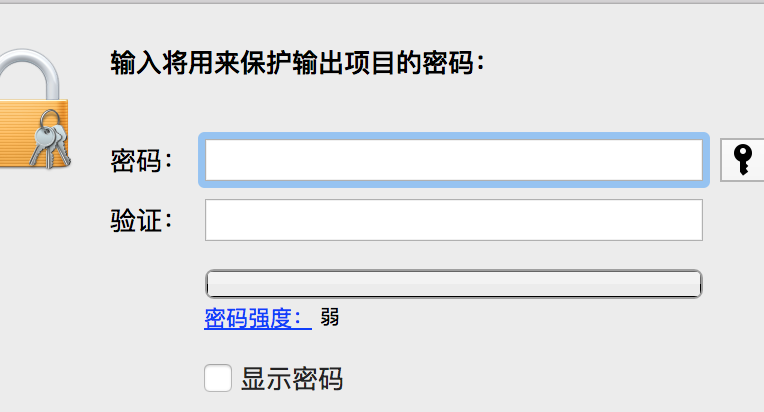
After export succeeds, the files appear. Give them suitable names, preferably in English.
That completes the push certificates. Next, let's use JPush for remote notifications.
Using JPush for remote notifications
-
Register for JPush on its official website.
-
Create an application.
-
Import both certificates in the application settings. Mine are already verified; otherwise, buttons for uploading the certificates appear. Bundle ID is filled automatically after import. Upload the certificates one at a time, because uploading together may cause verification to fail.
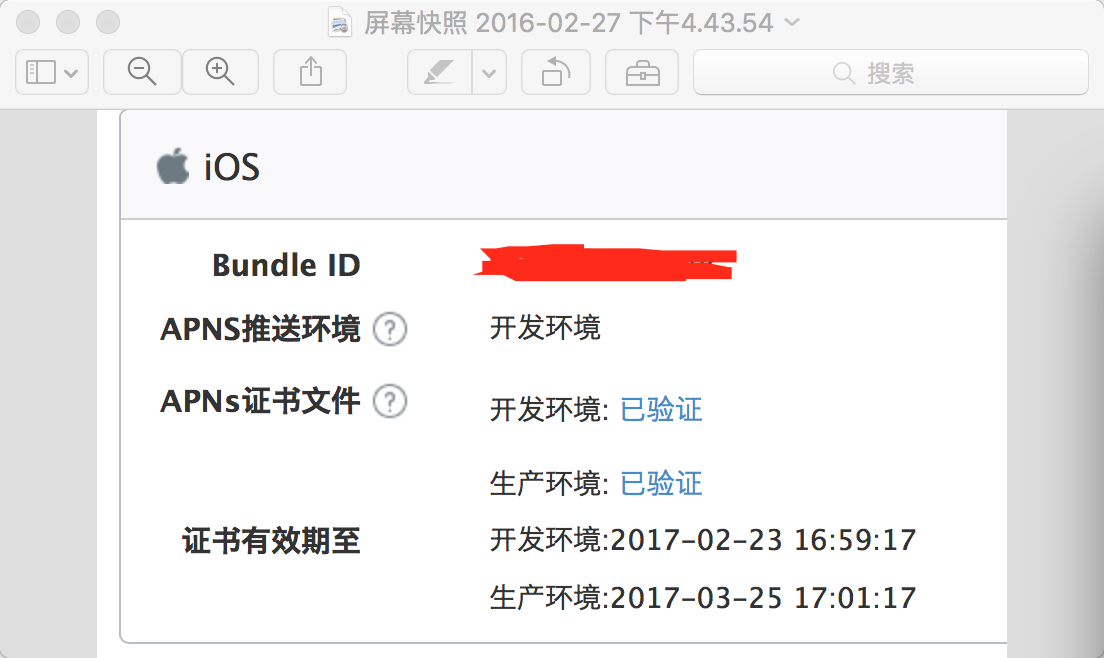
– Then download SDK
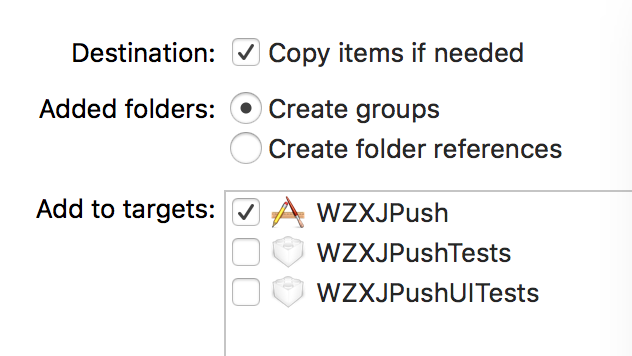
– Import the SDK's Lib folder into your project and remember to select Copy.
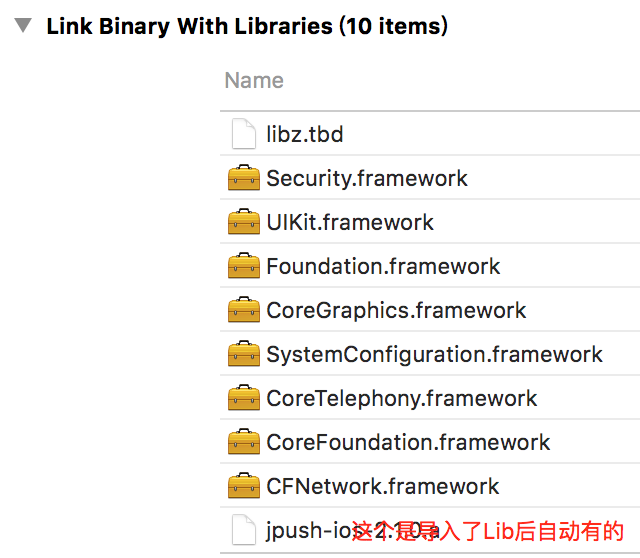
- Import the following libraries in Build Phases.
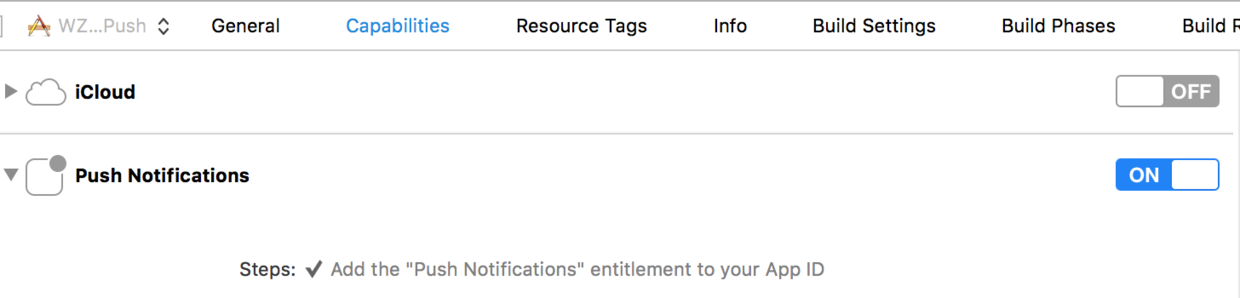
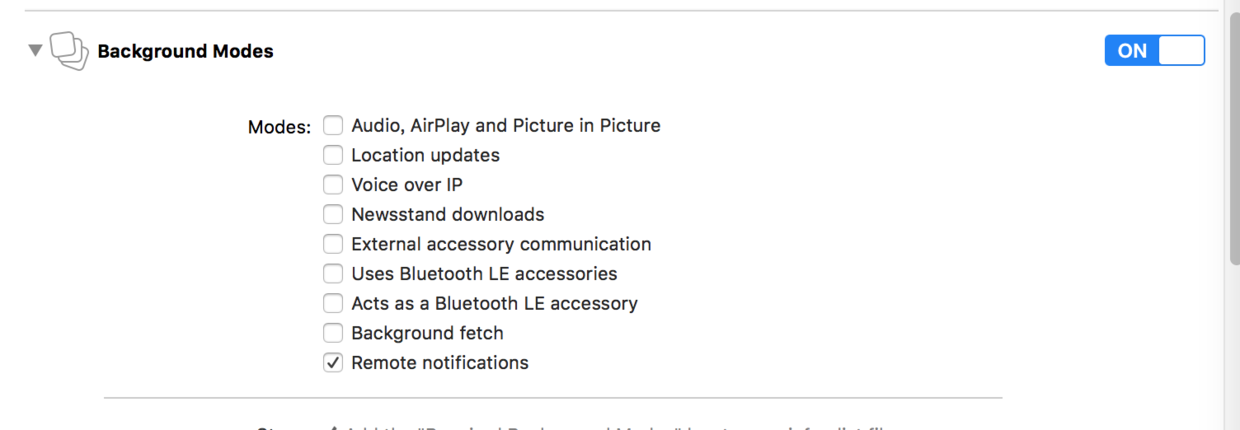
- Modify Capabilities
Enable remote notifications.
Enable Background Modes.
Change Bundle ID and select Team.
Next comes the code.
Import the header in Appdelegate.m: #import “JPUSHService.h”.
Add the following code in didFinishLaunchingWithOptions, replacing the relevant fields with your own information.
// Required
if ([[UIDevice currentDevice].systemVersion floatValue] >= 8.0) {
    //可以添加自定义categories
    [JPUSHService registerForRemoteNotificationTypes:(UIUserNotificationTypeBadge |UIUserNotificationTypeSound |UIUserNotificationTypeAlert)categories:nil];
} else {
    //categories 必须为nil
    [JPUSHService registerForRemoteNotificationTypes:(UIRemoteNotificationTypeBadge |UIRemoteNotificationTypeSound |UIRemoteNotificationTypeAlert)categories:nil];
}

[JPUSHService setupWithOption:launchOptions appKey:你的appKey(字符串),在极光的应用详情中可以看到" channel:@""(这个不填就行) apsForProduction:这个值生产环境为YES,开发环境为NO(BOOL值)];
Create
-(void)application:(UIApplication *)application didRegisterForRemoteNotificationsWithDeviceToken:(NSData *)deviceToken
method to register the device; remove this.
- (void)application:(UIApplication *)application didRegisterForRemoteNotificationsWithDeviceToken:(NSData *)deviceToken {
    //这个方法是设置别名和tag 可省
    // [JPUSHService setTags:nil alias:@"WzxJiang" fetchCompletionHandle:^(int iResCode, NSSet *iTags, NSString *iAlias) {
    //        NSLog(@"rescode: %d, \ntags: %@, \nalias: %@\n", iResCode, iTags , iAlias);
    //   }];
    // Required
    [JPUSHService registerDeviceToken:deviceToken];
}
Create
- (void)application:(UIApplication *)application didReceiveRemoteNotification:(NSDictionary *)userInfo fetchCompletionHandler:(void (^)(UIBackgroundFetchResult))completionHandler:
Handling notifications received while the App is in the background
- (void)application:(UIApplication *)application didReceiveRemoteNotification:(NSDictionary *)userInfo fetchCompletionHandler:(void (^)(UIBackgroundFetchResult))completionHandler {
    //iOS 7及之后才能用,现在没人适配iOS6了吧...
    // IOS 7 Support Required
    [JPUSHService handleRemoteNotification:userInfo];
    completionHandler(UIBackgroundFetchResultNewData);
}
Clear the badge in applicationWillEnterForeground, when the App is about to enter the foreground.
- (void)applicationWillEnterForeground:(UIApplication *)application {
    NSLog(@"进入前台");
    [UIApplication sharedApplication].applicationIconBadgeNumber = 0;
}
Create
didFailToRegisterForRemoteNotificationsWithError
method to handle errors receiving push notifications, which generally should not occur.
- (void)application:(UIApplication *)application didFailToRegisterForRemoteNotificationsWithError:(NSError *)error {
    //Optional
    NSLog(@"did Fail To Register For Remote Notifications With Error: %@", error);
}
-
The code is ready. Send a notification now; this must be tested on a physical device.
-
In JPush, click Send Notification and ensure the development environment is selected.
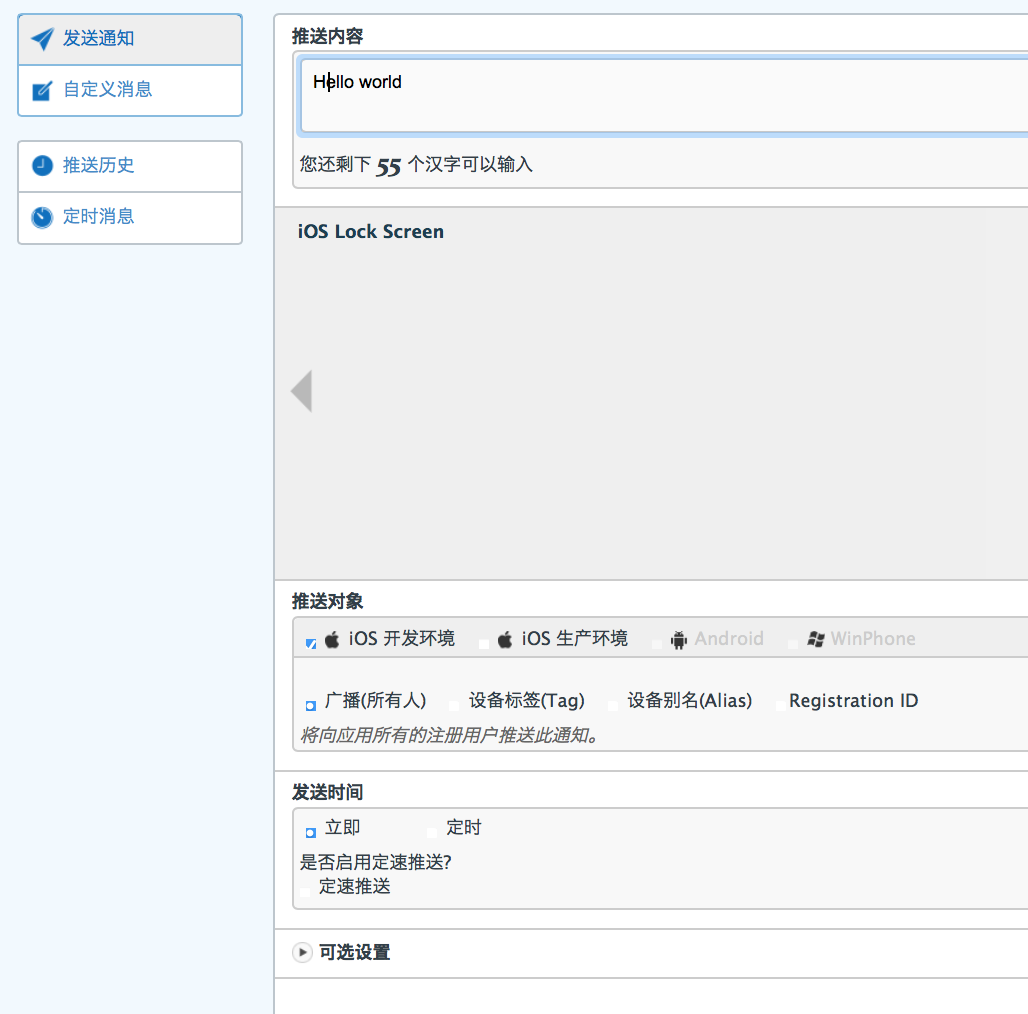
- Then you should receive the notification.
That concludes the tutorial. Leave a comment if you have questions or want to explore further!
My GItHub
Recommended reading: Bison's guide to iOS multithreading, part 3