
Data & networkingHistorical technical note
Building a WeChat-style iOS app, part 6
Records three issues after integrating chat: matching keyboard animation parameters, managing observers as the app enters and leaves the background, and preserving sign-in state. It includes the handling code and explicitly limits the simplified automatic sign-in example.
Originally credited to WzxJiang; edited and archived by Bison.
Source listed in the originalOn this page
Editor: Bison
Contributor: WzxJiang
"I previously had time to update Github but not to write explanations, so the WWeChat tutorials have been delayed for so long that I hardly know where to resume. I will discuss a few points worth noting. If anything else is unclear, leave a comment, and I will add explanations in the next article.:"

First, here is the current progress. Broadly speaking, I have added two parts:
- Sign-in and registration: registration is not implemented. The two test accounts are 00000000000 and 11111111111; the password is 123456.

- IM: Message history and similar features have not been added, but messages can already be sent and received.
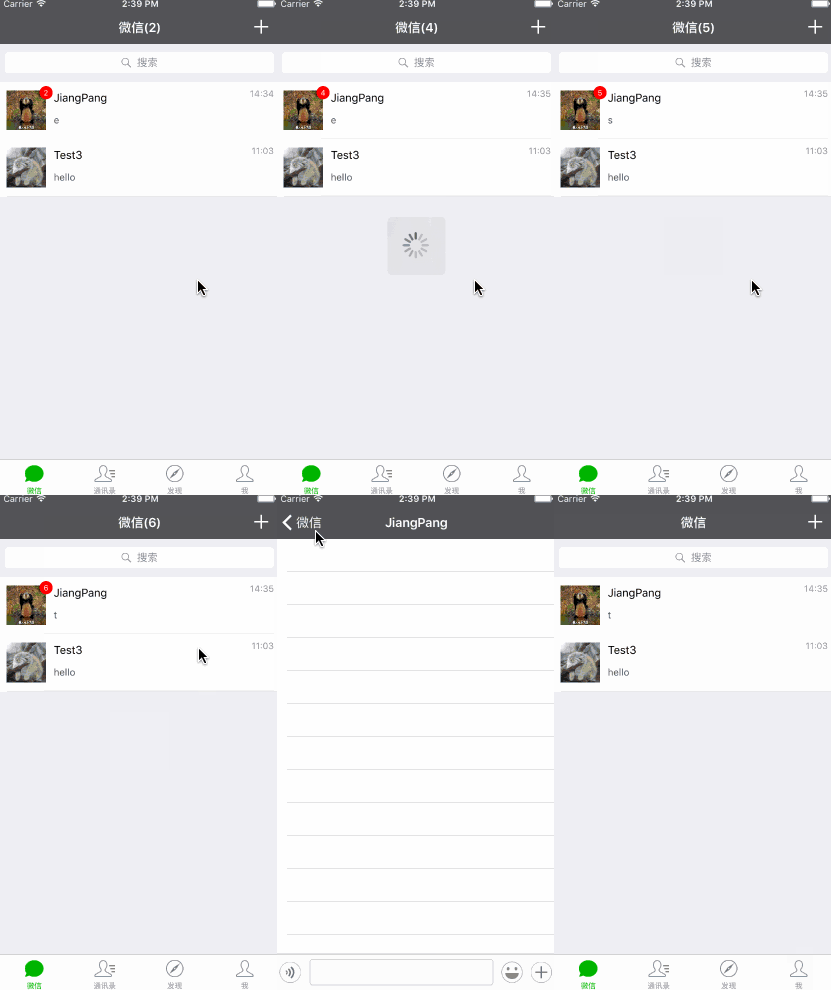
Next are the issues I want to explain.
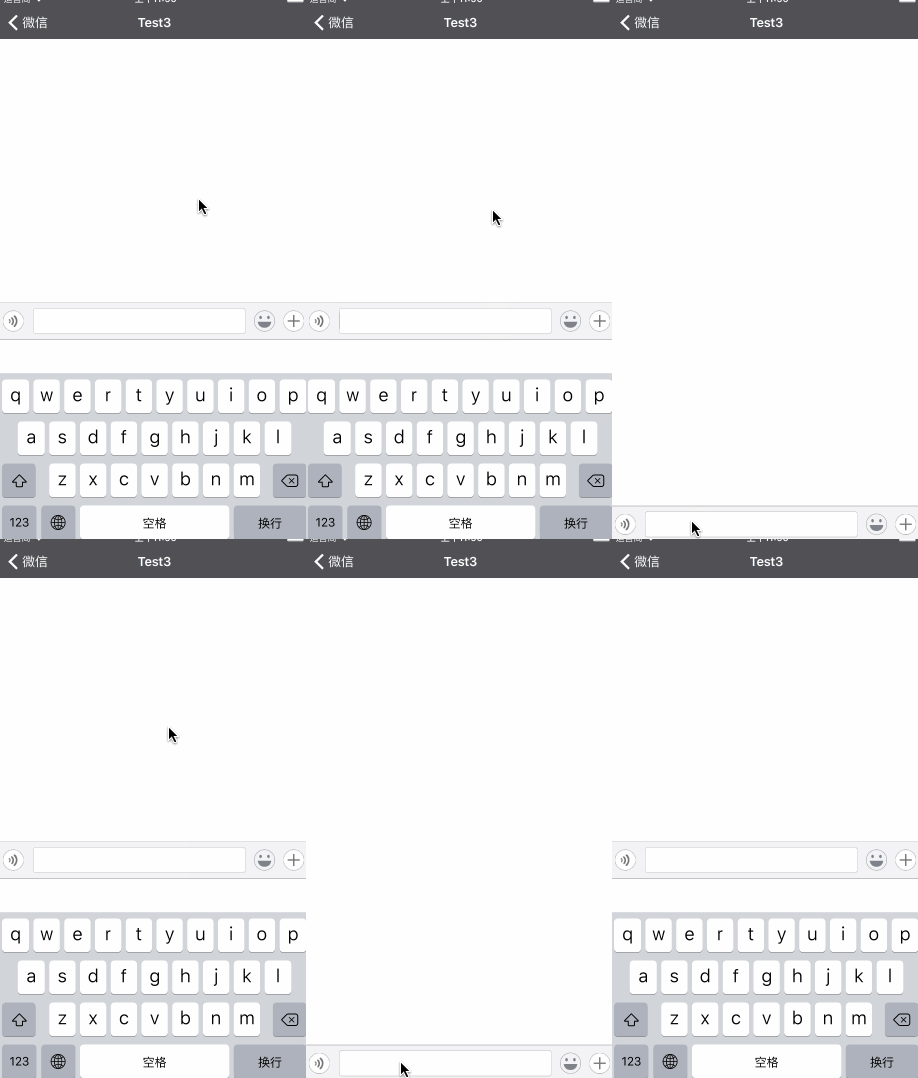
1. Making the keyboard appear and disappear more smoothly
2. Handling keyboard show and hide notifications when moving to the background and back to the foreground
3. Implementing automatic sign-in
1. Making the keyboard appear and disappear more smoothly
You should already know how to register for notifications.
//使用NSNotificationCenter 鍵盤出現時
[[NSNotificationCenter defaultCenter] addObserver:self
selector:@selector(keyboardWasShown:)
name:UIKeyboardWillShowNotification object:nil];

//使用NSNotificationCenter 鍵盤隐藏時
[[NSNotificationCenter defaultCenter] addObserver:self
selector:@selector(keyboardWillBeHidden:)
name:UIKeyboardWillHideNotification object:nil];
You probably already know how to get the keyboard height in the notification handler.
NSDictionary* info = [aNotification userInfo];
CGSize kbSize = [[info objectForKey:UIKeyboardFrameEndUserInfoKey] CGRectValue].size;
Then use a UIView animation… but that does not look coordinated. We also need its duration and animation curve.
- (void)keyboardWasShown:(NSNotification)aNotification
{
NSDictionary info = [aNotification userInfo];
    //键盘尺寸
    CGSize kbSize = [[info objectForKey:UIKeyboardFrameEndUserInfoKey] CGRectValue].size;
    //持续时间
    CGFloat duration = [[info objectForKey:UIKeyboardAnimationDurationUserInfoKey]floatValue];
    //动画类型
    NSInteger anType = [[info objectForKey:UIKeyboardAnimationCurveUserInfoKey]integerValue];

    [UIView animateKeyframesWithDuration:duration delay:0 options:anType animations:^{

        CGRect rect = weakKeyView.frame;
        rect.origin.y -= kSize.height;
        weakKeyView.frame = rect;

    } completion:^(BOOL finished) {
    }];

} <br>
The resulting animation will be well coordinated.
2. Handling keyboard show and hide notifications when moving to the background and back to the foreground
Following the example above, register for keyboard show and hide notifications and make the TextField first responder. Press Home to background the app, then tap it to return. You will find that the components animated in your notification handler have disappeared…
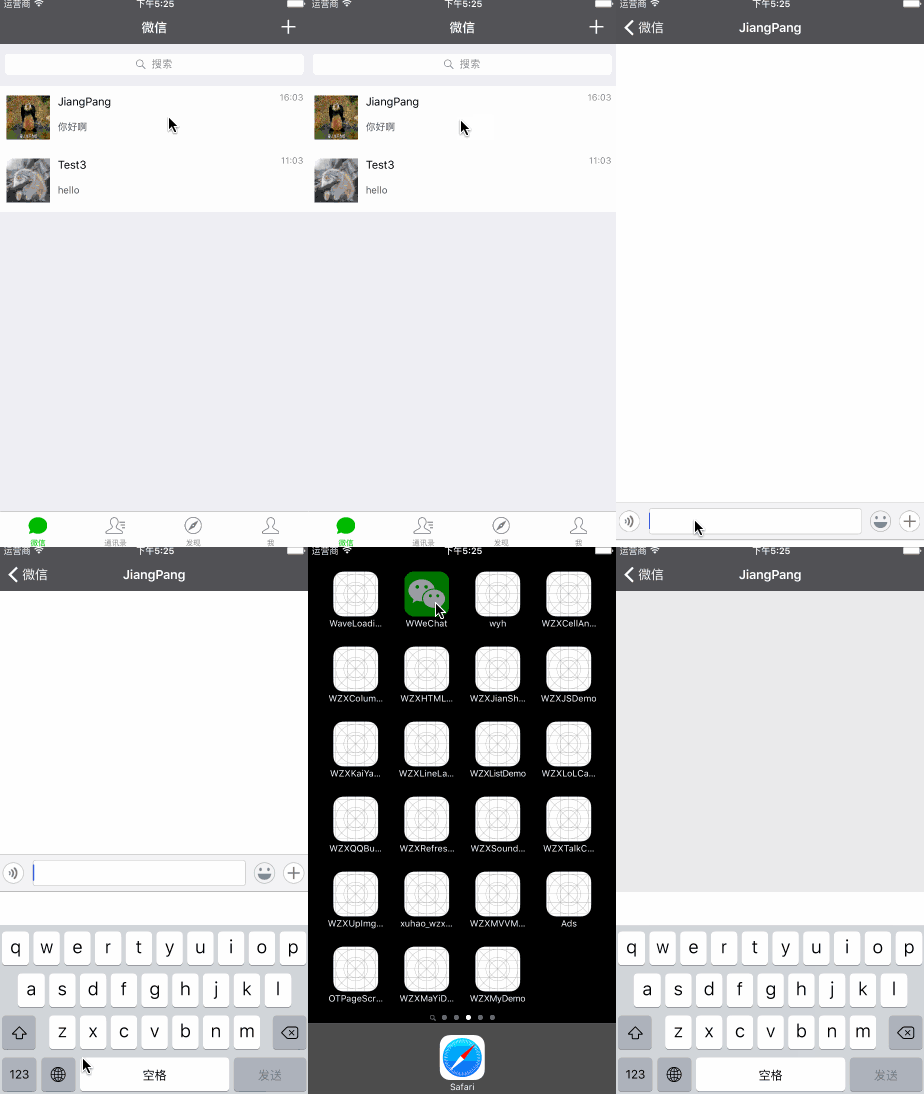
After persistent observation, I found a solution: locate the background- and foreground-entry methods in Appdelegate.m and post notifications from them.
//进入后台
- (void)applicationDidEnterBackground:(UIApplication *)application {
//创建一个消息对象
NSNotification * notice = [NSNotification notificationWithName:@”EnterBackground” object:nil userInfo:nil];
//发送消息
[[NSNotificationCenter defaultCenter]postNotification:notice];
}
//进入前台
- (void)applicationWillEnterForeground:(UIApplication *)application {
    //创建一个消息对象
    NSNotification * notice = [NSNotification notificationWithName:@"EnterForeground" object:nil userInfo:nil];
    //发送消息
    [[NSNotificationCenter defaultCenter]postNotification:notice];
}
Make the chat VC an observer of these two notifications.
- (void)addEnterNofi
{
    //进入前台
    [[NSNotificationCenter defaultCenter] addObserver:self
    selector:@selector(enterForeground)
    name:@"EnterForeground" object:nil];
    //进入后台
    [[NSNotificationCenter defaultCenter] addObserver:self
    selector:@selector(enterBackground)
    name:@"EnterBackground" object:nil];
} <br>
In the background-entry handler, unregister from keyboard show and hide notifications.
- (void)enterBackground
{
    [[NSNotificationCenter defaultCenter]removeObserver:self name:UIKeyboardWillShowNotification object:nil];
    [[NSNotificationCenter defaultCenter]removeObserver:self name:UIKeyboardWillHideNotification object:nil];
}
In the foreground-entry handler, register again for the keyboard show and hide notifications.
dispatch_after(dispatch_time(DISPATCH_TIME_NOW, (int64_t)(0.5 * NSEC_PER_SEC)), dispatch_get_main_queue(), ^{
    [self addKeyNofi];
});
This resolves the problem. Be sure to delay roughly 0.5 seconds before registering as an observer again.
3. Implementing automatic sign-in
This is only a simple automatic sign-in implementation, without considering KeyChain…
First, find the VC assigned to self.window.rootViewController in AppDelegate.m and add the following code to that VC's .m file.
- (void)viewWillAppear:(BOOL)animated
{
    if ([[NSUserDefaults standardUserDefaults]objectForKey:@"userName"]
    && [[NSUserDefaults standardUserDefaults]objectForKey:@"password"])
    {
        //在这写直接登录的方法,帐号密码为取出来的值
    }
    else
    {
        //在这写手动登录的方法
    }
} 在你登录成功的回调中存值<br>
[[NSUserDefaults standardUserDefaults]setObject:@"你的帐号" forKey:@"userName"];
[[NSUserDefaults standardUserDefaults]setObject:@"你的密码" forKey:@"password"];
//同步一下
[[NSUserDefaults standardUserDefaults]synchronize];
That is all for part six. As before, if anything else is unclear, leave a comment and I will explain those parts in the next article.
Complete code
Download here—GitHub: WzxJiang
If you like the project, please Star or Fork it!
Recommended reading: A beginner developer's review of 2015