
UIKit & graphicsHistorical technical note
Animating iOS Buttons with Core Animation
Builds on Core Animation fundamentals to animate button gradients and shapes with CALayer, CABasicAnimation, and animation groups. It explains layer properties, timing, and the organization of cooperating animations.
Originally credited to Sindri; edited and archived by Bison.
Source listed in the originalOn this page
In the previous article,Understanding CoreAnimation, I introduced the system animation library,CoreAnimation. Animation libraries offer many benefits, which I will not repeat. This article continues the previous discussion by implementing effects with the basic animation classes introduced there.
Editor: Bison
Source: Sindri’s Notes
Here is the effect:
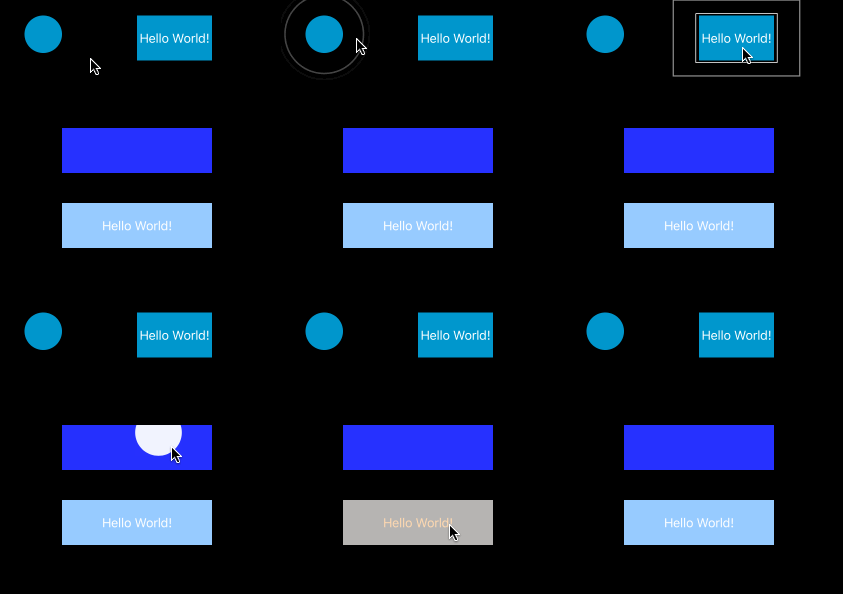
The demo mainly uses fades and transformations. An earlier article created the same effects with the UIView animation API; this time we will use CoreAnimation.
About layers
On iOS, every UIView has an associated CALayer responsible for drawing and displaying its contents. Like a view, CALayer has a tree of sublayers and similar interfaces. CALayer is the base layer class, primarily providing display bounds and hierarchy interfaces, and we use its subclasses. The following adds a purple circular layer at the center of the view controller's view:
override func viewDidLoad() {
    super.viewDidLoad()

    let layer = CAShapeLayer()
    layer.fillColor = UIColor.purpleColor().CGColor
    layer.path = UIBezierPath(arcCenter: CGPoint(x: UIScreen.mainScreen().bounds.width / 2, y: UIScreen.mainScreen().bounds.height / 2), radius: 100, startAngle: 0, endAngle: 2.0*CGFloat(M_PI), clockwise: false).CGPath
    self.view.layer.addSublayer(layer)
}
Likewise, every CALayer has a sublayers array that we can enumerate for operations such as removing child layers:
for sublayer in self.view.layer.sublayers! {
    print("\(sublayer)")
    sublayer.removeFromSuperlayer()
}
Since Core Animation effects are added to CALayer layers, adding and removing layers are among the most common operations. The addAnimation(anim:forKey:) interface adds an animation to a layer.
## Basic animation
The basic-animation class CABasicAnimation is the most frequently used for effects. It inherits from the animation base CAAnimation and provides a keyPath property to animate the corresponding keyPath property value. Its fromValue and toValue specify start and end values. The following makes the purple layer added to the view transparent:
@IBAction func actionToAnimatedLayer(sender: AnyObject) {
    let animation = CABasicAnimation(keyPath: "opacity")
    animation.fromValue = NSNumber(double: 1)
    animation.toValue = NSNumber(double: 0)
    animation.duration = 1
    layer.addAnimation(animation, forKey: nil)
}
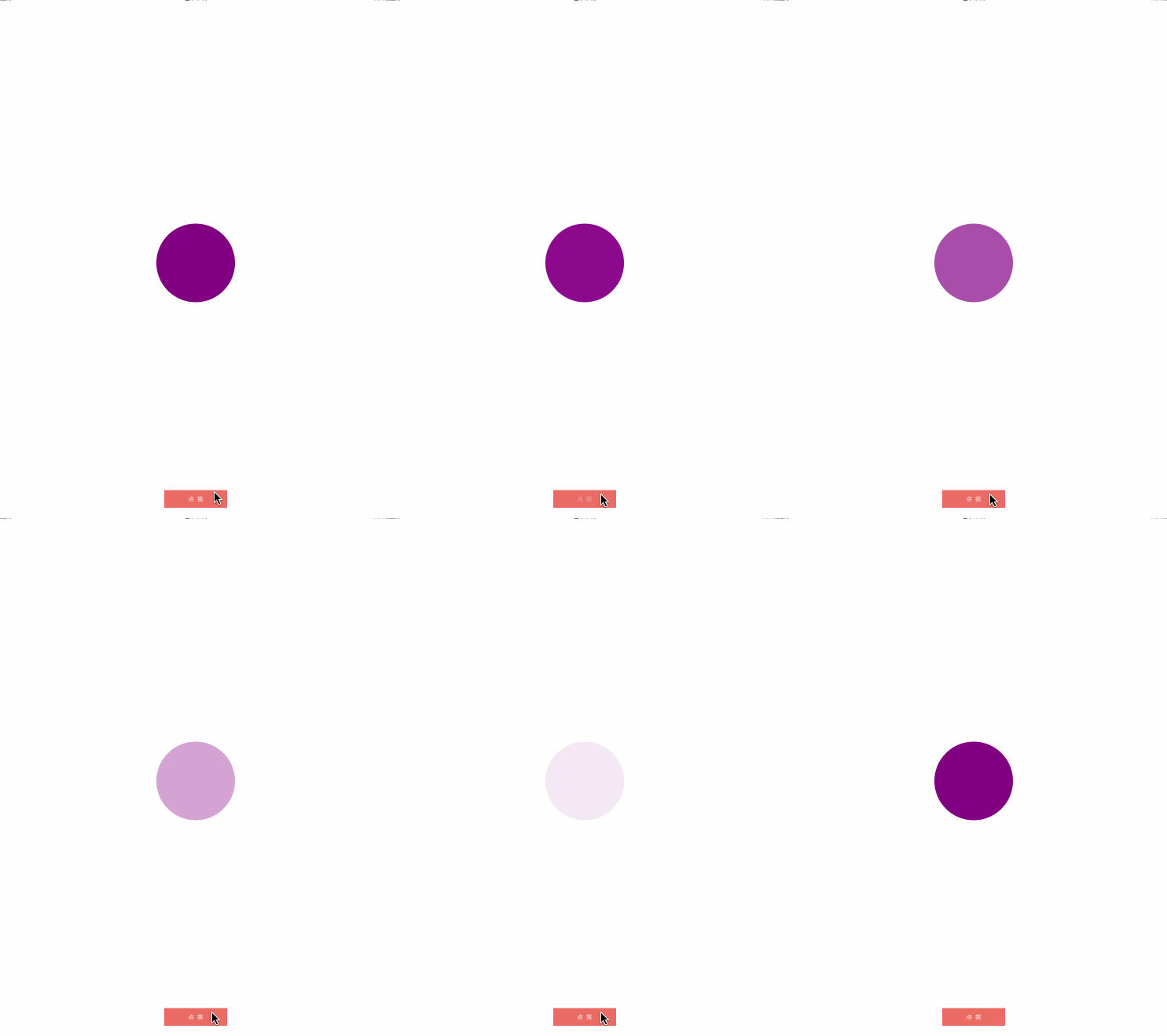
The code animates the layer's opacity from 1 to 0 within 1 second. Yet afterward, the purple layer does not retain opacity equal to 0; it returns to its initial state. Why?
The previous article described three trees in every CALayer: 模型, 呈现, and 渲染, which work together for implicit animation. With Core Animation, CABasicAnimation calculates each frame's property value from the duration and submits it to 呈现树 to display the corresponding instant. When the animation ends, CAAnimation is automatically removed from the layer. Since 模型树 never changed during the animation, 呈现树 obtains the layer properties again from 模型树 and redraws. There are several solutions:
-
Update
opacitywhile implementing the animation so the model-tree data stays synchronized.@IBAction func actionToAnimatedLayer(sender: AnyObject) { let animation = CABasicAnimation(keyPath: "opacity") animation.fromValue = NSNumber(double: 1) animation.toValue = NSNumber(double: 0) animation.fillMode = kCAFillModeForwards animation.removedOnCompletion = false animation.duration = 1 layer.addAnimation(animation, forKey: nil) } -
Disable automatic removal of
CAAnimationand configure it to retain its final state after completion.@IBAction func actionToAnimatedLayer(sender: AnyObject) { let animation = CABasicAnimation(keyPath: "opacity") animation.fromValue = NSNumber(double: 1) animation.toValue = NSNumber(double: 0) animation.fillMode = kCAFillModeForwards animation.removedOnCompletion = false animation.duration = 1 layer.addAnimation(animation, forKey: nil) } -
Implement the animation delegate method, combining the operations from the two approaches above.
  @IBAction func actionToAnimatedLayer(sender: AnyObject) {
      let animation = CABasicAnimation(keyPath: "opacity")
      animation.fromValue = NSNumber(double: 1)
      animation.toValue = NSNumber(double: 0)
      animation.fillMode = kCAFillModeForwards
      animation.removedOnCompletion = false
      animation.duration = 1

      animation.setValue(layer, forKey: "animatedLayer")
      animation.delegate = self
      layer.addAnimation(animation, forKey: nil)
  }

  override func animationDidStop(anim: CAAnimation, finished flag: Bool) {
      if anim is CABasicAnimation {
          let animation = anim as! CABasicAnimation
          if let layer = animation.valueForKey("animatedLayer") as? CALayer {
              layer.setValue(animation.toValue, forKey: animation.keyPath!)
              layer.removeAllAnimations()
          }
      }
  }
Compared with the first two approaches, implementing a delegate and updating properties seems cumbersome. But when a layer must be removed or other work performed after animation, a delegate is the best approach. Other commonly used keyPath animation values can be found in Here,see
Animation groups
To add a transformation to the fade above, I need two CABasicAnimation objects:
@IBAction func actionToAnimatedLayer(sender: AnyObject) {
    let opacity = CABasicAnimation(keyPath: "opacity")
    opacity.fromValue = NSNumber(double: 1)
    opacity.toValue = NSNumber(double: 0)
    opacity.duration = 1

    layer.addAnimation(opacity, forKey: "opacity")

    let scale = CABasicAnimation(keyPath: "transform")
    scale.fromValue = NSValue(CATransform3D: CATransform3DIdentity)
    scale.toValue = NSValue(CATransform3D: CATransform3DMakeScale(2, 2, 2))
    scale.duration = 1

    layer.addAnimation(scale, forKey: "scale")
}
Alternatively, CoreAnimation provides CAAnimationGroup to combine several animations into one object added to the layer. The resulting behavior does not differ from the preceding code, but the logic can be clearer:
@IBAction func actionToAnimatedLayer(sender: AnyObject) {
    // create animations

    let group = CAAnimationGroup()
    group.animations = [opacity, scale]
    group.duration = 1
    layer.addAnimation(group, forKey: "group")
}
Button animation
The transformation and fade correspond respectively to transform and opacity, the two keyPath values. The animated layer is not the button's own layer, so an additional layer is needed. We also need an enumeration to distinguish outward and inward expansion effects:
enum LXDAnimationType {
    case Inner
    case Outer
}
Swift extension does not support adding stored properties, so use dynamic association through runtime to extend the button with animation-type and animation-color properties:
private var kAnimationTypeKey: UInt = 0
private var kAnimationColorKey: UInt = 1
extension UIButton {

    enum LXDAnimationType {
        case Inner
        case Outer
    }

    //MARK: - Expand property
    var animationType: LXDAnimationType? {
        get {
            if let type = (objc_getAssociatedObject(self, &kAnimationTypeKey) as? String) {
                return LXDAnimationType(rawValue: type)
            }
            return nil
        }
        set {
            guard newValue != nil else { return }
            self.clipsToBounds = (newValue == .Inner)
            objc_setAssociatedObject(self, &kAnimationTypeKey, newValue!.rawValue, .OBJC_ASSOCIATION_RETAIN_NONATOMIC)
        }
    }

    var animationColor: UIColor {
        get {
            if let color = objc_getAssociatedObject(self, &kAnimationColorKey) {
                return color as! UIColor
            }
            return UIColor.whiteColor()
        }
        set {
            objc_setAssociatedObject(self, &kAnimationColorKey, newValue, .OBJC_ASSOCIATION_RETAIN_NONATOMIC)
        }
    }
}
How do we ensure our animation runs on a button tap? Override sendAction(action:to:forEvent:), which is called whenever the button sends an event, including when the user taps it:
//MARK: - Override
public override func sendAction(action: Selector, to target: AnyObject?, forEvent event: UIEvent?) {
    super.sendAction(action, to: target, forEvent: event)

    if let type = animationType {
        var rect: CGRect?
        var radius = self.layer.cornerRadius

        var pos = touchPoint(event)
        let smallerSize = min(self.frame.width, self.frame.height)
        let longgerSize = max(self.frame.width, self.frame.height)
        var scale = longgerSize / smallerSize + 0.5

        switch type {
        case .Inner:
            radius = smallerSize / 2
            rect = CGRect(x: 0, y: 0, width: radius*2, height: radius*2)
            break

        case .Outer:
            scale = 2.5
            pos = CGPoint(x: self.bounds.width/2, y: self.bounds.height/2)
            rect = CGRect(x: pos.x - self.bounds.width, y: pos.y - self.bounds.height, width: self.bounds.width, height: self.bounds.height)
            break
        }

        let layer = animateLayer(rect!, radius: radius, position: pos)
        let group = animateGroup(scale)
        self.layer.addSublayer(layer)
        group.setValue(layer, forKey: "animatedLayer")
        layer.addAnimation(group, forKey: "buttonAnimation")
    }
}

public override func animationDidStop(anim: CAAnimation, finished flag: Bool) {
    if let layer = anim.valueForKey("animatedLayer") as? CALayer {
        layer .removeFromSuperlayer()
    }
}


//MARK: - Private
private func touchPoint(event: UIEvent?) -> CGPoint {
    if let touch = event?.allTouches()?.first {
        return touch.locationInView(self)
    } else {
        return CGPoint(x: self.frame.width/2, y: self.frame.height/2)
    }
}

private func animateLayer(rect: CGRect, radius: CGFloat, position: CGPoint) -> CALayer {
    let layer = CAShapeLayer()
    layer.lineWidth = 1
    layer.position = position
    layer.path = UIBezierPath(roundedRect: rect, cornerRadius: radius).CGPath

    switch animationType! {
    case .Inner:
        layer.fillColor = animationColor.CGColor
        layer.bounds = CGRect(x: 0, y: 0, width: radius*2, height: radius*2)
        break

    case .Outer:
        layer.strokeColor = animationColor.CGColor
        layer.fillColor = UIColor.clearColor().CGColor
        break
    }
    return layer
}

private func animateGroup(scale: CGFloat) -> CAAnimationGroup {
    let opacityAnim = CABasicAnimation(keyPath: "opacity")
    opacityAnim.fromValue = NSNumber(double: 1)
    opacityAnim.toValue = NSNumber(double: 0)

    let scaleAnim = CABasicAnimation(keyPath: "transform")
    scaleAnim.fromValue = NSValue(CATransform3D: CATransform3DIdentity)
    scaleAnim.toValue = NSValue(CATransform3D: CATransform3DMakeScale(scale, scale, scale))

    let group = CAAnimationGroup()
    group.animations = [opacityAnim, scaleAnim]
    group.duration = 0.5
    group.delegate = self
    group.fillMode = kCAFillModeBoth
    group.removedOnCompletion = false
    return group
}
Once the extended button's animationType property is set, it animates when tapped.
animateButton.animationType = .Outer
Closing remarks
Animations in Chinese apps tend to be more restrained than in overseas apps, and many apps give them little consideration. Yet in today's highly competitive mobile market, good animation can still improve retention—provided the app itself is useful; effects alone do not retain users. Animation is therefore an important fundamental skill.Demo for this article
Recommended reading: Implement an iOS launch-screen advertisement in minutes