
Process notes contents
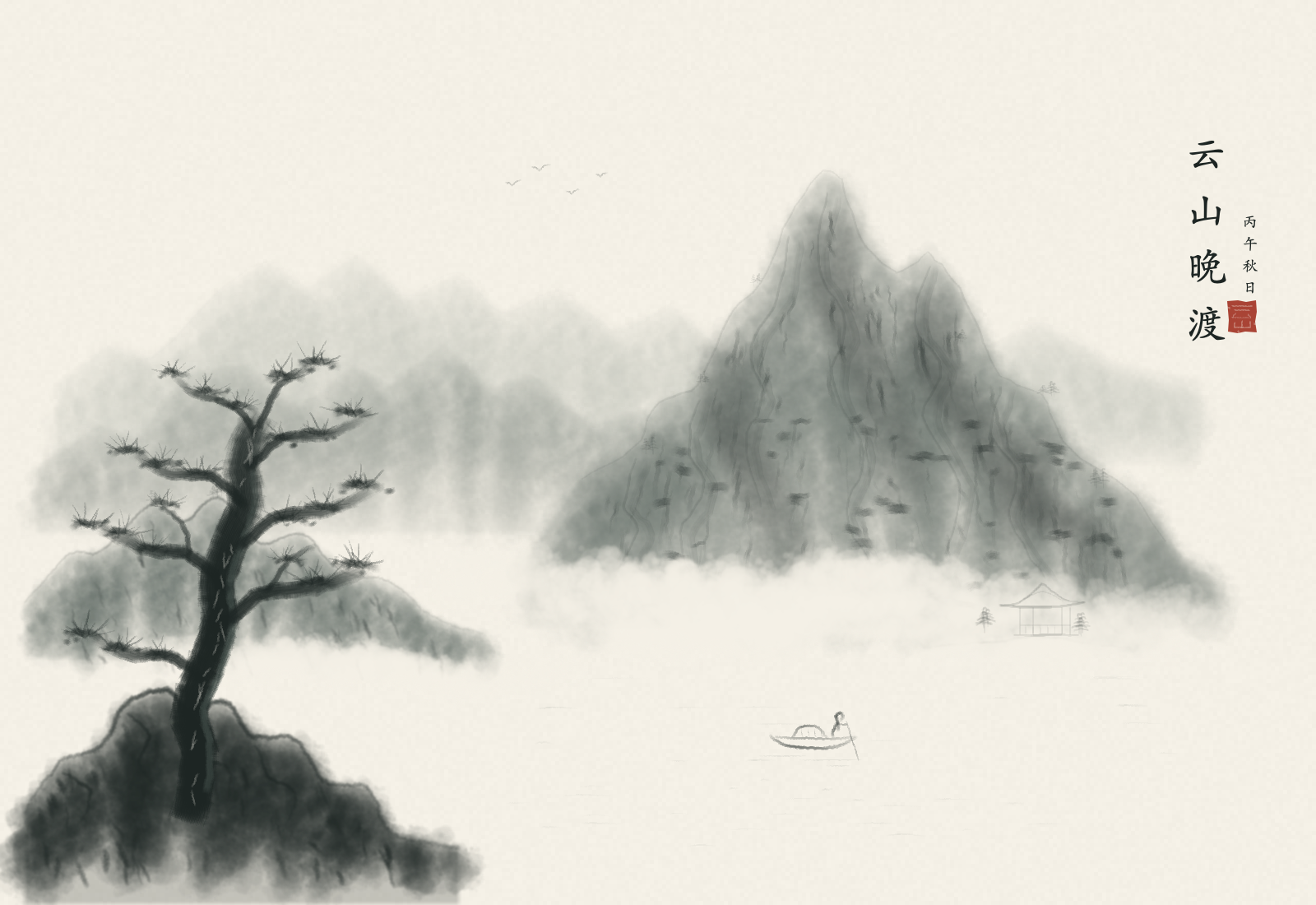
An old pine on the near bank faces the main peak across a broad stretch of water. Mist hides the foot of the mountains; the distant ridges are only a pale grey-green. A tiny pavilion sits by the bank, and a boat rests lower in the picture. The vertical title and a red seal complete the scene.
This work was made in the iPad version of Aquarell running on an Apple silicon Mac, on a 1600 × 1100 px canvas. The native original retains 19 layers. The main tutorial keeps the actual app interface visible; the breakdown below follows the paper, distant mountains, rock structure, pine and returning boat.
Creation disclosure: AI used Aquarell MCP (Model Context Protocol) to call the app’s native brushes, layers, selection fills, feathering, blur and text tools. The app rendered the painting itself; a pre-generated landscape was not imported and presented as a painting process. The inscriptions use native text, while the painted content is retained on raster layers.
Reserve the river and sky first
Begin with three areas: the main peak high on the right, the pine and rocks in the lower left, and water opening towards the foreground between them. The peak is taller; the pine is darker. The river provides space between these two heavy forms, without needing a continuous shoreline around it.
Reserve the upper right for lettering, a patch of sky left of centre for geese, and the river for a boat added near the end. These empty areas tell the washes where to stop. In particular, resist adding more grey to the mountain bases or river simply because they do not yet contain detail.
Give the nineteen layers distinct jobs
The native project contains one paper layer, fifteen painting stages, two text layers and one seal layer. This lets the distant mountains recede as a whole, the pine become darker, and the lettering change independently.
| Layer contents | Layers | Role in the picture |
|---|---|---|
| Warm white paper | 1 | A consistent paper colour and subtle grain |
| Pale mountains, overlapping ridges and main peak | 3 | Values from the far distance to the main mountain |
| Rock contours and texture | 2 | Structure and dry-looking marks on the main peak |
| Middle bank, mist, small trees and pavilion | 4 | A connection between the banks, with gaps below the mountains |
| Foreground rocks, pine trunk and needles | 3 | Weight in the lower left |
| Ripples, returning boat and geese | 3 | Small indications of scale in open areas |
| Title and dated inscription | 2 | Separate editable text sources |
| Red seal | 1 | A small warm accent |
The fifteen painting stages applied 1,314 strokes, with eight more for the seal’s finishing marks. These numbers describe this particular work. When following along, the more useful question is whether a mountain can recede or a pine can be adjusted independently.
Establish the paper and ink colours
After creating the canvas, fill the paper layer with warm white and add a little noise. The grain should be subtle: mountains and water should read first at a reduced view, with texture becoming apparent closer up.
Most of the picture builds on the colours below. These HEX values are approximate display references; stroke and layer opacity also determine how light or dark they appear.
| Colour | Approximate HEX | Use |
|---|---|---|
| Warm paper | #F4F0E6 |
Background, mist over mountain bases and light breaks in the trunk |
| Pale grey-green | #78857D |
The most distant mountain silhouettes |
| Mountain grey-green | #4A5752 |
Main peak, middle ground and some ripples |
| Dark ink | #1D2523 |
Rock contours, foreground stones, trunk and details |
| Vermilion | #A13021 |
The small seal beside the inscription |
For pale mountains, use lighter colour, lower stroke opacity and fewer overlapping passes. Repeated marks can still turn a light colour into a heavy mass.
Keep distant mountains pale and the main peak stronger
Start with a polygon selection for the distant mountain silhouette. Feather it, fill it with low-opacity grey-green and deselect. Broad brush marks then run from ridge towards base. These distant strokes use roughly 4–6% opacity, with edges left indistinct in places.
Offset a second, slightly darker range towards the left and lower in the picture. Place the main peak on the right, establishing its broad mass before working down the slopes. Leave the left slope lighter and build up the right. Individual main-peak strokes use roughly 5–11% opacity; the first pass does not need to make the entire mountain dark.
The distant mountains, second range and main peak were also set to approximately 53%, 60% and 78% layer opacity, with blur used on some washes. Stroke opacity controls local build-up; layer opacity controls how far back an entire mountain feels. Adjust them separately.
Follow the slopes with contours and texture
Once the main mass is present, use finer dark marks for the mountain’s structure. Work down from peaks, turns and ridges, varying line length and leaving breaks. Establish a few major directions before adding surface texture.
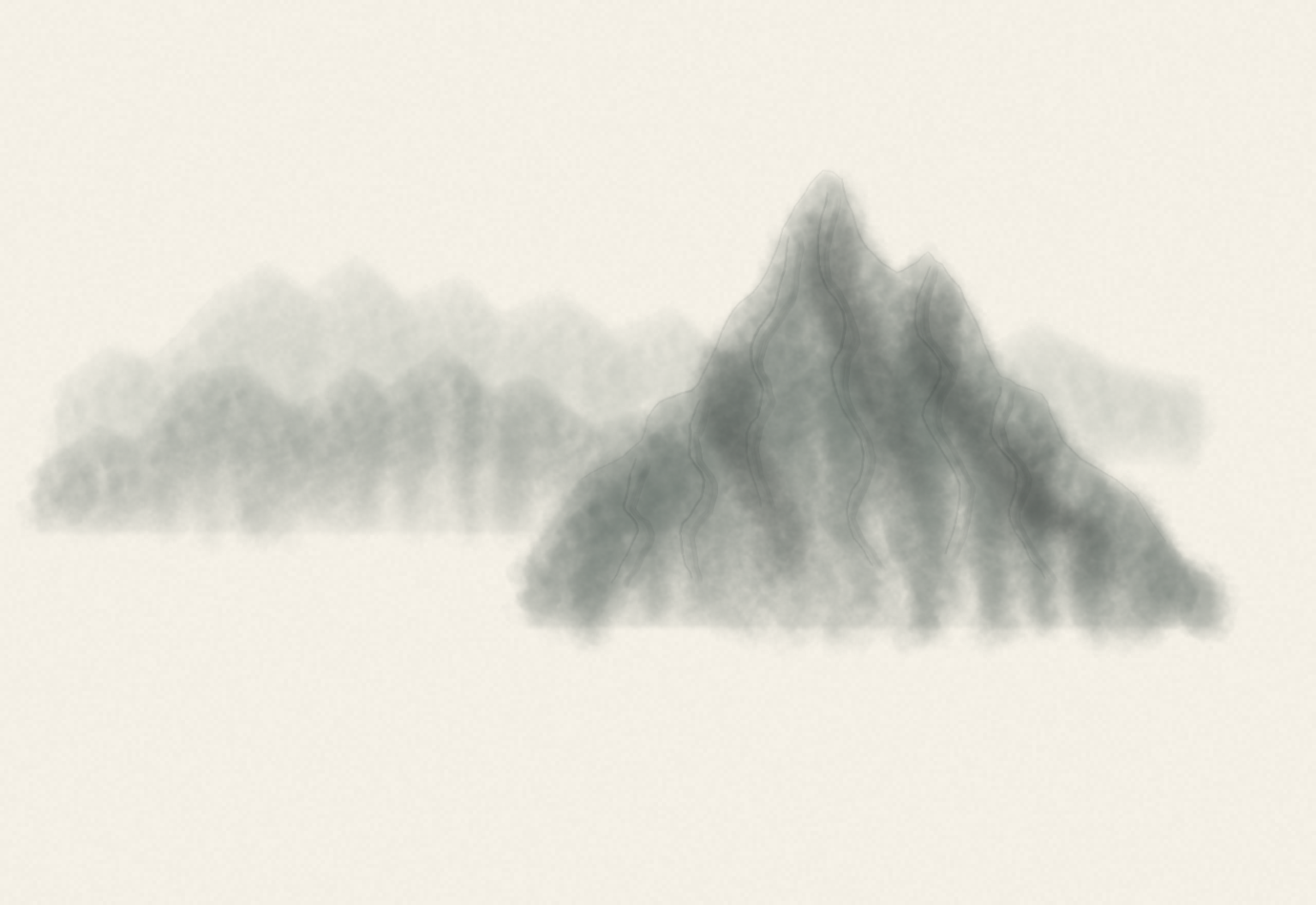
At the end of the contour stage, the distant ridges and main peak already differ in strength. The rock-texture strokes and foreground pine have not yet been added.
On the next layer, finer, looser marks follow the slopes. Long lines suggest the direction of the rock; short strokes and pale ink deepen recesses. Texture can be denser near a ridge while lighter planes remain open. The aim is to describe structure without drawing a complete boundary around every rock.
The script assigned brushes to wash, mist, texture and ink roles. These are working labels rather than official brush names. For your own version, inspect the brushes and previews available in the connected app.
Bring back the mountain bases with paper colour
Lay in the left middle bank with grey-green, letting it fade towards the river. Create a separate mist layer, then use broad marks close to the paper colour across the mountain bases and soften their edges.
This layer uses paper-coloured paint to cover parts of the scene below it. Keeping it separate is useful: lower its opacity if the mist becomes too thick, or edit it to reveal more of a mountain’s foot. Together with the river that was left open from the start, it separates mountains from water.
Negative space does not require every area to be completely untouched. What matters is letting the dark masses end in the right places, with room for the eye to slow down.
Anchor the left side with rocks and an old pine
Use darker ink and broad marks for the foreground rocks, then add a few turns with finer lines. Preserve broken edges instead of turning the entire bank into an evenly filled dark shape.
The pine grows from the rocks, twisting upwards before branching to either side. Establish changes in trunk width, connect the branches, then add needles. Narrow light breaks along the trunk help describe bark and changes of direction while leaving some air within the dark ink.
Build needles in outward-spreading clusters. Start each with a small dark mass, then extend fine lines of varying lengths. Leave gaps between branch tips rather than joining the crown into one solid silhouette. After each cluster, zoom out to check that the main branches still read clearly.
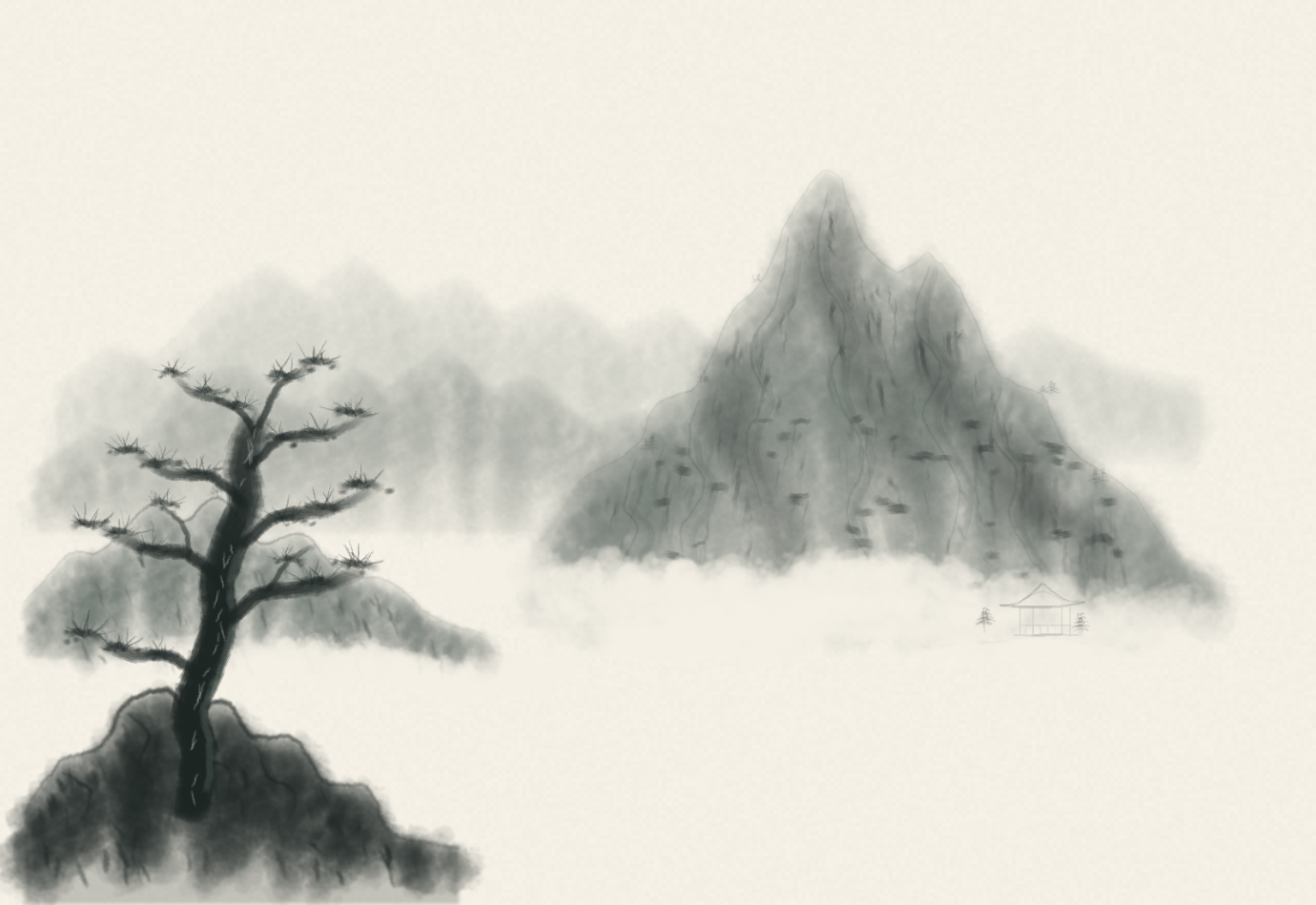
With the needles complete, the foreground pine anchors the left side. The boat has not yet been added to the river, and the upper-right inscription is still absent.
Let the pavilion and boat establish scale
Place the pavilion at the foot of the mountain on the right, retaining only its roof ridge, eaves, posts and low base. It is lighter than the main peak and much smaller than the foreground pine. A few neighbouring trees help suggest the distance along the bank.
Add only a few short ripples to the river, varying their length, spacing and opacity. Most of the water remains paper-coloured, with lighter lines farther away. The open area does not need to be filled with horizontal marks to read as water.
Add the boat low in the river near the end. Two curved lines establish its long, narrow hull; a low canopy, a standing figure and a slanting pole provide enough detail. Finish with a few pale marks underneath. The person only needs to suggest standing and poling. Keep the geese similarly small, using paired short strokes so they do not become a new focal point.
Keep the inscription and seal separate
The title “云山晚渡” uses STKaitiSC-Regular at 49 px, with a line break after each character for the vertical arrangement. The smaller inscription “丙午秋日” uses a separate text layer at 19 px. Both were added through pastel_add_text and retain editable native text sources. This is typographic lettering.
Create the seal on its own layer with a small vermilion polygon selection, then add eight pale marks and gaps. It provides a small warm focal point. At a reduced view, leave space between the seal, title and main peak rather than packing the seal with detail.
Save the original, then export PNG
The process calls pastel_save_artwork at stage boundaries and uses pastel_get_canvas_preview to inspect the actual canvas. A final save confirmed 19 layers, 1600 × 1100 px, 300 dpi and sRGB, with no unsaved changes.
Next, pastel_export_artwork produced PNG and native exports, retrieved through pastel_read_export. The image on this page is the actual 1600 × 1100 px PNG export. The editable original uses .aquarells; both files were downloaded and checked.
Keep both when following along: PNG for viewing and sharing, and the original for layers and text. You can also reopen the original before the next editing session to inspect its contents. This record verifies saving and export; a final close-and-reopen check was not performed for this work.
Connect MCP and start with a small painting
This MCP workflow first reads capabilities, document state, brushes and fonts, then creates the canvas and layers. Selection fills and feathering establish mountain masses. pastel_draw_strokes submits batches of coordinates, pressure, size, opacity and colour for the app’s real brush renderer, with saves and previews between stages.
For a first exercise, try only three groups: pale distant mountains, dark foreground rocks and a small boat. Ask the AI to read the current state, create one layer at a time and inspect a preview after each group. Composition, brush parameters and app feedback all shape the result.
Connecting requires an Apple silicon Mac that can run iPad apps, an MCP-enabled Aquarell build, Python 3.9+ and a client supporting local stdio MCP. The MCP integration is currently a preview; App Store and TestFlight release packages have not yet been validated.
The short setup sequence is:
- Get the bridge files from the Aquarell MCP public repository, then follow the installation instructions to install the bridge and generate a client configuration.
- In the app, open AI Control (MCP) from the gallery folder menu or canvas layer-tools menu, and check connection and editing permissions. Painting requires the app to allow artwork changes.
- Merge the generated personal configuration into your client. Use
--allow-editswhen generating a configuration for writing, then reload the MCP service. - Complete pairing, keep the app window open and close the AI Control panel. Use
doctor --connectto check the actual connection before asking the AI to read the state and preview.
The pastel_* tool prefix is retained for compatibility. The public capabilities and validation scope describes build differences. See the Aquarell introduction for the app’s brushes, layers and export uses.
Watch the whole scene and details in the short versions
Alongside the main tutorial with the full app interface, three vertical versions cover the scene from blank paper to finish, the foreground pine and the boat. They use accelerated excerpts from the same creation recording, retaining Chinese on-screen titles and music. For complete steps with English or Chinese subtitles, use the main tutorial.