
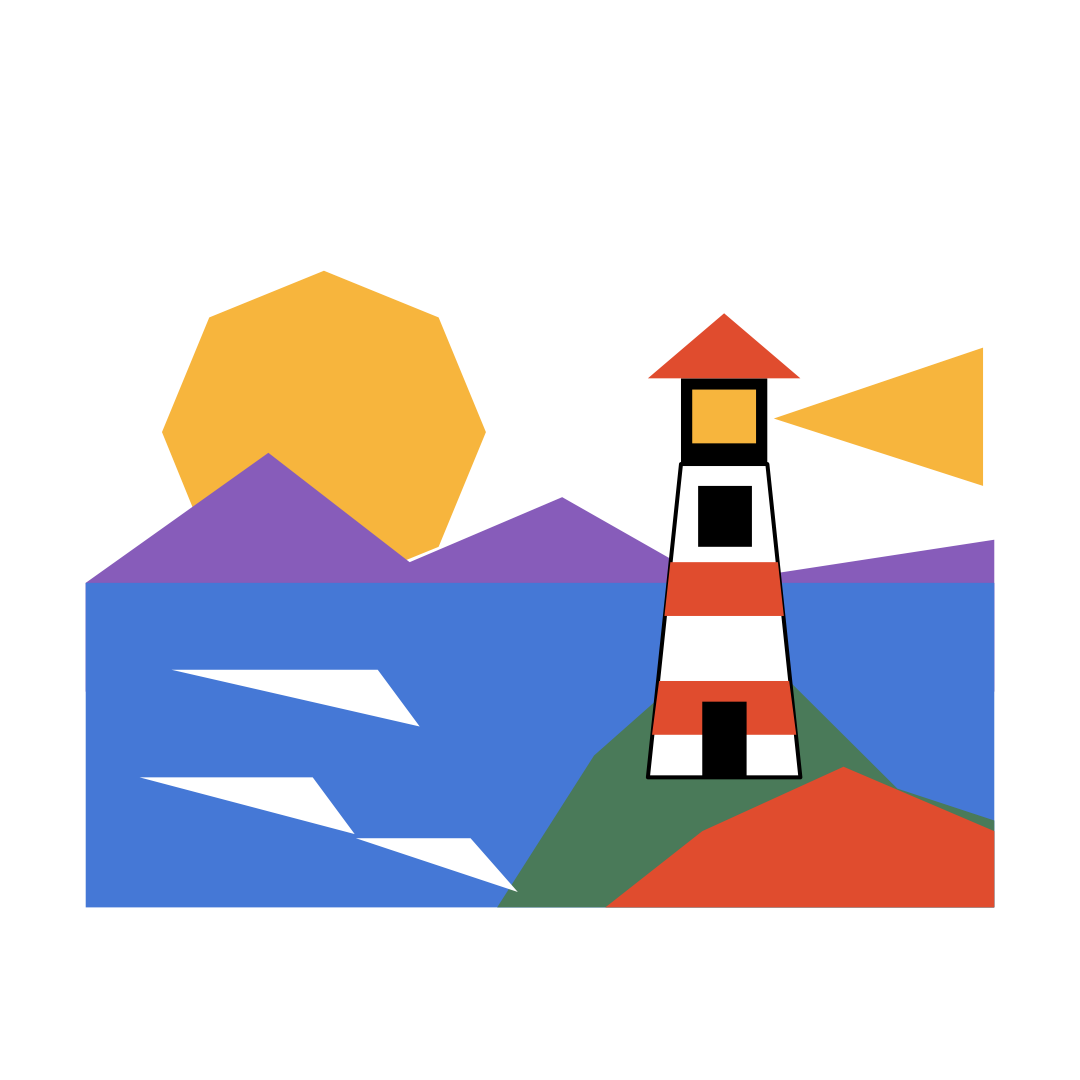
This lighthouse uses a square 1080 × 1080 px canvas, named for the Cape Lighthouse square project. A warm sun sits on the left; purple mountains and a blue sea establish the horizon below. The lighthouse stands on the green cape at the right, sending a triangular beam out from its lantern room. The white sky is generous and the tower is white too, so I added a black outline to the tower at the end.
Although some shapes look circular or rectangular, this piece uses closed pen paths drawn point by point. The sun is an eight-point polygon. The lantern room, bands and wave highlights are independent closed colour shapes too. The exercise is about placing nodes, closing paths and stacking flat colours.
The demonstration uses an iPhone Duo simulator and a local VectorPaint build, 1.0.7 (6). Tool positions follow the build shown in the video; the App Store version may differ.
A small palette separates sea and lighthouse
The recording uses black, white, terracotta, amber, moss green, blue and purple from the favourite palette. The HEX values below are sampled from large flat areas in the exported PNG to help you make a close version.
| Use | HEX |
|---|---|
| Sun, lantern light and beam | #F7B53D |
| Distant mountains | #875CBA |
| Sea | #4578D6 |
| Cape | #4A7A59 |
| Rock, roof and tower bands | #E04C2E |
| Door, window, lantern frame and tower outline | #000000 |
| Tower, wave highlights and white space | #FFFFFF |
Warm colours are concentrated in the sun and lighthouse, while blue and purple separate the sea and mountains. The green cape gives the white tower somewhere to stand; the warm-red rock at the lower right echoes the roof and bands. Begin with this palette, then compare colour changes once all objects are complete.
Decide which shapes will cover which
The depth order is simple: the sun is furthest away, the mountains cross in front of it and the blue sea meets their base. The green cape and lower-right rock cover part of the sea, with the lighthouse on the cape.
Draw the large shapes in that order so new colour areas naturally sit in front. This piece uses one layer and 17 closed-path objects. The door, window, bands and lantern light can each be selected separately.
Use this list to check the objects kept in the final piece:
| Content | Object count | Relationship to adjacent shapes |
|---|---|---|
| Sun, distant mountains and sea | 3 | The mountains cover the sun’s lower edge; the sea meets the mountain base |
| Cape and foreground rock | 2 | Cover the lower-right part of the sea |
| White tower | 1 | Stands on the green cape |
| Black lantern room, warm light and triangular roof | 3 | The light sits inside the black lantern room; the roof covers its upper edge |
| Two warm-red bands | 2 | Run across the tower |
| Black door and upper window | 2 | Sit in the lower and upper parts of the tower |
| Three white wave highlights | 3 | Spaced across the left-hand sea |
| Warm light beam | 1 | Extends from the right of the lantern room |
| Total | 17 | Excludes mistaken short lines deleted during drawing |
Begin by looking only at the first five objects. Once the sun, mountains, sea, cape and rock fit together, the scene already reads as a coast before the lighthouse appears.
Make a closed colour shape with the pen
The repeated operation is to select the pen, tap nodes at the outline’s corners and return to the first node to close the path. Then set the current object’s fill and turn off any unwanted stroke.
Corners are the key. A simple mountain or a tower band does not need extra nodes along each straight edge. More nodes make later selection and editing harder. Keep a few clear turning points, close the path and inspect the shape.
After finishing an object, switch to the selection tool and confirm that the new object is selected. Open Object Properties → Appearance, set the fill and turn off Enable Stroke where it is not needed. In Favourite Palette below, confirm that the colour targets the fill, choose it and tap Done. Then begin the next object. This check helps where small shapes crowd together: the yellow lantern light is close to the black frame, and the bands cover part of the white tower.
The other 16 objects have no stroke, so their colours meet directly. The tower alone receives a black stroke at the end, with a width of 4 pt. Its white edge is weak against the white sky; the outline makes the silhouette readable from top to bottom.
Use the sun and mountains to set the heights
Draw the sun first. Close eight nodes around a nearly circular outline, add the warm fill and remove the stroke. This polygon sun shares the mountains’ angular style; it does not need a perfectly smooth circular edge.
Close the distant mountains with eight nodes as well and fill purple. Vary the peak heights, dipping through the middle before the second mountain. The range passes in front of the sun and hides its lower edge, establishing the first overlap.
The blue sea meets the mountain base. Define a horizontal sea line, then close a large area below it and fill blue. Leave room for the cape and lighthouse. This step is only for the large colour area; add no waves yet.
Check three things before adding detail: enough sun remains visible, the mountain base meets the sea cleanly, and the blue area forms the main lower part of the picture. Small details can wait until those relationships work.
Give the lighthouse a base with cape and rock
The green cape rises from the lower part of the picture towards the upper right, leaving a relatively level place for the tower. It covers one corner of the blue sea. A few angled edges describe the slope without a fragmented outline.
Add a warm-red rock at the lower right. It meets the green cape and closes the composition along the bottom. There is no rock texture here; the foreground supports the lighthouse through larger colour areas and sloping edges.
Close both shapes with the pen, fill them and remove their strokes. Pause to check where the lighthouse will stand. If the tower is too near the cape’s edge it may look suspended. Keeping its base inside the green area makes the relationship steadier.
Draw tower, lantern room and roof separately
The white tower is a quadrilateral, narrower at the top and wider below. Leave the top for the lantern room and meet the cape at the bottom. Keep it upright, with its sides spreading slightly outwards, and postpone decoration.
Draw the black lantern room, then place a smaller warm-coloured light inside it. The black is the lantern room’s own fill, rather than a thick stroke around a yellow rectangle. Two stacked objects make the structure clear.
Use a warm-red triangle for the roof. It is slightly wider than the lantern room so a little eave extends on each side. Add two tower bands in the same warm red, then a black door near the base and a black window higher up.
Each small part is a separately closed and filled object. Order the roof, bands, door and window according to which should appear in front.
The first small window did not close properly and left an unwanted line. I selected that mistaken line with the selection tool and deleted it normally, then drew a taller window, closed it and filled it black. The deleted line is not part of the final 17 objects.
If windows or wave highlights will not close, check node spacing
A failed detail is not always a colour-setting problem. In a small window or narrow wave highlight, neighbouring nodes can be too close. The start, corners and closing point crowd into a tiny screen area, making the final tap hard to place confidently.
I also deleted the first narrow wave highlight, then redrew it with the nodes further apart. The finished image keeps three long, narrow white triangles. They are separate shapes, not one continuous curve.
When following along, zoom in before drawing details. That changes the view, not the artwork dimensions. Check the closed outline before filling. If you accidentally create a short line, selecting and deleting it before redrawing is easier to judge than repeatedly tapping around a tiny endpoint.
The door, window and wave highlights need not be as thin as possible. At full-composition view, the door should still read as a door, the window should stand apart from the tower, and white wave marks should separate from the blue sea. That is enough.
Use a triangle to point the final beam
Add the warm light beam last. One end narrows beside the lantern room; the other spreads towards the right-hand edge, making a clear triangle.
The beam uses the same amber as the sun and lantern light. It is a separate closed, filled triangle.
After drawing, check the white tower against the white sky one final time, then enable the 4 pt black stroke for the tower alone. Keep the other large colour shapes flat and without strokes.
Check the lighthouse in three iPhone Duo states
After finishing and confirming the Saved indicator, use the bottom of Device Hub to switch through Open → Partially Open → Closed → Open. The end of the video shows these steps through sampled simulator-window views. Waiting is removed so the states are easier to compare.
In this session the open view showed 56%, the partially open view about 29%, the closed view about 27%, and reopening returned to 56%. These percentages describe the editor view; the artwork and PNG remain 1080 × 1080 px.
After each switch, wait for the interface to settle. Then check the light inside the black lantern frame, the continuous black outline around the white tower, and the separation between the three wave highlights. When closed, the left-hand tools are more compact and small objects are harder to select. Return to Open for awkward detail work so the start and corner nodes are easier to confirm.
Switching displays briefly produced a black screen before the app recovered. The video keeps a little of this transition footage and labels the material as sampled device-window views shown step by step.
Check canvas dimensions and PNG pixels separately
The app exported a 1080 × 1080 px PNG with a white background. The artwork image on this page uses that native export directly.
The editable original and the webpage PNG have different jobs. The original keeps separate objects so you can change a band, adjust a mountain or move a wave highlight. PNG flattens the current view into one pixel image.
Open Share → Export & Share → PNG Image. Choose Full Canvas, 1× scale and a white background, then tap Export PNG. Check the white sky and outer edges in the preview, then verify the PNG’s actual pixel dimensions. Editor zoom affects the view, not the exported size. For a white sky, check the export background too; empty space is not necessarily a white background object you drew.
Open the exported image on its own and view the whole composition. Check that the tower’s black line is complete, that the three wave marks have not joined, and that the lantern light remains inside the black frame. Then zoom in on details to distinguish path-outline problems from a webpage simply displaying the image at a small size.
For the basics, read fills and strokes; for object organisation, see layers and groups. Compare PNG, SVG and editable originals in choosing export formats. For canvas units versus output pixels, see canvas size and units.