UIKit & graphicsHistorical technical note
Exploring Swift: building a tab bar entirely in code
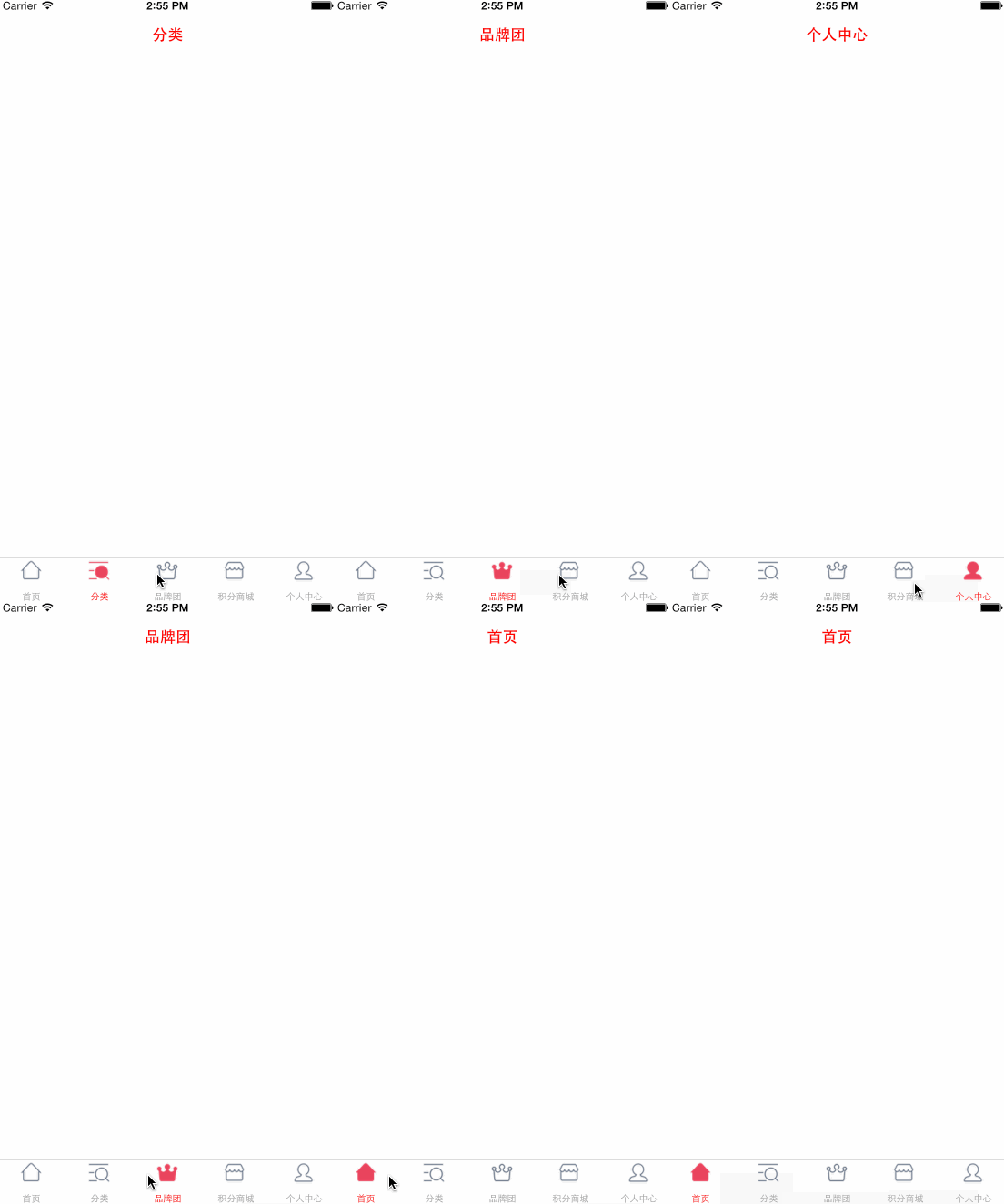
Builds a Zhe800-inspired tab bar using early Swift syntax. It creates child view controllers, assigns titles and icons, and adds them to the system tab bar, illustrating how to organise a navigation structure programmatically.
Originally credited to Bison. Content is retained as published.
On this page
“Enrich yourself and increase your value by continuing to learn.” Bison
The new version of my recent project is mostly finished, so I am using some spare time to learn the new Swift language. Swift is fairly easy to learn if you already know OC. Below is a Tabbar I wrote while teaching myself. Of
course, this is not a custom implementation. It should still meet ordinary requirements.
Below is a Tabbar I wrote to imitate “折800”. It has a few minor imperfections because of the images.
The code is as follows
Core code
class func CusTomTabBar() ->UITabBarController{

var vc1 = Home_VC()
var vc2 = Class_VC()
var vc3 = Brand_VC()
var vc4 = Shoping_VC()
var vc5 = Personal_VC()
var nvc1:UINavigationController = LBNvc(rootViewController: vc1)
var nvc2:UINavigationController = LBNvc(rootViewController: vc2)
var nvc3:UINavigationController = LBNvc(rootViewController: vc3)
var nvc4:UINavigationController = LBNvc(rootViewController: vc4)
var nvc5:UINavigationController = LBNvc(rootViewController: vc5)
let tabbar1 = UITabBarItem(title: "首页", image: (Public .getImgView("home_tab_home_btn@2x")) , selectedImage: (Public .getImgView("home_tab_home_selected_btn@2x")))
let tabbar2 = UITabBarItem(title: "分类", image: (Public .getImgView("home_tab_saunter_btn@2x")), selectedImage: (Public .getImgView("home_tab_saunter_selected_btn@2x")))
let tabbar3 = UITabBarItem(title: "品牌团", image: (Public .getImgView("home_tab_branc_btn@2x")), selectedImage: (Public .getImgView("home_tab_branc_selected_btn@2x")))
let tabbar4 = UITabBarItem(title: "积分商城", image: (Public .getImgView("home_tab_point_btn@2x")), selectedImage: (Public .getImgView("home_tab_point_selected_btn@2x")))
let tabbar5 = UITabBarItem(title: "个人中心", image: (Public .getImgView("home_tab_personal_btn@2x")), selectedImage: (Public .getImgView("home_tab_personal_selected_btn@2x")))
nvc1.tabBarItem = tabbar1;
nvc2.tabBarItem = tabbar2;
nvc3.tabBarItem = tabbar3;
nvc4.tabBarItem = tabbar4;
nvc5.tabBarItem = tabbar5;
var tc = UITabBarController()

tc.tabBar.tintColor = UIColor .redColor()
//        tc.tabBar.backgroundImage = Public.getImgView("3.png")
tc.viewControllers = [nvc1,nvc2,nvc3,nvc4,nvc5];
return tc;
}