
UIKit & graphicsHistorical technical note
iOS 9 3D Touch quick actions, with a Swift update
Explains iOS 9 Home Screen quick actions: defining icons, titles and types in Info.plist, then dispatching selections through AppDelegate. Both Objective-C and Swift implementations illustrate the configuration and callback flow.
Originally credited to Bison. Content is retained as published.
On this page
"Work hard, keep working hard, and work harder still. Today’s effort becomes tomorrow’s reward." Bison
On October 19, a weekend day, I got up for breakfast and then went to Walmart to pick up ingredients for dinner. I wandered over to the iPhone counter—an occupational habit, perhaps. 😄 I tried the newly released iPhone6s and its new 3D Touch feature. It was rather hard to trigger at first 😓; apparently you need to get a feel for it. Mainstream app s already supported it, and I could not stop thinking about implementing it myself. The biggest drawback was that it worked only on iPhone6s and later models, although apparently other phones could get this interesting feature through jailbreaking. Enough digression...
Now to the point:
I searched online and found very little information, just one brief introduction:
http://www.jianshu.com/p/74fe6cbc542b
Of course, that article alone made this feature difficult to implement—at least in my view.
So I put my supposedly unbeatable searching skills to work and finally found a way forward.
First, add an entry to the Info.plist file.
<key>UIApplicationShortcutItems</key>
    <array>
        <dict>
            <key>UIApplicationShortcutItemIconType</key>
            <string>UIApplicationShortcutIconTypeShare</string>
            <key>UIApplicationShortcutItemTitle</key>
            <string>Share</string>
            <key>UIApplicationShortcutItemType</key>
            <string>-11.UITouchText.share</string>
        </dict>
    </array>
Here is what the entries mean.
UIApplicationShortcutItemIconType specifies the icon type shown when 3D Touch is triggered.
UIApplicationShortcutIconTypeShare shows the share icon.
Other icons are available too, but I will not list them all: I am also just getting started, so please bear with me. 😄
UIApplicationShortcutItemTitle supplies the displayed name.
UIApplicationShortcutItemType is unique, like the project's Bundle Identifier.
Use this identifier to determine which item was tapped and trigger its action.
You can configure several items.
That finishes the Info.plist setup. What next?
What—you do not know either?
All right, I will continue with the next step...
First, add the following method to AppDelegate.m.
Objective-C version
- (void)application:(UIApplication *)application
performActionForShortcutItem:(UIApplicationShortcutItem *)shortcutItem
completionHandler:(void(^)(BOOL succeeded))completionHandler{

}
Swift version
func application(application: UIApplication, performActionForShortcutItem shortcutItem: UIApplicationShortcutItem, completionHandler: (Bool) -> Void) {

}
What does this method do? You probably already know.
Yes: it handles the event triggered by 3D Touch.
Here is how I wrote my Demo:
Objective-C version
- (void)application:(UIApplication *)application performActionForShortcutItem:(UIApplicationShortcutItem *)shortcutItem completionHandler:(void(^)(BOOL succeeded))completionHandler{
    //判断先前我们设置的唯一标识
    if([shortcutItem.type isEqualToString:@"-11.UITouchText.share"]){
        NSArray *arr = @[@"hello 3D Touch"];
        UIActivityViewController *vc = [[UIActivityViewController alloc]initWithActivityItems:arr applicationActivities:nil];
//设置当前的VC 为rootVC
        [self.window.rootViewController presentViewController:vc animated:YES completion:^{

        }];
    }
}
Swift version
func application(application: UIApplication, performActionForShortcutItem shortcutItem: UIApplicationShortcutItem, completionHandler: (Bool) -> Void) {

        switch shortcutItem.type {
        case "-11.UITouchText.share":
let items = ["hello 3D Touch"]
                let activityVC = UIActivityViewController(
                activityItems: items,
                applicationActivities: nil)
                self.window?.rootViewController?.presentViewController(activityVC, animated: true, completion: { () -> Void in

            })
        default:
            break
        }
    }
I suspect many fellow developers are like me and have not yet bought an iPhone6s, which prevents us from testing the result directly. Here is a way around that limitation. It will not show the running effect, but it can still help determine whether the setup succeeded.
Objective-C version
if (self.traitCollection.forceTouchCapability == UIForceTouchCapabilityAvailable) {
        NSLog(@"你的手机支持3D Touch!");
    }
    else {
        NSLog(@"你的手机暂不支持3D Touch!");
    }
Swift version
if traitCollection.forceTouchCapability == UIForceTouchCapability.Available {

           NSLog(@"你的手机支持3D Touch!");
        }
        else {
            NSLog(@"你的手机暂不支持3D Touch!");
        }
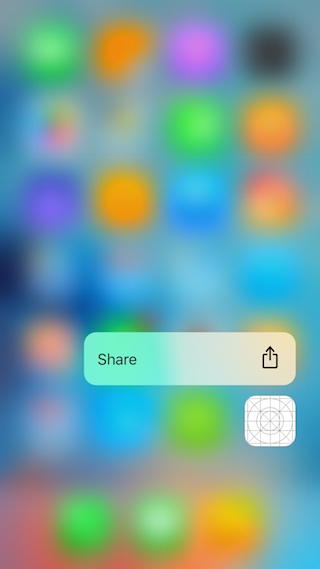
Here is a screenshot for you to enjoy! 😄
Recommended reading: Integrating Alipay friend sharing in three minutes
Technical discussion group: 511040024
Copyright ©Bison. Reproduction without permission is prohibited.