
UIKit & graphicsHistorical technical note
Recreating an animation from the National Geographic iOS app
Breaks down a National Geographic-inspired pop-up page animation into status-bar hiding, view dragging and spring-back, navigation-bar coordination and back-button colour changes. The implementation follows how several interface layers move together.
Originally credited to WzxJiang; edited and archived by Bison.
Source listed in the originalOn this page
Editor: Bison
Contributor: WzxJiang
"This recreates a view pop-up animation from the National Geographic app. It looks simple, but there are many details. Let us go straight to the explanation."
A few days ago, the product team gave me this requirement:
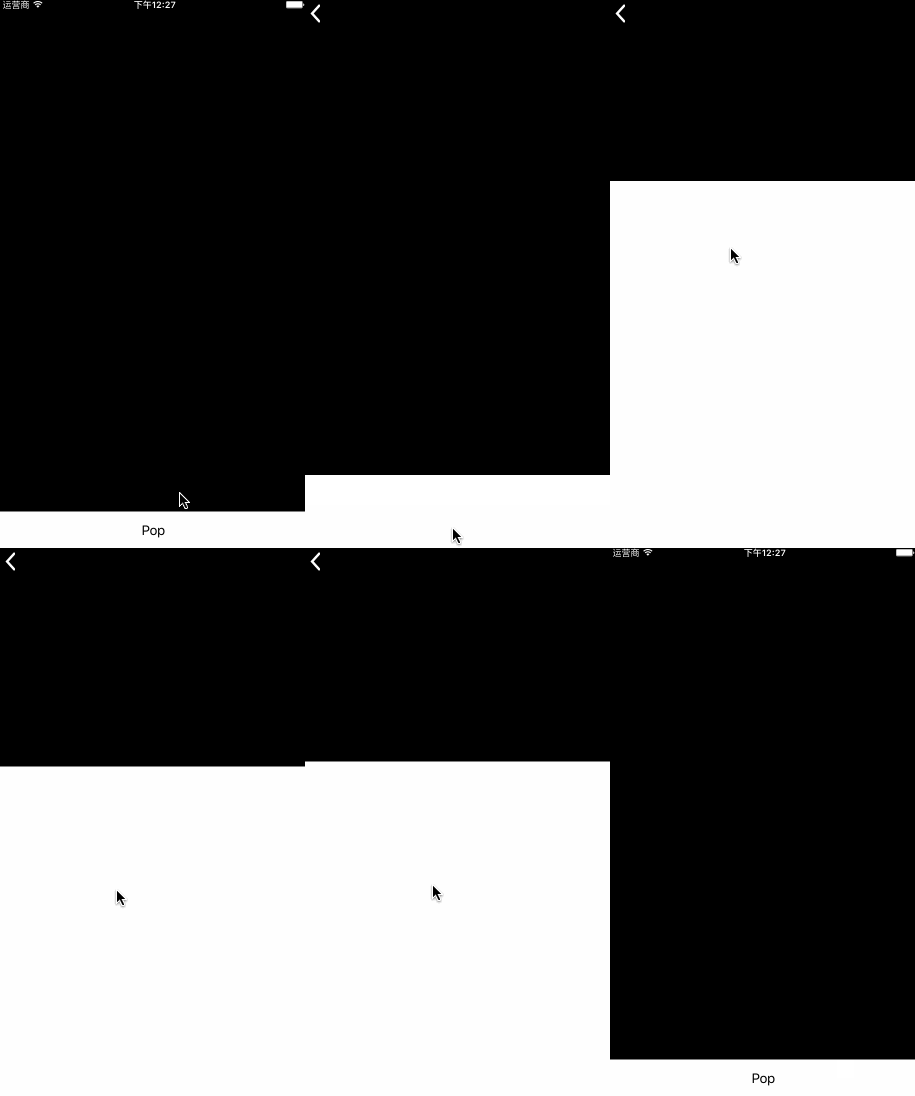
This recreates a view pop-up animation from the National Geographic app. It looks simple, but there are many details. Let us go straight to the explanation.
Breaking down the gif shows these steps when the view appears:
Hide the status bar.
Present the view.
The view can be dragged. Dragging upward far enough reveals a navigation bar that aligns exactly with the view; dragging downward produces a bounce.
A back button at the top-left corner changes color as the navigation bar appears.
Let us work through it step by step.
1. Hide the status bar.
The following method solves it.
- (BOOL)prefersStatusBarHidden
{
    return YES;//隐藏为YES,显示为NO
}
2. Present the view.
This is straightforward, so here is the code.
//如果_popView不存在 创建
if (!_popView)
{
    _popView = ({
        UIView * popView = [[UIView alloc]initWithFrame:CGRectMake(0,0,self.view.frame.size.width,self.view.frame.size.height)];

        popView.backgroundColor = [UIColor colorWithWhite:0 alpha:0.1];

        popView.userInteractionEnabled = YES;

        popView;
    });

    _popSubView = ({
        UIView * popSubView = [[UIView alloc]initWithFrame:CGRectMake(0, self.view.frame.size.height, self.view.frame.size.width, self.view.frame.size.height)];

        [popSubView addGestureRecognizer:[[UIPanGestureRecognizer alloc]initWithTarget:self action:@selector(pan:)]];

        popSubView.backgroundColor = [UIColor whiteColor];

        popSubView;
    });
        [_popView addSubview:_popSubView];
    }

    [self.view addSubview:_popView];

    [UIView animateWithDuration:0.5 delay:0 options:UIViewAnimationOptionCurveEaseInOut animations:^{

        CGRect rect    = _popSubView.frame;
        rect.origin.y  = self.view.frame.size.height/3.0;
        _popSubView.frame = rect;

    } completion:^(BOOL finished) {

    }];
}
3. The view can be dragged. Dragging upward far enough reveals a navigation bar that aligns exactly with the view; dragging downward produces a bounce.
We have already added the drag gesture above.
[popSubView addGestureRecognizer:[[UIPanGestureRecognizer alloc]initWithTarget:self action:@selector(pan:)]];
Here is all the code for this method. The comments should make it understandable.
- (void)pan:(UIPanGestureRecognizer *)sender
{
    //手指在self.view上的偏移量
    CGPoint trans = [sender translationInView:sender.view];

    CGPoint oldCenter = sender.view.center;

    oldCenter.y += trans.y;

    //设置view最高点  self.navigationController.navigationBar.frame.size.height使得View能完美切合
    if (oldCenter.y <= self.view.center.y + self.navigationController.navigationBar.frame.size.height)
    {
        oldCenter.y = self.view.center.y + self.navigationController.navigationBar.frame.size.height;
        //使导航栏以动画效果显示
        [self.navigationController setNavigationBarHidden:NO animated:YES];
        [_backBtn setBackgroundImage:[UIImage imageNamed:@"back"] forState:UIControlStateNormal];
    }
    else
    {
        [self.navigationController setNavigationBarHidden:YES animated:YES];
        [_backBtn setBackgroundImage:[UIImage imageNamed:@"back(white)"] forState:UIControlStateNormal];
    }

    //设置view最低点 +50是为了回弹效果
    if(oldCenter.y  > self.view.center.y + self.view.frame.size.height/3.0 + 50)
    {
        oldCenter.y = self.view.center.y + self.view.frame.size.height/3.0 + 50;
    }

    //回弹效果
    if (sender.state == UIGestureRecognizerStateEnded)
    {
        if(oldCenter.y  >= self.view.center.y + self.view.frame.size.height/3.0)
        {
            oldCenter.y = self.view.center.y + self.view.frame.size.height/3.0;
        }

        [UIView animateWithDuration:0.3 delay:0 options:UIViewAnimationOptionCurveEaseInOut animations:^{
            sender.view.center = oldCenter;
        } completion:^(BOOL finished) {

        }];
    }
    else
    {
        sender.view.center = oldCenter;
    }
    [sender setTranslation:CGPointZero inView:sender.view];
}
4. A back button at the top-left corner changes color as the navigation bar appears.
For the button to remain above the navigation bar, it must be added to the window. There are two ways to change its color:
Draw a CAlayer; the color-change animation will look more realistic.
I used the second approach here: prepare icons in two colors and change the btn's background image.
if (!_backBtn)
{
    _backBtn = ({

        UIButton * backBtn = [UIButton buttonWithType:UIButtonTypeCustom];

        backBtn.frame = CGRectMake(10, 10, 13, self.navigationController.navigationBar.frame.size.height - 20);

        [backBtn addTarget:self action:@selector(hidePopView) forControlEvents:UIControlEventTouchUpInside];

        [backBtn setBackgroundImage:[UIImage imageNamed:@"back(white)"] forState:UIControlStateNormal];

        backBtn;
    });
}
[[UIApplication sharedApplication].windows[0] addSubview:_backBtn];
Hiding it is simple.
- (void)hidePopView
{
    [UIView animateWithDuration:0.5 delay:0 options:UIViewAnimationOptionCurveEaseInOut animations:^{

        CGRect rect    = _popSubView.frame;
        rect.origin.y  = self.view.frame.size.height;
        _popSubView.frame = rect;
        if (self.navigationController.navigationBarHidden == NO)
        {
        [self.navigationController setNavigationBarHidden:YES animated:YES];
        }
        [_backBtn removeFromSuperview];

    } completion:^(BOOL finished) {

        [self changeBarStatus];
        [_popView removeFromSuperview];

    }];
}
Use this directly as the btn's tap handler.
[backBtn addTarget:self action:@selector(hidePopView) forControlEvents:UIControlEventTouchUpInside];Complete code
GitHub: Wzxhaha
Recommended reading: Bison's guide to iOS multithreading, part 1