
UIKit & graphicsHistorical technical note
A circular expanding transition in Swift, inspired by Gewara
Moves from an ordinary navigation push to an expanding circular transition, using a CALayer mask to control the revealed area. Gesture-driven animation extends the example, which is explained in Swift with an Objective-C implementation for comparison.
Originally credited to HenryCheng; edited and archived by Bison.
Source listed in the originalOn this page
Editor: Bison
Contributor: HenryCheng
"If you have used Gewara Movies or similar apps, you may recognize the popular transition where tapping a button produces an expanding effect. It looks roughly like this:"
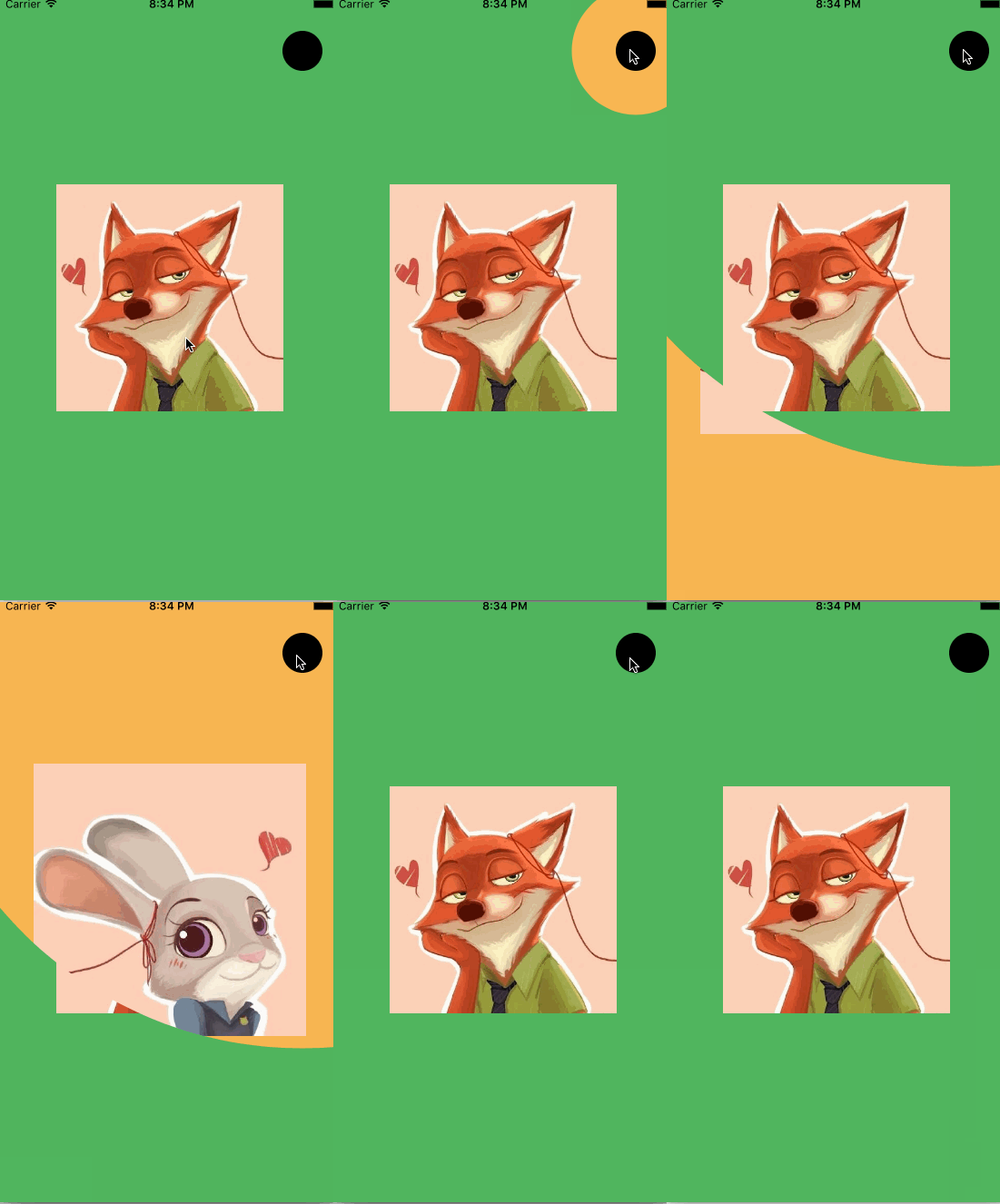
This article focuses on the SWIFT version. A download for the Objective-C demo is provided later.
In iOS, you can customize the transition between two viewControllers within the same navigation controller. Since iOS7, implementing
UIViewControllerAnimatedTransitioning或者UIViewControllerContextTransitioning协议,
makes it easy to customize transitions, such as a NavigationController's push and pop. One other concept is important: suppose you have a rectangle and a circle, and want to cut an area the size of that circle out of the rectangle. That is where CALayer's mask property comes in. A diagram may explain this more clearly:
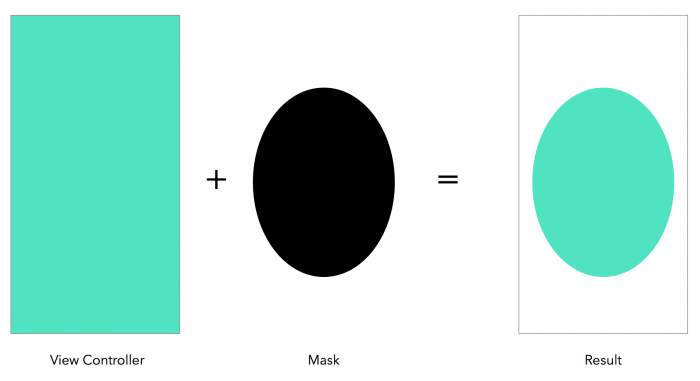
You may now have some understanding of the mask property. The code below will show the implementation in detail. With that introduction, let us build the effect step by step.
Implementing a simple push transition
Create a new project; this example uses Swift. Select the storyboard and add a navigation controller, as shown below.
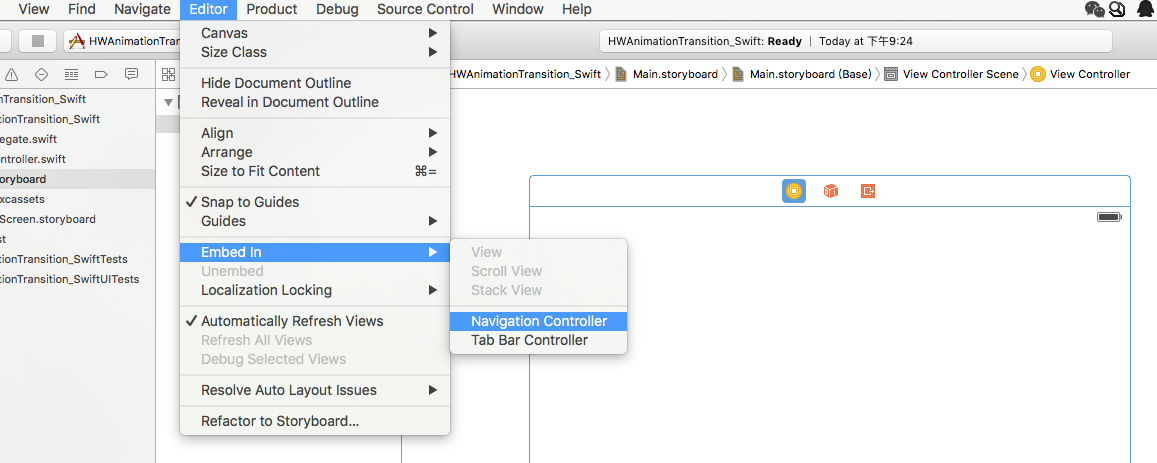
The result is as follows.
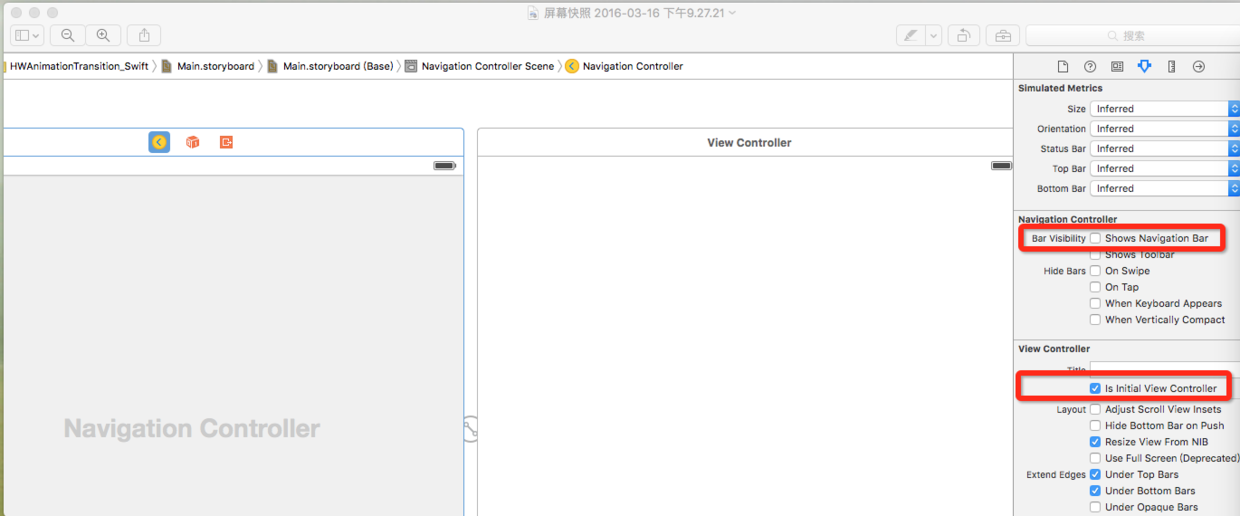
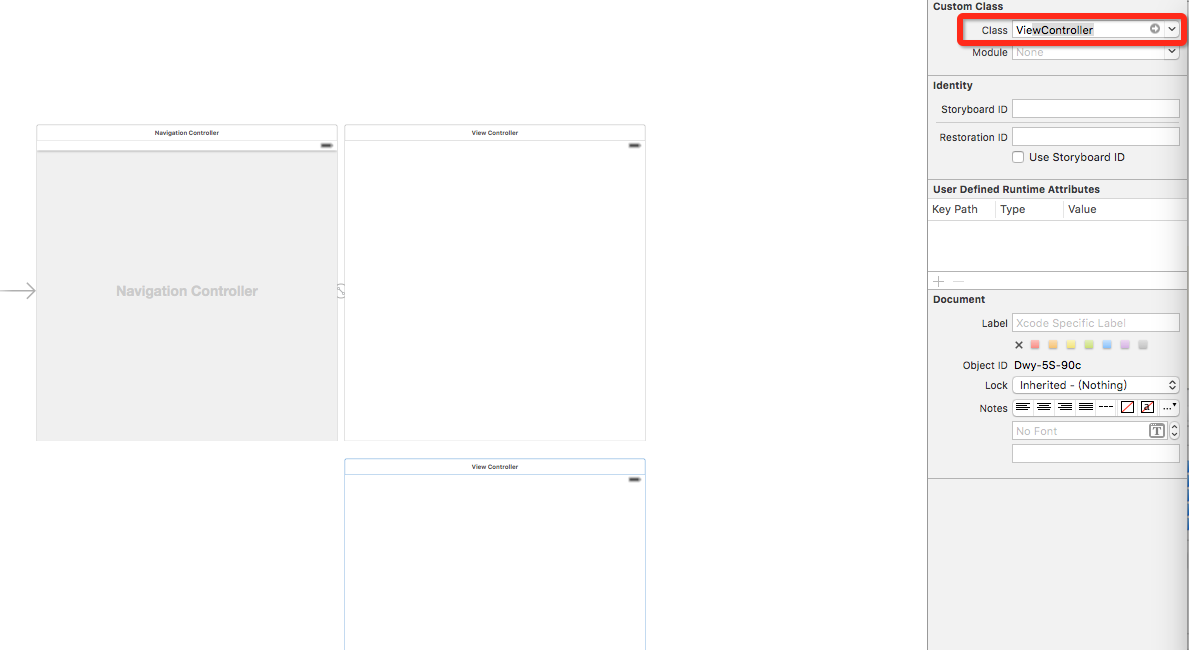
Uncheck Shows Navigation Bar on the right, because this demo does not need a navigation bar. Make sure Is Instal View Controller is checked; if you are unsure what it does, uncheck it and observe the result. It is selected by default here. Then create another viewController and make it inherit from ViewController, as shown below.
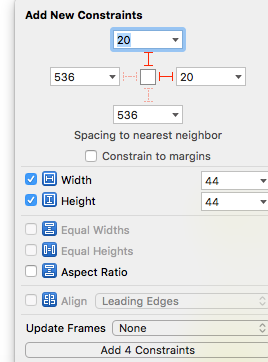
Add identical buttons at the same position in both VCs. Constrain them to the top-right, with offsets of 20 from the right and 20 from the top. Give the two VCs different background colors so they are easy to distinguish.
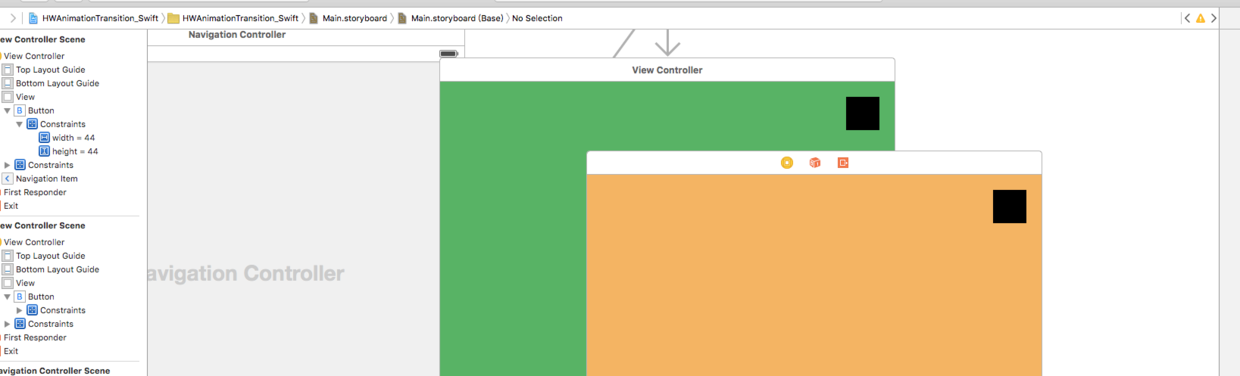
Then right-drag from the first button to the second VC—the one with the yellow background—and choose show.
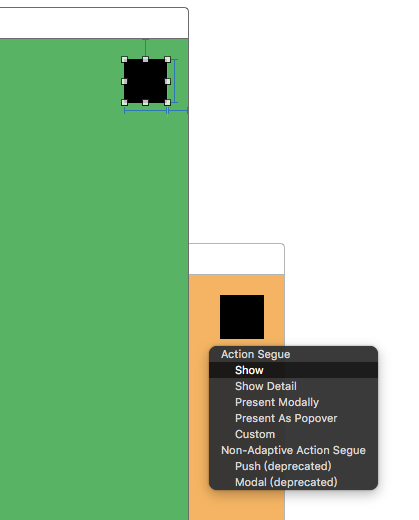
A line now connects the two VCs. Select its middle and set identifier to PushSegue. This identifier prepares us for the later transition. The result is shown below:
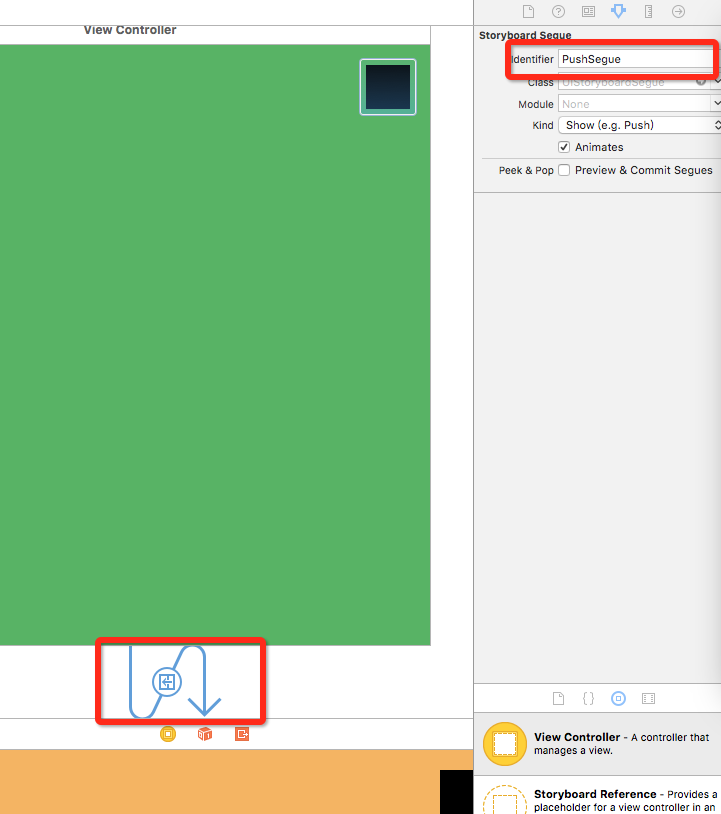
Connect both buttons to the same ViewController property, named popBtn. Then add a tap handler named popClick for the button in the second VC, because we need to pop back, as shown below.
import UIKit

class ViewController: UIViewController {

    @IBOutlet weak var popBtn: UIButton!
    override func viewDidLoad() {
        super.viewDidLoad()
        // Do any additional setup after loading the view, typically from a nib.
    }

    @IBAction func popClick(sender: AnyObject) {

        self.navigationController?.popViewControllerAnimated(true)
    }

    override func didReceiveMemoryWarning() {
        super.didReceiveMemoryWarning()
        // Dispose of any resources that can be recreated.
    }

}
Finally, add an imageView in the center of each VC. The completed result is shown below.
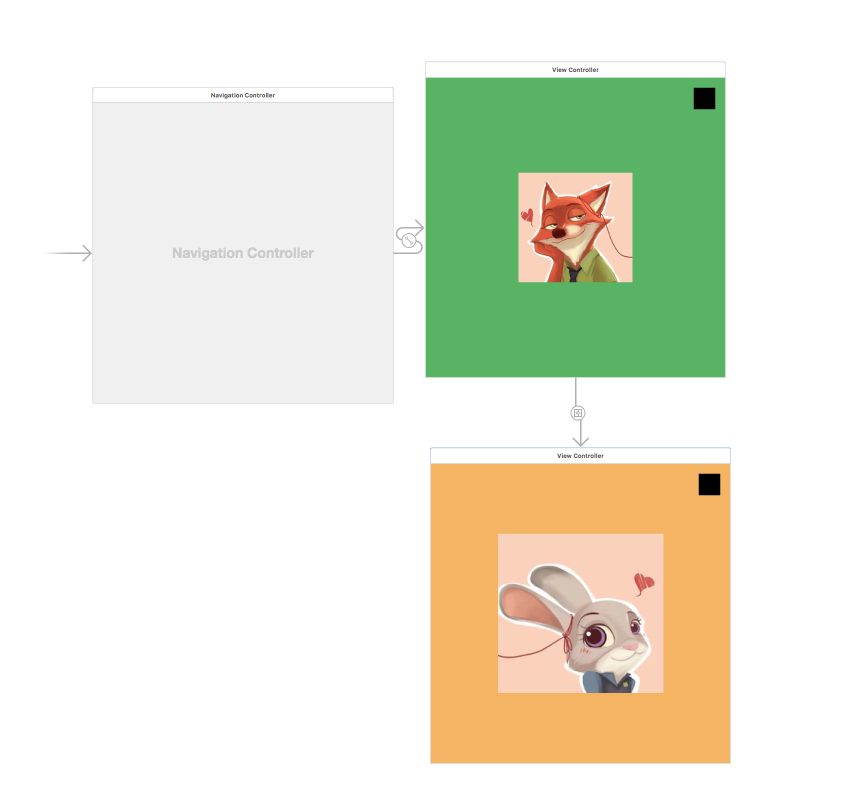
If everything is correct so far, run the project. It should look like this:
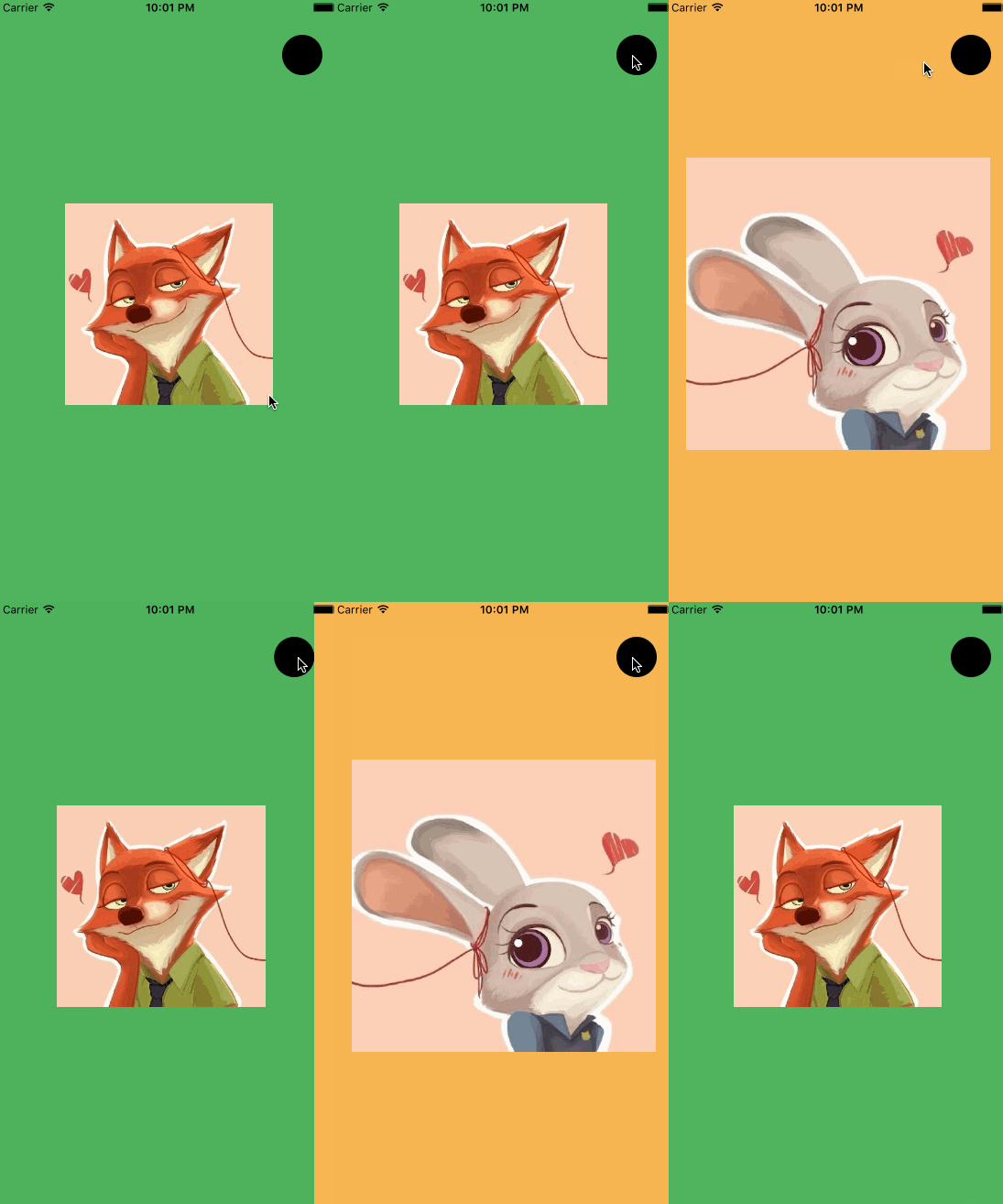
Yes, that is just a simple push transition. The preparation is complete; continue below to implement the expanding animation.
Implementing the expanding effect
That completes the preparation. One more thing to know: customizing a navigation push or pop requires implementing this UINavigationControllerDelegate method:
func navigationController(navigationController: UINavigationController,
interactionControllerForAnimationController animationController: UIViewControllerAnimatedTransitioning) -> UIViewControllerInteractiveTransitioning? {
    return nil
}
delegate method. First, create an NSObject subclass named HWNavigationDelegate, add UINavigationControllerDelegate conformance, and implement the method with a temporary nil return value. The code above shows that the return type is optional, so nil is acceptable until we supply the real implementation. HWNavigationDelegate will look approximately like this:
//
//  HWNavigationDelegate.swift
//  HWAnimationTransition_Swift
//
//  Created by HenryCheng on 16/3/16.
//  Copyright © 2016年 www.igancao.com. All rights reserved.
//

import UIKit

class HWNavigationDelegate: NSObject, UINavigationControllerDelegate {

    func navigationController(navigationController: UINavigationController, animationControllerForOperation operation: UINavigationControllerOperation, fromViewController fromVC: UIViewController, toViewController toVC: UIViewController) -> UIViewControllerAnimatedTransitioning? {

        return nil;
    }
}
Open the storyboard again, search for Object at the bottom-right, and drag it into the Navigation Controller Source on the left.
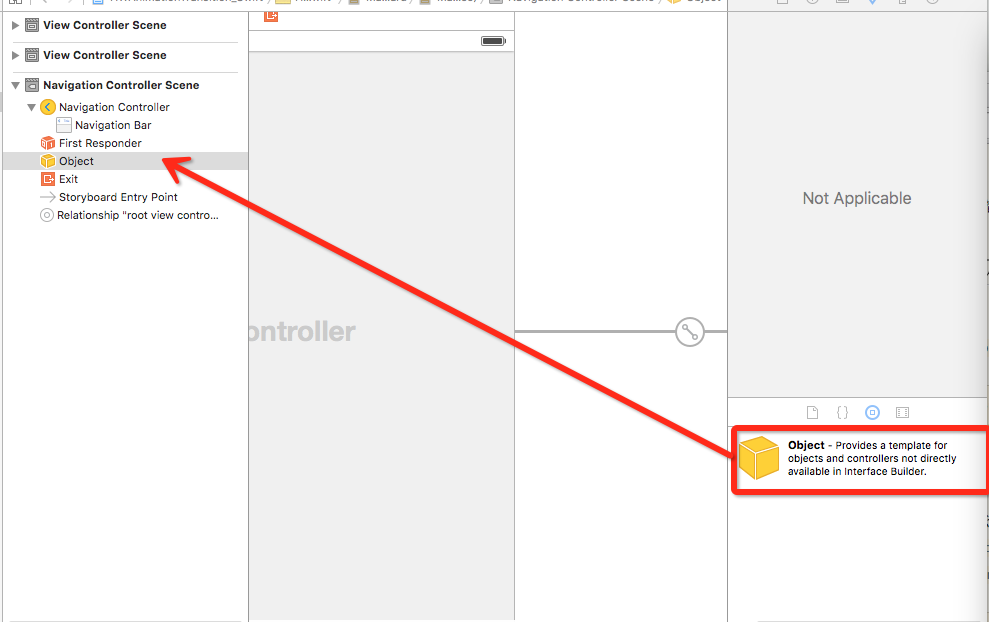
Select Object and change its class on the right to the HWNavigationDelegate class we just created.
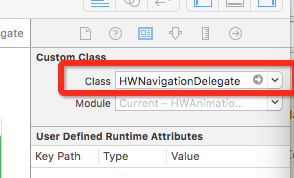
Finally, select UINavigationController on the left and set its delegate to the Object we just added.
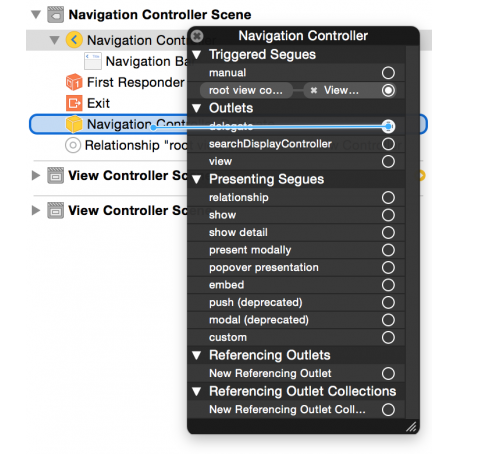
The navigation delegate method in HWNavigationDelegate still returns nil. We need a class that implements the animation and return an instance of it. Create another NSObject subclass named HWTransitionAnimator and have it conform to UIViewControllerAnimatedTransitioning and implement its required methods. For readability, here is the complete code:
//
//  HWTransitionAnimator.swift
//  HWAnimationTransition_Swift
//
//  Created by HenryCheng on 16/3/16.
//  Copyright © 2016年 www.igancao.com. All rights reserved.
//

import UIKit

class HWTransitionAnimator: NSObject, UIViewControllerAnimatedTransitioning {
    weak var transitionContext: UIViewControllerContextTransitioning?

    func transitionDuration(transitionContext: UIViewControllerContextTransitioning?) -> NSTimeInterval {

        return 0.5
    }

    func animateTransition(transitionContext: UIViewControllerContextTransitioning) {

        self.transitionContext = transitionContext

        let containerView = transitionContext.containerView()
        let fromVC = transitionContext.viewControllerForKey(UITransitionContextFromViewControllerKey) as! ViewController
        let toVC = transitionContext.viewControllerForKey(UITransitionContextToViewControllerKey) as! ViewController
        let button = fromVC.popBtn

        containerView?.addSubview(toVC.view)

        let circleMaskPathInitial = UIBezierPath(ovalInRect: button.frame)
        let extremePoint = CGPoint(x: button.center.x - 0, y: button.center.y - CGRectGetHeight(toVC.view.bounds))
        let radius = sqrt((extremePoint.x * extremePoint.x) + (extremePoint.y * extremePoint.y))
        let circleMaskPathFinal = UIBezierPath(ovalInRect: CGRectInset(button.frame, -radius, -radius))

        let maskLayer = CAShapeLayer()
        maskLayer.path = circleMaskPathFinal.CGPath
        toVC.view.layer.mask = maskLayer

        let maskLayerAnimation = CABasicAnimation(keyPath: "path")
        maskLayerAnimation.fromValue = circleMaskPathInitial.CGPath
        maskLayerAnimation.toValue = circleMaskPathFinal.CGPath
        maskLayerAnimation.duration = self.transitionDuration(transitionContext)
        maskLayerAnimation.delegate = self
        maskLayer.addAnimation(maskLayerAnimation, forKey: "path")

    }

    override func animationDidStop(anim: CAAnimation, finished flag: Bool) {

        self.transitionContext?.completeTransition(!self.transitionContext!.transitionWasCancelled())
        self.transitionContext?.viewControllerForKey(UITransitionContextFromViewControllerKey)?.view.layer.mask = nil
    }

}
In all the code above,
func animateTransition(transitionContext: UIViewControllerContextTransitioning),
func animateTransition(transitionContext: UIViewControllerContextTransitioning)
are the methods for setting the duration and animation process, respectively. Both belong to
UIViewControllerAnimatedTransitioning的协议方法,
func animationDidStop是实现动画结束后的操作,
After this animation ends, we need to handle cancellation and release fromViewController. The
let circleMaskPathInitial = UIBezierPath(ovalInRect: button.frame)
let extremePoint = CGPoint(x: button.center.x - 0, y: button.center.y - CGRectGetHeight(toVC.view.bounds))
let radius = sqrt((extremePoint.x * extremePoint.x) + (extremePoint.y * extremePoint.y))
let circleMaskPathFinal = UIBezierPath(ovalInRect: CGRectInset(button.frame, -radius, -radius))

let maskLayer = CAShapeLayer()
maskLayer.path = circleMaskPathFinal.CGPath
toVC.view.layer.mask = maskLayer
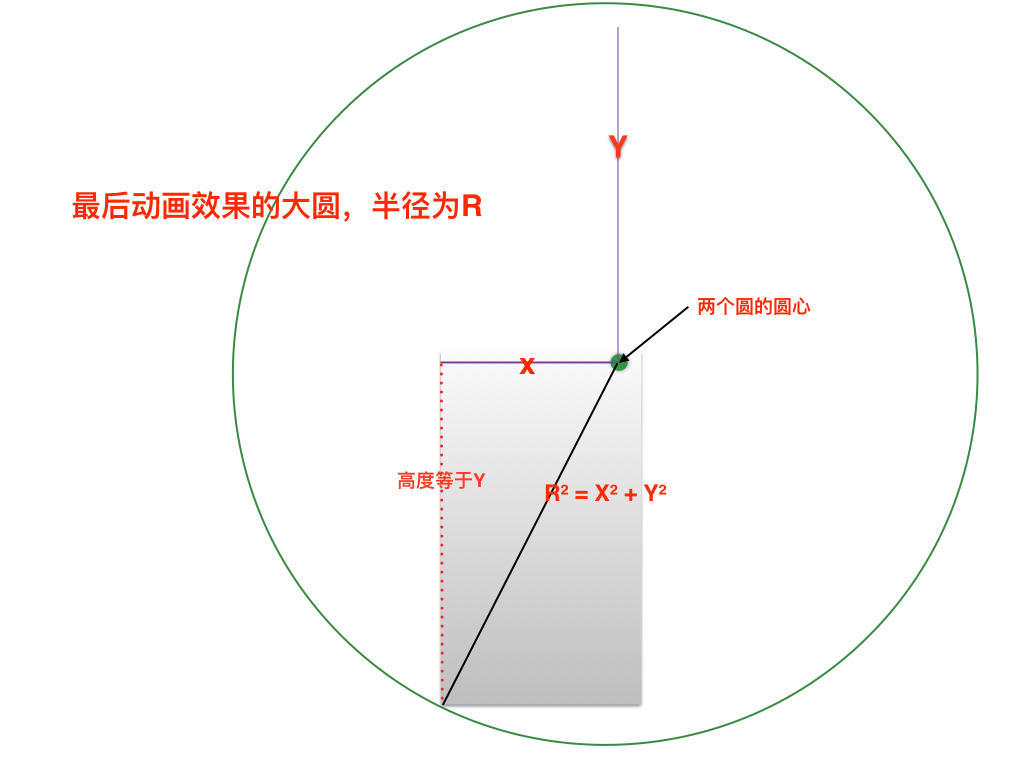
code. The maskLayer in the second block was explained at the start. The first block calculates the final large circle's radius. The diagram shows the principle; excuse the rough drawing. ^_^
Finally, change the return value of HWNavigationDelegate's delegate method to an HWTransitionAnimator instance.
func navigationController(navigationController: UINavigationController, animationControllerForOperation operation: UINavigationControllerOperation, fromViewController fromVC: UIViewController, toViewController toVC: UIViewController) -> UIViewControllerAnimatedTransitioning? {

    return HWTransitionAnimator()
}
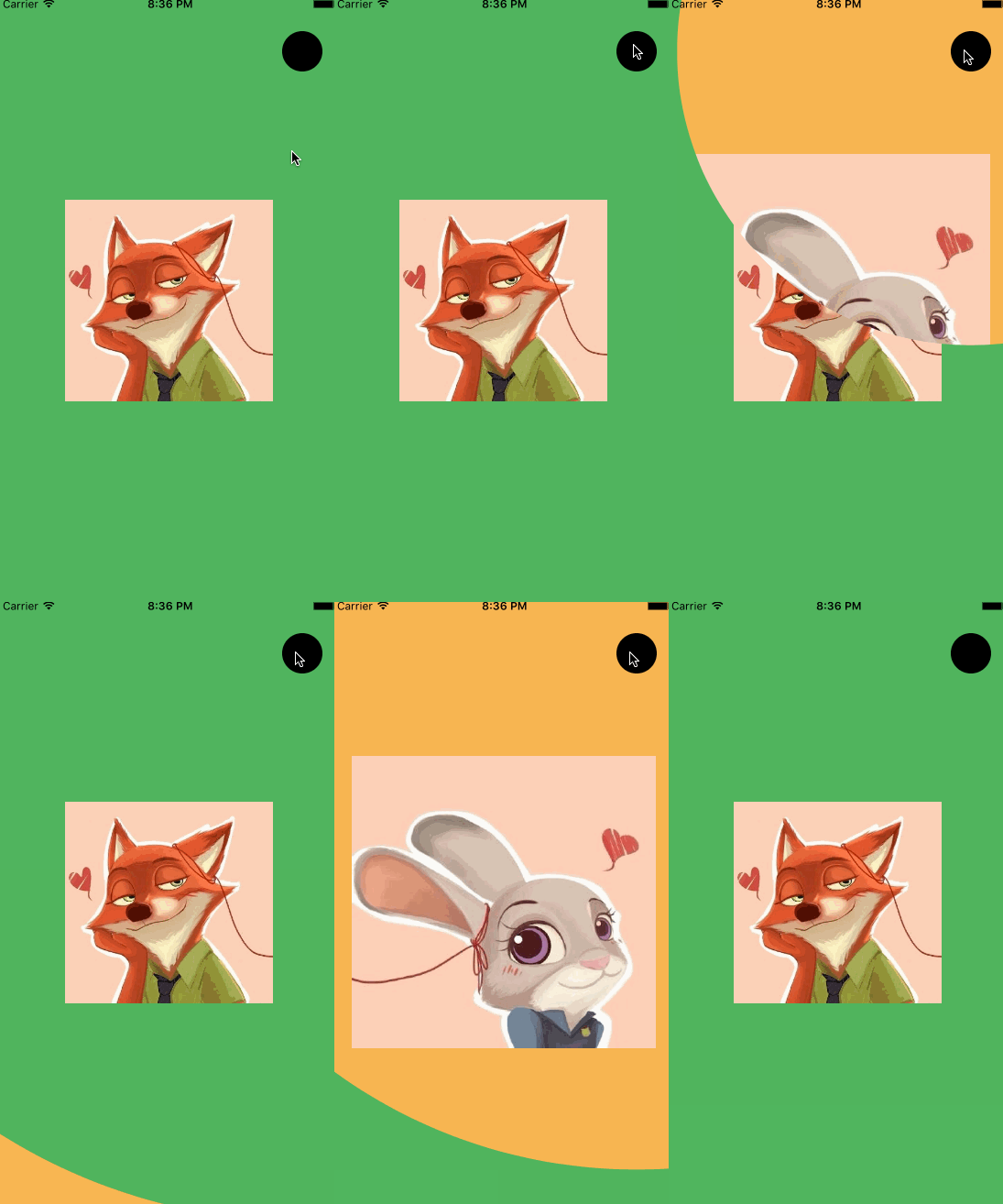
If you followed the steps correctly, running the project produces this result:
Adding a gesture-driven animation
添加手势实现动画效果,我们在刚才的<br>
HWNavigationDelegate类里实现
UINavigationControllerDelegate的另外一个斜一方法
func navigationController(navigationController: UINavigationController,
interactionControllerForAnimationController animationController: UIViewControllerAnimatedTransitioning) -> UIViewControllerInteractiveTransitioning? {
    return self.interactionController
}
Here,
self.interactionController
is our navigation controller, as illustrated below.
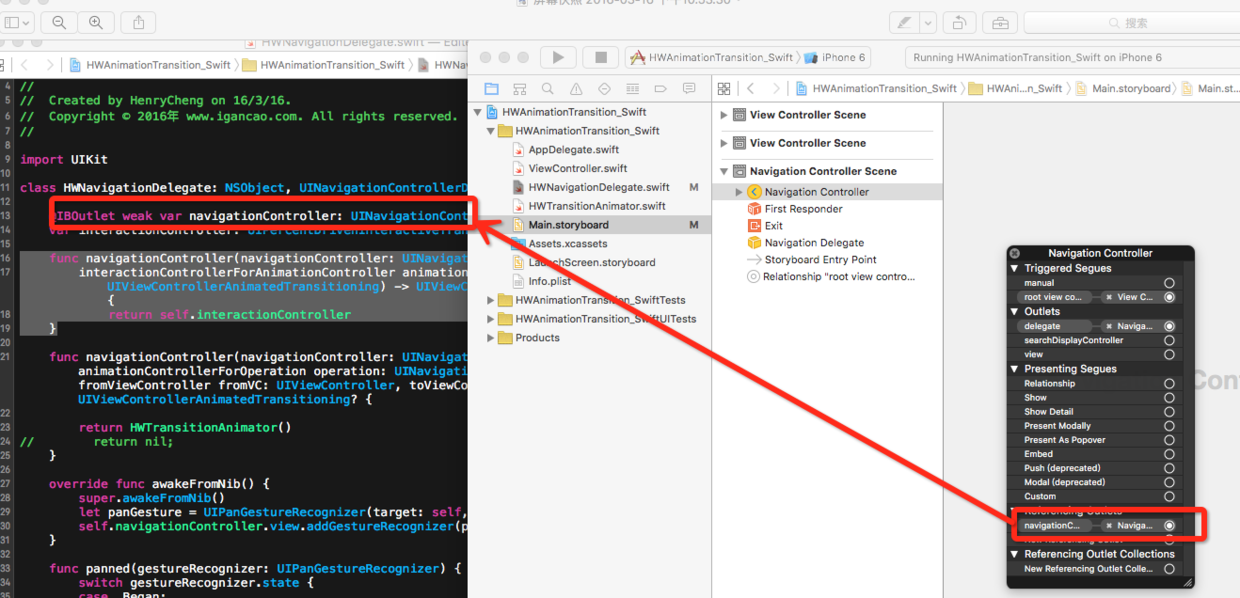
Then override awakeFromNib(). Here is the final implementation of HWNavigationDelegate:
//
// HWNavigationDelegate.swift
// HWAnimationTransition_Swift
//
// Created by HenryCheng on 16/3/16.
// Copyright © 2016年 www.igancao.com. All rights reserved.
//
import UIKit

class HWNavigationDelegate: NSObject, UINavigationControllerDelegate {

    @IBOutlet weak var navigationController: UINavigationController!
    var interactionController: UIPercentDrivenInteractiveTransition?

    func navigationController(navigationController: UINavigationController,
    interactionControllerForAnimationController animationController: UIViewControllerAnimatedTransitioning) -> UIViewControllerInteractiveTransitioning? {
        return self.interactionController
    }

    func navigationController(navigationController: UINavigationController, animationControllerForOperation operation: UINavigationControllerOperation, fromViewController fromVC: UIViewController, toViewController toVC: UIViewController) -> UIViewControllerAnimatedTransitioning? {

        return HWTransitionAnimator()
        //        return nil;
    }

    override func awakeFromNib() {
        super.awakeFromNib()
        let panGesture = UIPanGestureRecognizer(target: self, action: Selector("panned:"))
        self.navigationController.view.addGestureRecognizer(panGesture)
    }

    func panned(gestureRecognizer: UIPanGestureRecognizer) {
        switch gestureRecognizer.state {
        case .Began:

            self.interactionController = UIPercentDrivenInteractiveTransition()
            if self.navigationController?.viewControllers.count > 1 {
                self.navigationController?.popViewControllerAnimated(true)
            } else {
                self.navigationController?.topViewController!.performSegueWithIdentifier("PushSegue", sender: nil)
            }
        case .Changed:

        let translation = gestureRecognizer.translationInView(self.navigationController!.view)
        let completionProgress = translation.x / CGRectGetWidth(self.navigationController!.view.bounds)
        self.interactionController?.updateInteractiveTransition(completionProgress)
        case .Ended:

            if (gestureRecognizer.velocityInView(self.navigationController!.view).x > 0) {
                self.interactionController?.finishInteractiveTransition()
            } else {
                self.interactionController?.cancelInteractiveTransition()
            }
            self.interactionController = nil

        default:
            self.interactionController?.cancelInteractiveTransition()
            self.interactionController = nil
        }
    }
}
Pay attention to these gestureRecognizer states:
1. Begin: When the gesture is recognized, initialize the
UIPercentDrivenInteractiveTransition
instance and set its properties. For example, the first VC performs a push, and the other performs a pop.
2. Changed: The interval between the gesture beginning and ending. The code above changes
self.interactionController
position according to the offset.
3. Ended: Once the gesture ends, finish or cancel the animation, then set
self.interactionController
to nil.
4. default: Other states. Run the project and drag on the screen; the result is shown below.
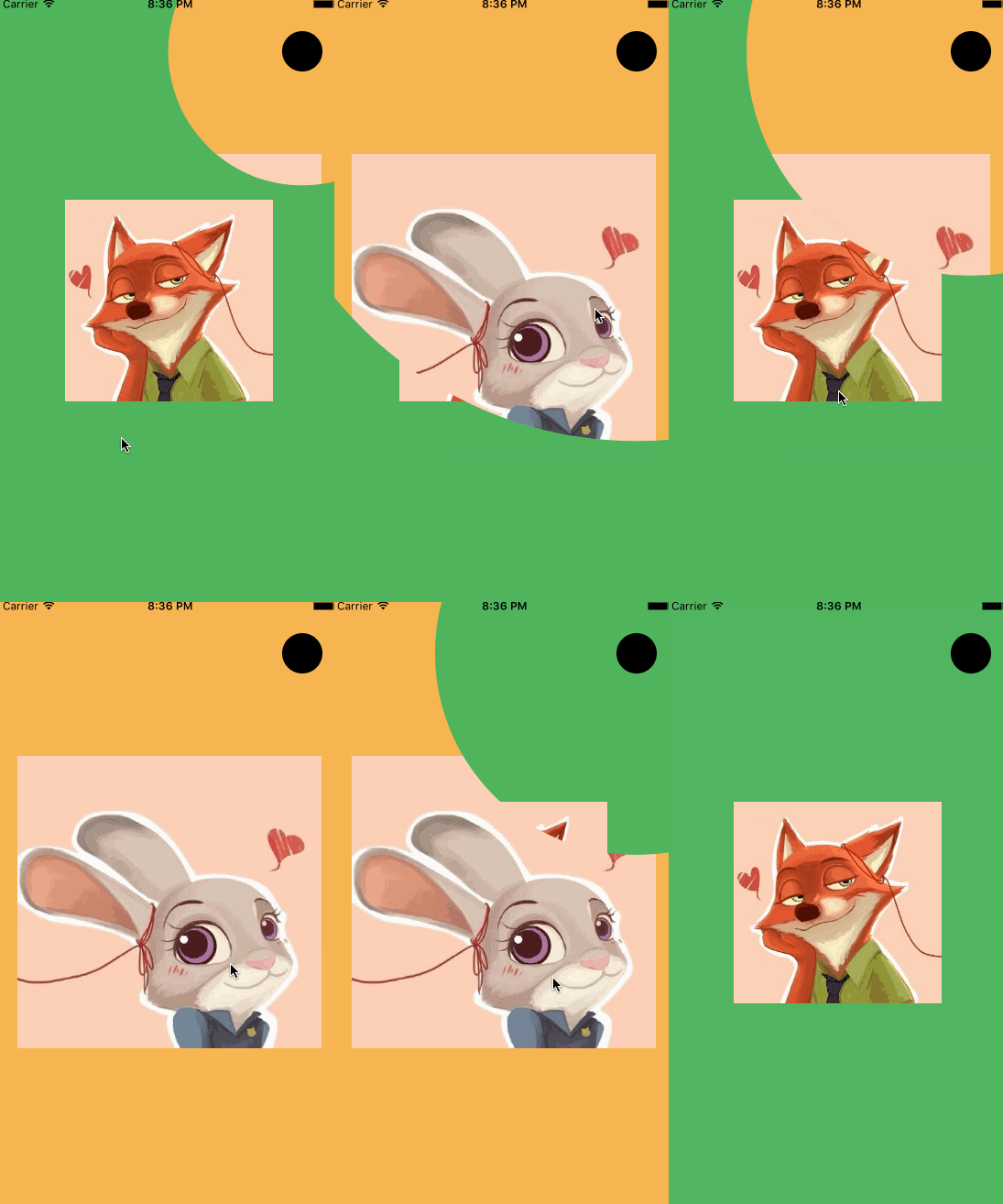
Finally
Work has been busy lately, and I have not blogged for a while. I took this opportunity to share this small animation, and I hope you like it. It is late, so I should head home and rest—I finished it while working overtime at the office. Please star it if you like it. This is only the Swift version; the complete code is available below.
1, Swift version 2, Objective-C version
Recommended reading: A beginner developer's review of 2015