
UIKit & graphicsHistorical technical note
iOS animation: a closer look at layout animation
Uses an expanding account list and a shrinking button on a login page to demonstrate animating top, height and horizontal-margin constraints. It examines how the view hierarchy and constraint changes work together to produce a continuous transition.
Originally credited to Sindri; edited and archived by Bison.
Source listed in the originalOn this page
"The title alone may not explain what this article contains. Before continuing with constraint animation, let me show you the effect we will implement."
Editor: Bison
Contributor: Sindri’s Notes
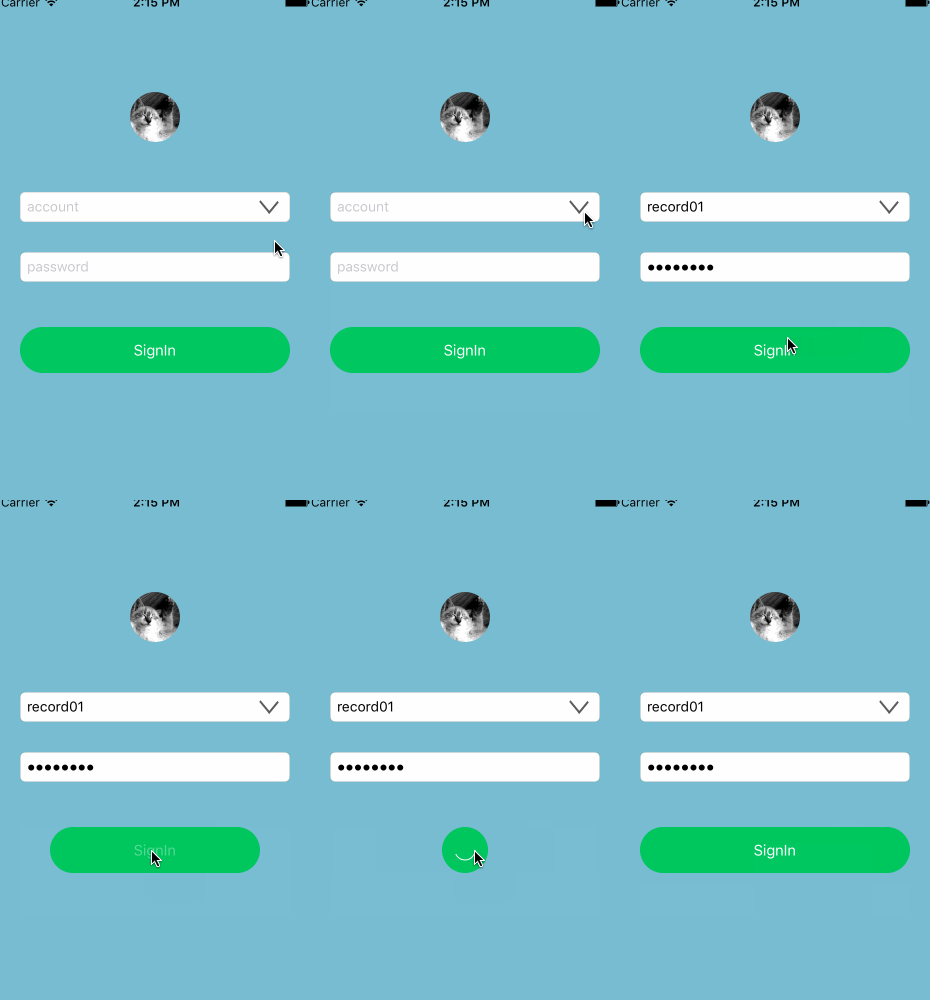
Constraint animation is not especially complex. Once you are comfortable with constraints, you can create inventive animations. In the preceding article, A first look at Auto Layout animation, we watched the list view's scroll offset and continually adjusted constraints to animate it. That approach effectively assembled a succession of interfaces frame by frame, which is rather cumbersome. Here, we will abandon that approach and instead call UIView view-redrawing method to implement the animation.
This article mainly covers the following animations:
- Expanding and collapsing the account-history list
- Transforming the sign-in button when tapped
- The sign-in button's spinning animation after a tap, without a detailed explanation
In fact, I implemented the spinning animation above using the CoreAnimation framework together with a timer. This also marks the end of the constraint-animation discussion in this article.
Preparation
First, establish the hierarchy of all controls and build the interface. In the demo, five controls are visible before the animation: the avatar, account field, drop-down button, password field, and sign-in button. A list of saved accounts sits below the account field. We move it into view by changing its top constraint relative to the account field:
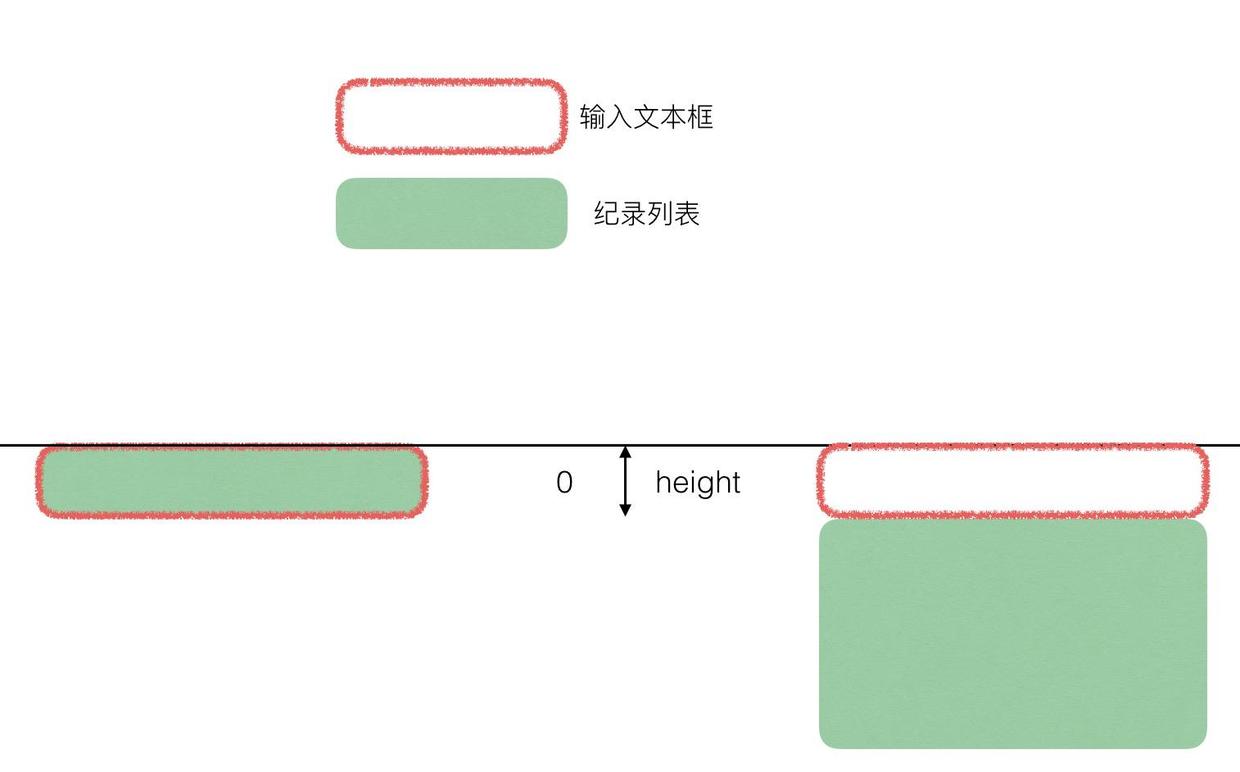
Of these controls' constraints, the ones we need to change in code are:
- The history list's top constraint,
listTopConstraint, moves the list downward into view when changed. - The history list's height constraint,
listHeightConstraint, controls its expansion animation. - The account field's height constraint,
accountHeightConstraint, determines how far the list moves downward. - The login button's left and right spacing constraints relative to its parent,
loginLeftConstraintandloginRightConstraint, shrink the button when changed. - The login button's height constraint,
loginHeightConstraint, is used to calculate its shrunken width.
Besides constraint properties, we need some data to support the animation:
@property(assign, nonatomic) BOOL isAnimating;   // 用来判断登录按钮的动画状态
@property(strong, nonatomic) NSArray * records;  // 列表的数据源,demo中存储五个字符串
To keep other views from covering the list when it appears, arrange the hierarchy as follows:
下拉按钮 > 账户输入框 > 纪录列表 > 头像 = 登录按钮 = 密码输入框
Drop-down animation
I will explain the demo's animations in two sections because their implementations differ substantially. Both could be achieved by directly changing constraint constant values, but that is not the purpose of this article.
Tapping the dropdown button produces two animations: a 180° rotation and the list dropping down or disappearing. Normally we would use a BOOL variable to track whether the list is expanded and choose the animation. However, the sender button already supplies isSelected. Changing it marks the expansion state. The button-rotation code is therefore:
/// 点击打开或者隐藏列表
- (IBAction)actionToOpenOrCloseList:(UIButton *)sender {
    [self.view endEditing: YES];
    [self animateToRotateArrow: sender.selected];
    sender.isSelected ? [self showRecordList] : [self hideRecordList];
}

/// 按钮转向动画
- (void)animateToRotateArrow: (BOOL)selected
{
    CATransform3D transform = selected ? CATransform3DIdentity : CATransform3DMakeRotation(M_PI, 0, 0, 1);
    [_dropdownButton setSelected: !selected];
    [UIView animateWithDuration: 0.25 animations: ^{
        _dropdownButton.layer.transform = transform;
    }];
}
The code uses the button's isSelected property to choose expansion or collapse. We adjust listHeightConstraint and listTopConstraint for the list's size and position, and add a pop-out animation when expanding it:
/// 显示纪录列表
- (void)showRecordList
{
    [UIView animateWithDuration: 0.25 delay: 0 usingSpringWithDamping: 0.4 initialSpringVelocity: 5 options: UIViewAnimationOptionCurveEaseInOut | UIViewAnimationOptionAllowUserInteraction animations: ^{
        _listTopConstraint.constant = _accountHeightConstraint.constant;
        _listHeightConstraint.constant = _accountHeightConstraint.constant * 5;
    } completion: nil];
}

/// 隐藏纪录列表
- (void)hideRecordList
{
    [UIView animateWithDuration: 0.25 animations: ^{
        _listTopConstraint.constant = 0;
        _listHeightConstraint.constant = 0;
    } completion: nil];
}
Run the code and look at the result. It certainly will not be what you wanted.
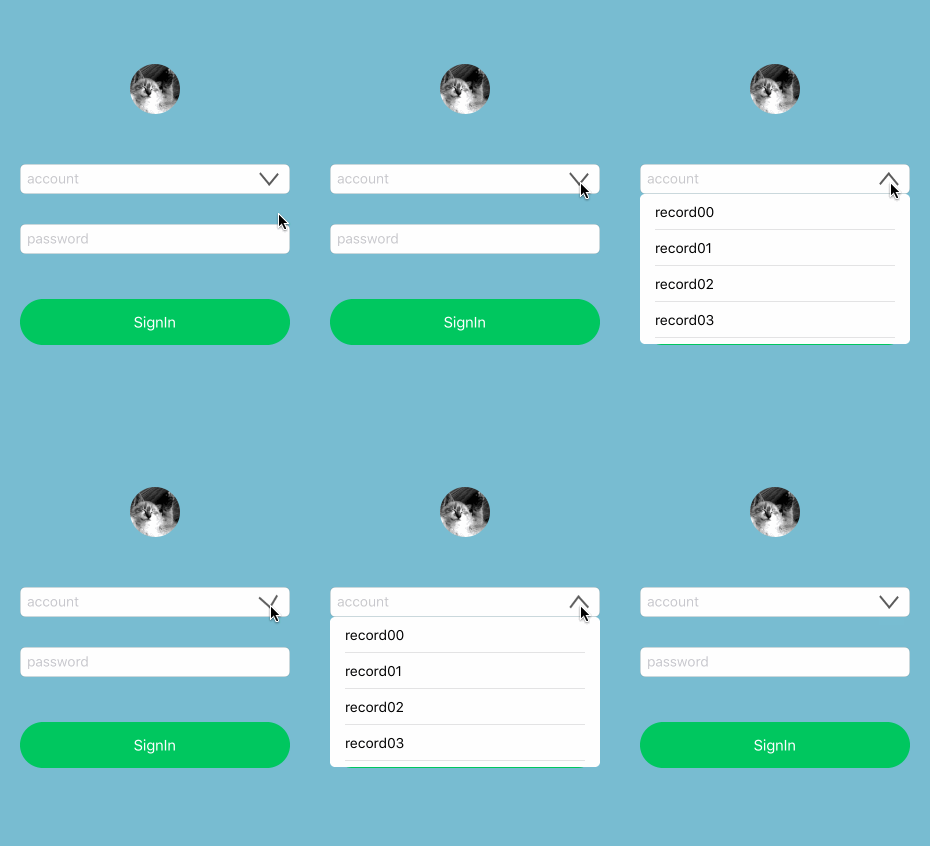
One interesting aspect of UIView animation is that changing view properties directly inside its block produces the expected animation. Changing constraints, however, calculates and displays the final layout immediately, even when the constraint changes are inside the animation block.
For this, iOS provides - (void)layoutIfNeeded on views to refresh the interface immediately. It calls - (void)layoutSubviews on the current view's subviews to lay them out again. Set the constraint values first, then call layoutIfNeeded inside the animation to redraw the interface through the transition. The expansion and collapse code becomes:
/// 显示纪录列表
- (void)showRecordList
{
    _listTopConstraint.constant = _accountHeightConstraint.constant;
    _listHeightConstraint.constant = _accountHeightConstraint.constant * 5;
    [UIView animateWithDuration: 0.25 delay: 0 usingSpringWithDamping: 0.4 initialSpringVelocity: 5 options: UIViewAnimationOptionCurveEaseInOut | UIViewAnimationOptionAllowUserInteraction animations: ^{
        [self.view layoutIfNeeded];
    } completion: nil];
}

/// 隐藏纪录列表
- (void)hideRecordList
{
    _listTopConstraint.constant = 0;
    _listHeightConstraint.constant = 0;
    [UIView animateWithDuration: 0.25 animations: ^{
        [self.view layoutIfNeeded];
    } completion: nil];
}
Run the code again. The history list now animates correctly when expanding and collapsing.
Sign-in button animation
Frankly, my favorite part of this demo is the animation after the sign-in button is tapped. Unsurprisingly, it also took the longest to implement.
As the demo shows, tapping Login produces a spinning progress animation in the button. Implementing it in the controller would involve layer operations, which should not be the controller's responsibility. I therefore encapsulated the login button and exposed - (void)start and - (void)stop so the controller can start and stop the animation. Their implementations follow:
const NSTimeInterval duration = 1.2;
///动画开始隐藏文字
- (void)start
{
    [self addAnimate];
    if (_timer) {
        [_timer invalidate];
    }
    NSTimer * timer = [NSTimer scheduledTimerWithTimeInterval: duration target: self selector: @selector(addAnimate) userInfo: nil repeats: YES];
    _timer = timer;

    [UIView animateWithDuration: 0.5 animations: ^{
        _circle.opacity = 1;
        [self setTitleColor: [UIColor colorWithWhite: 1 alpha: 0] forState: UIControlStateNormal];
    }];
}

///动画结束时显示文字
- (void)stop
{
    if (_timer) {
        [_timer invalidate];
    }

    [self.circle removeAllAnimations];
    [UIView animateWithDuration: 0.5 animations: ^{
        _circle.opacity = 0;
        [self setTitleColor: [UIColor colorWithWhite: 1 alpha: 1] forState: UIControlStateNormal];
    }];
}
As noted earlier, the button's spinning animation combines a timer with the CoreAnimation framework. Since this is outside constraint animation, I will not explain its implementation here. Interested readers can inspect it in the article's demo.
Alongside the button's spinning and text visibility animations, its own dimensions change. It stays centered on the view's x axis after shrinking, so left and right constraints must remain equal. Its height stays unchanged, while its width shrinks to match that height. Given the button's height, calculate the new side constraints as follows:
/// 点击登录动画
- (IBAction)actionToSignIn:(UIButton *)sender {
    _isAnimating = !_isAnimating;
    if (_isAnimating) {
        [_signInButton start];
        [self animateToMakeButtonSmall];
    } else {
        [_signInButton stop];
        [self animateToMakeButtonBig];
    }
}

///缩小动画
- (void)animateToMakeButtonSmall {
    CGFloat height = _loginHeightConstraint.constant;
    CGFloat screenWidth = CGRectGetWidth(self.view.frame);
    CGFloat spacingConstant = (screenWidth - height) / 2;
    _loginLeftConstraint.constant = _loginRightConstraint.constant = spacingConstant;

    [UIView animateWithDuration: 0.15 delay: 0 options: UIViewAnimationOptionCurveEaseOut animations: ^{
        [self.view layoutIfNeeded];
    } completion: nil];
}

///放大动画
- (void)animateToMakeButtonBig {
    _loginLeftConstraint.constant = _loginRightConstraint.constant = 0;
    [UIView animateWithDuration: 0.15 delay: 0 options: UIViewAnimationOptionCurveEaseOut animations: ^{
        [self.view layoutIfNeeded];
    } completion: nil];
}
We have animated the sign-in button by calculating its left and right spacing. That works, but consider the reasoning behind that animation:
获取按钮高度和父视图宽度 -> 计算按钮左右间隔 -> 实现动画
But what was our original implementation approach?
按钮变小,保持宽高一致 -> 按钮居中 -> 实现动画
That sounds rather absurd. Although the animation works, this is not how we should implement it. To make our intended approach work correctly, follow these steps:
1. Remove the sign-in button's left and right constraints.
2. Add an equal-width-and-height constraint.
3. Add constraints centering the button in its parent view.
Before these steps, examine the constraint equation and the properties in an NSLayoutConstraint object that represent its variables:
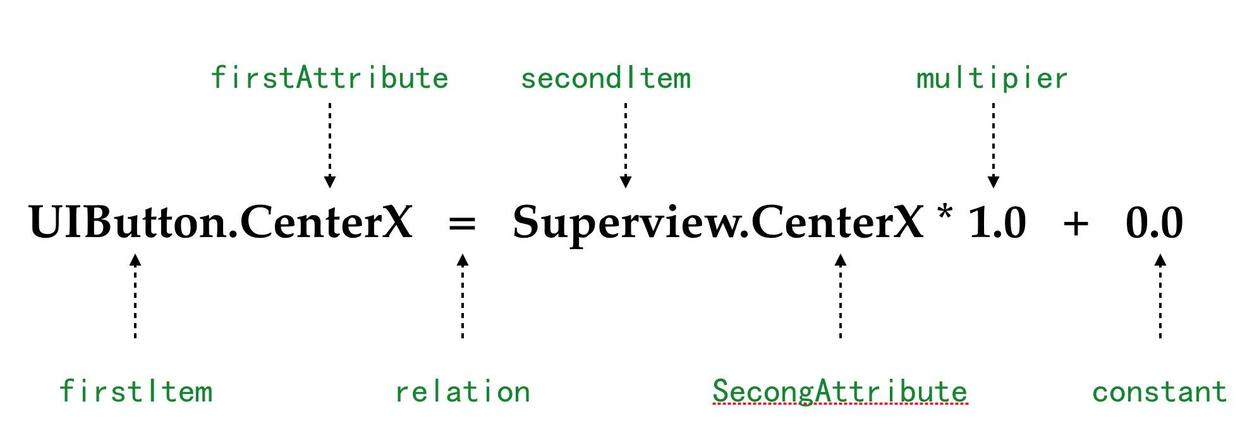
Using this equation, suppose we want to add a horizontal-centering constraint to a button in the current view. The code to create it is:
NSLayoutConstraint * centerXConstraint = [NSLayoutConstraint
        constraintWithItem: _button                   //firstItem
                 attribute: NSLayoutAttributeCenterX  //firstAttribute
                 relatedBy: NSLayoutRelationEqual     //relation
                    toItem: _button.superview         //secondItem
                 attribute: NSLayoutAttributeCenterX  //secondAttribute
                multiplier: 1.0                       //multiplier
                  constant: 0];                       //constant
The code above maps layout properties clearly to code. Looking up NSLayoutConstraint in Xcode also shows that only constant among these properties is writable. This means you cannot normally change a value such as multipier to alter a control's width relative to its parent. KVC can do it, but that should not be the solution.
We therefore need to create new constraints and remove old ones to animate the sign-in button. Before iOS8, this was unquestionably cumbersome: we had to use the
- (void)addConstraint:(NSLayoutConstraint *)constraint;
- (void)addConstraints:(NSArray<__kindof NSLayoutConstraint *> *)constraints;
- (void)removeConstraint:(NSLayoutConstraint *)constraint;
- (void)removeConstraints:(NSArray<__kindof NSLayoutConstraint *> *)constraints;
These methods add and remove constraints. From iOS8 onward, however, NSLayoutConstraint provides a BOOL property, active, to control whether a constraint is active. Setting it to NO deactivates it. Likewise, after creating a constraint, setting active to YES activates it automatically. Using the equation above, we can revise the code as follows:
/// 缩小按钮
- (void)animateToMakeButtonSmall {
    _loginLeftConstraint.active = NO;
    _loginRightConstraint.active = NO;

    //创建宽高比约束
    NSLayoutConstraint * ratioConstraint = [NSLayoutConstraint constraintWithItem: _signInButton attribute: NSLayoutAttributeWidth relatedBy: NSLayoutRelationEqual toItem: _signInButton attribute: NSLayoutAttributeHeight multiplier: 1. constant: 0];
    ratioConstraint.active = YES;
    _loginRatioConstraint = ratioConstraint;

    //创建居中约束
    NSLayoutConstraint * centerXConstraint = [NSLayoutConstraint constraintWithItem: _signInButton attribute: NSLayoutAttributeCenterX relatedBy: NSLayoutRelationEqual toItem: _signInButton.superview attribute: NSLayoutAttributeCenterX multiplier: 1. constant: 0.];
    centerXConstraint.active = YES;
    _loginCenterXConstraint = centerXConstraint;

    [UIView animateWithDuration: 0.15 delay: 0 options: UIViewAnimationOptionCurveEaseIn animations: ^{
        [self.view layoutIfNeeded];
    } completion: nil];
}

/// 还原按钮
- (void)animateToMakeButtonBig {
    _loginCenterXConstraint.active = NO;
    _loginRatioConstraint.active = NO;

    NSLayoutConstraint * leftConstraint = [NSLayoutConstraint constraintWithItem: _signInButton attribute: NSLayoutAttributeLeading relatedBy: NSLayoutRelationEqual toItem: _signInButton.superview attribute: NSLayoutAttributeLeading multiplier: 1. constant: 25];
    _loginLeftConstraint = leftConstraint;
    leftConstraint.active = YES;

    NSLayoutConstraint * rightConstraint = [NSLayoutConstraint constraintWithItem: _signInButton attribute: NSLayoutAttributeTrailing relatedBy: NSLayoutRelationEqual toItem: _signInButton.superview attribute: NSLayoutAttributeTrailing multiplier: 1. constant: -25];
    _loginRightConstraint = rightConstraint;
    rightConstraint.active = YES;

    [UIView animateWithDuration: 0.15 delay: 0 options: UIViewAnimationOptionCurveEaseOut animations: ^{
        [self.view layoutIfNeeded];
    } completion: nil];
}
When animating by adding and removing constraints, remember that once a constraint's active is set to NO, reactivating it still leaves it ineffective; it must be recreated.
I also added loginRatioConstraint and loginCenterXConstraint above to reference the new constraints created by each animation, making deactivation easy when stopping. Alternatively, inspect each constraint's two objects and attribute types to locate and deactivate it:
[_signInButton.constraints enumerateObjectsWithOptions: NSEnumerationReverse usingBlock: ^(__kindof NSLayoutConstraint * _Nonnull obj, NSUInteger idx, BOOL * _Nonnull stop) {
    if (obj.firstItem == _signInButton && obj.firstAttribute == NSLayoutAttributeCenterX) {
        obj.active = NO;
    } else if (obj.firstAttribute == NSLayoutAttributeWidth && obj.secondAttribute == NSLayoutAttributeHeight) {
        obj.active = NO;
    }
}];
This code is equivalent to the preceding
_loginCenterXConstraint.active = NO;
_loginRatioConstraint.active = NO;
Removing constraints through code is more complicated, but it may be needed when encapsulating controls, so it is worth learning. Those comparisons are indeed cumbersome. NSLayoutConstraint also provides the string property identifier to identify constraints. In a storyboard, you can view and set it directly in the right-hand inspector:
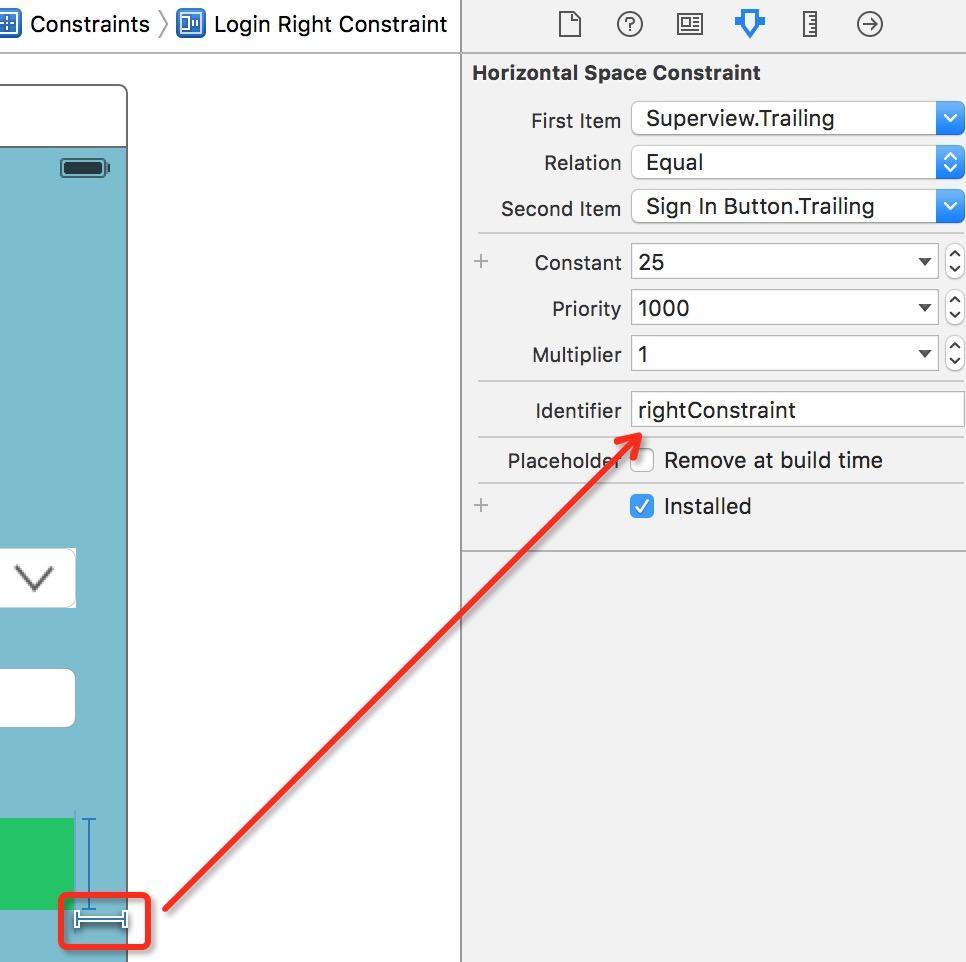
The condition above can then be simplified to checking the id:
static NSString * centerXIdentifier = @"centerXConstraint";
static NSString * ratioIdentifier = @"ratioIdentifier";

/// 缩小按钮
- (void)animateToMakeButtonSmall {
    ......
    //创建宽高比约束
    NSLayoutConstraint * ratioConstraint  = ...//create ratioConstraint
    ratioConstraint.identifier = ratioIdentifier;

    //创建居中约束
    NSLayoutConstraint * centerXConstraint = ...//create centerXConstraint
    centerXConstraint.identifier = centerXIdentifier;
    ......
}

/// 还原按钮
- (void)animateToMakeButtonBig {
    ......
    [_signInButton.constraints enumerateObjectsWithOptions: NSEnumerationReverse usingBlock: ^(__kindof NSLayoutConstraint * _Nonnull obj, NSUInteger idx, BOOL * _Nonnull stop) {
        if ([obj.identifier isEqualToString: centerXIdentifier]) {
            obj.active = NO;
        } else if ([obj.identifier isEqualToString: ratioIdentifier]) {
            obj.active = NO;
        }
    }];
    ......
}
Closing notes
It has been a while since the first constraint-animation article. For a long time I knew nothing about this kind of animation; I only began using it when writing this animation series, and the experience has taught me a great deal. Like the preceding articles, this one marks the end of my discussion of constraint animation. I also mixed Core Animation into the demo, which may reveal the limits of my experience with constraints. I still know and understand far too little about animation; perhaps my imagination cannot yet support my ambitions. Nevertheless, I will keep working toward more impressive, easy-to-use animations.

Mastering constraints should be essential for iOS developers. IB visual development is now indispensable in my daily work and greatly improves efficiency; previously, I created controls entirely in code wherever animation was needed. Meanwhile, iPhone sizes may keep increasing, and class size and autolayout are valuable tools for adapting to different screens. I hope this article expands your understanding of constraints.
Recommended reading: A beginner developer's review of 2015