
Tools & releasesHistorical technical note
What's new in iOS 10: SiriKit
Introduces SiriKit integration following WWDC 2016, from creating an Intents Extension to implementing intent handling and its interface. It explains how a spoken request is interpreted and passed to an app extension for the relevant response.
Originally credited to Sindri; edited and archived by Bison.
Source listed in the originalOn this page
At the conference in the early hours of June 14,WWDC2016 conference, Apple described iOS10 a milestone and introduced ten new features, most based on iPhone updates to Apple’s own apps. I will not repeat all the features; please see Download WWDC2016 to watch it yourself. Calling it a milestone seems exaggerated to me, but the new Notification Centre integration with 3D Touch does advance human–computer interaction. Another major highlight is Siri interface is exposed. In iOS10 provides SiriKit framework when a user uses Siri generates an INExtension object informs our app. Implementing the methods lets Siri Obtain the content the app wants to show the user.
Editor: Bison
Contributor: Sindri’s Notes

After iOS10, Apple wanted Siri to provide richer user experiences, leading to the new SiriKit framework. Siri parses a user's conversational request through language processing and creates an Intents event describing it. The SiriKit framework then delivers it to an integrated app to obtain app content, enabling tasks such as 通过文字匹配查找应用聊天记录、聊天对象. It also supports features such as 为用户使用苹果地图时提供应用内置服务. The official documentation lists six service categories supported by SiriKit:
- Voice and video calls
- Send a message
- Payments or payment requests
- Image search
- Workout management
- Ride booking
Siri and Maps interact with our app through an Intents extension. An INExtension object plays a central role in the Intents extension, working directly with Siri to respond to user requests. After implementing an Intents extension, a Siri request typically results in an Intent processing sequence with three steps: Resolve, Confirm, and Handle.
- The
Resolvestage: afterSirireceives the user's speech, it creates anINIntent, extracts key information, and fills the corresponding properties. That object is later passed to our configuredINExtensionsubclass for handling, with the approach selected according to the serviceprotocolthe subclass adopts. - The
Confirmstage: the previous stage usedhandler(for intent:)to return an object handling theintent. At this stage, instance methods beginning withconfirmare called in sequence to check whether information populated bySiriis complete. Matching can produceExactly one match,Two or more matches, orNo match. During this process,Sirican ask the user for more specific parameters. - After
confirmfinishes,Sirienters the final handling stage, creates a response object, confirms the result for thisintent, and displays it to the user.
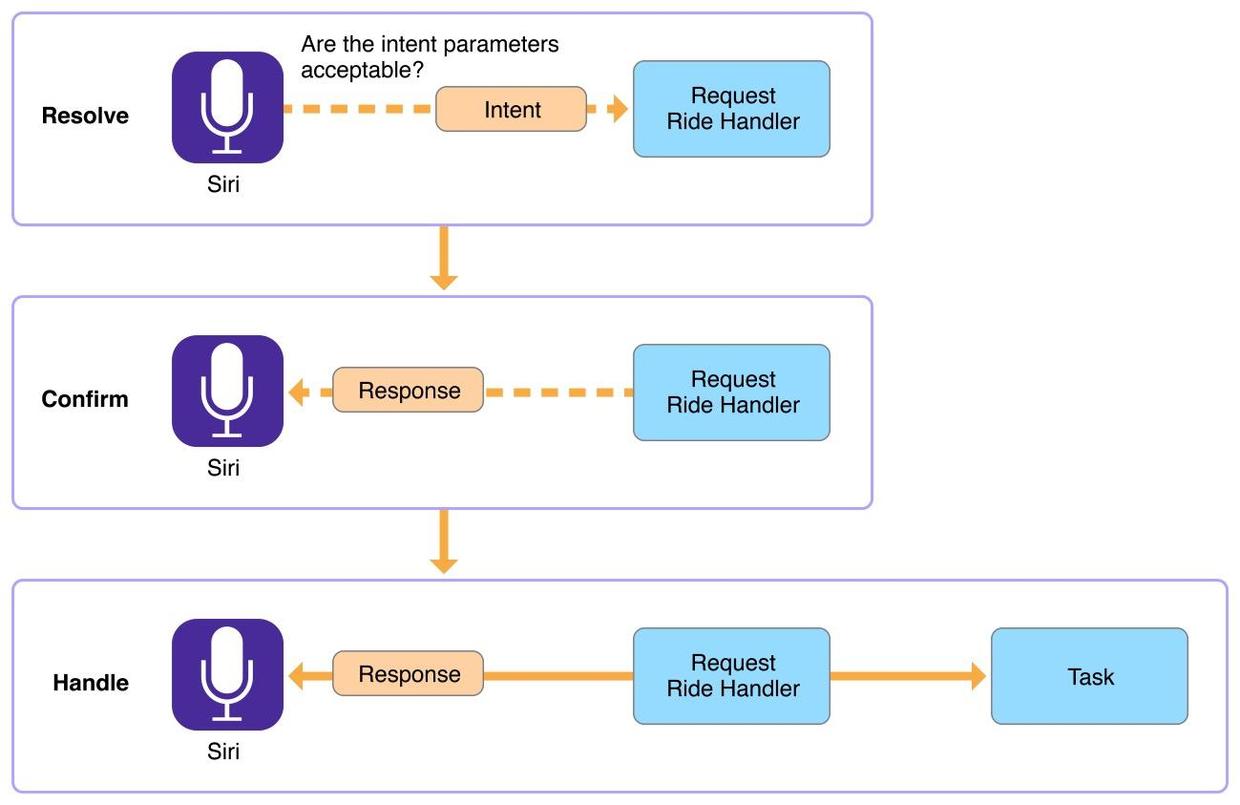
For the execution sequence, refer to Documentation and Presentation video
Create an Intents Extension
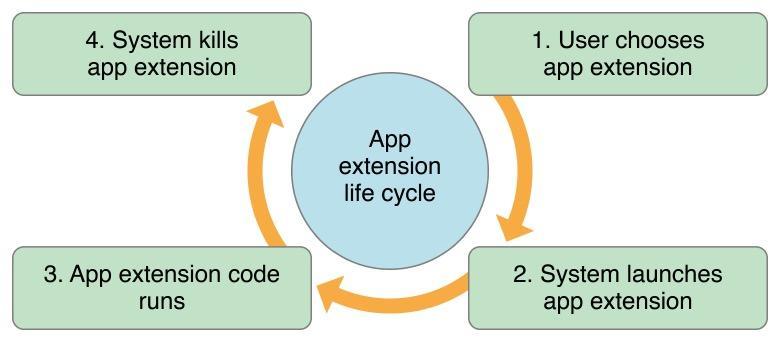
SiriKit integrates through an App Extension, a code structure that runs independently of the app. As an app extension, the system wakes its Extension code only when needed, then terminates it after the task. These Extension s also have limited memory available. Restrictions on invocation timing prevent us from doing certain 坏事 while running.
At this stage, integrating SiriKit requires upgrading the tools to Xcode8, downloading Xcode8_beta from Apple's developer site with a developer account, and upgrading a test device to iOS10. Select the app, open the project overview, and add a TARGET.
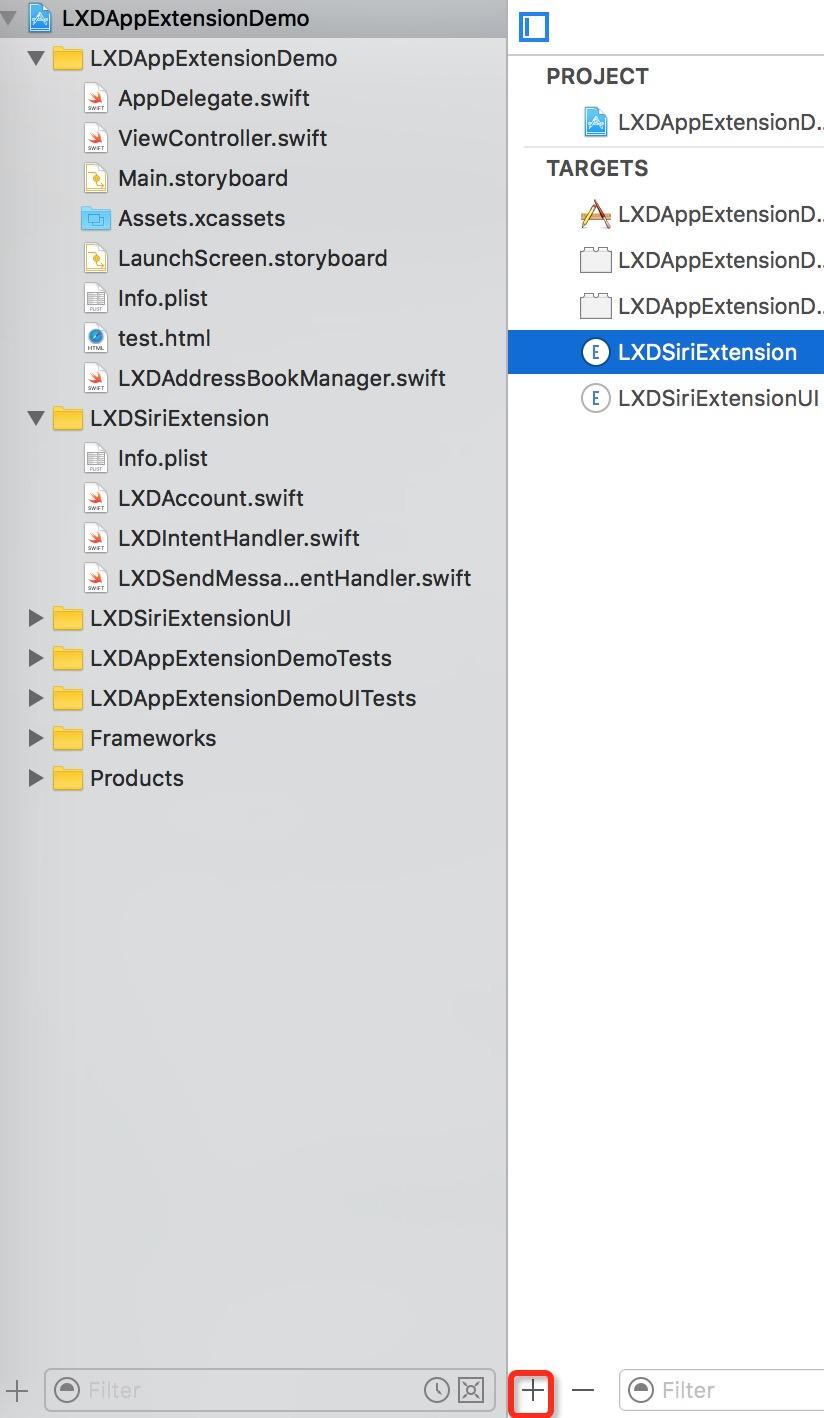
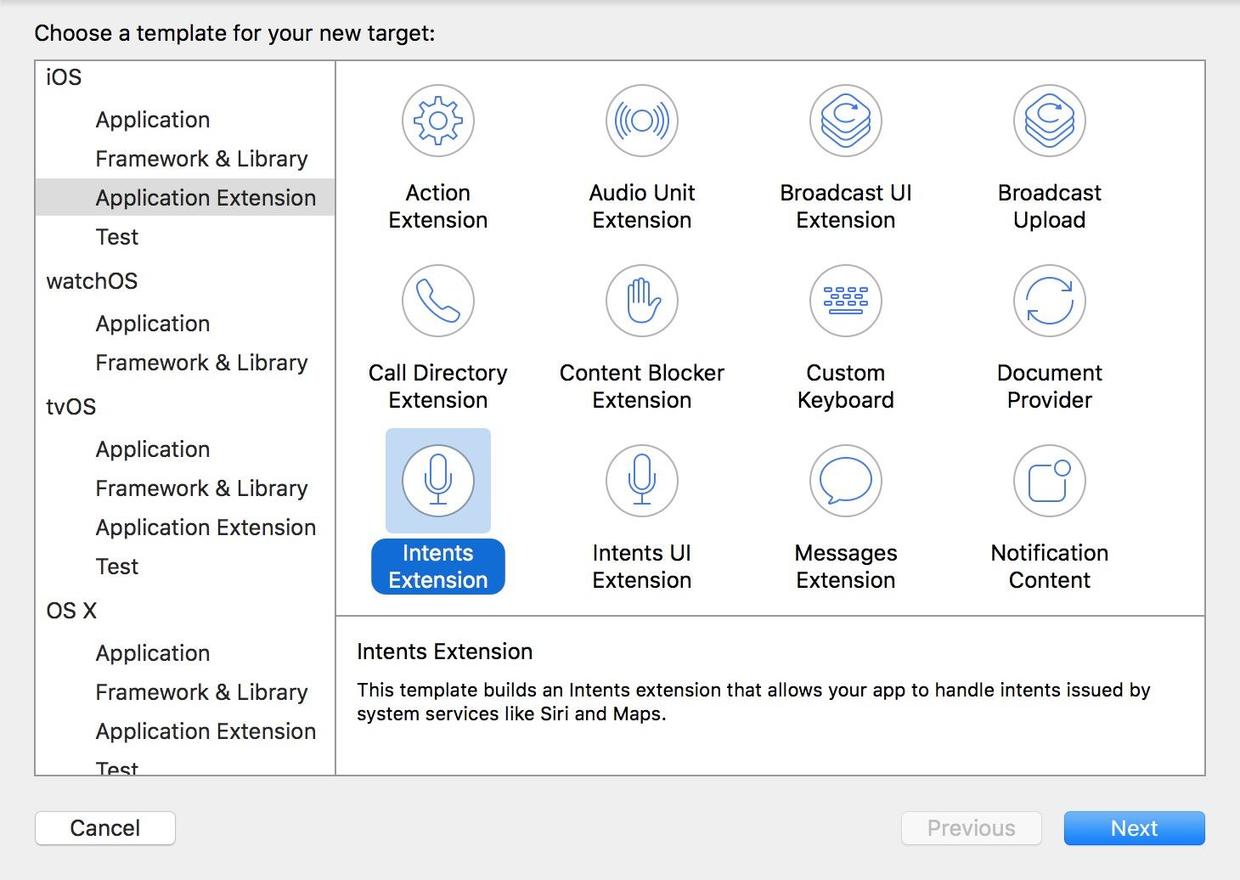
As shown above, I named the Intents Extension LXDSiriExtension. When creating an Extension, accept the prompt asking whether to activate it. Also accept creation of the Intents UI Extension. This gives the project LXDSiriExtension and LXDSiriExtensionUI as two TARGET s. Each directory contains a new info.plist, used to configure the handling class for intent events. The following slide from WWDC, presented as a ppt, helps explain it:
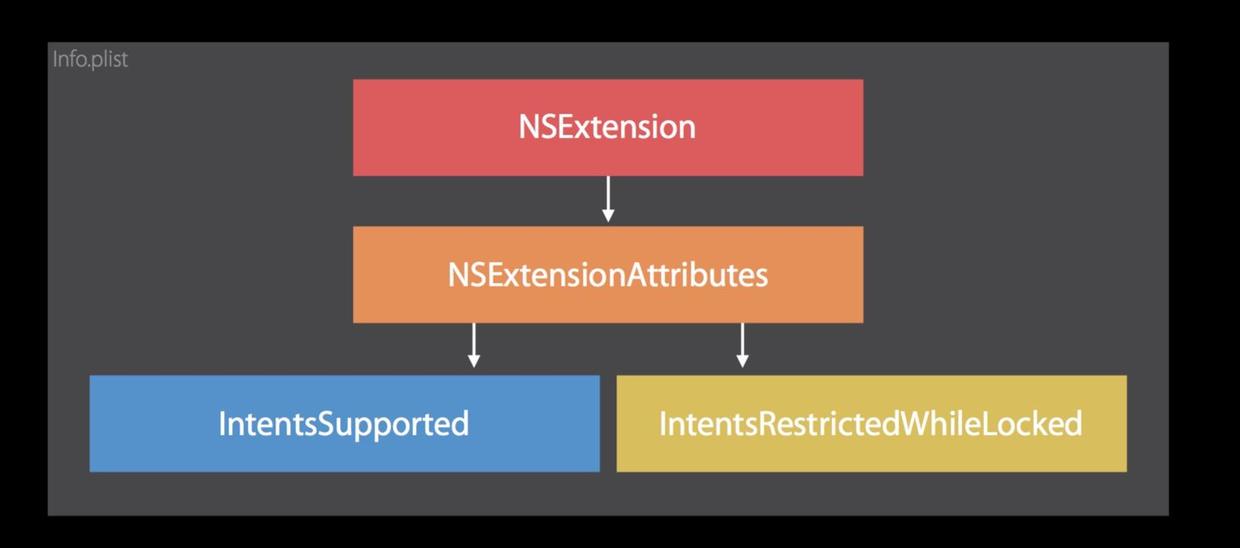
Expand the hierarchy as shown. IntentsSupported and IntentsRestrictedWhileLocked are string arrays; each string is the class name of an intent event handled by the extension. The former lists supported events, while the latter lists events restricted when locked. The default file uses workout events; here I changed it to the send-message event INSendMessageIntent. In addition, NSExtensionPrincipalClass names an INExtension subclass, which obtains the class handling the intent event.

The official explanation also mentions Embedded frameworks. In the session, Apple demonstrates SiriKit integration with a messaging app. The extension and app run differently and cannot directly use classes created in one another. Packaging shared classes as frameworks and importing them into the app allows both to use them. This article does not use frameworks imports; instead, it simulates a class to manage some event-handling logic. Still, remember the Embedded frameworks guideline. The simulated class is:
import Intents

class LXDMatch {
    var handle: String?
    var displayName: String?
    var contactIdentifier: String?

    convenience init(handle: String, _ displayName: String, _ contactIdentifier: String) {
        self.init()
        self.handle = handle
        self.displayName = displayName
        self.contactIdentifier = contactIdentifier
    }

    func inPerson() -> INPerson {
        return INPerson(handle: handle!, displayName: displayName, contactIdentifier: contactIdentifier)
    }
}

class LXDAccount {
    private static let instance = LXDAccount()

    private init() {
        print("only call share() to get an instance of LXDAccount")
    }

    class func share() -> LXDAccount {
        return LXDAccount.instance
    }

    func contact(matchingName: String) -> [LXDMatch] {
        return [LXDMatch(handle: NSStringFromClass(LXDSendMessageIntentHandler.classForCoder()), matchingName, matchingName)]
    }

    func send(message: String, to recipients: [INPerson]) -> INSendMessageIntentResponseCode {
        print("Send a message: \"\(message)\" to \(recipients)")
        return .success
    }
}
After this setup, configure the app's own Info.plist. Add a string key named NSSiriUsageDescription whose value is shown when asking the user for Siri permission, such as Siri想要访问您的应用信息. Then call the INPreferences class method to request Siri access.
import Intents

INPreferences.requestSiriAuthorization {
    switch $0 {
    case .authorized:
        print("用户已授权")
        break

    case .notDetermined:
        print("未决定")
        break

    case .restricted:
        print("权限受限制")
        break

    case .denied:
        print("拒绝授权")
        break
    }
}
Code implementation
First, we need an INExtension subclass, or we can add code to the subclass created by default. In its method, inspect the intent type, create the appropriate handler instance, and return it. In this example, suppose we say to Siri: Siri,在微信上告诉我的家人们今天我不回去吃饭了.
class LXDIntentHandler: INExtension {
    override func handler(for intent: INIntent) -> AnyObject? {

        if intent is INSendMessageIntent {
            return LXDSendMessageIntentHandler()
        }
        //  这里可以判断更多类型来返回
        return nil
    }
}
After identifying the intent as a send-message chat event, I create and return an LXDSendMessageIntentHandler handler. It must then complete Resolve, Confirm, and Handle, implemented by adopting the INSendMessageIntentHandling protocol:
-
Resolve stage
At this stage, identify the message recipients. Three outcomes are possible:
Exactly one match,Two or more matches, andNo matches. Handle them as follows:func resolveRecipients(forSendMessage intent: INSendMessageIntent, with completion: ([INPersonResolutionResult]) -> Void) { if let recipients = intent.recipients { var resolutionResults = [INPersonResolutionResult]() for recipient in recipients { let matches = LXDAccount.share().contact(matchingName: recipient.displayName) switch matches.count { case 2...Int.max: //两个或更多匹配结果 let disambiguations = matches.map { $0.inPerson() } resolutionResults.append(INPersonResolutionResult.disambiguation(with: disambiguations)) break case 1: //一个匹配结果 let recipient = matches[0].inPerson() resolutionResults.append(INPersonResolutionResult.success(with: recipient)) break case 0: //无匹配结果 resolutionResults.append(INPersonResolutionResult.unsupported(with: .none)) break default: break } } completion(resolutionResults) } else { //未从用户语音中提取到信息,需要向用户征询更多关键信息 completion([INPersonResolutionResult.needsValue()]) } }The code identifies who
我的家人们refers to in the message, representing each contact as anINPerson. Next, match the message content:func resolveContent(forSendMessage intent: INSendMessageIntent, with completion: (INStringResolutionResult) -> Void) { if let text = intent.content where !text.isEmpty { completion(INStringResolutionResult.success(with: text)) } else { //向用户征询发送的消息内容 completion(INStringResolutionResult.needsValue()) } }After matching recipients and message content, handling of the
intententers its second stage,Confirm, to verify the values. -
Confirm stage
At this stage, the
intentinformation is expected to be populated. Inspect its values against our requirements. Meanwhile,Siritries to wake the app to prepare the final handling step. As noted earlier, usingframeworksto track whether the app has started helps communication between app and extension before the appropriate operation.func confirm(sendMessage intent: INSendMessageIntent, completion: (INSendMessageIntentResponse) -> Void) { /// let content = intent.content /// let recipients = intent.recipients /// do or judge in content & recipients completion(INSendMessageIntentResponse(code: .success, userActivity: nil)) /// Launch your app to do something like store message record /// Use a singleton in frameworks to remark if the app has launched /// if not launched, use the code following /// completion(INSendMessageIntentResponse(code: .failureRequiringAppLaunch, userActivity: nil)) }The
Confirmstage is the last chance to adjust values passed in theintent. Exact information is ideal, but makingSiriask too many detailed questions about parameters can frustrate users. -
Handle stage
The
Handlestage needs little additional work. Check whether recipients and message content exist; if so, perform an action such as保存/发送and finish. Otherwise, tellSirithat thisintentfailed. Configure anNSUserActivityobject to explain the failure toSiri.func handle(sendMessage intent: INSendMessageIntent, completion: (INSendMessageIntentResponse) -> Void) { if intent.recipients != nil && intent.content != nil { /// do some thing success send message let success = LXDAccount.share().send(message: intent.content!, to: intent.recipients!) completion(INSendMessageIntentResponse(code: success, userActivity: nil)) } else { let userActivity = NSUserActivity(activityType: String(INSendMessageIntent)) userActivity.userInfo = [NSString(string: "error") : String("AppDidNotLaunch")] completion(INSendMessageIntentResponse(code: .failure, userActivity: userActivity)) } }
Intent UI
The code above focuses on handling logic. During interaction with Siri, we can also have Siri show a corresponding custom interface:
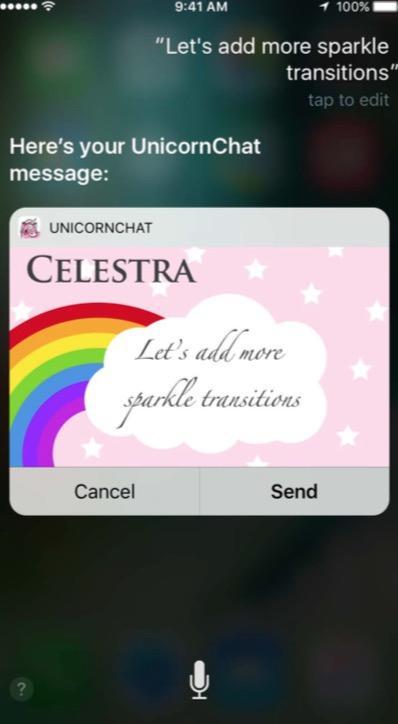
When creating the Intents Extension, Xcode also asked whether to create an Intents UI Extension. Its directory likewise has an Info.plist with similar key-value pairs, except it contains only one state setting.
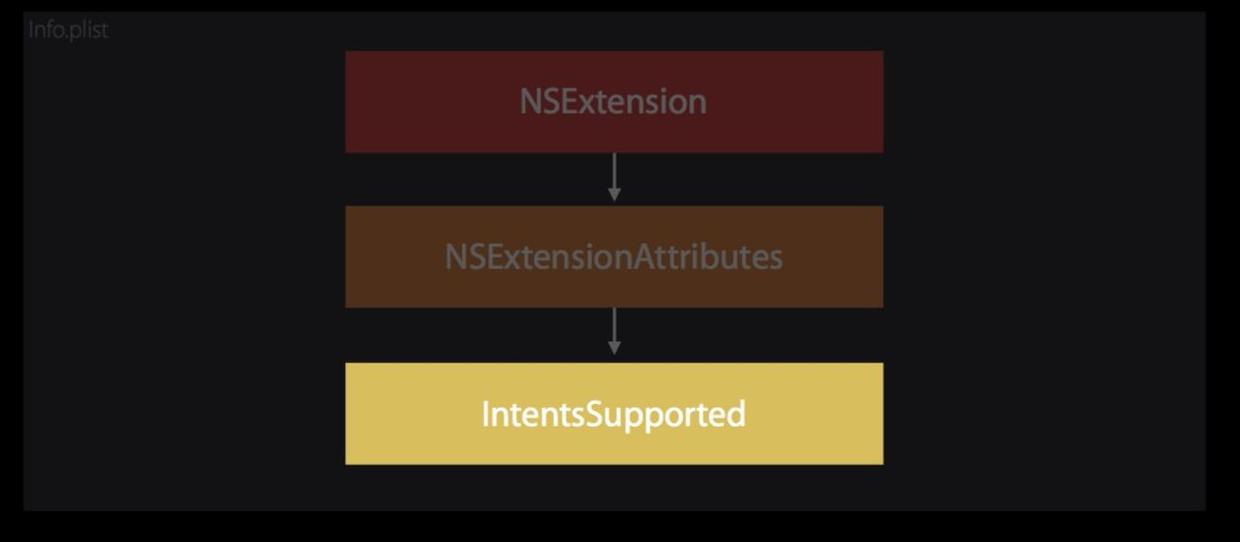
This directory contains a storyboard named MainInterface, which defines the interface shown during interaction between Siri and the app. Modifying its elements produces the effect shown above. Before presentation, we can also change the class code to populate interface information:
func configure(with interaction: INInteraction!, context: INUIHostedViewContext, completion: ((CGSize) -> Void)!) {
    //这里执行界面设置的代码,完成之后执行completion代码就会让界面展示出来
    if let completion = completion {
        completion(self.desiredSize)
    }
}

var desiredSize: CGSize {
    return self.extensionContext!.hostedViewMaximumAllowedSize
}
Closing notes
When watching the new features at WWDC2016, I was initially impressed by the interaction between Siri and apps. Reading the documentation later revealed many restrictions, so overall it did not substantially improve the use of Siri. Still, if Apple continues developing this interaction, it could bring new possibilities to our apps.
Recommended reading: Rich text with hyperlinks on iOS