
UIKit & graphicsHistorical technical note
iOS animation: starting with UIView animations
Uses a login screen's arriving text fields and appearing button to introduce animatable UIView properties, duration and options. Adding spring animations shows how position, opacity and transforms can be combined into a continuous sequence.
Originally credited to SindriLin; edited and archived by Bison.
Source listed in the originalOn this page
Editor: Bison
Contributor: SindriLin’s Notes
"As the first article in this animation series, I originally planned to explain the water-drop effect in QQ pull-to-refresh. But after studying iOS Animations by Tutorials over the past few days, I gained a deeper understanding and decided to start with UIView animation, with Layer and Transitioning animations to follow. I hope this offers a useful starting point and another perspective. Here is an effect from a demo in the book."
Without doubt, making animations is one of the most enjoyable parts of iOS development. A carefully designed, polished animation can feel fresh and catch users’ attention, which matters greatly to an app.
As the first article in this animation series, I originally planned to explain the water-drop effect in QQ pull-to-refresh. But after studying iOS Animations by Tutorials over the past few days, I gained a deeper understanding and decided to start with UIView animation, with Layer and Transitioning animations to follow. I hope this offers a useful starting point and another perspective. Here is an effect from a demo in the book.Buy the book
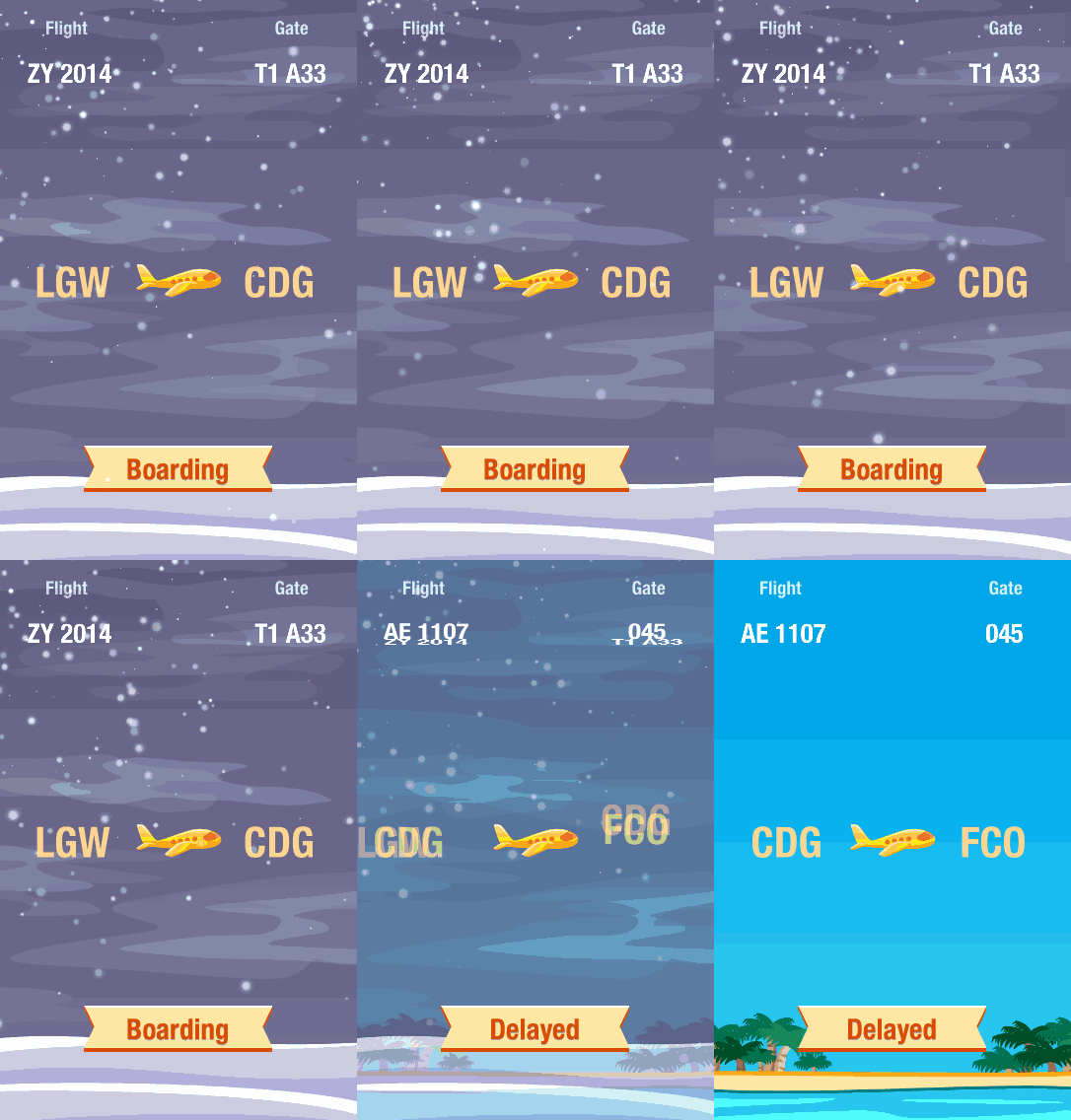
P.S. This article mainly introduces animation for iOS development.
Start with a login animation
For a long time I implemented animation with CALayer and overlooked UIKit’s animation APIs. These functions are powerful and flexible enough for most animation needs in development.
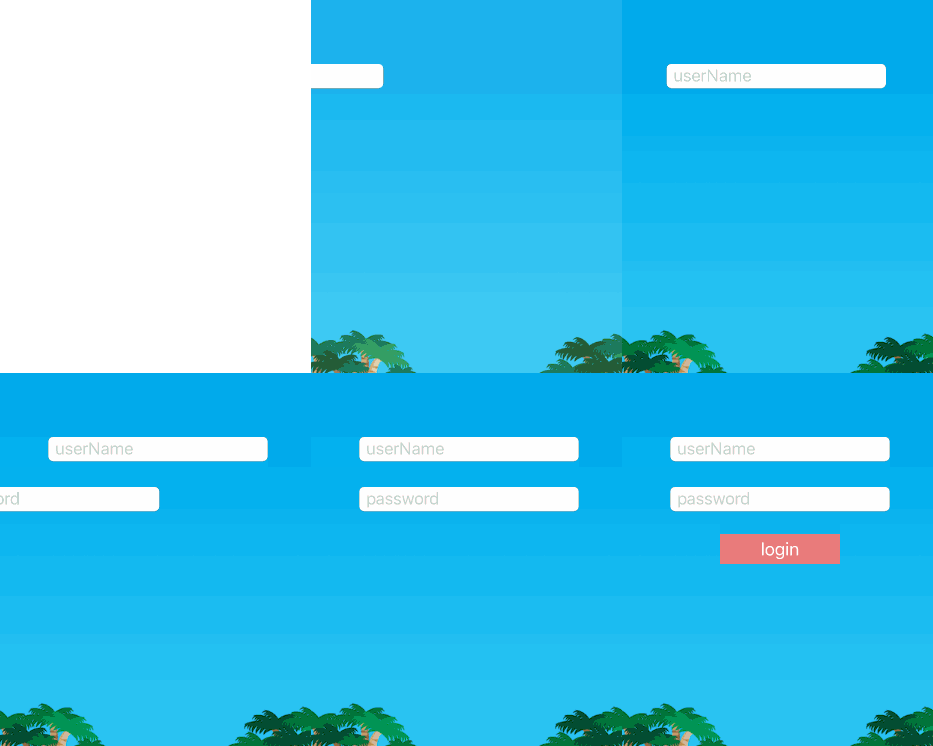
Before exploring these powerful APIs, look at the first effect: when a user opens the login screen, the account and password fields enter from the left, followed by the login button.
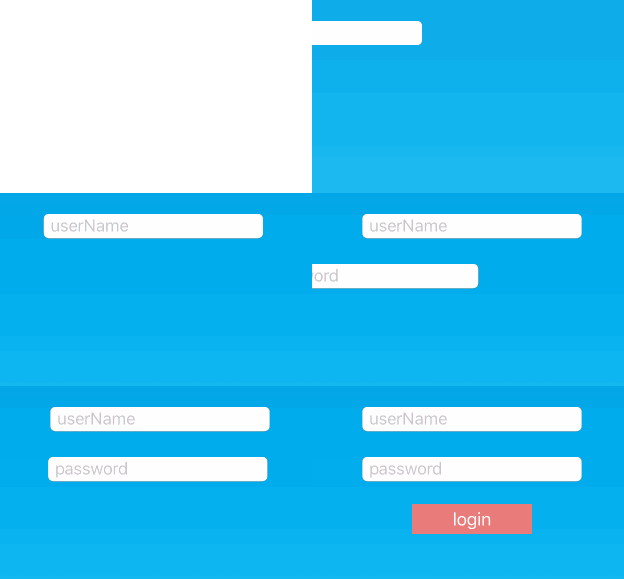
The clearest change is the positions of the two text fields. Before the animation, both should be to the left of the screen, while the button below is hidden by setting alpha.
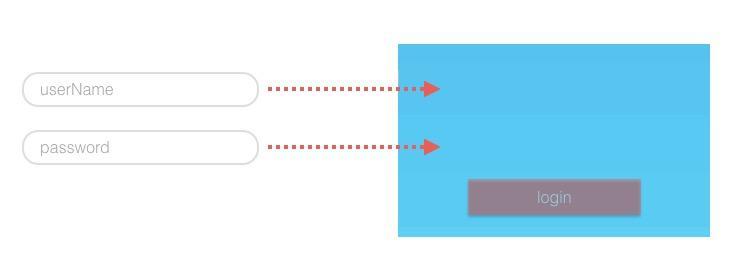
Therefore, the changes in this animation can be summarised by the following code:
self.userName.center.x += offset;    //userName进入
self.password.center.x += offset;    //password进入
self.login.alpha = 1;                //显示登录按钮
既然已经知道了我们的动画发生了什么,接着就可以使用`UIKit`的动画API让我们的动画活起来了

//设置文本框初始位置为屏幕左侧
CGPoint accountCenter = self.userName.center;
CGPoint psdCenter = self.password.center;
accountCenter.x -= 200;
pasCenter.x -= 200;
self.userName.center = accountCenter;
self.password.center = psdCenter;

//还原中心坐标
accountCenter.x += 200;
psdCenter.x += 200;
[UIView animateWithDuration: 0.5 animations: ^{
    self.userName.center = accountCenter;
    self.password.center = passwordCenter;
    self.login.alpha = 1;
} completion: nil];
In UIKit, methods whose names begin with animate are class methods of UIView that make animations easy to create. Each provides a parameter named animations, an animation block, whose changes are animated immediately or after a delay following the method call. The first parameter of all these APIs sets the animation duration.
Run this code in viewDidAppear:. The text fields slide in from the left and the button fades in, but the result is not quite what we want: the three animations are not staggered, so the effect is less appealing. We want the password field to appear a little after the account field slides in, and the button later still. Use the following method:
[UIView animateWithDuration: 0.5 delay: 0.35 options: UIViewAnimationOptionCurveEaseInOut animations: ^{
    self.password.center = passwordCenter;
} completion: ^(BOOL finished) {
    [UIView animateWithDuration: 0.2 animations: ^{
        self.login.alpha = 1;
    }];
}];
This method looks familiar, but adds several parameters for greater customisation:
- duration:  动画时长
- delay:  决定了动画在延迟多久之后执行
- options:用来决定动画的展示方式,接下来会进行讲解
- animations:转化成动画表示的代码
- completion:动画结束后执行的代码块
In the code above, the password field starts entering from the left after a 0.35-second delay. After its 0.5-second animation, the button fades in, completing the sequence.
Animatable properties
You can now create simple animations, but remember that not every property change inside an animations block becomes animated. Changing a view's tag or delegate, for example, does not. Animatable properties cause the view to be rendered again. They can broadly be divided into three groups: 坐标尺寸, 视图显示, and 形态变化.
Position and dimensions
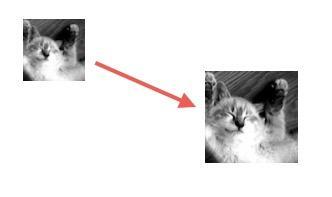
- bounds: Changing this property uses
centerto recalculateframe. Use this property to change size. - frame: Changing this property generally changes both the view's shape and position, then resets
centerandbounds. - center: Setting it moves the view to a new position, then uses
boundsto recalculateframe.
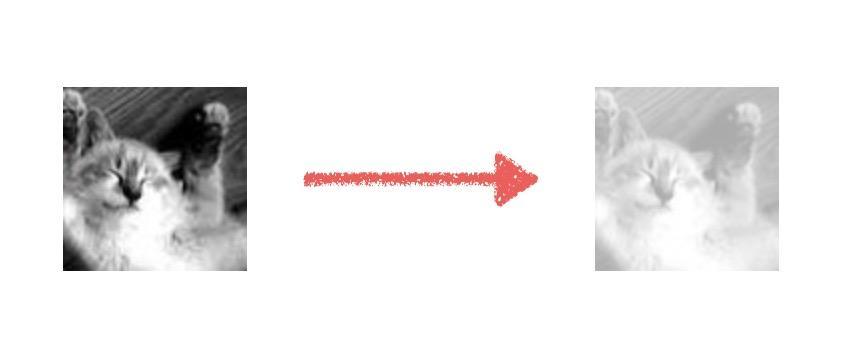
Display properties
- backgroundColor: changing this property produces a colour transition, essentially through the system continually changing tintColor.
- alpha: changing this property creates a fade-in or fade-out.
- hidden: changing this property can create an effect that hides the view during a page flip.
Changes of form
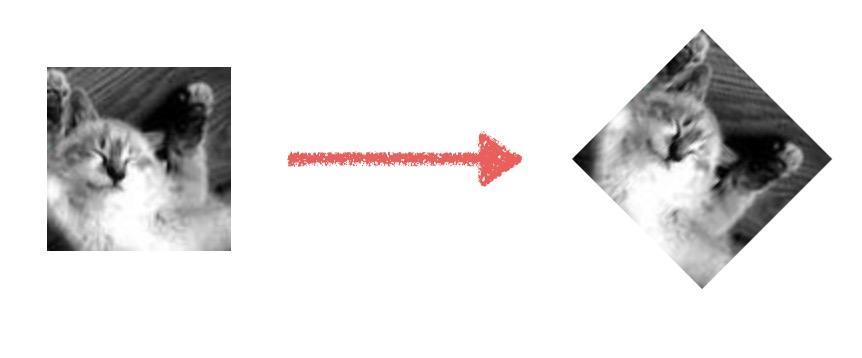
- transform: changing this property can rotate, distort, translate or flip a view. It uses matrix operations and is therefore more powerful.
Animation options
An important parameter in the animation methods above is options, which allows extensive customization. The following is a set of values for its type. Combine different options to create your own animation:
-  Repeating

UIViewAnimationOptionRepeat       //动画循环执行
UIViewAnimationOptionAutoreverse  //动画在执行完毕后会反方向再执行一次
我们将这两个参数传入到上面密码框出现动画中,看看会有什么效果(不同的参数使用`|`操作符一起传入)

[UIView animateWithDuration: 0.5 delay: 0.35 options: UIViewAnimationOptionAutoreverse | UIViewAnimationOptionRepeat animations: ^{
    self.password.center = passwordCenter;
} completion: ^(BOOL finished) {
    [UIView animateWithDuration: 0.2 animations: ^{
        self.login.alpha = 1;
    }];
}];
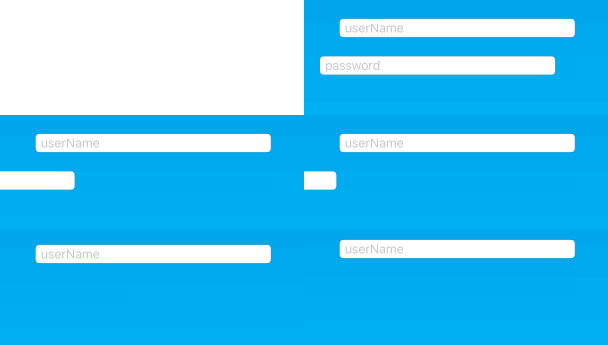
The password field repeatedly enters the screen and leaves in the reverse direction, while the login button never fades in. This shows that UIViewAnimationOptionRepeat not only repeats the animation, but also prevents the completion callback from ever executing.
- Easing
A good animation should follow the rules we expect. Nothing starts or stops moving instantaneously; a vehicle, for instance, accelerates and decelerates.
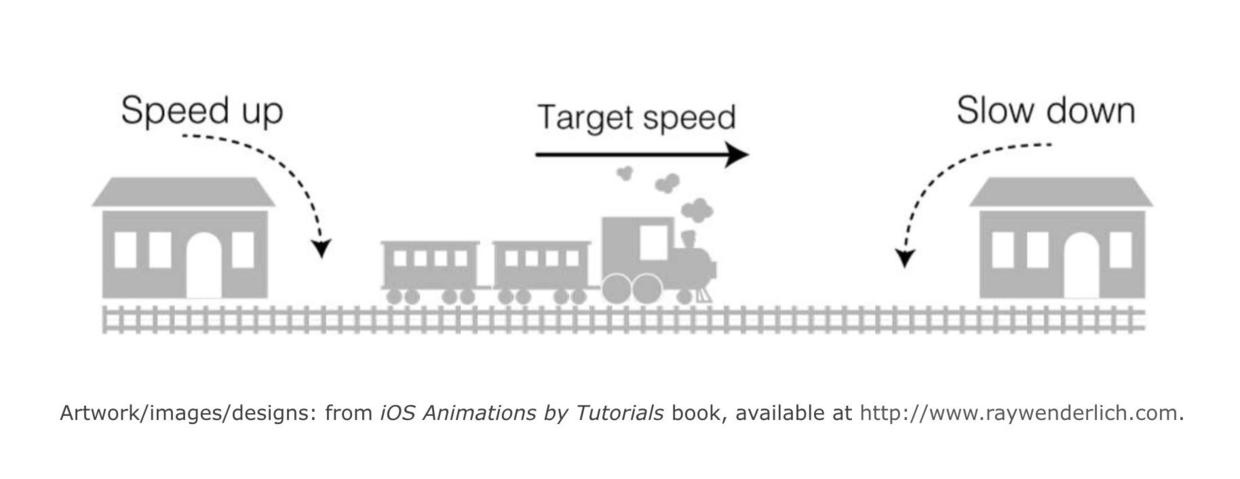
To make animation better match our expectations, the system provides similar effect options:
UIViewAnimationOptionCurveEaseInOut   //先加速后减速,默认
UIViewAnimationOptionCurveEaseIn      //由慢到快
UIViewAnimationOptionCurveEaseOut     //由快到慢
UIViewAnimationOptionCurveLinear      //匀速
我在demo上创建了四个橙色的UIView,分别传入这四个不同的参数,然后让这四个view在同一时间y轴上向上移动。

[self animatedView: _view1];
[self animatedView: _view2];
[self animatedView: _view3];
[self animatedView: _view4];

//y轴上移动视图上升250
- (void)animatedView: (UIView *)view
{
    [UIView animateWithDuration: 0.5 delay: 0 options: UIViewAnimationOptionCurveLinear animations: ^{
    CGPoint center = view.center;
    center.y -= 250;
    view.center = center;
    } completion: nil];
}
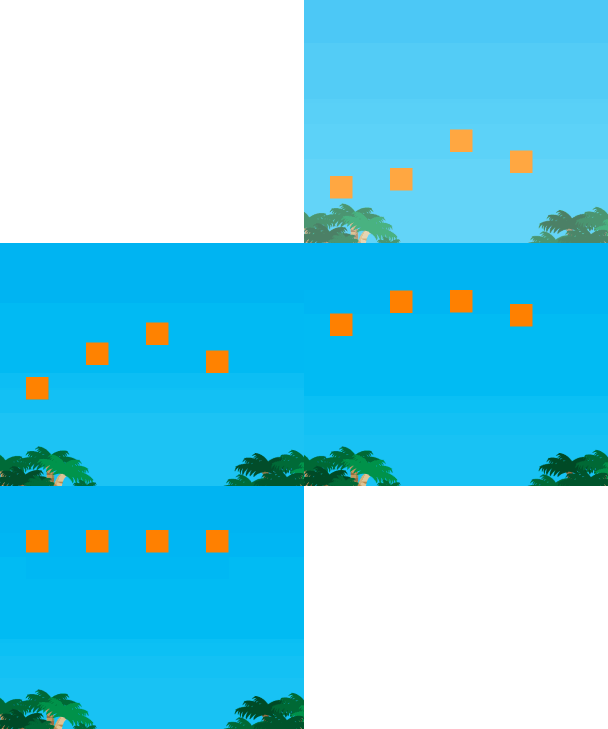
While the simulator is running, choose DEBUG -> Slow Animation from the menu bar or use command + T to slow the app's animations. This demo runs in the 6p simulator. At reduced speed, the four views change speed as follows:
1、逐渐加速。`EaseIn`
2、先加速,后减速。`EaseInOut`
3、速度领先,然后减速。`EaseOut`
4、匀速运动。`Linear`
Run the initial login animation with simulator animations slowed. The default EaseInOut option makes the password field visibly decelerate near its destination.
- Transitioning
除了上面提到的这些效果,在视图、图片切换的时候,我们还能通过传入下面的这些参数来实现一些特殊的动画效果。
UIViewAnimationOptionTransitionNone            //没有效果,默认
UIViewAnimationOptionTransitionFlipFromLeft    //从左翻转效果
UIViewAnimationOptionTransitionFlipFromRight   //从右翻转效果
UIViewAnimationOptionTransitionCurlUp          //从上往下翻页
UIViewAnimationOptionTransitionCurlDown        //从下往上翻页
UIViewAnimationOptionTransitionCrossDissolve   //旧视图溶解过渡到下一个视图
UIViewAnimationOptionTransitionFlipFromTop     //从上翻转效果
UIViewAnimationOptionTransitionFlipFromBottom  //从上翻转效果
那么这些参数使用的时机是什么时候呢?我们来看看这么一段代码:
[UIView transitionWithView: firstPV duration: 0.5 options: UIViewAnimationOptionTransitionFlipFromLeft animations: ^{
    [firstPV flipCard];
} completion: ^(BOOL finished) {
    isAnimating = NO;
}];

- (void)flipCard
{
    if (isfliped) {
        self.image = [UIImage imageNamed: @"flipPicBG.png"];
        isfliped = NO;
    } else {
        self.image = [UIImage imageNamed: [NSString stringWithFormat: @"flipPic%d.png", type]];
        isfliped = YES;
    }
}
In this code, I change the image displayed by an UIImageView, again using animation. A new animation API appears here: transitionWithView: duration: options: animations: completion:. Compared with the animateWithDuration methods above, it adds a parameter of type UIView, whose object is the animation target. This code comes from a card-matching game I made earlier. Tapping produces the following effect:
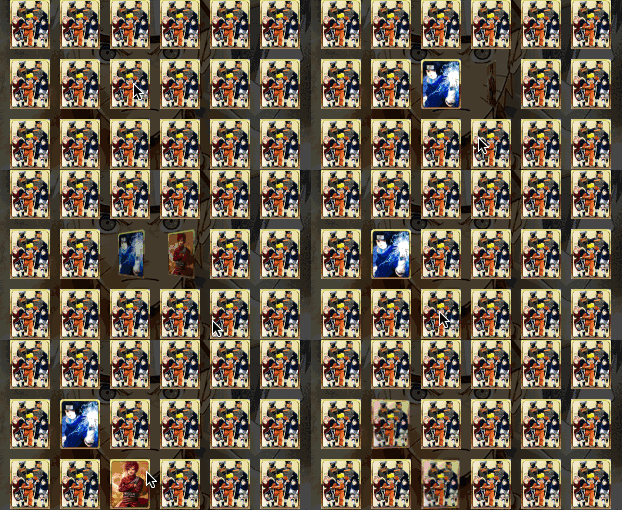
After slowing the simulator animation with command+T, I captured four frames of the flip:

When changing images, the original flips around the view’s centre on the x-axis. The system also adds shadows during the transition for greater realism.(P.S. Again, transition animations should be used only when switching views; moving a view does not itself produce a transition.)
Spring animations
You can now create polished animations with the UIKit animation APIs, combining options values for realistic effects. But there is always more to explore. Imagine a tightly compressed spring bouncing repeatedly after release. The approaches above could produce it, but the code would be complicated and barely reusable. We therefore need another animation technique, and the system provides one:
+ (void)animateWithDuration:(NSTimeInterval)duration delay:(NSTimeInterval)delay usingSpringWithDamping:(CGFloat)dampingRatio initialSpringVelocity:(CGFloat)velocity options:(UIViewAnimationOptions)options animations:(void (^)(void))animations completion:(void (^ __nullable)(BOOL finished))completion
As usual, here is some additional parameter information:
- dampingRatio:速度衰减比例。取值范围0 ~ 1,值越低震动越强
- velocity:初始化速度,值越高则物品的速度越快
A rounded button that shoots into the interface and then shakes strongly will certainly catch the eye. For example, I tried springing a UICollectionView category button into view from below, or bouncing this ball toward the lower-right corner to suggest an action:
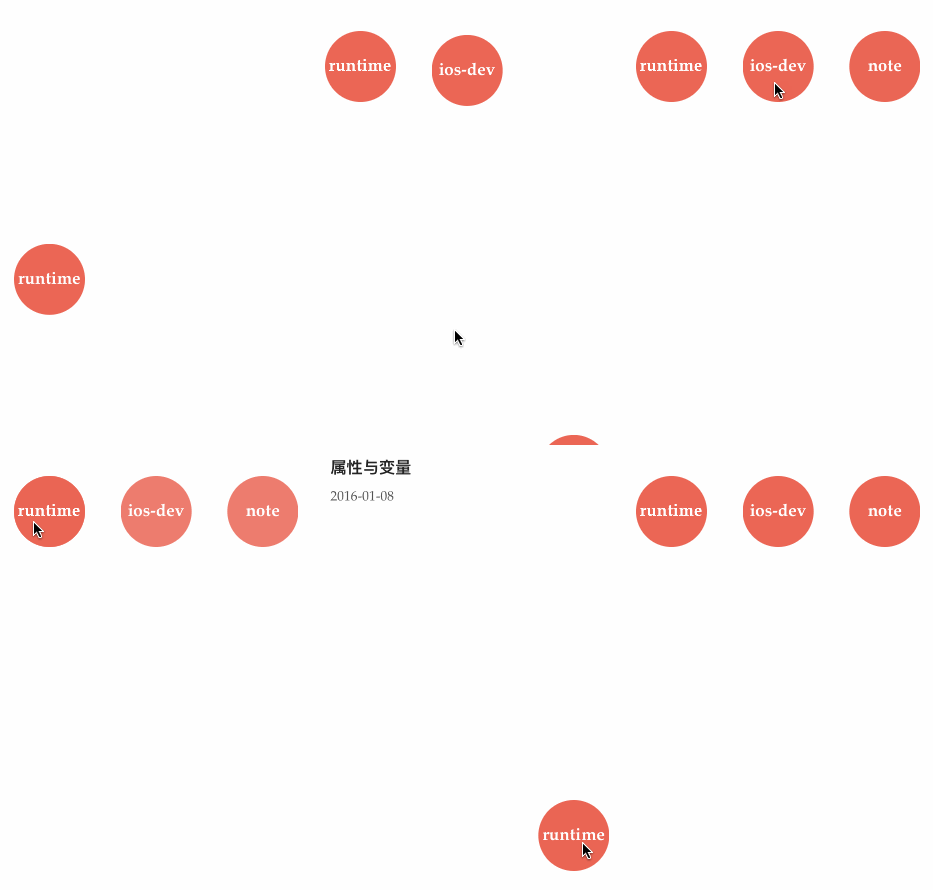
The effect is excellent: the little circles instinctively invite a tap, yet their entrance animation needs only the following few lines of code.
CGPoint center = cell.center;
CGPoint startCenter = center;
startCenter.y += LXD_SCREEN_HEIGHT;
cell.center = startCenter;

[UIView animateWithDuration: 0.5 delay: 0.35 * indexPath.item usingSpringWithDamping: 0.6 initialSpringVelocity: 0 options: UIViewAnimationOptionCurveLinear animations: ^{
    cell.center = center;
} completion: nil];
Besides the pop-up code, tapping a ball animates it towards the lower right, then opens a list from the left. This is useful because, without extra hints, users naturally know how to return to the category screen: tap the round button at the lower right. Animation should make an interface attractive while also reducing the effort of learning an app.
Finally
Compared with rougher desktop interfaces, mobile apps call for greater polish. Elaborate animations are combinations of simple ones. As the first post in this animation series, this article starts with basic UIView animations and gradually expands into other types, hopefully offering ideas to build on. If you are beginning with iOS animation, combine the concepts above and add code to the initial login demo so the button fades and springs up from below:
Recommended reading: Integrating LianLian Pay into an iOS app