
UIKit & graphicsHistorical technical note
Understanding parallax animation in iOS
Explains parallax through the positions of several view layers. Dragging the middle layer, compensating for the text layer's offset and clipping overflow keeps the text stationary relative to the bottom layer, showing how occlusion and movement combine.
Originally credited to WzxJiang; edited and archived by Bison.
Source listed in the originalOn this page
Editor: Bison
Contributor: WzxJiang
"I was away at home for almost 7 days because of a family matter, and finally returned to work today. Today I will explain a parallax animation."
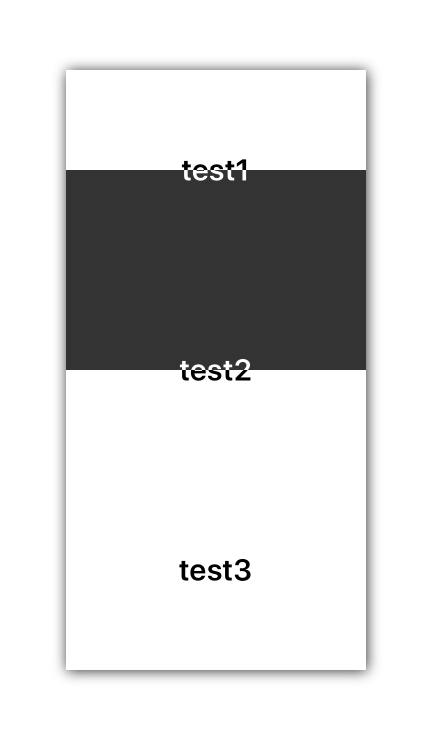
Parallax animation may not always be practical, but it can add a highlight to an app. The technical requirements are simple; the logic is harder to follow. First, here is the result:
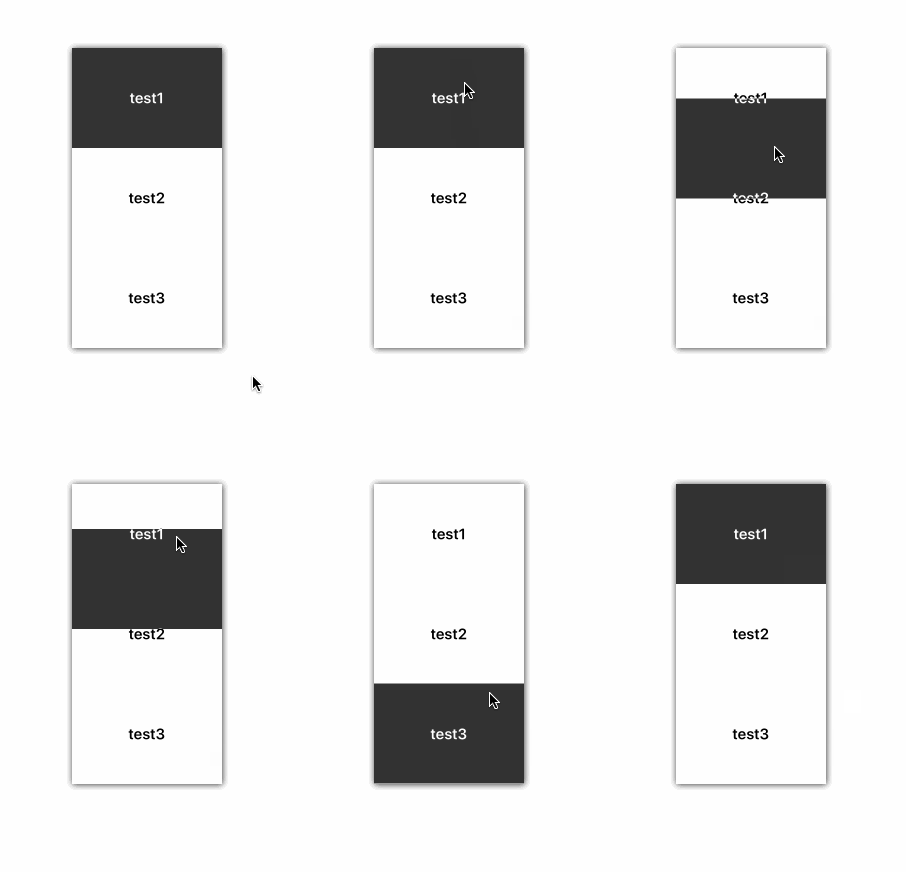
Let’s break it down.
First, understand the components of this view:
The three black-text labels at the bottom are added to one view.
Another three white-text labels sit on the black overlay view.
Yes, each label actually appears twice.
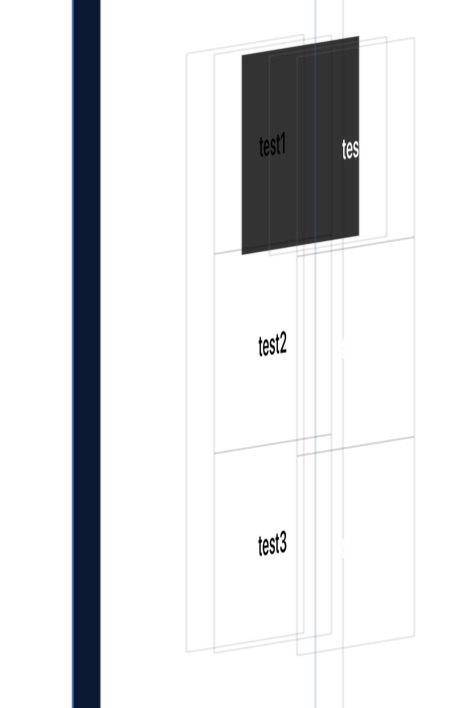
That is the secret behind this parallax animation.
However, that alone is insufficient: the outer labels cover the lower labels, so we also need to view.clipsToBounds = YES;
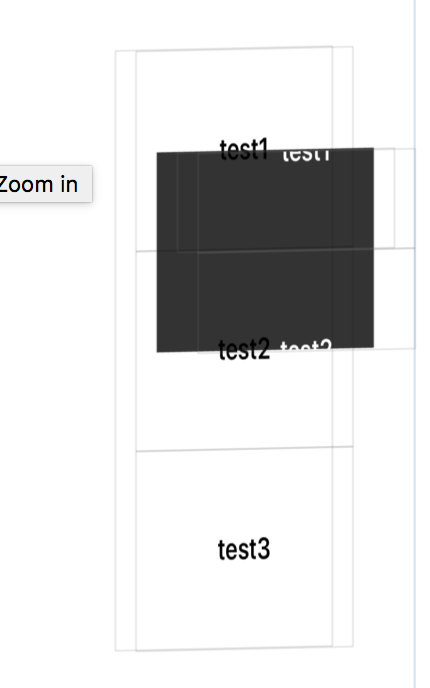
Here is an explanation of the code:
/**
*  最外层的View
*/
@property(nonatomic,strong) UIView * labelView;

/**
*  中间的View
*/
@property(nonatomic,strong) UIView * midView;

/**
*  单个格子的高度
*/
@property(nonatomic,assign) CGFloat  height;
Initialisation code:
- (instancetype)initWithFrame:(CGRect)frame andTitleArr:(NSArray *)titleArr
{
    if (self == [super initWithFrame:frame])
    {
        self.backgroundColor = [UIColor whiteColor];

        _height = self.frame.size.height / titleArr.count;

        //添加最里层Label
        for (int i = 0;i < titleArr.count ; i++)
        {
        [self addSubview:[self returnLabel:titleArr[i] andFrame:CGRectMake(0, i*_height, self.frame.size.width, _height) andColor:[UIColor blackColor]]];
        }

        _midView = ({
            UIView * midView = [[UIView alloc]initWithFrame:CGRectMake(0, 0, self.frame.size.width, _height)];
            midView.backgroundColor = [UIColor colorWithRed:0 green:0 blue:0 alpha:0.8];
            //设置不显示超出的部分
            midView.clipsToBounds = YES;
            midView.userInteractionEnabled = YES;
            midView;
        });

        [self addSubview:_midView];

        _labelView = ({
            UIView * labelView = [[UIView alloc]initWithFrame:CGRectMake(0, 0, _midView.frame.size.width, _midView.frame.size.height)];
            for (int i = 0;i < titleArr.count ; i++)
            {
                [labelView addSubview:[self returnLabel:titleArr[i] andFrame:CGRectMake(0, i*_height, self.frame.size.width, _height) andColor:[UIColor whiteColor]]];
            }
                labelView;

        });

        [_midView addSubview:_labelView];

        //添加拖动手势
        UIPanGestureRecognizer * pan = [[UIPanGestureRecognizer alloc]initWithTarget:self action:@selector(pan:)];
        [_midView addGestureRecognizer:pan];

    }
        return self;
}
//自定义一个快速创建Label的方法 避免重复代码
- (UILabel *)returnLabel:(NSString *)title andFrame:(CGRect)rect andColor:(UIColor *)color
{
    UILabel * label = [[UILabel alloc]initWithFrame:rect];
    label.font = [UIFont boldSystemFontOfSize:20];
    label.textColor = color;
    label.text = title;
    label.textAlignment = NSTextAlignmentCenter;
    return label;
}
Dragging-method code
-(void)pan:(UIPanGestureRecognizer *)sender
{
    CGPoint pt = [sender translationInView:self];

    CGPoint midCenter = _midView.center;
    CGPoint labelCenter = _labelView.center;

    midCenter.y += pt.y;
    labelCenter.y -= pt.y;

    //边界
    if (midCenter.y > self.frame.size.height - _height/2.0)
    {
        midCenter.y = self.frame.size.height - _height/2.0 ;
        labelCenter.y = -self.frame.size.height + _height*1.5;
    }
    if (midCenter.y < _height/2.0)
    {
        midCenter.y = _height/2.0 ;
        labelCenter.y = _height/2.0;
    }

    _midView.center = midCenter;
    _labelView.center = labelCenter;

    [sender setTranslation:CGPointZero inView:self];
}
The difficult part of dragging is keeping _labelView fixed relative to the bottommost layer while clipping anything outside _midView. Thus _labelView must belong to _midView, with midView.clipsToBounds = YES. But dragging _midView also changes _labelView’s position, so we need to
midCenter.y += pt.y;
labelCenter.y -= pt.y;
compensate for _labelView’s displacement so its position relative to the bottom layer remains unchanged.
That completes the animation.
If you have a better approach, please join the discussion!
Complete code
Recommended reading: Integrating LianLian Pay into an iOS app