
UIKit & graphicsHistorical technical note
Building a WeChat-style iOS app, part 2
Builds the Contacts, Discover and profile screens using grouped UITableViews and a custom personal-information cell. Sorting and grouping the contact data demonstrates the initial interface structure shared by several pages.
Originally credited to WzxJiang; edited and archived by Bison.
Source listed in the originalOn this page
Editor: Bison
Contributor: WzxJiang
"Starting today (2016.1.28), I will build a WeChat-style app. I can only work on personal projects in the evenings, so progress may be slow. Thank you for understanding!:"

Completed today
– Build the Contacts UI, excluding the search bar
Here is how sorting works.
– Build the Me page UI
Result: at 1/3 scale in the 6 and 6plus simulators, cell separators may be invisible.
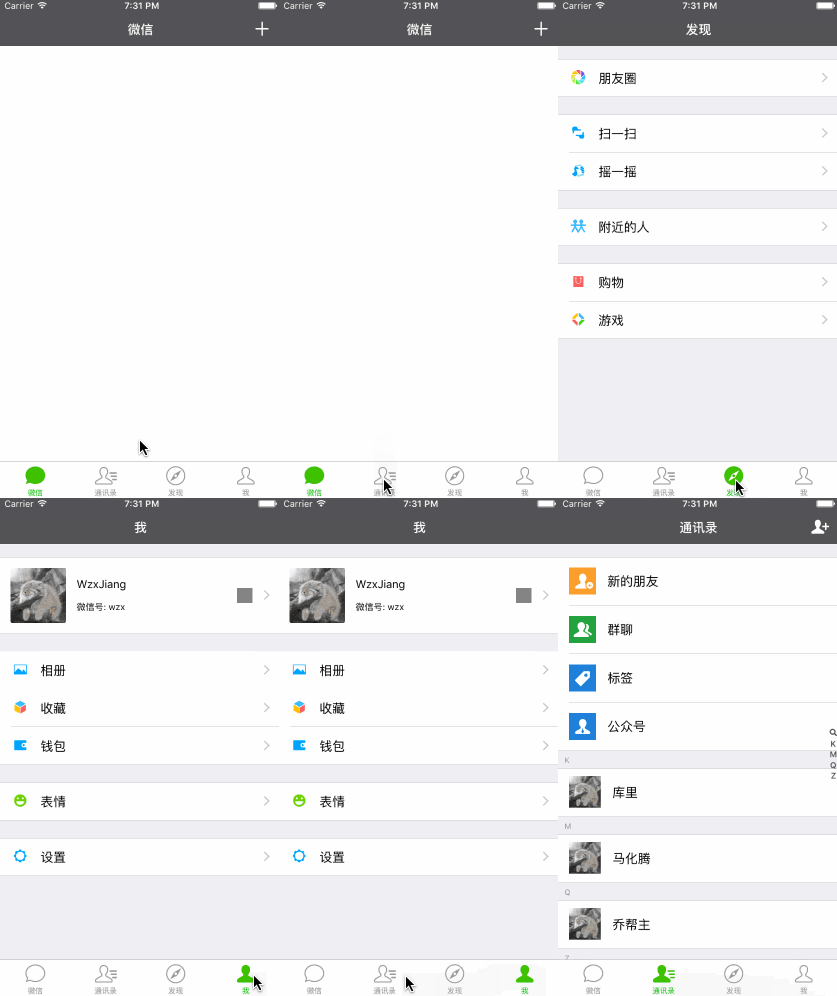
One image is still missing.
WeChat has far fewer bugs than QQ partly because many of its components are native, so I used native controls wherever possible for these three pages—not just to save effort! For convenience I also added a pch file today. If the downloaded source does not work, change this path:
Macro definitions in the pch file
//按比例获取高度
#define  WGiveHeight(HEIGHT) HEIGHT * [UIScreen mainScreen].bounds.size.height/568.0

//按比例获取宽度
#define  WGiveWidth(WIDTH) WIDTH * [UIScreen mainScreen].bounds.size.width/320.0

//RGB色值
#define UIColorFromRGB(rgbValue) [UIColor \
colorWithRed:((float)((rgbValue & 0xFF0000) >> 16))/255.0 \
green:((float)((rgbValue & 0xFF00) >> 8))/255.0 \
blue:((float)(rgbValue & 0xFF))/255.0 alpha:1.0]
Next, I will explain today’s work.
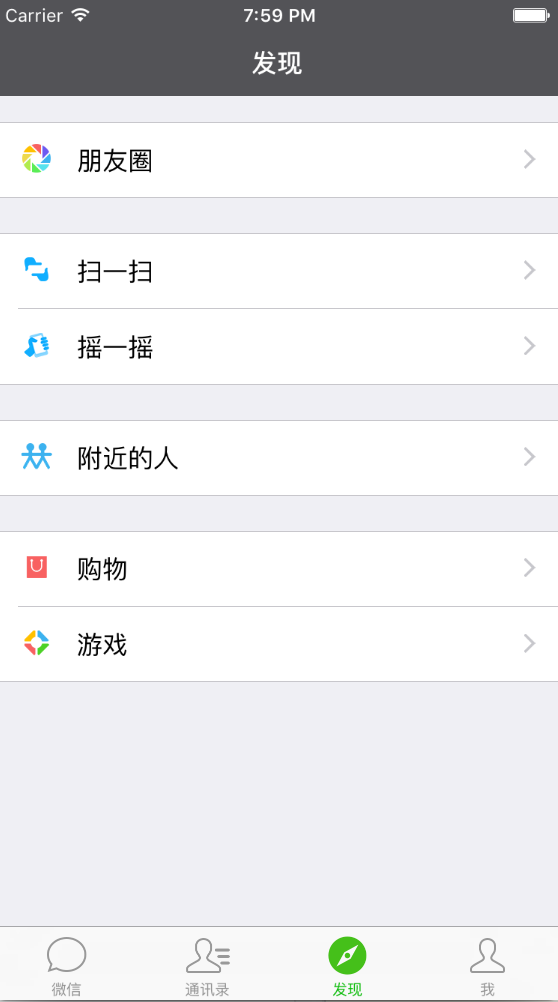
- Start with the simplest page, Discover.
@interface FoundViewController ()<UITableViewDelegate,UITableViewDataSource>

@property(nonatomic,strong)UITableView * tableView;

//名字数组
@property(nonatomic,copy)NSArray * dataArr;

//图片数组
@property(nonatomic,copy)NSArray * imgArr;


//准备数据
- (void)preData
{

_dataArr = @[@[@"朋友圈"],
@[@"扫一扫",@"摇一摇"],
@[@"附近的人"],
@[@"购物",@"游戏"]];

_imgArr = @[@[@"found_quan"],
@[@"found_saoyisao",@"found_yao"],
@[@"found_nearby"],
@[@"found_shop",@"found_game"]];

}
//创建tableView
- (void)createTableView
{
    _tableView = ({
        UITableView * tableView = [[UITableView alloc]initWithFrame:CGRectMake(0, 64, self.view.frame.size.width, self.view.frame.size.height - 64 - 44) style:UITableViewStyleGrouped];

        tableView.delegate = self;

        tableView.dataSource = self;

        //调整下分隔线位置
        tableView.separatorInset = UIEdgeInsetsMake(0, 0, 0, 0);

        tableView;
    });
    [self.view addSubview:_tableView];
}
#pragma mark --tableView--
//组数
-(NSInteger)numberOfSectionsInTableView:(UITableView *)tableView
{
    return _dataArr.count;
}

//每组个数
- (NSInteger)tableView:(UITableView *)tableView numberOfRowsInSection:(NSInteger)section
{
    NSArray * rowArr = _dataArr[section];
    return rowArr.count;
}

- (UITableViewCell *)tableView:(UITableView *)tableView cellForRowAtIndexPath:(NSIndexPath *)indexPath
{
    static NSString * identifier = @"foundCell";

    UITableViewCell * cell = [tableView dequeueReusableCellWithIdentifier:identifier];

    if (cell == nil)
    {
        cell = [[UITableViewCell alloc]initWithStyle:UITableViewCellStyleDefault reuseIdentifier:identifier];
        //右侧小箭头
        cell.accessoryType=UITableViewCellAccessoryDisclosureIndicator;
    }

    return cell;
}

//养成习惯在WillDisplayCell中处理数据
- (void)tableView:(UITableView *)tableView willDisplayCell:(UITableViewCell *)cell forRowAtIndexPath:(NSIndexPath *)indexPath
{
    cell.imageView.image = [UIImage imageNamed:_imgArr[indexPath.section][indexPath.row]];
    cell.textLabel.text = _dataArr[indexPath.section][indexPath.row];
}

//设置row高度
- (CGFloat)tableView:(UITableView *)tableView heightForRowAtIndexPath:(NSIndexPath *)indexPath
{
    return WGiveHeight(43);
}

//设置头视图高度
- (CGFloat)tableView:(UITableView *)tableView heightForHeaderInSection:(NSInteger)section
{
    if (section == 0)
    {
        return WGiveHeight(15);
    }
    return WGiveHeight(10);
}

//设置脚视图高度
- (CGFloat)tableView:(UITableView *)tableView heightForFooterInSection:(NSInteger)section
{
    return WGiveHeight(10);
}
This interface is very simple; the comments should make the code clear. One point to note is to handle data in WillDisplayCell where possible. The native UITableViewStyleGrouped really is convenient and attractive.
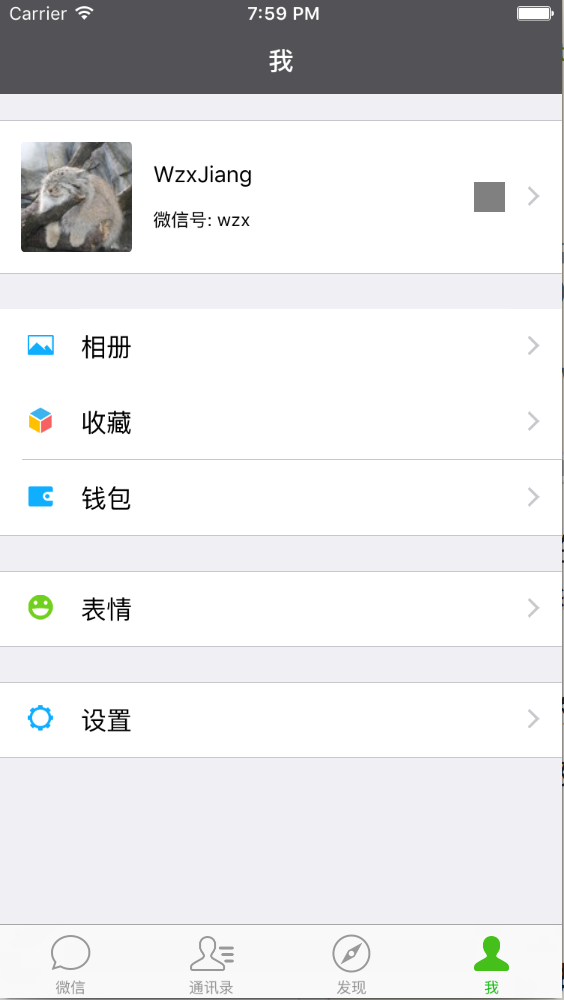
- Building the Me page; a QR-code image is missing.
Most code matches the preceding example, except the first cell needs network data, which will be added later, and had to be custom-built. If you know a way to do it with a native cell, please teach me.
1. Create a PersonModel.
/**
*  用户头像
*/
@property (nonatomic,copy)NSString * avater;

/**
*  用户昵称
*/
@property (nonatomic,copy)NSString * nickName;

/**
*  微信号
*/
@property (nonatomic,copy)NSString * weID;
2. Create the cell, preferably without a xib.
#import "PersonModel.h"
/**
*  model
*/
@property(nonatomic,strong)PersonModel * model;

/**
*  用户头像ImgView
*/
@property (nonatomic,strong)UIImageView * avaterImgView;

/**
*  用户名Label
*/
@property (nonatomic,strong)UILabel * userNameLabel;

/**
*  微信号Label
*/
@property (nonatomic,strong)UILabel * weIDLabel;

/**
*  二维码ImgView
*/
@property (nonatomic,strong)UIImageView * wmImgView;
- (void)setModel:(PersonModel *)model;
- (void)setModel:(PersonModel *)model
{
self.accessoryType = UITableViewCellAccessoryDisclosureIndicator;
self.avaterImgView.image = [UIImage imageNamed:model.avater];
self.userNameLabel.text = model.nickName;
self.weIDLabel.text = [NSString stringWithFormat:@"微信号: %@",model.weID];
self.wmImgView.image = [UIImage imageNamed:@""];
self.wmImgView.backgroundColor = [UIColor grayColor];
}
//懒加载
- (UIImageView *)avaterImgView
{
if (!_avaterImgView)
{
_avaterImgView = ({
UIImageView * avaterImgView = [[UIImageView alloc]initWithFrame:CGRectMake(WGiveWidth(12), WGiveHeight(12), self.frame.size.height - 2*WGiveHeight(12), self.frame.size.height - 2*WGiveHeight(12))];
avaterImgView.clipsToBounds = YES;
//加点圆角
avaterImgView.layer.cornerRadius = 3;
avaterImgView;
});
[self addSubview:_avaterImgView];
}
return _avaterImgView;
}
- (UILabel *)userNameLabel
{
if (!_userNameLabel)
{
_userNameLabel = ({
UILabel * userNameLabel = [[UILabel alloc]initWithFrame:CGRectMake(self.frame.size.height - 2*WGiveHeight(12) + 2*WGiveWidth(12), WGiveHeight(19), WGiveWidth(160), WGiveHeight(22))];
userNameLabel.font = [UIFont systemFontOfSize:15];
userNameLabel;
});
[self addSubview:_userNameLabel];
}
return _userNameLabel;
}
- (UILabel *)weIDLabel
{
if (!_weIDLabel)
{
_weIDLabel = ({
UILabel * weIDLabel = [[UILabel alloc]initWithFrame:CGRectMake(self.frame.size.height - 2*WGiveHeight(12) + 2*WGiveWidth(12), _userNameLabel.frame.origin.y + _userNameLabel.frame.size.height + WGiveHeight(5), WGiveWidth(160), WGiveHeight(20))];
weIDLabel.font = [UIFont systemFontOfSize:12];
weIDLabel;
});
[self addSubview:_weIDLabel];
}
return _weIDLabel;
}
- (UIImageView *)wmImgView
{
if (!_wmImgView)
{
_wmImgView = ({
UIImageView * wmImgView = [[UIImageView alloc]initWithFrame:CGRectMake(self.frame.size.width - WGiveWidth(50),((self.frame.size.height - WGiveHeight(35/2.0))/2.0), WGiveWidth(35/2.0), WGiveWidth(35/2.0))];
wmImgView;
});
[self addSubview:_wmImgView];
}
return _wmImgView;
}The lazy loading here is mostly a personal habit; it makes little difference in this case.
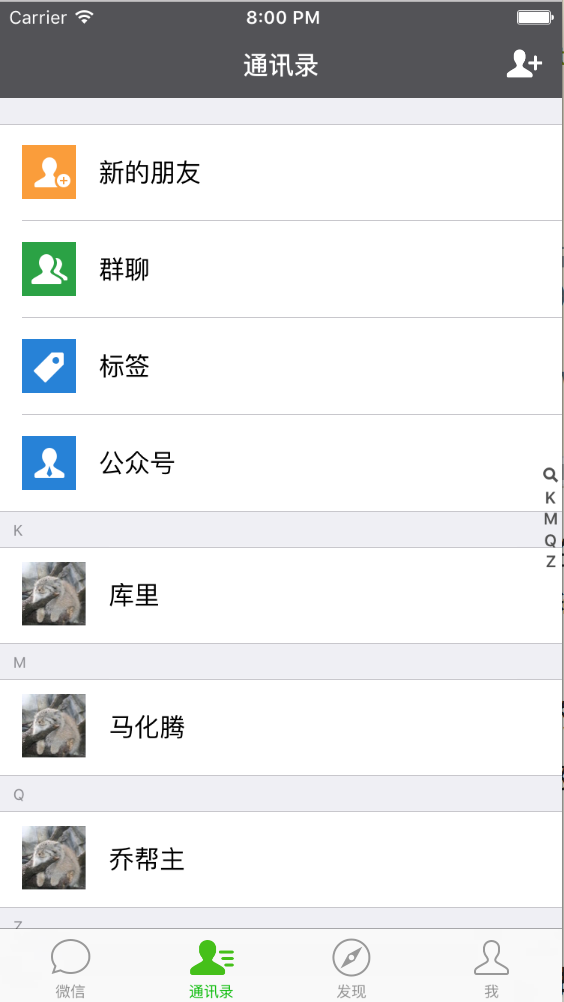
Building the Contacts page; I did not have time for the search bar today.
addressbook
Sorting is required here, so import
#import "NSString+PinYin.h"– Build the Discover page UI
NSArray * nameArr = @[
                        @{
                            @"name":@"马化腾",
                            @"imgName":@"avater.jpg"
                        },
                        @{
                            @"name":@"张小龙",
                            @"imgName":@"avater.jpg"
                        },
                        @{
                            @"name":@"乔帮主",
                            @"imgName":@"avater.jpg"
                        },
                        @{
                            @"name":@"库里",
                            @"imgName":@"avater.jpg"
                        }
                        ];

for(char i = 'A';i <= 'Z';i++)
{
    NSMutableDictionary * dic = [[NSMutableDictionary alloc]init];
    for (int j = 0; j < nameArr.count; j++)
    {
        NSDictionary * nameDic = nameArr[j];
        NSString * name = nameDic[@"name"];
        NSString * imgName = nameDic[@"imgName"];
        NSString * sectionName = [NSString stringWithFormat:@"%c",i];

        //属于这个组的nameArr
        NSMutableArray * currNameArr = [[NSMutableArray alloc]init];
        if ([[name getFirstLetter] isEqualToString:sectionName])
        {
            NSDictionary * currDic = @{
                                     @"name":name,
                                     @"imgName":imgName};

            [currNameArr addObject:currDic];
        }
    }

    if (currNameArr.count > 0)
    {
        [dic setObject:currNameArr forKey:@"nameArr"];
        [dic setObject:sectionName forKey:@"sectionName"];
        [_dataArr addObject:dic];
    }
}
In summary, an array contains N dictionaries. Each dictionary contains a sectionName string for the group name and a nameArr array of names in that group. The names array contains N dictionaries, each with a name string and an imgName string for its image filename.
For the rest, refer to my earlier article, “Simple use of TableView indexes”.
Here I will just add the method for adding a magnifying-glass icon.
//加索引
- (NSArray *)sectionIndexTitlesForTableView:(UITableView *)tableView{

    //索引背景颜色
    tableView.sectionIndexBackgroundColor = [UIColor clearColor];

    //索引颜色
    tableView.sectionIndexColor = [UIColor colorWithRed:82/255.0 green:82/255.0 blue:82/255.0 alpha:1];

    NSMutableArray * arr = [[NSMutableArray alloc]init];

    //加放大镜
    [arr addObject:UITableViewIndexSearch];

    for (NSDictionary * dic in _dataArr)
    {
        [arr addObject:dic[@"sectionName"]];
    }
    return arr;
}
and how to change imageView size in a native cell.
NSDictionary * dic = _dataArr[indexPath.section - 1];

NSArray * arr = dic[@"nameArr"];

//当前cell的信息
NSDictionary * rowDic = arr[indexPath.row];

cell.imageView.image = [UIImage imageNamed:rowDic[@"imgName"]];

cell.textLabel.text = rowDic[@"name"];

UIImage *icon = [UIImage imageNamed:rowDic[@"imgName"]];

//修改icon尺寸
CGSize itemSize = CGSizeMake(WGiveWidth(36), WGiveWidth(36));
UIGraphicsBeginImageContextWithOptions(itemSize, NO,0.0);
CGRect imageRect = CGRectMake(0.0, 0.0, itemSize.width, itemSize.height);
[icon drawInRect:imageRect];
cell.imageView.image = UIGraphicsGetImageFromCurrentImageContext();

UIGraphicsEndImageContext();
That is all for today! Tomorrow I will try to finish the remaining main-screen UI.
Current code, to be updated until the project is complete
If you have suggestions or questions, please leave a comment!
Recommended reading: Integrating LianLian Pay into an iOS app