
UIKit & graphicsHistorical technical note
Core Text layout in Swift 2.0: an in-depth introduction
Begins with attributed-text properties such as fonts, colours and ranges, then introduces Core Text's layout and drawing steps. Combining text and images illustrates the basic objects needed for more complex text interfaces.
Originally credited to 大石头布; edited and archived by Bison.
Source listed in the originalOn this page
Editor: Bison
Contributor: 大石头布
"CoreText is an advanced, relatively low-level technology for text layout and font handling. Its API was introduced in OS X v10.5 and iOS3.2 and is available in both OS X and iOS.:"
For requirements that are not especially complex, UILabel and UITextView usually suffice. Apple has wrapped text display for us in these controls. More complex cases include mixed images and text, recognizing links and replacing them with “Click link,” binding @someone mentions, recognizing phone numbers, and mixing text sizes. UIWebView can handle these too, but CoreText uses less memory and can render in the background, making it well suited to content layout. CoreText is highly flexible, although using it is more involved. When learning a technology, why not tackle the hardest part?
Let us look at an overview diagram.
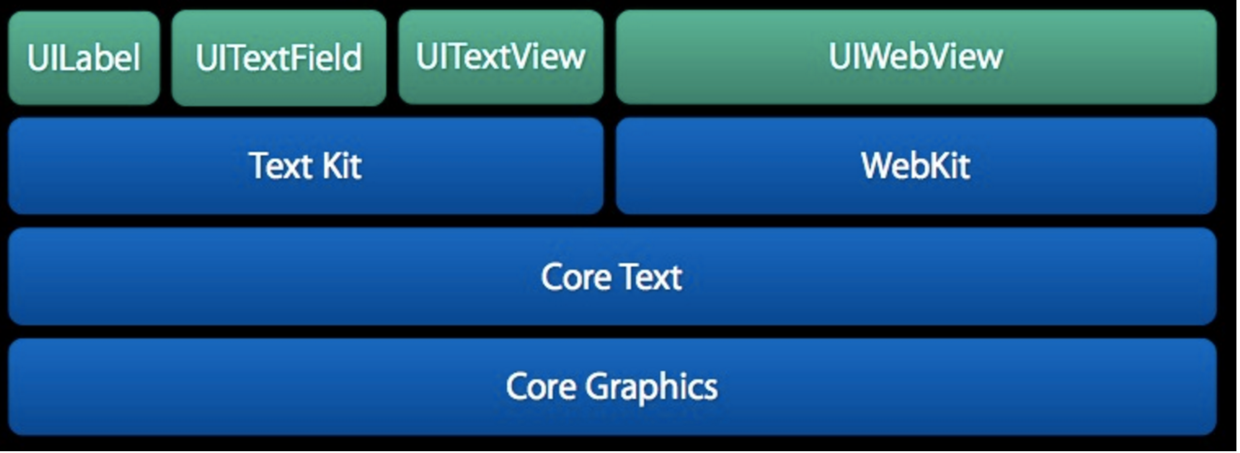
Before learning CoreText, you need to understand attributed strings: NSAttributedString or NSMutableAttributedString.
NSAttributedString and NSMutableAttributedString
NSAttributedString is a string with attributes. It lets you manipulate and display text in a variety of styles flexibly.
You can define the attributes in advance and then apply them to the text.
let str = "这是一段用来测试的字符串 this is a string for test"
let dic = [NSFontAttributeName:UIFont.boldSystemFontOfSize(20),
NSForegroundColorAttributeName:UIColor.redColor()]
let attrStr = NSAttributedString(string: str, attributes: dic)
label.attributedText = attrStr
Result
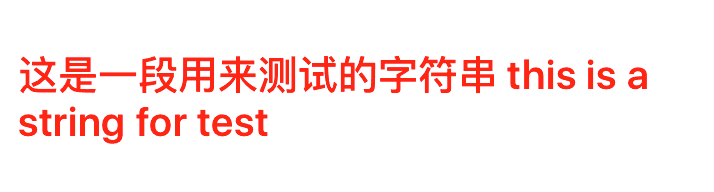
Notice that we did not set the label's color or font directly. We created an NSAttributedString with two attributes and used label.attributedText rather than label.text.
If we could only apply the same attributes to all the text, attributed strings would not be very interesting. We can assign different attributes to a portion of the text.
let mutableAttrStr = NSMutableAttributedString(string: str)
mutableAttrStr.addAttributes(dic, range: NSMakeRange(0, 2))
mutableAttrStr.addAttributes([NSFontAttributeName:UIFont.systemFontOfSize(13),NSUnderlineStyleAttributeName: 1 ], range: NSMakeRange(2,8))
label.attributedText = mutableAttrStr
We can apply different styles to text at different positions, using NSRange to specify the range. NSRange is a structure with location and length fields; together, they uniquely identify a substring.
Result
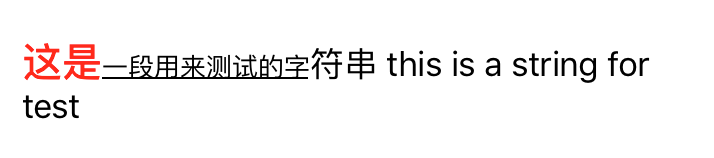
We have now applied two different attributes to the preceding text.
Which attributes can we set?
-
NSFontAttributeName sets the font. Default: Helvetica(Neue), size 12.
-
NSForegroundColorAttributeName sets the text color using a UIColor object. Its default is
-
NSBackgroundColorAttributeName sets the text area's background color using a UIColor object. The default is nil, meaning transparent.
-
NSLigatureAttributeName sets ligatures using an NSNumber integer: 0 disables ligatures; 1 uses the default ligatures.
-
NSKernAttributeName sets character spacing using an NSNumber integer. Positive values increase spacing; negative values decrease it.
-
NSStrikethroughStyleAttributeName sets the strikethrough style using an NSNumber integer.
-
NSStrikethroughColorAttributeName sets the strikethrough color using a UIColor object. The default is black.
-
NSUnderlineStyleAttributeName sets the underline using an NSNumber integer from the NSUnderlineStyle enumeration, similarly to strikethrough. NSUnderlineColorAttributeName sets the underline color using a UIColor object; the default is black.
-
NSStrokeWidthAttributeName sets the stroke width using an NSNumber integer. A negative value produces filled text; a positive value produces outlined text.
-
NSStrokeColorAttributeName specifies the fill-part color rather than the text color, using a UIColor object. NSShadowAttributeName sets shadow attributes using an NSShadow object.
-
NSTextEffectAttributeName sets a special text effect using an NSString. Currently, only the letterpress effect is available:
-
NSBaselineOffsetAttributeName sets the baseline offset using an NSNumber float. Positive values move it up; negative values move it down.
-
NSObliquenessAttributeName sets glyph slant using an NSNumber float. Positive values slant right; negative values slant left.
-
NSExpansionAttributeName sets horizontal text expansion using an NSNumber float. Positive values expand the text horizontally; negative values compress it.
-
NSWritingDirectionAttributeName sets the writing direction, either left to right or right to left.
-
NSVerticalGlyphFormAttributeName sets the text-layout orientation using an NSNumber integer: 0 means horizontal text and 1 means vertical text.
-
NSLinkAttributeName sets a link; tapping it opens the specified URL in a browser.
-
NSAttachmentAttributeName sets a text attachment using an NSTextAttachment object, commonly for mixing text and images.
-
NSParagraphStyleAttributeName sets paragraph layout using an NSParagraphStyle object.
There are too many attributes to remember. Google their usage when needed—they are powerful! 😄
That is enough about attributed strings. They are sufficient for simple rich text. Now let us turn to the main topic: CoreText.
CoreText
Attributed strings style text, whereas CoreText lays it out. You can customize each line's height, the space occupied by each character, and more.
CoreText is a low-level technology for working with text and fonts. It interacts directly with Core Graphics, also known as Quartz, a 2D rendering engine. Quartz can process fonts and glyphs directly to render text on screen; it is the only module in the foundational libraries that handles glyphs. For layout, CoreText therefore passes the text, positions, fonts, and glyphs directly to Quartz. This direct interaction gives CoreText fast layout performance compared with other UI components.
Let us look at a diagram of the CoreText object model.
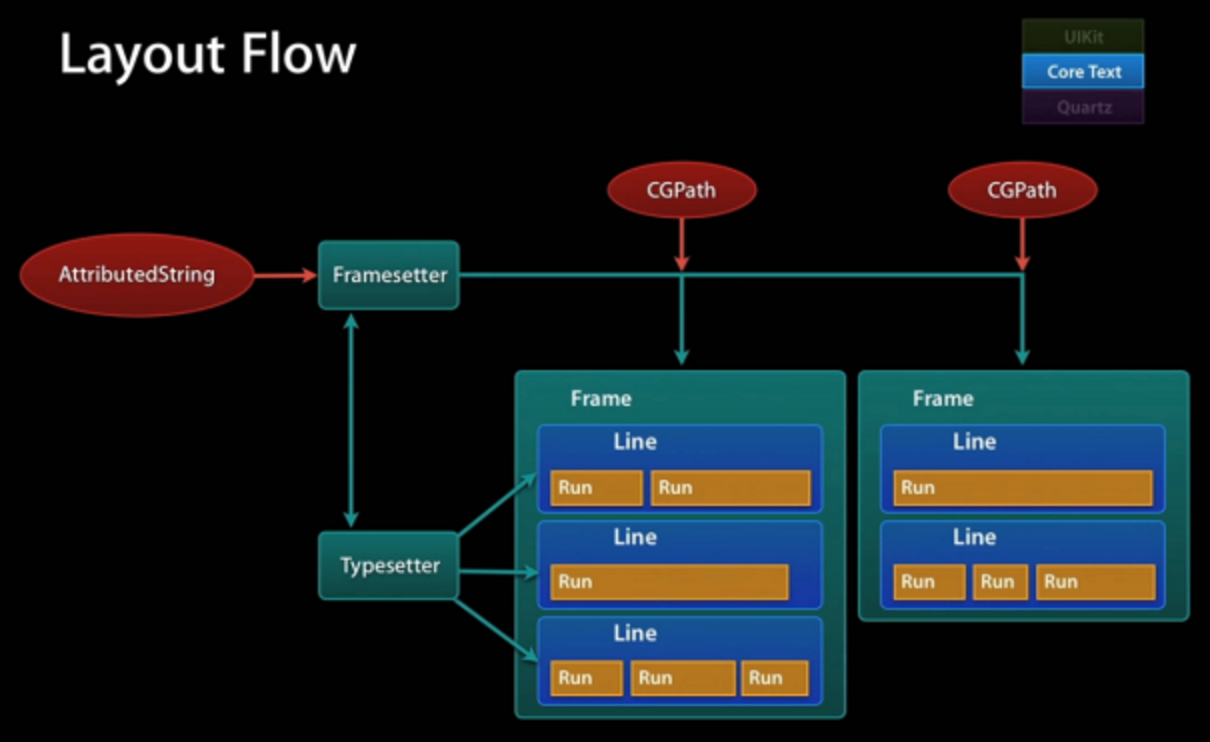
First, a somewhat dry explanation; examples will follow. 🌰
In the diagram, Framesetter corresponds to CTFramesetter. It is initialized with a CFAttributedString; NSAttributeString can also be bridged seamlessly. It acts as a factory for CTFrame objects, producing a frame for the supplied path. CTFrame can be drawn directly into a context with CTFrameDraw. Before drawing, you can also manipulate its CTLine objects to fine-tune parameters. A CTLine represents one line of Core Text drawing. It provides the line ascent, line descent, and line leading, as well as all the line's Glyph Runs. CTRun, or Glyph Run, is a collection of glyphs sharing the same attributes. CTFrame represents the drawing area of the entire UIView subview; CTLine represents a line; and CTRun represents a string segment with identical attributes. For example, a string with a consistent font size and color forms a CTRun. A CTRun cannot cross a line boundary, regardless of whether attributes match. Typically, each CTFrame contains several CTLines, and each CTLine contains several CTRuns.
CoreText was originally designed as a desktop typesetting system, so it uses the traditional coordinate system with its origin at the bottom-left. Its text drawing is therefore relative to that bottom-left origin.
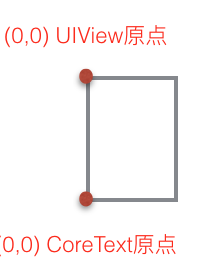
If you draw with CoreText directly in this context without any adjustment, the text will appear mirrored and upside down.
Here comes an example! 🌰 First, let us look at the simplest use of CoreText.
A simple example First, create a CTView subclass of UIView.
import UIKit

class CTView: UIView {

    override func drawRect(rect: CGRect) {
        super.drawRect(rect)

        // 1
        let context = UIGraphicsGetCurrentContext()

        // 2
        CGContextSetTextMatrix(context, CGAffineTransformIdentity)
        CGContextTranslateCTM(context, 0, self.bounds.size.height)
        CGContextScaleCTM(context, 1.0, -1.0)

        // 3
        let path = CGPathCreateMutable()
        CGPathAddRect(path, nil, self.bounds)

        // 4
        let attrString = NSAttributedString(string:"Hello CoreText!")
        let framesetter = CTFramesetterCreateWithAttributedString(attrString)
        let frame = CTFramesetterCreateFrame(framesetter, CFRangeMake(0, attrString.length), path, nil)

        // 5
        CTFrameDraw(frame,context!)
    }
}
Then add this view to the ViewController.
let ctView = CTView()
ctView.frame = CGRectMake(10, 150, self.view.bounds.width - 20, 200)
ctView.backgroundColor = UIColor.whiteColor()
self.view.addSubview(ctView)
Result:
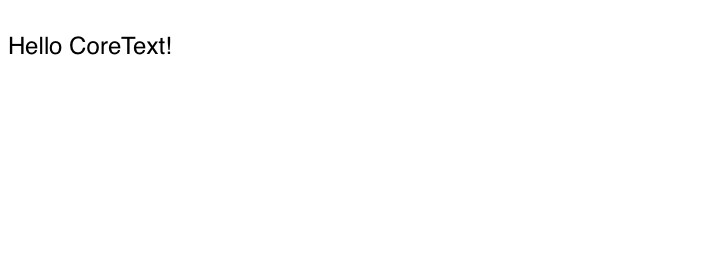
Explanation:
1. Obtain the current context with UIGraphisGetCurrentContext().
2. Flip the coordinate system vertically. The lower-level drawing engine places (0, 0) at the bottom-left of the screen, whereas UIKit places (0, 0) at the top-left. To describe subsequent coordinates in UIKit terms, we first flip the coordinate system vertically. The lower- and higher-level (0, 0) positions then coincide.
3. Create the drawing area with CGPathCreateMutable(). CoreText supports various text-layout regions. Here, we simply use the entire UIView as the layout area.
If CGMutablePath feels awkward, you can use the more convenient UIBezierPath to work with the text-layout area instead.
Replace step 3 above with:
let path1 = UIBezierPath(roundedRect: self.bounds, cornerRadius:self.bounds.size.width/2 )Replace step 4 with the following, adding a few text attributes along the way.
// 4
let attrString = "Hello CoreText!Hello CoreText!Hello CoreText!Hello CoreText!Hello CoreText!Hello CoreText!Hello CoreText!Hello CoreText!Hello CoreText!Hello CoreText!Hello CoreText!Hello CoreText!Hello CoreText!Hello CoreText!Hello CoreText!Hello CoreText!Hello CoreText!Hello CoreText!Hello CoreText!Hello CoreText!Hello CoreText!Hello CoreText!Hello CoreText!Hello CoreText!Hello CoreText!Hello CoreText!Hello CoreText!Hello CoreText!Hello CoreText!Hello CoreText!Hello CoreText!Hello CoreText!Hello CoreText!Hello CoreText!Hello CoreText!Hello CoreText!Hello CoreText!Hello CoreText!Hello CoreText!Hello CoreText!Hello CoreText!Hello CoreText!Hello CoreText!Hello CoreText!Hello CoreText!Hello CoreText!Hello CoreText!Hello CoreText!"

let mutableAttrStr = NSMutableAttributedString(string: attrString)
mutableAttrStr.addAttributes([NSFontAttributeName:UIFont.systemFontOfSize(20),
NSForegroundColorAttributeName:UIColor.redColor() ], range: NSMakeRange(0, 20))
mutableAttrStr.addAttributes([NSFontAttributeName:UIFont.systemFontOfSize(13),NSUnderlineStyleAttributeName: 1 ], range: NSMakeRange(20,18))
let framesetter = CTFramesetterCreateWithAttributedString(mutableAttrStr)
let frame = CTFramesetterCreateFrame(framesetter, CFRangeMake(0, mutableAttrStr.length), path1.CGPath, nil)
The layout area has now changed, using the UIBezierPath API.
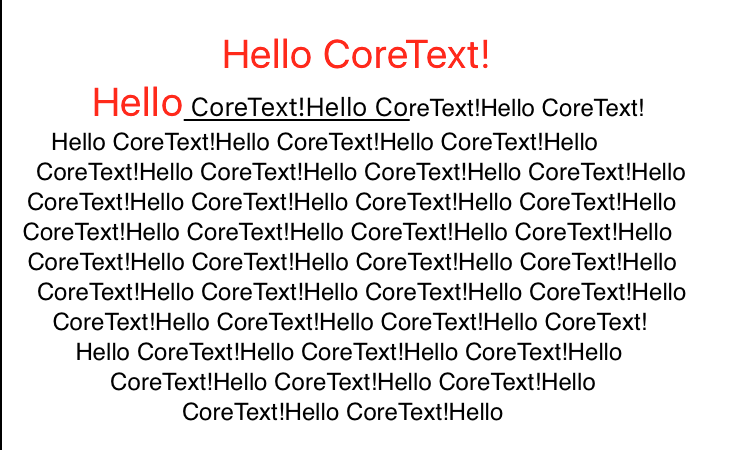
4. Generate a CTFramesetterRef from the AttributedString, then create a CTFrame from the framesetter and drawing area.
5. Draw with CTFrameDraw. More complex examples later may draw line by line instead of drawing the entire frame directly.
Mixing images and text
CoreText would be rather uninteresting if it could only define text-drawing areas. It also supports mixed text and images, including both local and remote images.
CoreText still uses NSAttributedString when moving from plain text to images. An image is represented by a blank-character placeholder in NSAttributedString. A delegate tells CoreText how much width and height to reserve for that character. Finally, draw the image in the reserved position.
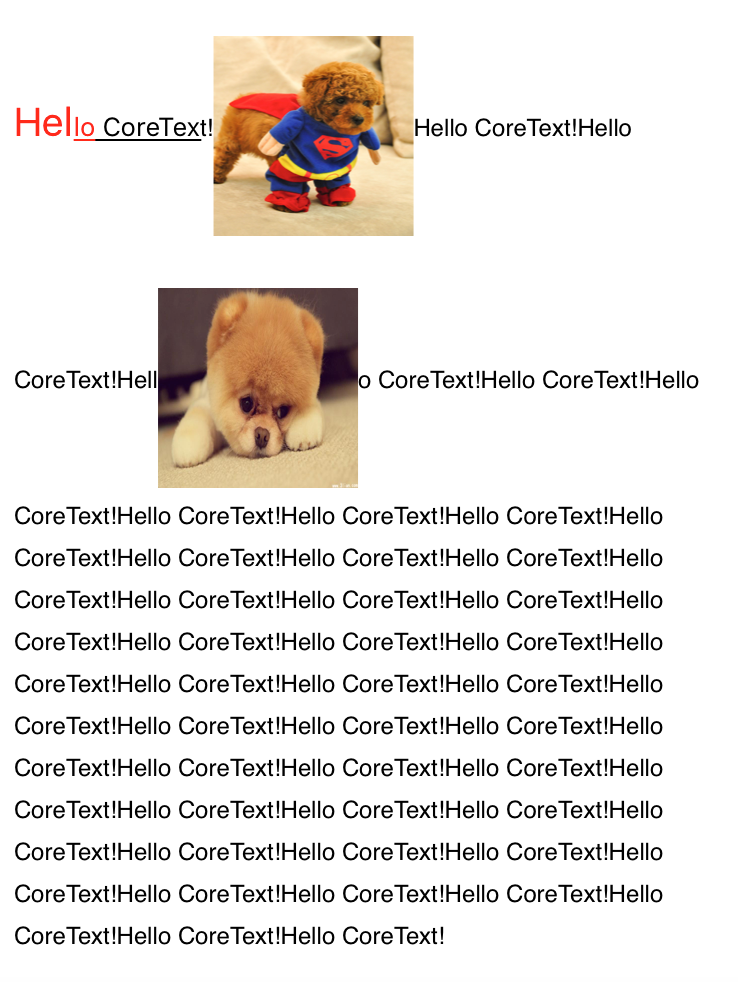
In the image, the first picture is local and the second comes from the web. Let us see how this works. The code is rather long, but the approach should be clear.
import UIKit

class CTPicTxtView: UIView {

var image:UIImage?

    override func drawRect(rect: CGRect) {
        super.drawRect(rect)

        // 1 获取上下文
        let context = UIGraphicsGetCurrentContext()

        // 2 转换坐标
        CGContextSetTextMatrix(context, CGAffineTransformIdentity)
        CGContextTranslateCTM(context, 0, self.bounds.size.height)
        CGContextScaleCTM(context, 1.0, -1.0)

        // 3 绘制区域
        let path = UIBezierPath(rect: rect)

        // 4 创建需要绘制的文字
        let attrString = "Hello CoreText!Hello CoreText!Hello CoreText!Hello CoreText!Hello CoreText!Hello CoreText!Hello CoreText!Hello CoreText!Hello CoreText!Hello CoreText!Hello CoreText!Hello CoreText!Hello CoreText!Hello CoreText!Hello CoreText!Hello CoreText!Hello CoreText!Hello CoreText!Hello CoreText!Hello CoreText!Hello CoreText!Hello CoreText!Hello CoreText!Hello CoreText!Hello CoreText!Hello CoreText!Hello CoreText!Hello CoreText!Hello CoreText!Hello CoreText!Hello CoreText!Hello CoreText!Hello CoreText!Hello CoreText!Hello CoreText!Hello CoreText!Hello CoreText!Hello CoreText!Hello CoreText!Hello CoreText!Hello CoreText!Hello CoreText!Hello CoreText!Hello CoreText!Hello CoreText!Hello CoreText!Hello CoreText!Hello CoreText!"

        let mutableAttrStr = NSMutableAttributedString(string: attrString)
        mutableAttrStr.addAttributes([NSFontAttributeName:UIFont.systemFontOfSize(20),
        NSForegroundColorAttributeName:UIColor.redColor() ], range: NSMakeRange(0, 5))
        mutableAttrStr.addAttributes([NSFontAttributeName:UIFont.systemFontOfSize(13),NSUnderlineStyleAttributeName: 1 ], range: NSMakeRange(3,10))
        let style = NSMutableParagraphStyle()   //用来设置段落样式
        style.lineSpacing = 6 //行间距
        mutableAttrStr.addAttributes([NSParagraphStyleAttributeName:style], range: NSMakeRange(0, mutableAttrStr.length))

        // 5 为图片设置CTRunDelegate,delegate决定留给图片的空间大小
        var imageName = "mc"
        var  imageCallback =  CTRunDelegateCallbacks(version: kCTRunDelegateVersion1, dealloc: { (refCon) -> Void in

        }, getAscent: { ( refCon) -> CGFloat in

            //                let imageName = "mc"
            //                refCon.initialize()
            //                let image = UIImage(named: imageName)
            return 100  //返回高度

        }, getDescent: { (refCon) -> CGFloat in

            return 50  //返回底部距离

        }) { (refCon) -> CGFloat in

            //                let imageName = String("mc")
            //                let image = UIImage(named: imageName)
            return 100  //返回宽度

        }
        let runDelegate  = CTRunDelegateCreate(&imageCallback, &imageName)
        let imgString = NSMutableAttributedString(string: " ")  // 空格用于给图片留位置
        imgString.addAttribute(kCTRunDelegateAttributeName as String, value: runDelegate!, range: NSMakeRange(0, 1))  //rundelegate  占一个位置
        imgString.addAttribute("imageName", value: imageName, range: NSMakeRange(0, 1))//添加属性,在CTRun中可以识别出这个字符是图片
        mutableAttrStr.insertAttributedString(imgString, atIndex: 15)


        //网络图片相关
        var  imageCallback1 =  CTRunDelegateCallbacks(version: kCTRunDelegateVersion1, dealloc: { (refCon) -> Void in

        }, getAscent: { ( refCon) -> CGFloat in
            return 70  //返回高度

        }, getDescent: { (refCon) -> CGFloat in

            return 50  //返回底部距离

        }) { (refCon) -> CGFloat in
            return 100  //返回宽度

        }
        var imageUrl = "http://img3.3lian.com/2013/c2/64/d/65.jpg" //网络图片链接
        let urlRunDelegate  = CTRunDelegateCreate(&imageCallback1, &imageUrl)
        let imgUrlString = NSMutableAttributedString(string: " ")  // 空格用于给图片留位置
        imgUrlString.addAttribute(kCTRunDelegateAttributeName as String, value: urlRunDelegate!, range: NSMakeRange(0, 1))  //rundelegate  占一个位置
        imgUrlString.addAttribute("urlImageName", value: imageUrl, range: NSMakeRange(0, 1))//添加属性,在CTRun中可以识别出这个字符是图片
        mutableAttrStr.insertAttributedString(imgUrlString, atIndex: 50)


        // 6 生成framesetter
        let framesetter = CTFramesetterCreateWithAttributedString(mutableAttrStr)
        let frame = CTFramesetterCreateFrame(framesetter, CFRangeMake(0, mutableAttrStr.length), path.CGPath, nil)

        // 7 绘制除图片以外的部分
        CTFrameDraw(frame,context!)

        // 8 处理绘制图片逻辑
        let lines = CTFrameGetLines(frame) as NSArray //存取frame中的ctlines


        let ctLinesArray = lines as Array
        var originsArray = [CGPoint](count:ctLinesArray.count, repeatedValue: CGPointZero)
        let range: CFRange = CFRangeMake(0, 0)
        CTFrameGetLineOrigins(frame,range,&originsArray)

        //遍历CTRun找出图片所在的CTRun并进行绘制,每一行可能有多个
        for i in 0..<lines.count{
            //遍历每一行CTLine
            let line = lines[i]
            var lineAscent = CGFloat()
            var lineDescent = CGFloat()
            var lineLeading = CGFloat()
            //该函数除了会设置好ascent,descent,leading之外,还会返回这行的宽度
            CTLineGetTypographicBounds(line as! CTLineRef, &lineAscent, &lineDescent, &lineLeading)

            let runs = CTLineGetGlyphRuns(line as! CTLine) as NSArray
            for j in 0..<runs.count{
            // 遍历每一个CTRun
            var  runAscent = CGFloat()
            var  runDescent = CGFloat()
            let  lineOrigin = originsArray[i]// 获取该行的初始坐标
            let run = runs[j] // 获取当前的CTRun
            let attributes = CTRunGetAttributes(run as! CTRun) as NSDictionary

            let width =  CGFloat( CTRunGetTypographicBounds(run as! CTRun, CFRangeMake(0,0), &runAscent, &runDescent, nil))

            let  runRect = CGRectMake(lineOrigin.x + CTLineGetOffsetForStringIndex(line as! CTLine, CTRunGetStringRange(run as! CTRun).location, nil), lineOrigin.y - runDescent, width, runAscent + runDescent)
            let imageNames = attributes.objectForKey("imageName")
            let urlImageName = attributes.objectForKey("urlImageName")

            if imageNames is NSString {
                //本地图片
                let image = UIImage(named: imageName as String)
                let imageDrawRect = CGRectMake(runRect.origin.x, lineOrigin.y-runDescent, 100, 100)
                CGContextDrawImage(context, imageDrawRect, image?.CGImage)
            }

            if let urlImageName = urlImageName as? String{
                var image:UIImage?
                let imageDrawRect = CGRectMake(runRect.origin.x, lineOrigin.y-runDescent, 100, 100)
                if self.image == nil{
                image = UIImage(named:"hs") //灰色图片占位
                //去下载
                if let url = NSURL(string: urlImageName){
                    let request = NSURLRequest(URL: url)
                    NSURLSession.sharedSession().dataTaskWithRequest(request, completionHandler: { (data, resp, err) -> Void in

                    if let data = data{
                        dispatch_sync(dispatch_get_main_queue(), { () -> Void in
                        self.image = UIImage(data: data)
                        self.setNeedsDisplay()  //下载完成会重绘
                        })

                    }
                }).resume()
                }

             }else{
                image = self.image
             }
            CGContextDrawImage(context, imageDrawRect, image?.CGImage)
          }
         }
        }

    }

}
1, 2, 3, and 4 are identical to the earlier simple demo, except that line spacing has been added.
5. A callback sets information such as the image size. We then create a CTRun delegate, create a blank placeholder character, and give it an attribute so it can be identified during drawing. Finally, insert that placeholder at a chosen position in the attributed text.
For the remote image below, replace name with url; the rest follows the same approach.
6 and 7 are the same as in the preceding section.
8. Begin handling the images.
Obtain the CTLines from CTFrame, then use originsArray to get each line's origin for positioning. Obtain the CTRuns from each CTLine. Each CTRun is a string segment with identical attributes and does not cross line boundaries.
Traverse the CTRuns and use the attributes we set earlier to locate and draw the local image.
Drawing remote images is simple too. If an image has not downloaded yet, use a gray placeholder, then download it. Once downloaded, assign it to a variable on self and redraw. If you are unfamiliar with NSURLSession, see my other article.NSURLSession
There is much more to CoreText: line-by-line layout, mixing text and emoji, recognizing links, handling taps on images and links, and so on. This article is getting long, so I will continue in the next one and stop here for now.
The example code for this article is on github: https://github.com/smalldu/ZZCoreTextDemo
Recommended reading: Integrating LianLian Pay into an iOS app