
UIKit & graphicsHistorical technical note
Custom iOS view-controller transitions in practice
Distinguishes the roles of from, to and presenting controllers, then implements custom modal and navigation transitions. Interactive animations and the transition coordinator extend the examples and explain how to organise reusable animation logic.
Originally credited to bestswifter; edited and archived by Bison.
Source listed in the originalOn this page
Editor: Bison
Contributor: bestswifter
"Transitions can be straightforward: presentViewController:animated:completion: and dismissViewControllerAnimated:completion: present and hide views modally. With a navigationController, pushViewController:animated: and popViewController can push and pop view controllers."
All transitions below are custom animations. Without custom animations, these effects would be difficult or impossible to achieve:
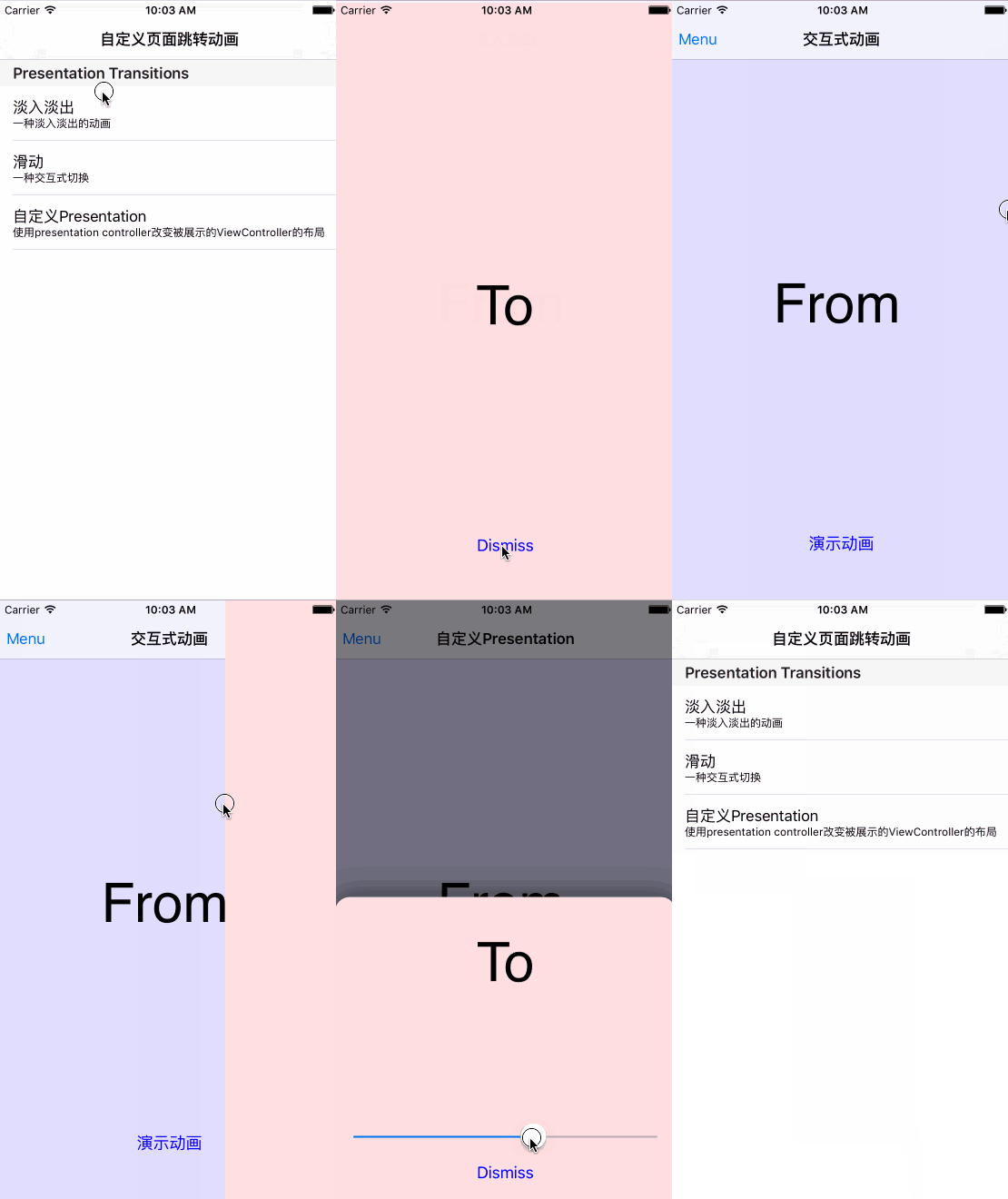
Screen recording cannot show every effect fully; for example, landscape is supported too.
Custom transitions are relatively complex. Copying working code without understanding it can introduce hidden bugs. This article introduces the following concepts from simple to advanced:
1. Traditional closure-based implementation and its disadvantages
2. Custom presentation transitions
3. Interactive transitions
4. Transition coordinators and UIModalPresentationCustom
5. UINavigationController transitions
I made a demo for this tutorial, available to clone from my GitHub as CustomTransition. Please give it a star if helpful. This article uses Swift and code-only views; the demo also includes an Objective-C + Storyboard version from Apple’s official sample, offering a more reliable correctness reference. It uses CocoaPods, so you may need to run pod install and open the .xcworkspace file.
Before starting, download the demo. The code and comments explain these concepts more effectively than prose alone. You should also understand the following background concepts.
From and To
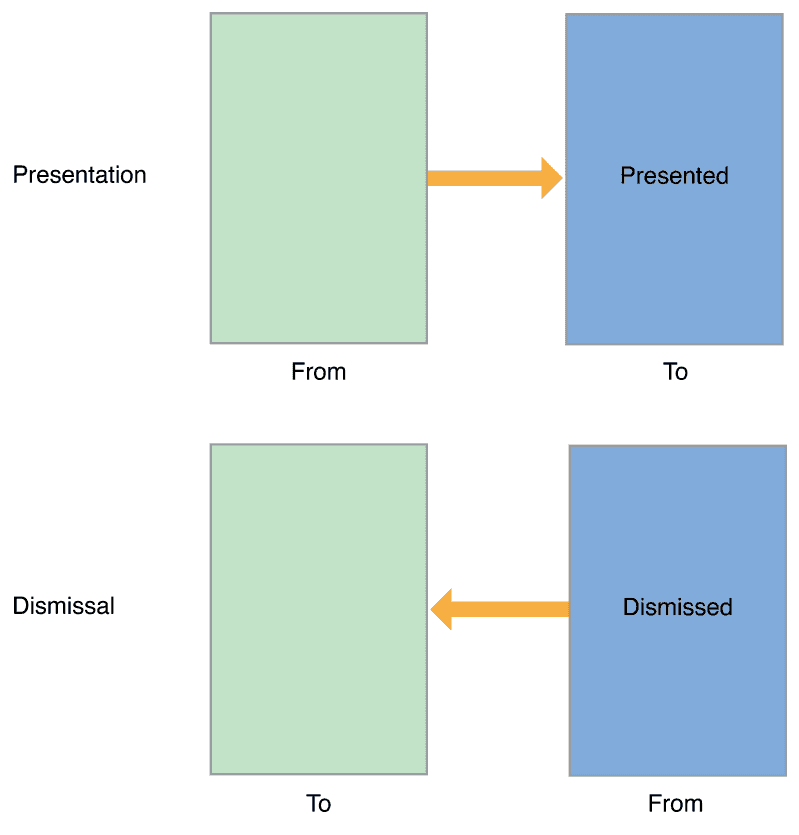
The code and text frequently mention fromView and toView. Misunderstanding them leads to incorrect animation logic. fromView is the current view; toView is the destination. Presenting B from A makes A “from” and B “to”. Dismissing B back to A makes B “from” and A “to”. The diagram shows this:
Presented and Presenting
These relative concepts are easily confused with fromView and toView. They do not change between presentation and dismissal. If A presents B, A remains B’s presentingViewController and B remains A’s presentedViewController.
modalPresentationStyle
This enumeration specifies the presentation-animation style. Only FullScreen and Custom allow custom animation effects. FullScreen removes fromView; Custom does not. The third animation in the opening GIF, for example, uses Custom.
Block-based animation
The simplest transition uses transitionFromViewController:

Although this method is deprecated, examining it helps explain later concepts. It has six parameters: the first two identify the source and destination view controllers; the middle two specify duration and options; the last two supply the animation implementation and completion closure.
These six parameters represent the six essential elements of a transition. The first two form one group describing the relationship between pages; the last four form another describing animation execution.
One drawback is limited customisation; later you will see that customisation extends beyond the animation style. Another is poor reuse, or tight coupling.
The final two closure parameters use fromViewController and toViewController, which are central to the animation. Suppose A can transition to B, C, D, E and F with similar effects. You would end up copying transitionFromViewController repeatedly, changing only small details.
Custom presentation transitions
To reduce coupling and improve customisation, let’s learn the proper transition-animation approach.
First, understand the transition-animation delegate: an object implementing UIViewControllerTransitioningDelegate. We implement it ourselves to supply UIKit with one or more of the following objects:
1.Animator:
An object implementing UIViewControllerAnimatedTransitioning controls duration and animation logic. The delegate may supply separate Animators for presentation and dismissal, or use the same Animator for both.
2. Interactive Animator: similar to an Animator, but interactive; details follow later.
3. Presentation controller:
It allows more extensive presentation customisation, such as changing the presented view’s size and adding custom views. Details follow later.
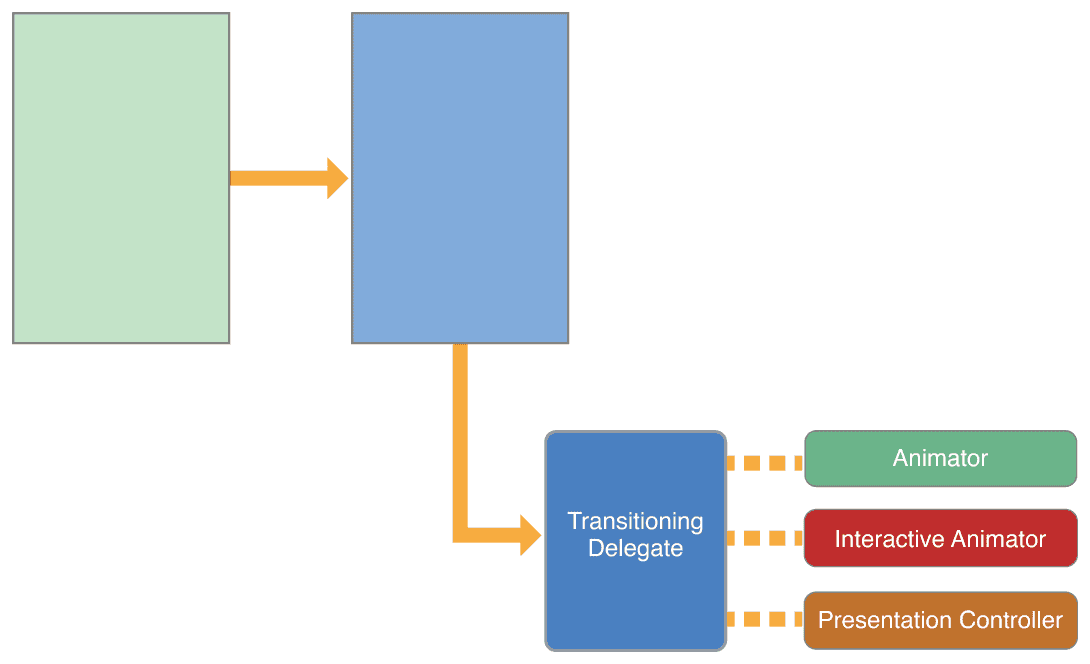
This section introduces the simplest Animator. Recall the six elements required for a transition, divided into two unrelated groups. The Animator serves the role of the four elements in the second group. Thus one Animator can handle both A-to-B and A-to-C transitions: it describes reusable page-transition logic independent of particular view controllers.
Once this is clear, the overall custom-transition logic becomes straightforward. For a transition from A to B:
1. Create an animation delegate. In a simple case, A itself can be the delegate.
2. Set B’s transitioningDelegate to the delegate created in step 1.
3. Call presentViewController:animated:completion: with animated set to true.
4. The system obtains the delegate’s Animator, which handles animation logic.
For a concrete example:
// 这个类相当于A
class CrossDissolveFirstViewController: UIViewController, UIViewControllerTransitioningDelegate {
    // 这个对象相当于B
    crossDissolveSecondViewController.transitioningDelegate = self

    // 点击按钮触发的函数
    func animationButtonDidClicked() {
        self.presentViewController(crossDissolveSecondViewController,
        animated: true, completion: nil)
    }

    // 下面这两个函数定义在UIViewControllerTransitioningDelegate协议中
    // 用于为present和dismiss提供animator
    func animationControllerForPresentedController(presented: UIViewController, presentingController presenting: UIViewController, sourceController source: UIViewController) -> UIViewControllerAnimatedTransitioning? {
        //        也可以使用CrossDissolveAnimator,动画效果各有不同
        //        return CrossDissolveAnimator()
        return HalfWaySpringAnimator()
    }

    func animationControllerForDismissedController(dismissed: UIViewController) -> UIViewControllerAnimatedTransitioning? {
        return CrossDissolveAnimator()
    }
}
The key is the animator implementation. It implements UIViewControllerAnimatedTransitioning and at least two methods. Read the animateTransition comments carefully; that method contains the core animation logic.
class HalfWaySpringAnimator: NSObject, UIViewControllerAnimatedTransitioning {
    /// 设置动画的持续时间
    func transitionDuration(transitionContext: UIViewControllerContextTransitioning?) -> NSTimeInterval {
        return 2
    }

    /// 设置动画的进行方式,附有详细注释,demo中其他地方的这个方法不再解释
    func animateTransition(transitionContext: UIViewControllerContextTransitioning) {
    let fromViewController = transitionContext.viewControllerForKey(UITransitionContextFromViewControllerKey)
    let toViewController = transitionContext.viewControllerForKey(UITransitionContextToViewControllerKey)
    let containerView = transitionContext.containerView()

    // 需要关注一下from/to和presented/presenting的关系
    // For a Presentation:
    //      fromView = The presenting view.
    //      toView   = The presented view.
    // For a Dismissal:
    //      fromView = The presented view.
    //      toView   = The presenting view.

    var fromView = fromViewController?.view
    var toView = toViewController?.view

    // iOS8引入了viewForKey方法,尽可能使用这个方法而不是直接访问controller的view属性
    // 比如在form sheet样式中,我们为presentedViewController的view添加阴影或其他decoration,animator会对整个decoration view
    // 添加动画效果,而此时presentedViewController的view只是decoration view的一个子视图
    if transitionContext.respondsToSelector(Selector("viewForKey:")) {
        fromView = transitionContext.viewForKey(UITransitionContextFromViewKey)
        toView = transitionContext.viewForKey(UITransitionContextToViewKey)
    }

    // 我们让toview的origin.y在屏幕的一半处,这样它从屏幕的中间位置弹起而不是从屏幕底部弹起,弹起过程中逐渐变为不透明
    toView?.frame = CGRectMake(fromView!.frame.origin.x, fromView!.frame.maxY / 2, fromView!.frame.width, fromView!.frame.height)
    toView?.alpha = 0.0

    // 在present和,dismiss时,必须将toview添加到视图层次中
    containerView?.addSubview(toView!)

    let transitionDuration = self.transitionDuration(transitionContext)
    // 使用spring动画,有弹簧效果,动画结束后一定要调用completeTransition方法
    UIView.animateWithDuration(transitionDuration, delay: 0, usingSpringWithDamping: 0.6, initialSpringVelocity: 0, options: .CurveLinear, animations: { () -> Void in
        toView!.alpha = 1.0     // 逐渐变为不透明
        toView?.frame = transitionContext.finalFrameForViewController(toViewController!)    // 移动到指定位置
        }) { (finished: Bool) -> Void in
            let wasCancelled = transitionContext.transitionWasCancelled()
            transitionContext.completeTransition(!wasCancelled)
        }
    }
}
animateTransition obtains the information needed for animation from the transition context, an object implementing UIViewControllerContextTransitioning. Do not cache animation information; always retrieve it, such as fromView and toView, from the current context to ensure it is up to date and correct.
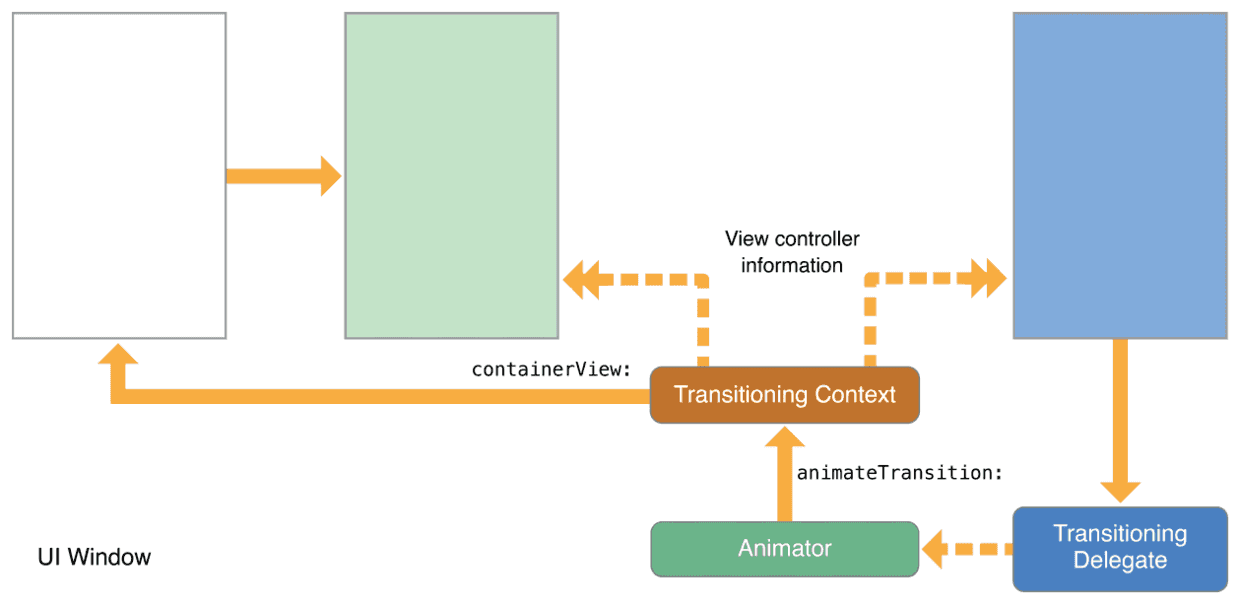
After gathering enough information, call UIView.animateWithDuration to hand the animation to Core Animation. Do not forget to call completeTransition when the animation finishes.
The demo’s Cross Dissolve folder contains detailed code for this section. Its two animator files show that presentation and dismissal may share one animator or use separate ones. If the effects are similar, the same animator can be reused, with only this difference:
1. During presentation, add toView to the container’s view hierarchy.
2. During dismissal, remove fromView from the container’s view hierarchy.
If the preceding code and concepts feel overwhelming or are not immediately useful, at least remember the basic principles and sequence of custom transitions:
1. Set transitioningDelegate on the destination presentedViewController.
2. The delegate may be the source view controller, presentingViewController, or a separate object. It must supply an animator for the transition.
3. The animator’s animateTransition contains the core animation logic.
Interactive transitions
We said that when toViewController’s transitioningDelegate is set and presentation begins, UIKit asks the delegate for an animator. There is one more detail: UIKit calls interactionControllerForPresentation: for an interactive controller. If it returns nil, a noninteractive animation runs, as described in the preceding section.
If a non-nil interactive controller is returned, UIKit does not call the animator’s animateTransition. Instead, it calls the interactive controller’s startInteractiveTransition:. Recall that the interactive controller and animator are peers in the earlier delegate diagram.
Interactive animation is usually gesture-driven. A completion percentage controls the effect, as in the second opening GIF example. Rather than completing as one continuous sequence, progress can change or be cancelled at any time. An interactive controller based on UIPercentDrivenInteractiveTransition works with the animator. Although this sounds complex, UIKit hides many details. Define an event handler, such as for a pan gesture, calculate the completion percentage as events arrive, and call updateInteractiveTransition to update progress.
The code below sketches the overall sequence. Some details and comments are omitted, so do not treat it as a complete reference. See the demo’s Interactivity folder for full code.
// 这个相当于fromViewController
class InteractivityFirstViewController: UIViewController {
    // 这个相当于toViewController
    lazy var interactivitySecondViewController: InteractivitySecondViewController = InteractivitySecondViewController()
    // 定义了一个InteractivityTransitionDelegate类作为代理
    lazy var customTransitionDelegate: InteractivityTransitionDelegate = InteractivityTransitionDelegate()

    override func viewDidLoad() {
        super.viewDidLoad()
        setupView() // 主要是一些UI控件的布局,可以无视其实现细节

        /// 设置动画代理,这个代理比较复杂,所以我们新建了一个代理对象而不是让self作为代理
        interactivitySecondViewController.transitioningDelegate = customTransitionDelegate
    }

    // 触发手势时,也会调用animationButtonDidClicked方法
    func interactiveTransitionRecognizerAction(sender: UIScreenEdgePanGestureRecognizer) {
        if sender.state == .Began {
            self.animationButtonDidClicked(sender)
        }
    }

    func animationButtonDidClicked(sender: AnyObject) {
    self.presentViewController(interactivitySecondViewController, animated: true, completion: nil)
    }
}
A noninteractive delegate only supplies animators for presentation and dismissal. An interactive delegate must also supply interactive controllers for both:
class InteractivityTransitionDelegate: NSObject, UIViewControllerTransitioningDelegate {
    func animationControllerForPresentedController(presented: UIViewController, presentingController presenting: UIViewController, sourceController source: UIViewController) -> UIViewControllerAnimatedTransitioning? {
        return InteractivityTransitionAnimator(targetEdge: targetEdge)
    }

    func animationControllerForDismissedController(dismissed: UIViewController) -> UIViewControllerAnimatedTransitioning? {
        return InteractivityTransitionAnimator(targetEdge: targetEdge)
    }

    /// 前两个函数和淡入淡出demo中的实现一致
    /// 后两个函数用于实现交互式动画

    func interactionControllerForPresentation(animator: UIViewControllerAnimatedTransitioning) -> UIViewControllerInteractiveTransitioning? {
        return TransitionInteractionController(gestureRecognizer: gestureRecognizer, edgeForDragging: targetEdge)
    }

    func interactionControllerForDismissal(animator: UIViewControllerAnimatedTransitioning) -> UIViewControllerInteractiveTransitioning? {
        return TransitionInteractionController(gestureRecognizer: gestureRecognizer, edgeForDragging: targetEdge)
    }
}
The animator code is omitted because it resembles the noninteractive animator. Interactive animation is an enhancement and must still support noninteractive operation. In this example, tapping the button still triggers a noninteractive animation; only a swipe gesture triggers the interactive version.
class TransitionInteractionController: UIPercentDrivenInteractiveTransition {
    /// 当手势有滑动时触发这个函数
    func gestureRecognizeDidUpdate(gestureRecognizer: UIScreenEdgePanGestureRecognizer) {
        switch gestureRecognizer.state {
        case .Began: break
        case .Changed: self.updateInteractiveTransition(self.percentForGesture(gestureRecognizer))  //手势滑动,更新百分比
        case .Ended:    // 滑动结束,判断是否超过一半,如果是则完成剩下的动画,否则取消动画
            if self.percentForGesture(gestureRecognizer) >= 0.5 {
                self.finishInteractiveTransition()
            }
            else {
                self.cancelInteractiveTransition()
            }
        default: self.cancelInteractiveTransition()
        }
    }
    private func percentForGesture(gesture: UIScreenEdgePanGestureRecognizer) -> CGFloat {
        let percent = 根据gesture计算得出
        return percent
    }
}
Interactive animations build on noninteractive ones. Create a subclass of UIPercentDrivenInteractiveTransition and return an instance from the animation delegate.
In this type, monitor gesture changes over time—or download progress, for example—and call percentForGesture to update animation progress.
Transition coordinators and UIModalPresentationCustom
Additional animations can run alongside a transition, as in the third GIF example at the start. presentedView and presentingView can change their hierarchy and add effects such as shadows or rounded corners. UIKit manages these through a transition coordinator, obtained from the relevant view controller’s transitionCoordinator property. It exists only while the transition is executing.
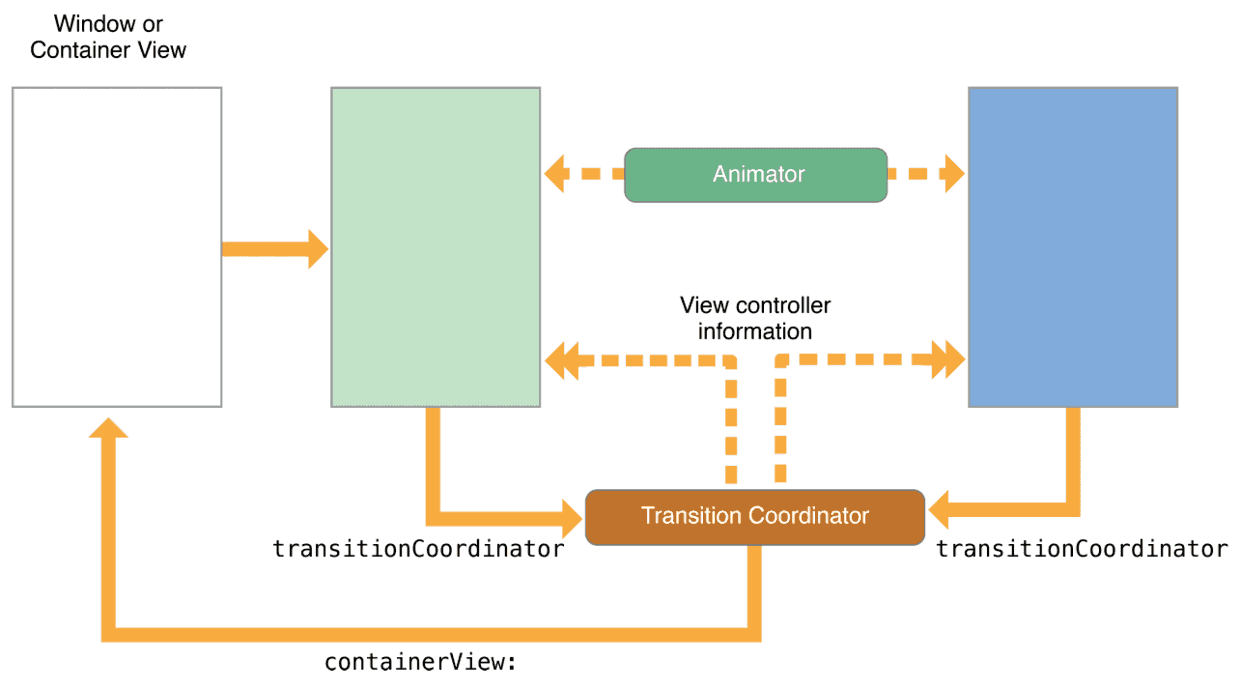
To reproduce the third GIF example, use UIModalPresentationStyle.Custom instead of .FullScreen. The latter removes fromViewController, which does not fit the requirement.
With a .Custom presentation, UIPresentationController offers more complete control of the transition. A presentation controller provides these capabilities:
1. Set the presentedViewController view’s size.
2. Add custom views to change presentedView’s appearance.
3. Supply transition effects for any custom view.
4. Adapt the layout to size classes.
You can regard .FullScreen and the other presentation styles as implementations Swift provides for us: special cases of .Custom. .Custom lets us define transition effects more freely.
UIPresentationController provides four functions for actions before and after presentation and dismissal animations:
presentationTransitionWillBegin: present将要执行时
presentationTransitionDidEnd:present执行结束后
dismissalTransitionWillBegin:dismiss将要执行时
dismissalTransitionDidEnd:dismiss执行结束后
The following code outlines the third GIF effect. The complete code is in the demo’s Custom Presentation folder:
// 这个相当于fromViewController
class CustomPresentationFirstViewController: UIViewController {
    // 这个相当于toViewController
    lazy var customPresentationSecondViewController: CustomPresentationSecondViewController = CustomPresentationSecondViewController()
    // 创建PresentationController
    lazy var customPresentationController: CustomPresentationController = CustomPresentationController(presentedViewController: self.customPresentationSecondViewController, presentingViewController: self)

    override func viewDidLoad() {
        super.viewDidLoad()
        setupView() // 主要是一些UI控件的布局,可以无视其实现细节

        // 设置转场动画代理
        customPresentationSecondViewController.transitioningDelegate = customPresentationController
    }

    override func didReceiveMemoryWarning() {
        super.didReceiveMemoryWarning()
        // Dispose of any resources that can be recreated.
    }

    func animationButtonDidClicked() {
        self.presentViewController(customPresentationSecondViewController, animated: true, completion: nil)
    }
}
The important part is implementing CustomPresentationController:
class CustomPresentationController: UIPresentationController, UIViewControllerTransitioningDelegate {
    var presentationWrappingView: UIView?  // 这个视图封装了原视图,添加了阴影和圆角效果
    var dimmingView: UIView? = nil  // alpha为0.5的黑色蒙版

    // 告诉UIKit为哪个视图添加动画效果
    override func presentedView() -> UIView? {
        return self.presentationWrappingView
    }
}

// 四个方法自定义转场动画发生前后的操作
extension CustomPresentationController {
    override func presentationTransitionWillBegin() {
        // 设置presentationWrappingView和dimmingView的UI效果
        let transitionCoordinator = self.presentingViewController.transitionCoordinator()
        self.dimmingView?.alpha = 0
        // 通过转场协调器执行同步的动画效果
        transitionCoordinator?.animateAlongsideTransition({ (context: UIViewControllerTransitionCoordinatorContext) -> Void in
        self.dimmingView?.alpha = 0.5
        }, completion: nil)
    }

/// present结束时,把dimmingView和wrappingView都清空,这些临时视图用不到了
override func presentationTransitionDidEnd(completed: Bool) {
    if !completed {
        self.presentationWrappingView = nil
        self.dimmingView = nil
    }
}

/// dismiss开始时,让dimmingView完全透明,这个动画和animator中的动画同时发生
override func dismissalTransitionWillBegin() {
    let transitionCoordinator = self.presentingViewController.transitionCoordinator()
    transitionCoordinator?.animateAlongsideTransition({ (context: UIViewControllerTransitionCoordinatorContext) -> Void in
    self.dimmingView?.alpha = 0
    }, completion: nil)
}

/// dismiss结束时,把dimmingView和wrappingView都清空,这些临时视图用不到了
override func dismissalTransitionDidEnd(completed: Bool) {
    if completed {
        self.presentationWrappingView = nil
        self.dimmingView = nil
    }
  }
}

extension CustomPresentationController {
}
The class must also handle subview-layout logic. As the animation delegate, it supplies an animator. See the demo’s Custom Presentation folder for the full implementation.
UINavigationController transitions
So far, all transitions have concerned presentation and dismissal. UINavigationController also supports custom transitions. The two approaches are parallel, with many direct analogies:
class FromViewController: UIViewController, UINavigationControllerDelegate {
    let toViewController: ToViewController = ToViewController()

    override func viewDidLoad() {
        super.viewDidLoad()
        setupView() // 主要是一些UI控件的布局,可以无视其实现细节

        self.navigationController.delegate = self
    }
}
Unlike present/dismiss, the view controller now implements UINavigationControllerDelegate and becomes navigationController’s delegate. This protocol resembles UIViewControllerTransitioningDelegate introduced earlier.
FromViewController implements UINavigationControllerDelegate as follows:
func navigationController(navigationController: UINavigationController,
animationControllerForOperation operation: UINavigationControllerOperation,
fromViewController fromVC: UIViewController,
toViewController toVC: UIViewController)
-> UIViewControllerAnimatedTransitioning? {
    if operation == .Push {
        return PushAnimator()
    }
    if operation == .Pop {
        return PopAnimator()
    }
    return nil;
}
The animator is unchanged. A well-encapsulated animator can be reused not only for presentation and dismissal but also for push and pop transitions.
UINavigationController also supports interactive transitions using principles similar to those described earlier.
Summary
For noninteractive animation, set presentedViewController’s transitioningDelegate. The delegate supplies presentation and dismissal animators, which specify duration and visual logic.
For interactive animation, transitioningDelegate must additionally provide an interactive controller. Handle events in that controller and update the transition’s completion progress.
For custom animations, four UIPresentationController functions customise effects before and after execution. They can change presentedViewController’s size and appearance and run other animations in sync.
Custom transitions are a deep subject. This article is only an introduction; discussion is welcome.
Recommended reading: Integrating LianLian Pay into an iOS app