
UIKit & graphicsHistorical technical note
iOS animation: transforms and keyframes
Uses changing seasonal text and falling leaves to explain affine transforms and keyframe animation. Scaling, translation and rotation are combined step by step, showing how transform parameters and animation stages affect the resulting motion.
Originally credited to SindriLin; edited and archived by Bison.
Source listed in the originalOn this page
Editor: Bison
Contributor: SindriLin’s Notes
"The pursuit of beauty is human nature, and programmers are no exception. We always seek more impressive implementations. Look closely, though, and a good animation can be broken down into simple animation steps. Sensibly combining those fundamentals creates something surprisingly compelling. Mastering basic animation is therefore the foundation of more ambitious development."
For this second animation article, in Starting with UIView animations I briefly introduced several basic UIView animations. Combining them gave our login screen a lively feel, but these alone cannot meet all our animation needs. This article likewise starts with a small demo to explain the powerful transform animations and keyframe keyFrame animation.]
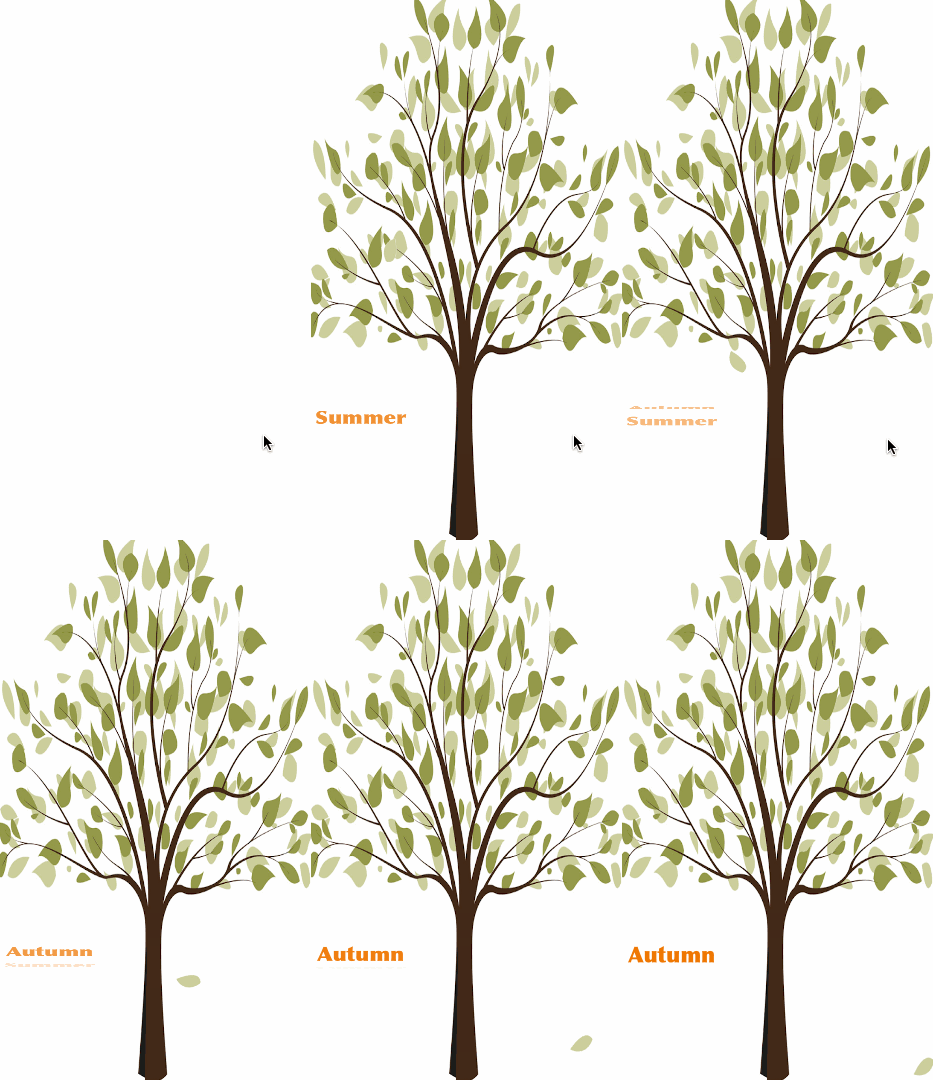
There are two animations: a leaf blown downward by the wind, and the text on the left changing from summer to autumn. Both animations are based on the powerful transform transformations. The falling-leaf effect uses keyframe animation.Demo link
Transform animation
transform is an important property that changes a view's appearance through matrix transformations, including rotation, deformation, and translation. Modifying it also changes the view's frame. Two data types represent a transform: CGAffineTransform and CATransform3D. The former applies to UIView, while the latter works at the layer level. The latter enables more powerful effects, but we first need to learn CGAffineTransform, which is the transformation type covered here.
To understand how matrix transformations work, see this blog post: CGAffineTransform affine transformations
talk is cheap show you the code
Before you use transform for animation, let me introduce several common functions:
/// 用来连接两个变换效果并返回。返回的t = t1 * t2
CGAffineTransformConcat(CGAffineTransform t1, CGAffineTransform t2)

/// 矩阵初始值。[ 1 0 0 1 0 0 ]
CGAffineTransformIdentity

/// 自定义矩阵变换,需要掌握矩阵变换的知识才知道怎么用。参照上面推荐的原理链接
CGAffineTransformMake(CGFloat a, CGFloat b, CGFloat c, CGFloat d, CGFloat tx, CGFloat ty)

/// 旋转视图。传入参数为 角度 * (M_PI / 180)。等同于 CGAffineTransformRotate(self.transform, angle)
CGAffineTransformMakeRotation(CGFloat angle)
CGAffineTransformRotate(CGAffineTransform t, CGFloat angle)

/// 缩放视图。等同于CGAffineTransformScale(self.transform, sx, sy)
CGAffineTransformMakeScale(CGFloat sx, CGFloat sy)
CGAffineTransformScale(CGAffineTransform t, CGFloat sx, CGFloat sy)

/// 缩放视图。等同于CGAffineTransformTranslate(self.transform, tx, ty)
CGAffineTransformMakeTranslation(CGFloat tx, CGFloat ty)
CGAffineTransformTranslate(CGAffineTransform t, CGFloat tx, CGFloat ty)
I recorded the transformation of the text at the demo's bottom-left. I recommend this Mac application for capturing animated images: licecap, which is simple and convenient. I use it to break animations into steps and reproduce them.
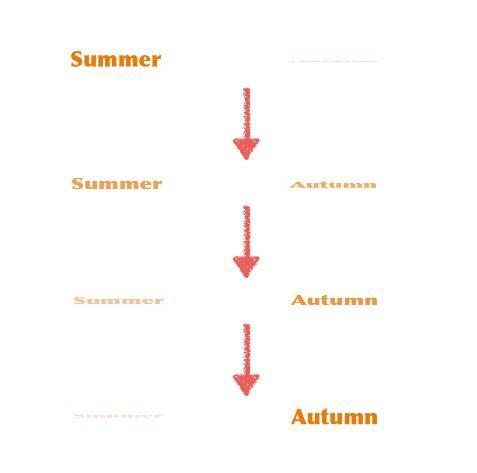
The text animation clearly combines two effects: shrinking along the y-axis and fading. First, add two UILabels to the project, named label1 and label2. Then add the following code in viewDidAppear:
- (void)viewDidAppear: (BOOL)animated {
    label1.transform = CGAffineTransformMakeScale(0, 0);
    label1.alpha = 0;
    [UIView animateWithDuration: 3. animations: ^ {
        label1.transform = CGAffineTransformMakeScale(0, 1);
        label2.transform = CGAffineTransformMakeScale(0, 0.1);
        label1.alpha = 1;
        label2.alpha = 0;
    }];
}
Why does label2 shrink to 0.1 on the y-axis rather than 0? If we set it to 0, label2 immediately stays in its final state after the animation is committed, owing to an automatic performance optimization. Therefore, for any shrinking transform, use a very small scale if needed, but not 0.
Run the code and the text deformation is complete. But the demo combines deformation with movement. We could obviously achieve movement by changing center, yet that is not today's goal. Learning a new animation approach is more worthwhile.
At the beginning, the appearing label has a height of 0, which gradually grows to height, while its top remains fixed throughout. In the label's own coordinate system, its y position is initially 0 and its center after appearing is height / 2. The animation code can therefore be written as follows:
- (void)viewDidAppear: (BOOL)animated {
    ///  初始化动画开始前label的位置
    CGFloat offset = label1.frame.size.height * 0.5;

    label1.transform = CGAffineTransformConcat(
      CGAffineTransformMakeScale(0, 0),
      CGAffineTransformTranslate(0, -offset)
    );
    label1.alpha = 0;
    [UIView animateWithDuration: 3. animations: ^ {
        ///  还原label1的变换状态并形变和偏移label2
        label1.transform = CGAffineTransformIdentifier;
        label1.transform = CGAffineTransformConcat(
          CGAffineTransformMakeScale(0, 0),
          CGAffineTransformTranslate(0, offset)
        );
        label1.alpha = 1;
        label2.alpha = 0;
    }];
}
Adjust the positions of the two labels and make one transparent. Run the code, and the text-transition animation is complete.
Keyframe animation
Save the opening gif locally and open it in Preview. You will see that Preview displays it as many separate images. Animations, movies, and CG effects can all be viewed as a succession of rendered images. When those images change fast enough, we perceive motion. For the UIView translation described earlier, after the animation is committed, the system calculates each frame of the view's movement from the duration and then renders them in sequence.
Returning to the falling-leaf demo, I changed the leaf's center five times. Here is its piecewise linear translation path with the important turning points marked:
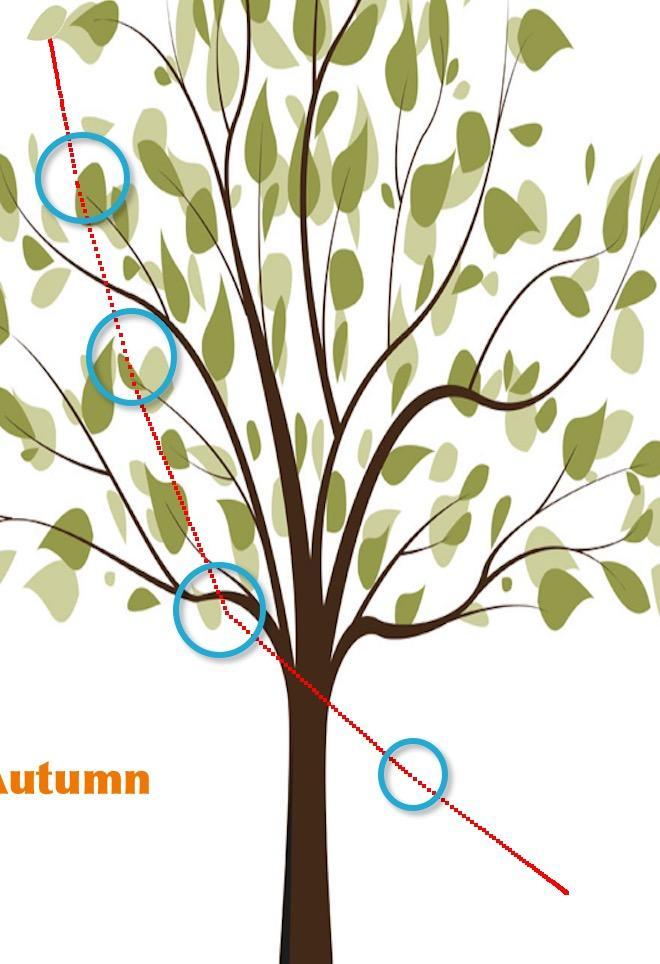
How would we implement the translation above with UIView animation code? We would need to nest UIView animations repeatedly, as shown here:
[self moveLeafWithOffset: (CGPoint){ 15, 80 } completion: ^(BOOL finished) {
    [self moveLeafWithOffset: (CGPoint){ 30, 105 } completion: ^(BOOL finished) {
        [self moveLeafWithOffset: (CGPoint){ 40, 110 } completion: ^(BOOL finished) {
            [self moveLeafWithOffset: (CGPoint){ 90, 80 } completion: ^(BOOL finished) {
                [self moveLeafWithOffset: (CGPoint){ 80, 60 } completion: nil duration: 0.6];
            } duration: 1.2];
        } duration: 1.2];
    } duration: 0.6];
} duration: 0.4];

- (void)moveLeafWithOffset: (CGPoint)offset completion: (void(^)(BOOL finished))completion duration: (NSTimeInterval)duration
{
    [UIView animateWithDuration: duration delay: 0 options: UIViewAnimationOptionCurveLinear animations: ^{
        CGPoint center = _leaf.center;
        center.x += offset.x;
        center.y += offset.y;
        _leaf.center = center;
    } completion: completion];
}
That looks fairly easy. The code above only moves the leaf, but the leaf in the gif also rotates, so we need to add this code:
[UIView animateWithDuration: 4 animations: ^{
    _leaf.transform = CGAffineTransformMakeRotation(M_PI);
}];
Run this code and the leaf moves stiffly, with obvious corners. Also, the supplied duration has no meaningful role here: one fixed animation duration does not express the stages of the falling motion.
UIView provides another animation technique to address both issues: keyframe animation.
+ (void)animateKeyframesWithDuration:(NSTimeInterval)duration delay:(NSTimeInterval)delay options:(UIViewKeyframeAnimationOptions)options animations:(void (^)(void))animations completion:(void (^ __nullable)(BOOL finished))completion
+ (void)addKeyframeWithRelativeStartTime:(double)frameStartTime relativeDuration:(double)frameDuration animations:(void (^)(void))animations
The first method creates a keyframe animation; the second inserts keyframe information into its animation block. The two parameters mean:
- frameStartTime expresses the keyframe animation's starting point as a proportion of the entire animation.
- frameDuration expresses the proportion of the total animation duration occupied by this keyframe animation.
I made a diagram to explain the parameters:
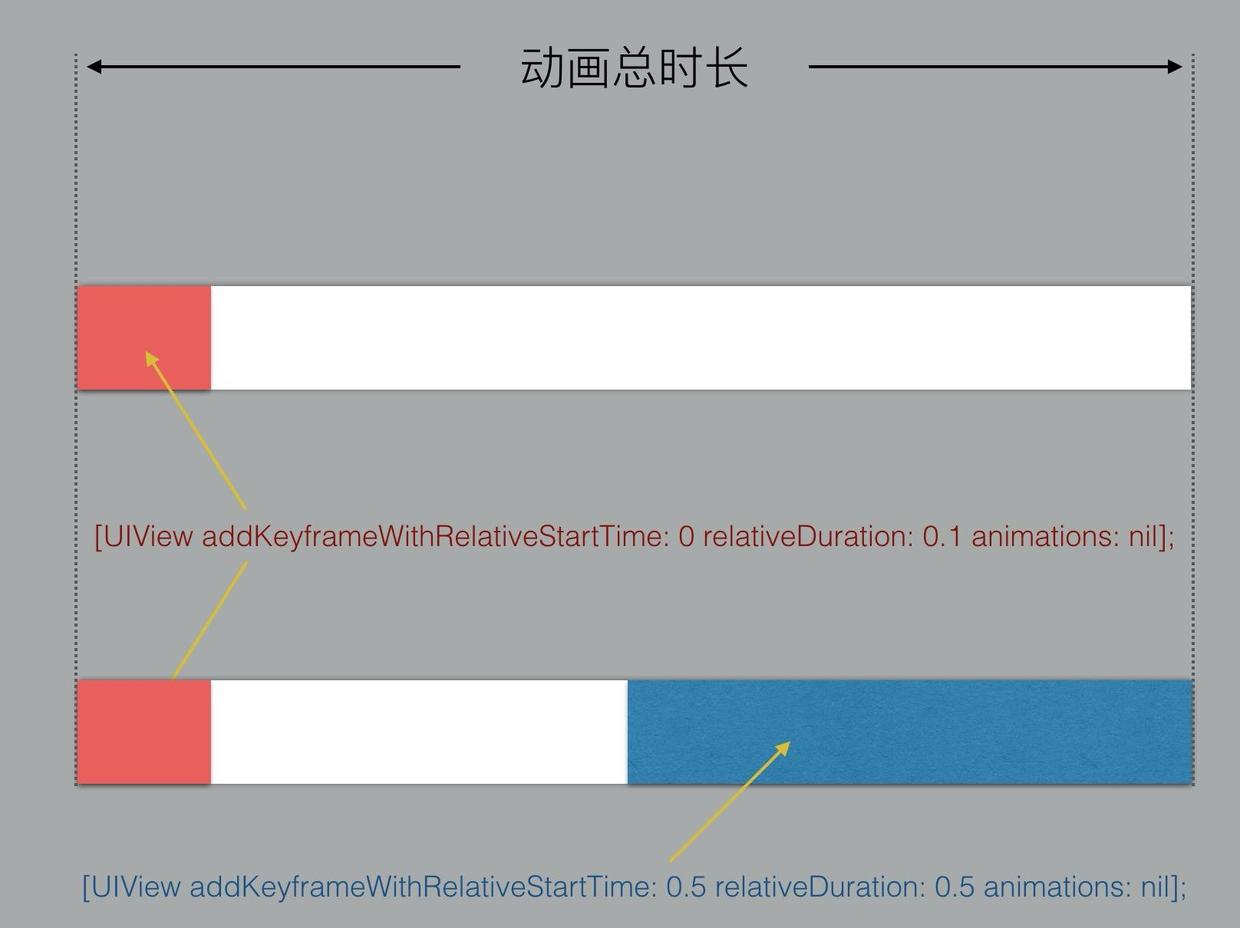
Compared with UIView animations, keyframe animation introduces relative durations, letting us control the share of time occupied by each keyframe instead of supplying a meaningless duration that makes the code harder to understand. Beyond relative timing, the keyframe options parameter can also smooth the motion. The following options are specific to keyframes:
UIViewKeyframeAnimationOptionCalculationModeLinear      // 连续运算模式,线性
UIViewKeyframeAnimationOptionCalculationModeDiscrete    // 离散运算模式,只显示关键帧
UIViewKeyframeAnimationOptionCalculationModePaced       // 均匀执行运算模式,线性
UIViewKeyframeAnimationOptionCalculationModeCubic       // 平滑运算模式
UIViewKeyframeAnimationOptionCalculationModeCubicPaced  // 平滑均匀运算模式
The demo uses UIViewKeyframeAnimationOptionCalculationModeCubic, which applies Bézier curves to smooth the falling leaf. See the opening gif for the result, and change the demo's option to compare effects. We can now convert the preceding UIView animation into keyframes using this method:
[UIView animateKeyframesWithDuration: 4 delay: 0 options: UIViewKeyframeAnimationOptionCalculationModeLinear animations: ^{
    __block CGPoint center = _leaf.center;
    [UIView addKeyframeWithRelativeStartTime: 0 relativeDuration: 0.1 animations: ^{
        _leaf.center = (CGPoint){ center.x + 15, center.y + 80 };
    }];
    [UIView addKeyframeWithRelativeStartTime: 0.1 relativeDuration: 0.15 animations: ^{
        _leaf.center = (CGPoint){ center.x + 45, center.y + 185 };
    }];
    [UIView addKeyframeWithRelativeStartTime: 0.25 relativeDuration: 0.3 animations: ^{
        _leaf.center = (CGPoint){ center.x + 90, center.y + 295 };
    }];
    [UIView addKeyframeWithRelativeStartTime: 0.55 relativeDuration: 0.3 animations: ^{
        _leaf.center = (CGPoint){ center.x + 180, center.y + 375 };
    }];
    [UIView addKeyframeWithRelativeStartTime: 0.85 relativeDuration: 0.15 animations: ^{
        _leaf.center = (CGPoint){ center.x + 260, center.y + 435 };
    }];
    [UIView addKeyframeWithRelativeStartTime: 0 relativeDuration: 1 animations: ^{
        _leaf.transform = CGAffineTransformMakeRotation(M_PI);
    }];
} completion: nil];
Compared with the UIView animation, keyframes make each translation's share of the total time clearer, with more concise code.
Closing notes
This is the second article in the animation series. At this point, the UIView animation tutorials are now complete. Future articles will explore autolayout animation and layer-level animation. As the New Year approaches, I wish everyone a happy Year of the Monkey 🐵 and the fulfillment of your wishes! Demo URL for this article
Recommended reading: Integrating LianLian Pay into an iOS app