
Tools & releasesHistorical technical note
Preparing an iOS app for Apple Pay
Records early Apple Pay project setup: enabling the capability, creating a Merchant ID and configuring payment-request properties. It also lists questions about country and currency codes; the demonstrated result comes from the simulator identified in the original article.
Originally credited to Bison. Content is retained as published.
On this page
"This feature has existed since iOS8.1; it simply was not as popular as it is now. It looks set to take off, so e-commerce platforms of all kinds—B2B, P2P, C2C, and X2X—may need this payment feature. Here is a brief exploration."
First, change the target to iOS 8.1. Support in China requires 9.2 or later and an iPhone6 or later. Turn Apple Pay on in the project's Capabilities; this automatically imports the necessary libraries. Then add and configure an entitlements file, and finally modify or create your App ID.
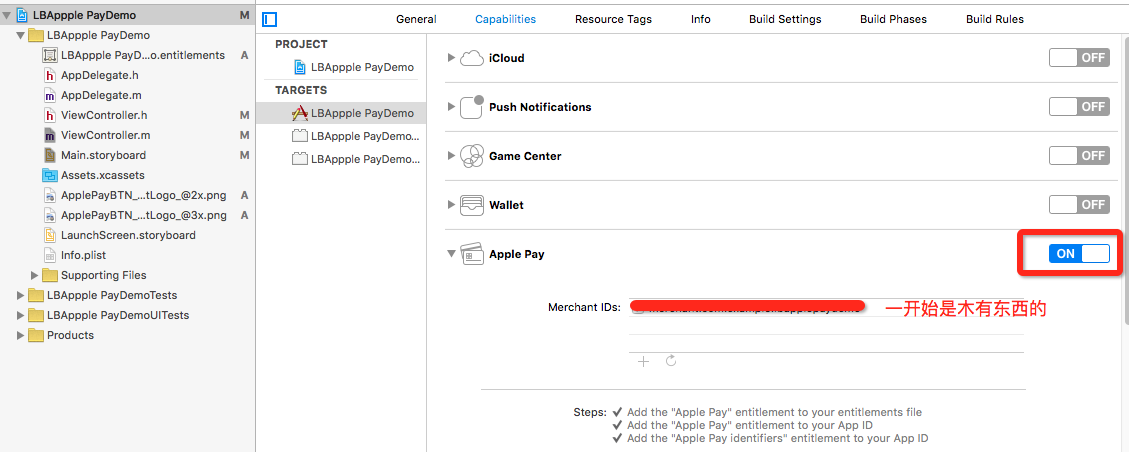
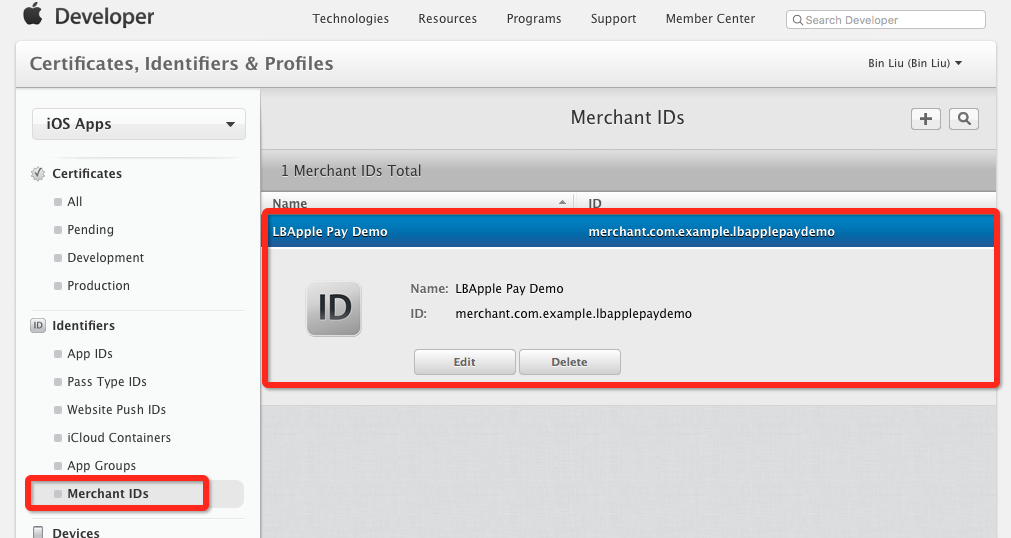
As the screenshot indicates, there is no valid Merchant ID yet. We need to create one. Visit Identifiers > Merchant ID in Apple's iOS Developer Center, then follow the steps to create and register a Merchant ID. The process resembles other certificate setup, so I will not explain it in detail here. Below is a reference image of the completed setup.
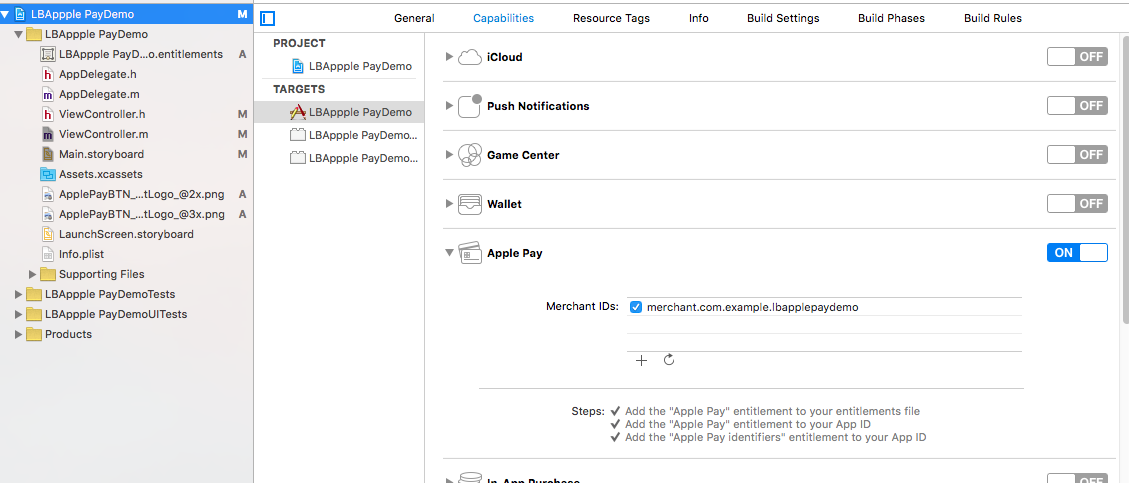
Download and install it, then refresh the project screen we just opened and select the checkbox. The result is shown below.
Here is a brief explanation of the code:
.h file.
#import <UIKit/UIKit.h>

#import <PassKit/PassKit.h>

@interface ViewController : UIViewController <PKPaymentAuthorizationViewControllerDelegate>

@end
.m file
#import "ViewController.h"

@interface ViewController ()

@end

@implementation ViewController


- (void)viewDidLoad {
    [super viewDidLoad];
    UIButton *btn = [UIButton buttonWithType:UIButtonTypeCustom];
    btn.frame = CGRectMake(60, 100, 200, 50);
    btn.center = self.view.center;
    [btn setBackgroundImage:[UIImage imageNamed:@"ApplePayBTN_64pt__whiteLine_textLogo_"] forState:UIControlStateNormal];

    [btn addTarget:self action:@selector(ApplePay) forControlEvents:UIControlEventTouchUpInside];
    [self.view addSubview:btn];

}

#pragma mark ----支付状态
- (void)paymentAuthorizationViewController:(PKPaymentAuthorizationViewController *)controller
didAuthorizePayment:(PKPayment *)payment
completion:(void (^)(PKPaymentAuthorizationStatus status))completion
{
    NSLog(@"Payment was authorized: %@", payment);

    BOOL asyncSuccessful = FALSE;
    if(asyncSuccessful) {
        completion(PKPaymentAuthorizationStatusSuccess);

        // do something to let the user know the status

        NSLog(@"支付成功");

    } else {
        completion(PKPaymentAuthorizationStatusFailure);

        // do something to let the user know the status

        NSLog(@"支付失败");


    }

}

#pragma mark ----开始支付
- (void)ApplePay{
    if([PKPaymentAuthorizationViewController canMakePayments]) {

    NSLog(@"支持支付");

    PKPaymentRequest *request = [[PKPaymentRequest alloc] init];

    PKPaymentSummaryItem *widget1 = [PKPaymentSummaryItem summaryItemWithLabel:@"鸡蛋"
    amount:[NSDecimalNumber decimalNumberWithString:@"0.99"]];

    PKPaymentSummaryItem *widget2 = [PKPaymentSummaryItem summaryItemWithLabel:@"苹果"
    amount:[NSDecimalNumber decimalNumberWithString:@"1.00"]];

    PKPaymentSummaryItem *widget3 = [PKPaymentSummaryItem summaryItemWithLabel:@"2个苹果"
    amount:[NSDecimalNumber decimalNumberWithString:@"2.00"]];

    PKPaymentSummaryItem *widget4 = [PKPaymentSummaryItem summaryItemWithLabel:@"总金额" amount:[NSDecimalNumber decimalNumberWithString:@"3.99"] type:PKPaymentSummaryItemTypeFinal];

    request.paymentSummaryItems = @[widget1, widget2, widget3, widget4];

    request.countryCode = @"CN";
    request.currencyCode = @"CNY";//人民币
    //此属性限制支付卡,可以支付。PKPaymentNetworkChinaUnionPay支持中国的卡 9.2增加的
    request.supportedNetworks = @[PKPaymentNetworkChinaUnionPay, PKPaymentNetworkMasterCard, PKPaymentNetworkVisa];
    request.merchantIdentifier = @"merchant.com.example.lbapplepaydemo";
    /*
    PKMerchantCapabilityCredit NS_ENUM_AVAILABLE_IOS(9_0)   = 1UL << 2,   // 支持信用卡
    PKMerchantCapabilityDebit  NS_ENUM_AVAILABLE_IOS(9_0)   = 1UL << 3    // 支持借记卡
    */
    request.merchantCapabilities = PKMerchantCapabilityCredit;
    //增加邮箱及地址信息
    request.requiredBillingAddressFields = PKAddressFieldEmail | PKAddressFieldPostalAddress;
    PKPaymentAuthorizationViewController *paymentPane = [[PKPaymentAuthorizationViewController alloc] initWithPaymentRequest:request];
    paymentPane.delegate = self;


    if (!paymentPane) {


        NSLog(@"出问题了");

    }

    [self presentViewController:paymentPane animated:YES completion:nil];


    } else {
        NSLog(@"该设备不支持支付");
    }

}

#pragma mark ----支付完成
- (void)paymentAuthorizationViewControllerDidFinish:(PKPaymentAuthorizationViewController *)controller
{

    [controller dismissViewControllerAnimated:TRUE completion:nil];
}


@end
You may encounter the following problems during this process:
1. I did not know how to look up countryCode. Here I used China's code.countryCode lookup website
2. I did not know how to look up currencyCode, and I still have not figured it out. The error message listed several, so I picked one at random.
3. No iPhone6—I am in that group too…
For other properties I consider important, see the details in the Demo The resulting interface is shown below:
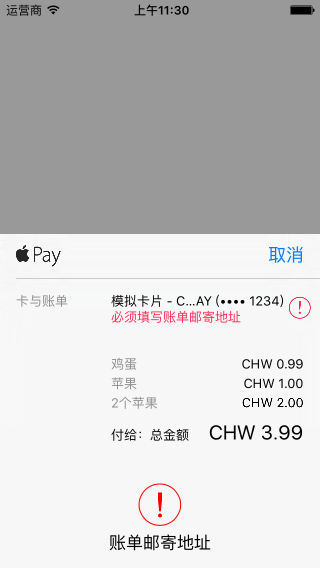
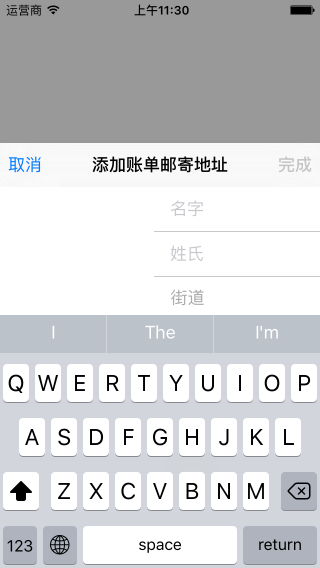
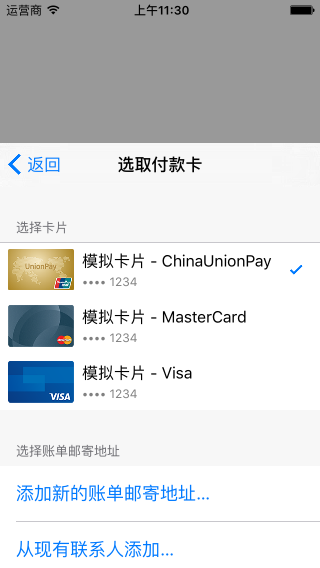
All the screenshots above are from the simulator. Please bear with me: I do not own an iPhone6…
Copyright © Bison. Please retain a hyperlink to the original article when reproducing it.
Recommended reading: Integrating LianLian Pay into an iOS app