
Tools & releasesHistorical technical note
Xcode development tips from a SwiftGG discussion
Collects Xcode techniques from a SwiftGG discussion: exception, symbolic and test-failure breakpoints; inspecting and changing variables during debugging; Quick Look; and reusable code snippets.
Originally credited to bestswifter; edited and archived by Bison.
Source listed in the originalOn this page
Editor: Bison
Contributor: bestswifter
"Thanks to@星夜暮晨 (Weibo) gave this presentation. 星星 also wrote Xcode Jianghu Lu, with more Xcode tips."
I recorded most of this presentation and uploaded the video to Youku. Below are written notes for quick future reference. Please correct any misunderstandings.
Breakpoints
Besides ordinary breakpoints, there are five special kinds:
Exception Breakpoint:代码出现问题,抛出异常时触发。
Symbolic Breakpoint:当执行某个符号时触发。
OpenGL ES Error Breakpoint:在 OpenGL ES 错误发生时触发
Test Failure Breakpoint:测试断言失败的时候触发
Swift Error Breakpoint:在 Swift 错误发生时触发
Ordinary breakpoint:
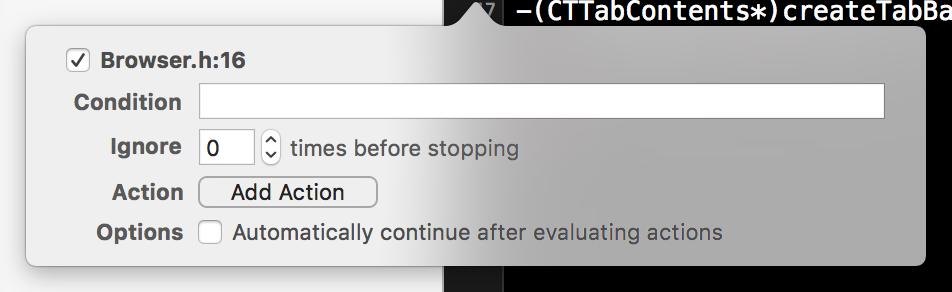
Condition: 返回一个布尔值,只有在布尔值为真时断点才会触发

Ignore:忽略前n次断点,直到第n+1次遇到断点才触发。

Action:断点触发时,Xcode执行的操作,如脚本等。
AppleScript:用于执行脚本,如display dialog "SwiftGG"弹出对话框。
Capture GPU Frame:捕获在断点处 GPU 当前绘制的帧图,用于 OpenGL ES应用的调试。
Debugger Command:相当于在控制台中输入的 lldb 调试命令。
Log Message:将自定义格式、内容的信息输出到控制台,常用的占位符有:%H(断点第几次触发),%B(断点所在的方法的名字)和 @expr@(输出expr的值)。
Shell Command:接收命令文件以及相应的参数列表。Xcode会异步执行 Shell Command。勾选 "Wait until done"表示等待 Shell 命令执行结束后再执行调试工作。
Sound:触发断点的同时播放声音
Automatically continue after evaluating actions:勾选这个选项后,断点不会中断程序运行。
Swift Error Breakpoint:
This breakpoint triggers when an error conforming to ErrorType is thrown.
enum ThisPersonError: ErrorType {
    case IsDead
}

func findSomeone(name: String) throws {
    if name == "xx" {
        throw ThisPersonError.IsDead    // 这里将触发断点
    }
}

do {
    try findSomeone("xx")
}
Edit a Swift Error Breakpoint to specify the error types it should respond to.
Exception Breakpoint:
This only works in Objective-C or C++. For example:
int main(int argc, const char * argv[]) {
    @autoreleasepool {
        @try {
            // 打断点后,程序在下一行代码处中断
            @throw [NSException exceptionWithName:@"名字" reason:@"原因" userInfo:nil];
        }
        @catch (NSException *exception) {
            NSLog(@"catch断点");
        }
    }
    return 0;
}
Without an Exception Breakpoint, execution reaches @catch. The breakpoint editor differs slightly from earlier versions:
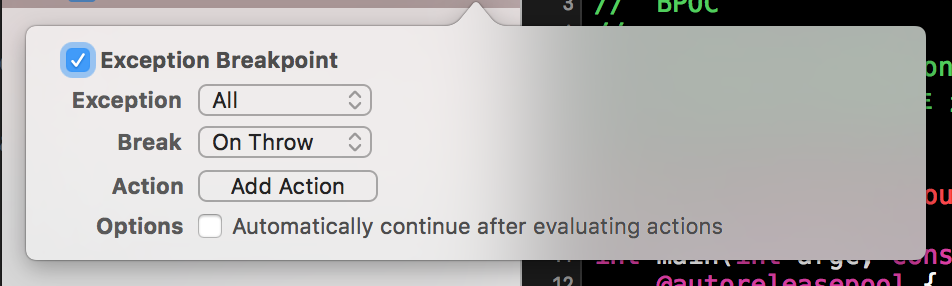
Exception: 表示响应哪种语言的异常,可以是 Objective-C 或 C++

Break:是在 throw 还是在 catch 中触发这个异常
Symbolic Breakpoint:
A symbolic breakpoint triggers when a particular method is called:
For example, define these two functions:
func burnAllCouples() {
    print("FFF Couples")
}

func burnAllSingleDogs() {
    print("FFF Single Dogs")
}
Then set Symbol to a function name, such as burnAllSingleDogs. The breakpoint triggers each time burnAllSingleDogs is called:
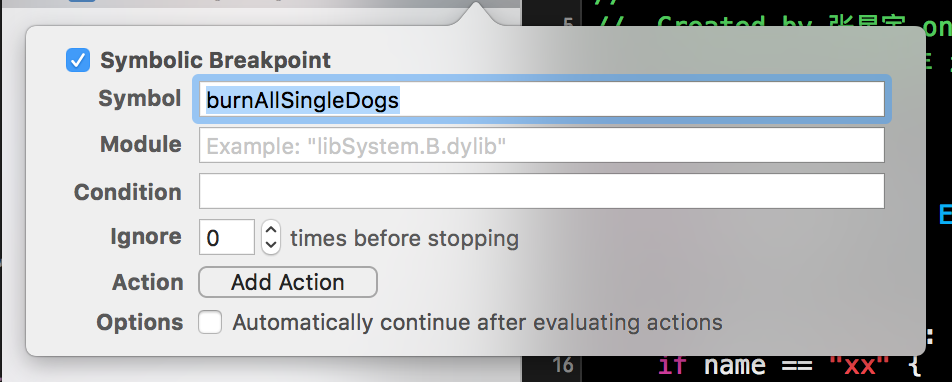
A significant limitation of Symbolic Breakpoint in Swift is that it does not support method names with parameters.
Test Failure Breakpoint
This triggers when a test assertion fails:
func testExample() {
    XCTAssert(1 == 0)
    // This is an example of a functional test case.
    // Use XCTAssert and related functions to verify your tests produce the correct results.
}
This assertion must fail, for example. With a Test Failure Breakpoint, execution stops at XCTAssert(1 == 0).
Setting variables in memory
A simple example:
NSString *string = @"SwiftGG";
NSLog(@"%@", string); // 这一行前面打断点
After running, right-click the variable:
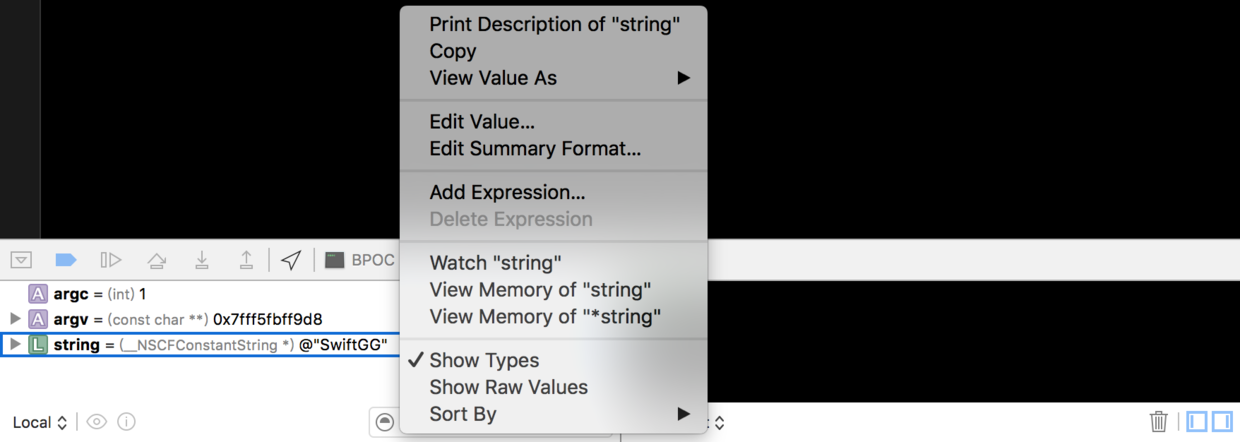
Print Description of "string":把 string 的信息输出到控制台。
Copy:复制 string 的信息,包含变量名,类名和值。
View Value As:以什么类型的格式来查看变量,默认情况下会自动推断类型。
Edit Value:可以直接修改变量的值。在 Swift中无法修改
Edit Summary Format:修改输出信息的格式,这里的修改会直接影响 Copy 出来的东西。在 Swift 中无效。
Add expression:和断点类似,可以输入新的变量表达式。
Watch:相当于一种新的断点,它观察变量的值。如果发生变化,就像断点一样中断运行。观察点在程序运行结束后会失效。
Quick Look
It displays source code in a more intuitive way.
Using the earlier code, hover briefly over string. A window appears; click its small eye button to open Quick Look:

This is especially useful for variables that are difficult to inspect directly, for example:
UIColor *color = [UIColor colorWithRed:222/255.0 green:242/255.0 blue:255/255.0 alpha:1];
NSLog(@"%@", color);    // 这一行前面打断点
The same approach quickly reveals detailed colour information:
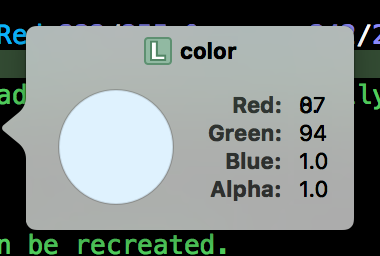
P.S. I could not open it correctly in Swift. 星星 later explained that Swift does not support UIView and UIColor here.
Quick Look supports many types, including images, colours, NSBezierPath, strings, URLs and SpriteKit classes.
Normally Quick Look supports only built-in types. For a custom type, implement debugQuickLookObject:
class WebContent: NSObject {
var URL = ""

init(URL: String) {
self.URL = URL
}

func debugQuickLookObject() -> AnyObject? {
guard let url = NSURL(string: URL) else { return URL }
return url
}
}

let web = WebContent(URL: "http://swift.gg")
print(web)    // 这里加断点
Clicking the eye now opens a webpage, somewhat like a firm 3D Touch press.
Code snippets
The debugQuickLookObject method has no completion suggestion, making it inconvenient and error-prone to type. Create a code snippet for it.
First, use a placeholder in place of the actual function implementation:
class WebContent: NSObject {
    func debugQuickLookObject() -> AnyObject? {
        <#Statement#>
    }
} <br>
After typing the final “>”, Xcode automatically displays the code in this form:

Select the code and drag it into the code-snippet collection on Xcode’s right-hand side:
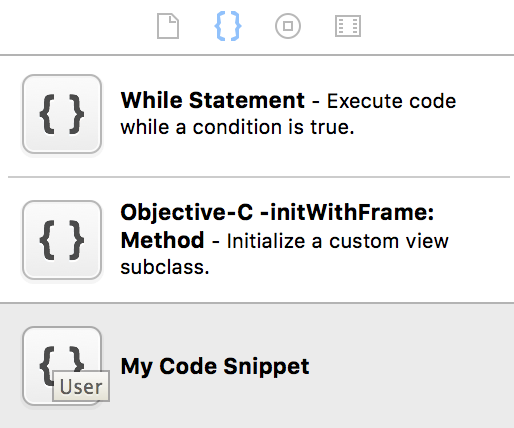
Then double-click the custom snippet to edit it:
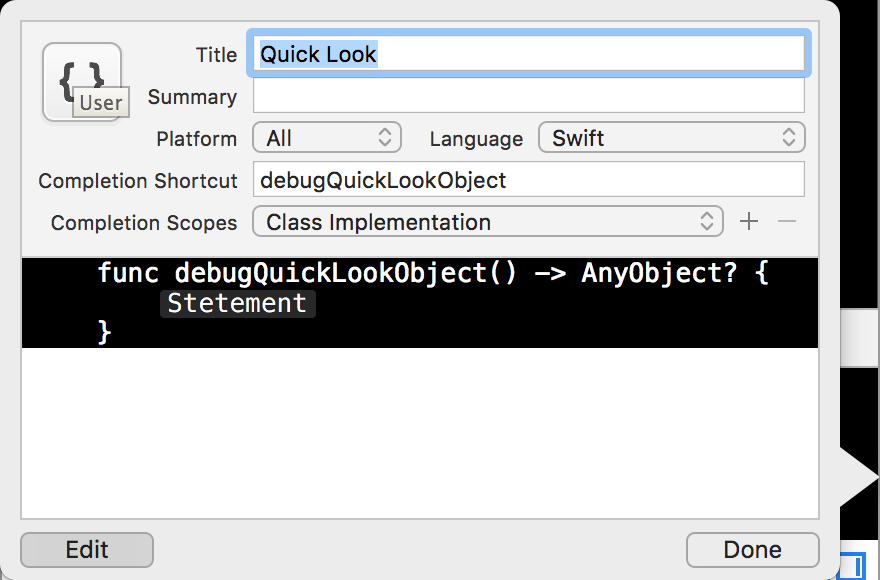
Mainly change Title and Completion ShortCut. Afterwards, typing produces completion suggestions:

Summary
That concludes this presentation, covering four areas: breakpoints, setting memory variables, Quick Look and code snippets. Applause goes here 👏👏👏.
Thanks again to@星夜暮晨 for the presentation.
Recommended reading: Preparing an iOS app for Apple Pay