
UIKit & graphicsHistorical technical note
A first look at Auto Layout animation on iOS
Introduces constraints through text layouts in portrait and landscape, then breaks down an interface that animates as a list scrolls. Changing constraint values controls element positions and sizes, demonstrating the basics of combining Auto Layout with animation.
Originally credited to SindriLin; edited and archived by Bison.
Source listed in the originalOn this page
Editor: Bison
Contributor: SindriLin
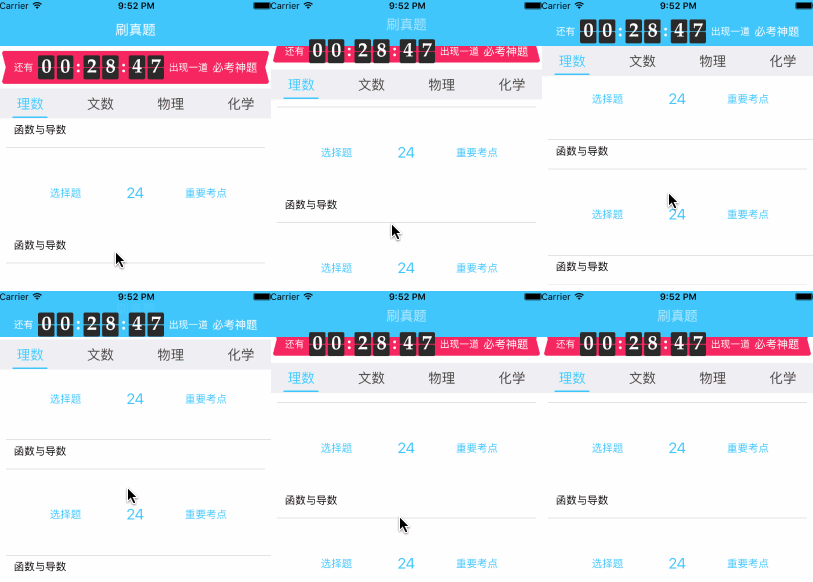
This constraint-animation article arrived later than expected because I could not find an animation I considered suitable—not because constraint animation is difficult. It is so simple that choosing a good simple demonstration was surprisingly hard. I recreated the following animation from a friend’s company app for today’s demo:
About constraints
This section briefly introduces constraints. If you already develop with storyboards, you can skip it.
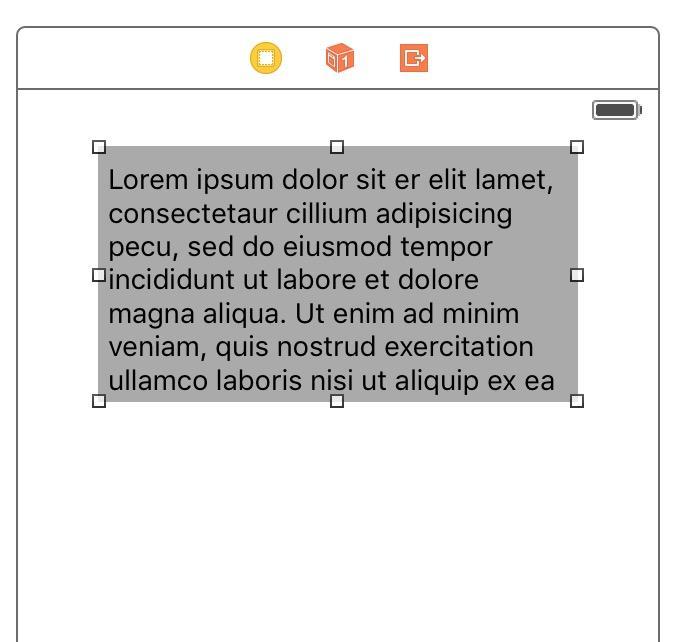
Suppose you need to centre an article on screen, with about 30pt on either side and a 20pt top margin, as shown:
Thinking the task is trivial, you casually write:
self.textView = [[UITextView alloc] initWithFrame: CGRectMake(30, 20, self.view.bounds.size.width - 60, 0)];
self.textView.text = ..........
[self.textView sizeToFit];
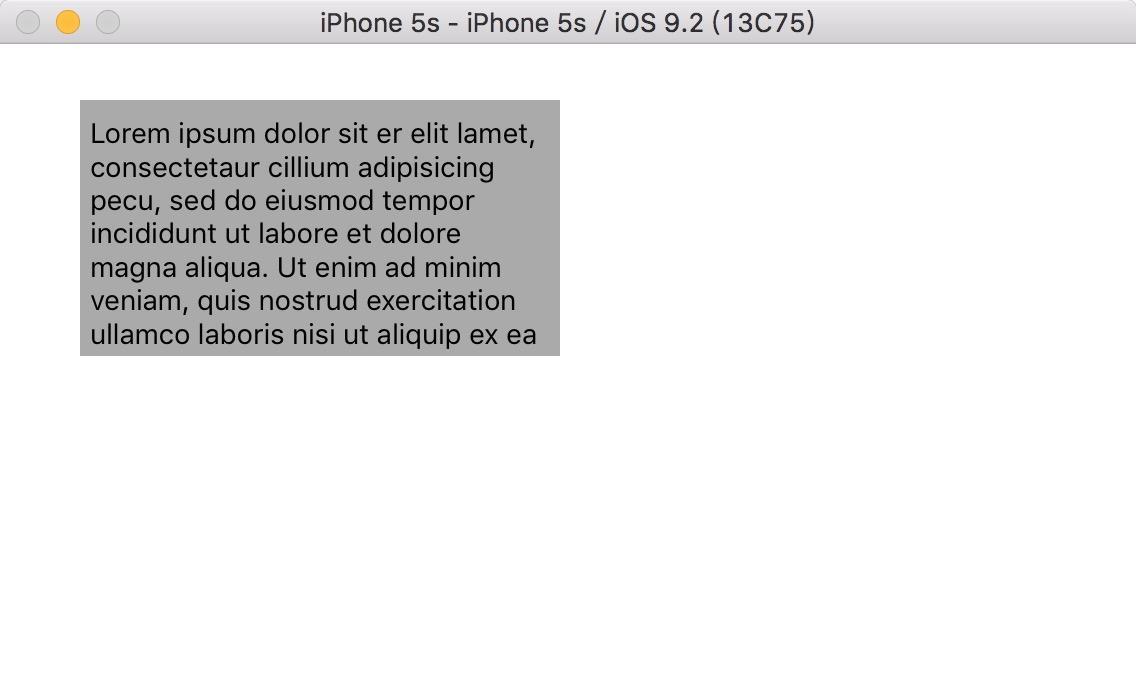
Run the code: it looks good. But hold command and press the left or right arrow. The interface becomes:
You quickly recognise the issue and observe the screen-orientation notification
UIApplicationWillChangeStatusBarOrientationNotification,
Then change the text width again in the callback:
- (void)notifyToAdjustTextView: (NSNotification *)notification
{
    switch ([UIDevice currentDevice].orientation) {
        case UIDeviceOrientationLandscapeLeft:
        case UIDeviceOrientationLandscapeRight:
            CGRect frame = self.textView.frame;
            frame.size.width = self.view.bounds.size.height - 60;
            self.textView.frame = frame;
            [self.textView sizeToFit];
        //more
        ......
    }
}
Run again. No matter how you rotate the screen, the text stays centred. Success! But that was a lot of work for one layout issue, which brings us to today’s subject: constraints.
A newly created project contains a Main.storyboard. Open it and add text directly to the controller Xcode created:
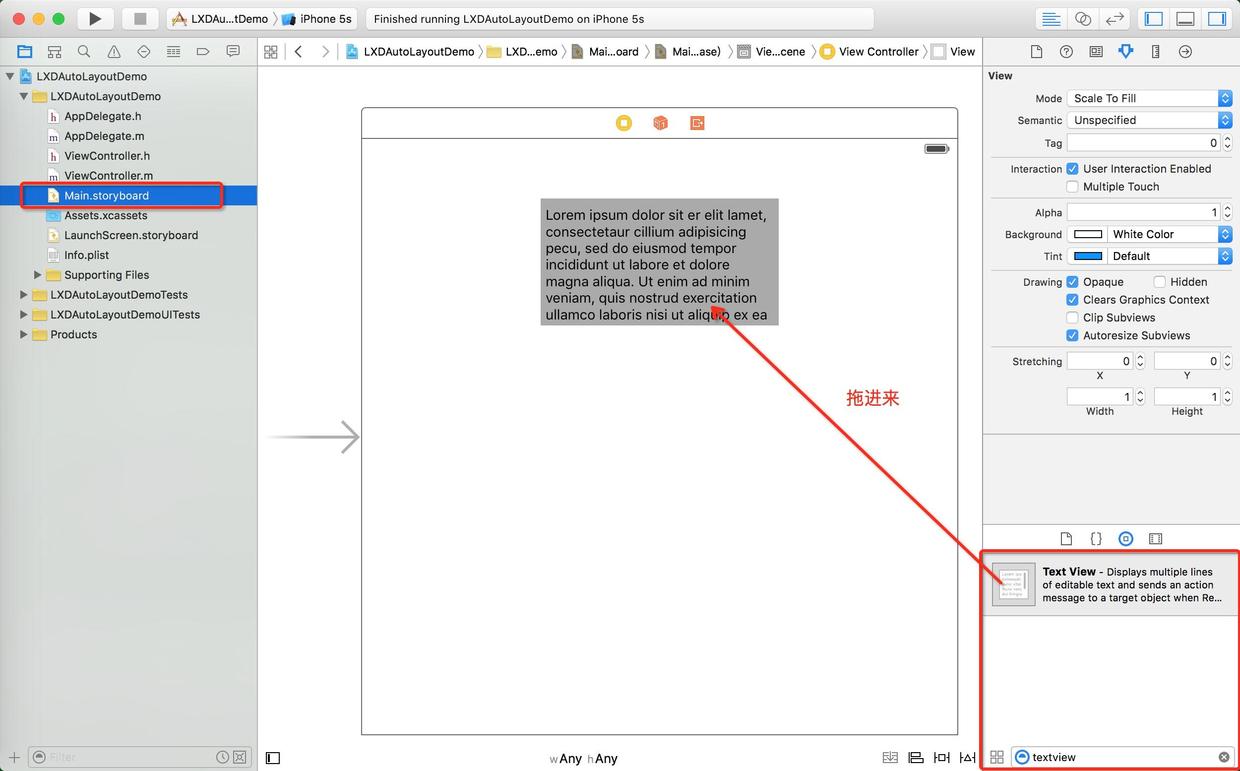
Select the textView. Xcode provides the buttons below for adding constraints. Here I set the top spacing to 20pt and the left and right spacing to 30pt. Click Add 3 Constraints to finish adding them:
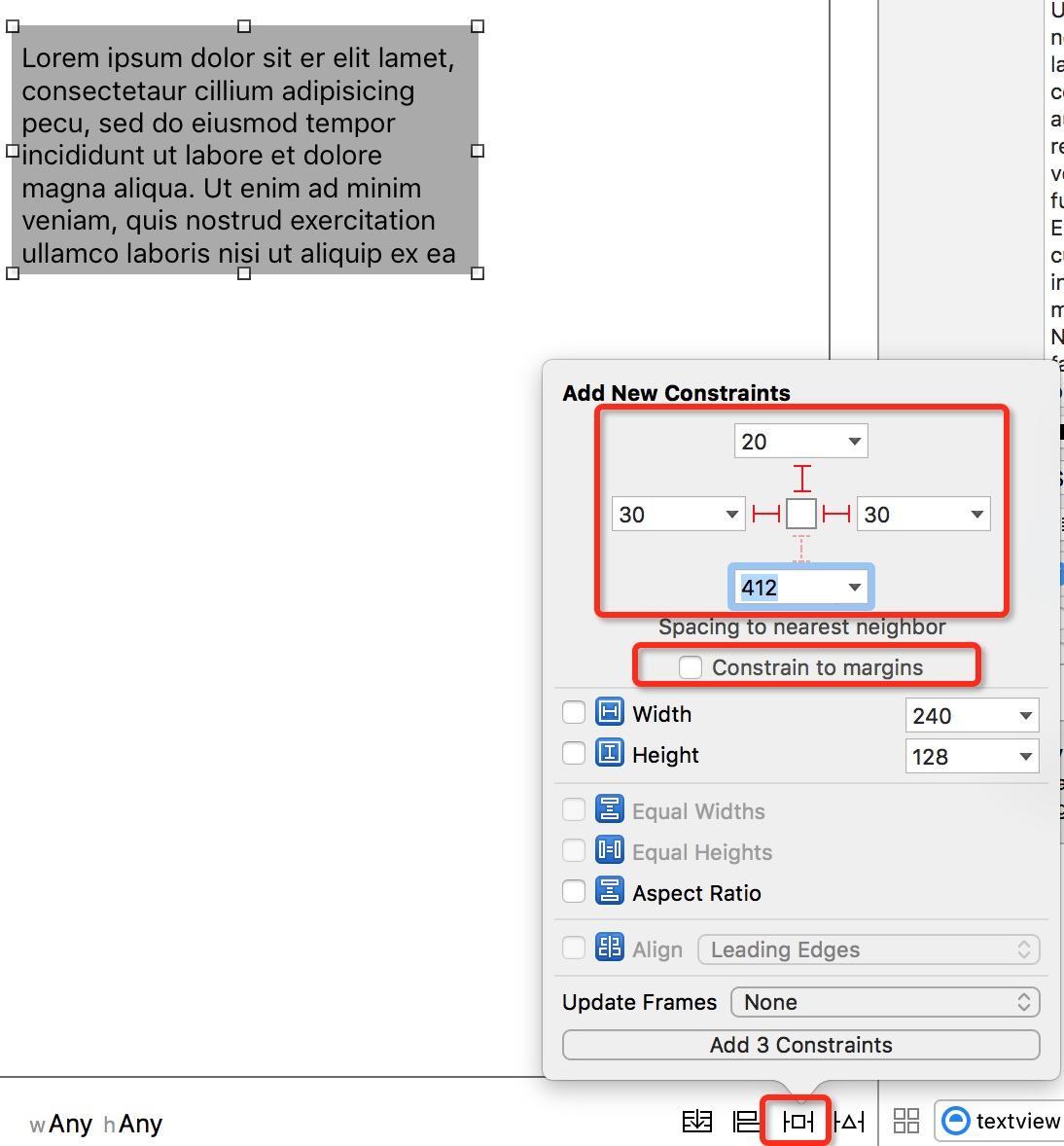
Run the project and rotate the screen. The text always retains a 20pt top margin and 30pt side margins. Constraints simplify the work, do they not?
Every animation displays a sequence of calculations, including constraint animation. How are constraints calculated? In the basic demo above, adding constraints to the text control produces lines around textView in the storyboard, each representing a constraint. Double-click a line for more settings.
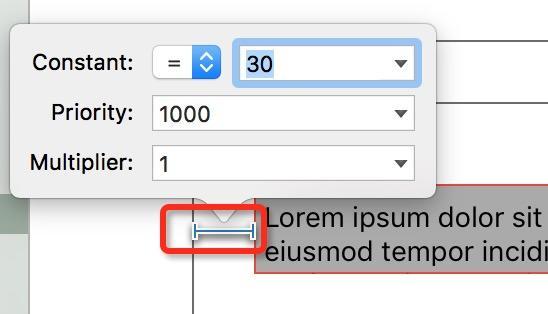
For this constraint, all constraint calculations follow the equation:
TextView.Left = 1 * superView.Left + 30
The parent view's left coordinate is calculated from 0pt, so the constraint relative to it is represented by constant. Changing constant and redrawing the interface can therefore produce animation.
For more Auto Layout instruction, see this article
Animation analysis
Analysing the implementation before starting clarifies the animation. You can see that it depends on tableView scrolling condition, so observing tableView scroll offset is central to this animation. (P.S. Why KVO rather than a delegate callback? When the tableView delegate and animation handler may be different objects, KVO is the safest choice.)
From the user’s scrolling, we can identify the following effects:
- The navigation-bar title fades out with a colour transition.
- The navigation-bar title moves upward.
- The red background moves up and disappears.
- The countdown and text move upward into the navigation bar.
Combining this information, I defined the required macros:
#define OBSERVERKEY @"contentOffset"            ///<    监听属性
#define MAXMOVE 64.0                            ///<    滚动最大值
#define TITLEMAXMOVE 16.0                       ///<    导航文本位移最大值
#define TOPANDBOTTOMCONSTANT 9                  ///<    红色背景上下间距约束值
This is a parallax animation, using different view layers and displacements to create the visual effect. First write out the hierarchy of views that move; that helps implement it.
During the animation, the red background disappears after moving upward, so it must sit below the navigation bar's blue view. The countdown and text remain visible after moving upward, so they must be above the navigation view. The resulting order is text and countdown controls → navigation bar → red background. Moving each text and countdown control separately would require considerable code. Instead, put them all inside a transparent UIView and move that UIView. Below is Apple's view-hierarchy diagram for a navigation controller:
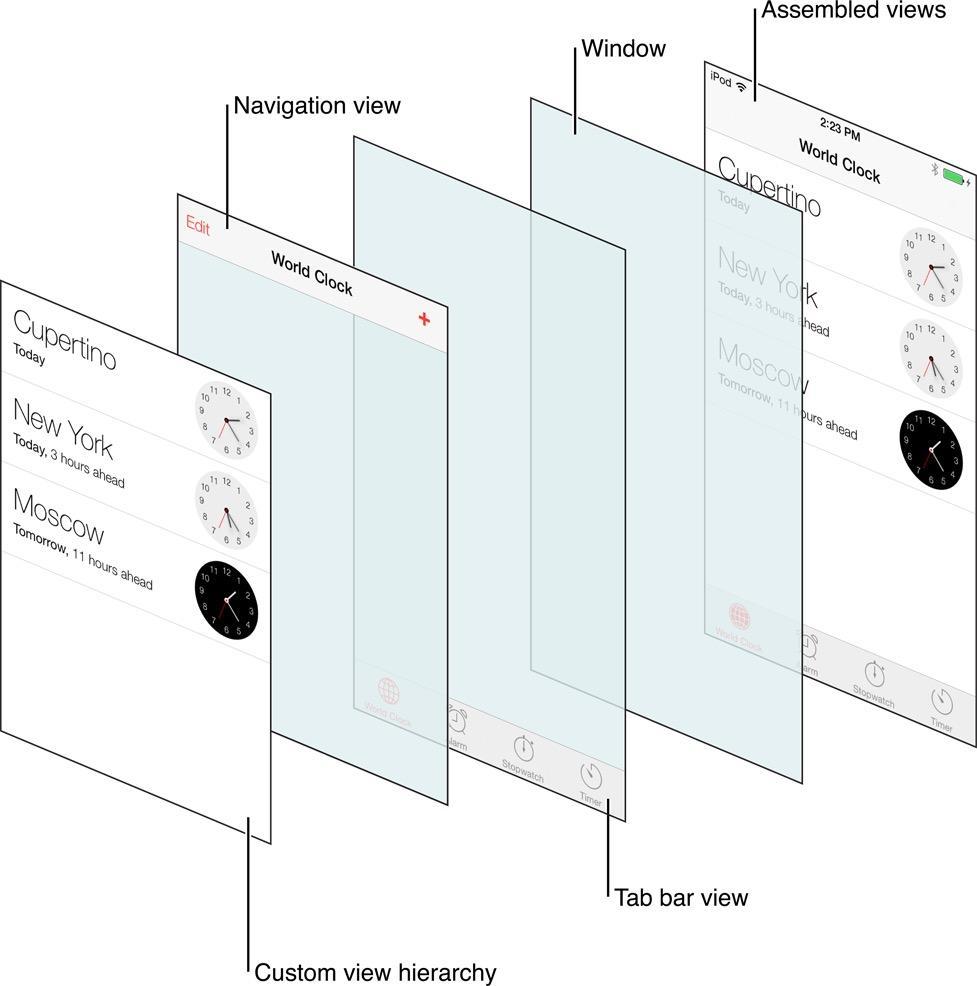
Combining these conclusions, we know:
- The transparent view sits between
Custom view hierarchyandNavigation View. - The red background sits between
Navigation viewandUIWindow.
Because the animation controller is the demo's top-level screen, I chose a simple approach to save code: a UIViewController with a view pretending to be a navigation bar. To implement the animation on a second-level or deeper screen, you may need to subclass UINavigationController and customize the effect.
Preparation
First build the interface in the storyboard. Drag a UIView from the lower-right controls panel. Its top must extend into the status-bar area; otherwise its top constraint starts below the status bar, placing it 20pt lower than intended.
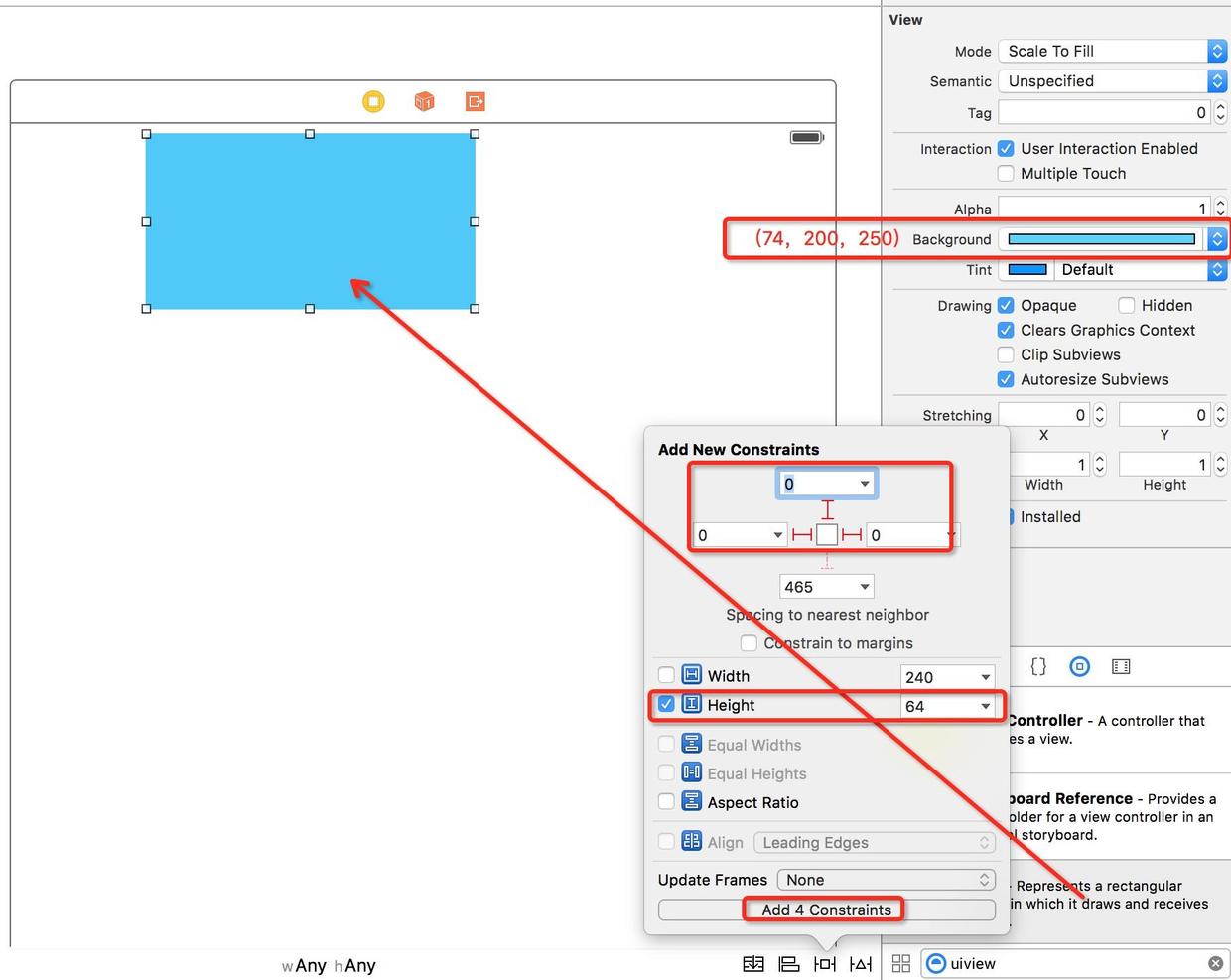
Next, drag a UILabel onto this navigation-bar view and connect it as navigationTitle. Set bottom, left, and right constraints to 0 and height to 44pt. Center the text and use white, 18-point system type.

Most importantly, create a transparent view for the countdown and labels. I will not repeat adding views and constraints; here is the completed setup:
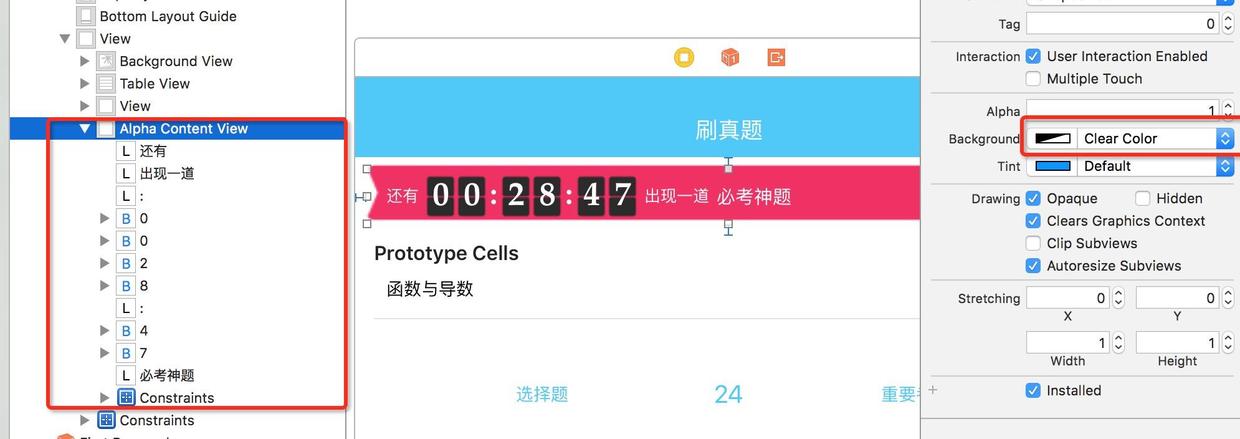
Afterwards, reorder views in the left-hand hierarchy so the red background is below the navigation-bar view and the transparent content view is above it. Connect the key constraints to the file, including:
- The scrolling view:
tableView. - The centering constraint for the transparent view's child:
titleCenterX. - The transparent content view's top constraint:
contentTopConstraint. - The red background view's top constraint:
backgroundTopConstraint. - The imitation navigation title's bottom constraint:
labelBottomConstraint.
Building the animation
First, observe scrolling in the tableView. I usually place this code in viewDidAppear:, and remove observers or notifications in viewDidDisappear:.
- (void)viewDidAppear:(BOOL)animated
{
    [super viewDidAppear: animated];
    [self.tableView addObserver: self forKeyPath: OBSERVERKEY options: NSKeyValueObservingOptionNew context: nil];
}

- (void)viewDidDisappear:(BOOL)animated
{
    [self.tableView removeObserver: self forKeyPath: OBSERVERKEY];
}
As discussed earlier, the observer needs to obtain the scroll offset and calculate the percentage of the scrolling effect:
CGFloat yOffset = self.tableView.contentOffset.y / MAXMOVE;
yOffset = MAX(0, MIN(1, yOffset));
This value increases with scrolling until reaching 1, the final animation state. During this process, the navigation-bar title both moves upward and fades out:
self.navigationTitle.alpha = 1 - yOffset;
self.labelBottomConstraint.constant = yOffset * TITLEMAXMOVE;
Next, move the red background and countdown controls upward. Because all data-display controls belong to the transparent view, only that view needs to move:
CGFloat yPoint = TOPANDBOTTOMCONSTANT - yOffset * MAXMOVE;
self.backgroundTopConstraint.constant = self.contentTopConstraint.constant = yPoint;
All movement code is now complete. Run it and notice that the transparent view’s child controls seem to move a little too far upward.
Normally, a navigation bar is 44pt high, with a 20pt status bar above it, so I set the maximum movement to 44+20=64pt. In the demo, after a 64pt movement, the red background and transparent view reach the center of the 64pt region. Since these two views are 45pt high, 9.5pt of their height extends into the status-bar area. To center the text at the navigation bar position during the animation, we therefore also need to move the text down by 9.5pt. Add this line to the observation callback:
self.infoCenterX.constant = TOPANDBOTTOMCONSTANT * yOffset;
Add this line and run again; the animation is complete!
Closing notes
I spent a long time planning this first post on constraint animation. This demo is closer to a UIView animation in that it changes coordinate values. Ultimately, I felt it would make the transition from UIView animation to constraint animation quicker. In the next post, I will explain using layout methods to animate constraint resets, as well as replacing and updating constraints during an animation.
Recommended reading: Preparing an iOS app for Apple Pay