
UIKit & graphicsHistorical technical note
Building a WeChat-style iOS app, part 7
Breaks down the chat input bar and message cells, using blocks to send submission and visibility events to the controller. Message ownership determines avatars and stretchable bubble backgrounds, while model-side sizing accommodates messages of different lengths.
Originally credited to WzxJiang; edited and archived by Bison.
Source listed in the originalOn this page
Editor: Bison
Contributor: WzxJiang
"I built the chat page a few days ago, which took considerable work. Using RongCloud IM and a LeanCloud server meant implementing several normally server-side algorithms on the client. Today I will explain the chat UI rather than the algorithms. Questions and better approaches are welcome in the comments."

Result:
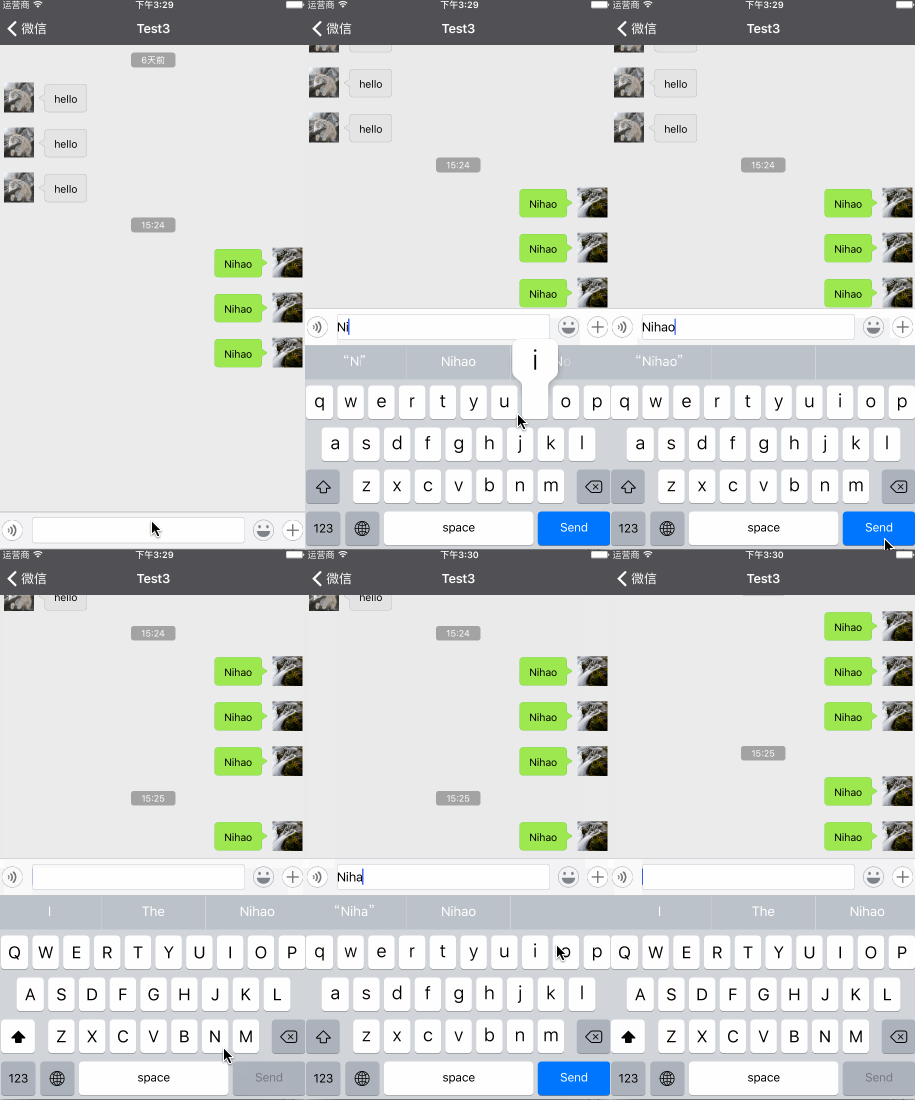
1. Building the bottom chat bar

I decouple the interface using a custom View. Its ShowBlock, HideBlock and SendBlock let the VC respond to showing, hiding and sending from the chat bar. The preceding article explained observing keyboard show/hide events and moving the bar smoothly with it.Build WeChat Yourself, Part 6: problems encountered so far.
2. Creating cells
This is how I create chat cells in WWeChat:
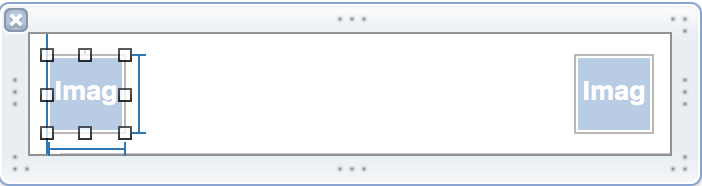
There are two ImageViews here. I hide one depending on whether the message is mine or the other person’s. Because height varies, anchor constraints from the upper-left or upper-right corner.
3. Creating message bubbles
The bubble’s starting X coordinate, width and height vary, so creating it in a Xib would be troublesome.
So I handle it as follows:
In Cell.m, create self.bubbleView manually according to whether the message is mine.
//如果是你
if (model.isMe)
{
[_AiConView removeFromSuperview];
    [_BiConView setImageWithURL:[NSURL URLWithString:[[UserInfoManager manager]avaterUrl]] placeholderImage:[UIImage imageNamed:@"avater.jpg"] completed:^(UIImage *image, NSError *error, SDImageCacheType cacheType) {

    }];
    self.bubbleView.frame = CGRectMake([UIScreen mainScreen].bounds.size.width - 40 - 10 - 5 - width,10,width,height);
    UIImage * bubbleImg = [UIImage imageNamed:@"SenderTextNodeBkg"];
    UIEdgeInsets insets = UIEdgeInsetsMake(30, 15,30,15);
    UIImage *insetImage = [bubbleImg resizableImageWithCapInsets:insets];
    self.bubbleView.image = insetImage;
}
else
{
    [_BiConView removeFromSuperview];

    self.bubbleView.frame = CGRectMake(10 + 40 + 5,10,width,height);
    UIImage * bubbleImg = [UIImage imageNamed:@"ReceiverTextNodeBkgHL"];
    UIEdgeInsets insets = UIEdgeInsetsMake(30, 15,30,15);
    UIImage *insetImage = [bubbleImg resizableImageWithCapInsets:insets];
    self.bubbleView.image = insetImage;
}
[self.contentView addSubview:_bubbleView];
resizableImageWithCapInsets controls which parts of the bubble do not stretch. Its values depend on the image’s actual pixels.
UIEdgeInsets insets = {top, left, bottom, right};
Then add the Label manually.
UILabel * messageLabel = [[UILabel alloc]initWithFrame:CGRectMake(20, 3, _bubbleView.frame.size.width - 40, _bubbleView.frame.size.height - 12)];
messageLabel.font = [UIFont systemFontOfSize:14];

messageLabel.text = model.message;

messageLabel.numberOfLines = 0;

[_bubbleView addSubview:messageLabel];
3. Automatic cell sizing
I used a shortcut to make the cell size adapt automatically.
I added a bubbleSize property to MessageModel.
- (void)setMessage:(NSString *)message
{
_message = message;
self.bubbleSize = [self giveSizeForStr:self.message];
}
- (CGSize)giveSizeForStr:(NSString *)str
{
    UIFont * font = [UIFont systemFontOfSize:14.0];
    NSDictionary * dic = [NSDictionary dictionaryWithObjectsAndKeys:font,NSFontAttributeName,nil];
    CGSize size = [str boundingRectWithSize:CGSizeMake(200 - 20 - 20, MAXFLOAT) options:NSStringDrawingUsesLineFragmentOrigin attributes:dic context:nil].size;

    return CGSizeMake(size.width + 40, size.height + 20);
}
When assigning message in the model, calculate the cell’s height. Adding 40 to width and 20 to height accounts for margins between the text and bubble.
Then, in the VC:
- (CGFloat)tableView:(UITableView *)tableView heightForRowAtIndexPath:(NSIndexPath *)indexPath
{
    NSDictionary * dic = _dataArr[indexPath.section];
    NSArray * arr = dic[@"messages"];
    MessageModel * model = arr[indexPath.row];
    return model.bubbleSize.height > 40 ? model.bubbleSize.height + 20: 40+20;
}
The bubble needs at least 40px. Adding 20 compensates for distortion when stretching it.
4. Creating time labels
My algorithm groups messages less than 60 seconds apart into one array. A message already assigned to one array cannot enter another. Then set each group’s header view.
P.S. For the algorithm, see the method in WWeChatApi:
- (void)getMessagesWithConversationID:(NSString *)conversationID andNum:(int)num andType:(RCConversationType)type AndSuccess:(void (^)(NSArray * messageArr))successBlock
andFailure:(void(^)())failureBlock
andError:(void(^)(NSError * error))errorBlock;
Method for setting the header view
- (UIView *)tableView:(UITableView *)tableView viewForHeaderInSection:(NSInteger)section
{
    UIView * headerView = [[UIView alloc]initWithFrame:CGRectMake(0, 0, self.view.frame.size.width, 40)];

    UILabel *timeLabel = [[UILabel alloc]initWithFrame:CGRectMake((self.view.frame.size.width - 60)/2.0, 10, 60, 20)];

    NSDictionary * dic = _dataArr[section];

    timeLabel.backgroundColor = [UIColor colorWithWhite:0 alpha:0.3];
    timeLabel.layer.cornerRadius = 5;
    timeLabel.clipsToBounds = YES;

    double times = [dic[@"timestamp"]doubleValue];

    timeLabel.text = [[WZXTimeStampToTimeTool tool]compareWithTimeDic:[[WZXTimeStampToTimeTool tool]timeStampToTimeToolWithTimeStamp:times andScale:3]];

    timeLabel.font = [UIFont systemFontOfSize:12];

    timeLabel.textColor = [UIColor whiteColor];

    timeLabel.textAlignment = NSTextAlignmentCenter;

    [headerView addSubview:timeLabel];

    return headerView;
}
WZXTimeStampToTimeTool is a utility I wrote to compare a timestamp with local time and convert it into a string quickly.
I use double for the NSTimeInterval timestamp. Other types, such as NSInteger, can produce an incorrect value on the 5 and 5s, showing a date 46 years ago in 1970. double is NSTimeInterval’s underlying type: typedef double NSTimeInterval;
That is all for today. If you have questions about other areas, comment and I will explain them next time.
1
Complete code
Download here—GitHub: WzxJiang
If you like the project, please Star or Fork it!
Recommended reading: A beginner developer's review of 2015