
UIKit & graphicsHistorical technical note
An introduction to Core Animation on iOS
Introduces Core Animation through CALayer, CAAnimation and CAAction, explaining the relationship between layers and animation objects, timing control and action lookup. Examples distinguish the organisation of implicit and explicit animations.
Originally credited to Sindri; edited and archived by Bison.
Source listed in the originalOn this page
Editor: Bison
Contributor: Sindri’s Notes
On iOS, ordinary animations can use methods provided by UIKit. For complex effects, the animations in CoreAnimation are the best choice. Compared with the former approach, the latter has benefits including, but not limited to, the following:
- Lightweight data structures allow hundreds of layers to animate simultaneously.
- An independent thread executes our animation interfaces.
- Once configured, Core Animation takes full control of the animation frames.
- Improve application performance: redraw content only when it changes, eliminating application code running at the animation's frame rate.
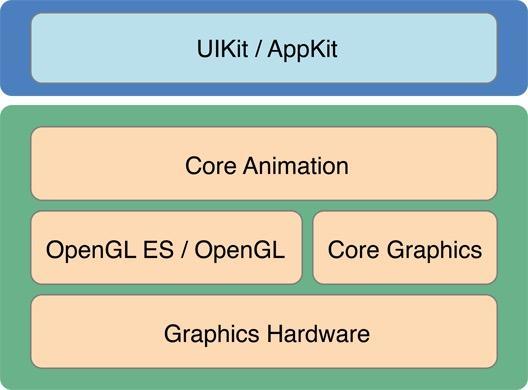
in CoreAnimation framework, the two main components are the layer CALayer and animation CAAnimation classes. The first manages a bitmap context that can be animated; the second is an abstract animation base class providing CAMediaTiming and CAAction protocol support, allowing subclass instances to act directly on CALayer itself to animate. Next, I will discuss these classes individually, using information from Apple's official documentation and objc China
CALayer
CALayer class structure
If you enjoy animation, you will often see CALayer and its subclasses in open-source implementations online. To understand this layer class, start with its structure. The following lists selected properties with comments removed:
public class CALayer : NSObject, NSCoding, CAMediaTiming {

    public func presentationLayer() -> AnyObject?
    public func modelLayer() -> AnyObject

    public var bounds: CGRect
    public var position: CGPoint
    public var anchorPoint: CGPoint
    public var transform: CATransform3D
    public var frame: CGRect
    public var hidden: Bool

    public var superlayer: CALayer? { get }
    public func removeFromSuperlayer()
    public func addSublayer(layer: CALayer)
    public func insertSublayer(layer: CALayer, below sibling: CALayer?)
    public func insertSublayer(layer: CALayer, above sibling: CALayer?)
    public func replaceSublayer(layer: CALayer, with layer2: CALayer)
    public var sublayerTransform: CATransform3D

    public var mask: CALayer?
    public var masksToBounds: Bool

    public func hitTest(p: CGPoint) -> CALayer?
    public func containsPoint(p: CGPoint) -> Bool

    public var shadowColor: CGColor?
    public var shadowOpacity: Float
    public var shadowOffset: CGSize
    public var shadowRadius: CGFloat

    public var contents: AnyObject?
    public var contentsRect: CGRect

    public var cornerRadius: CGFloat
    public var borderWidth: CGFloat
    public var borderColor: CGColor?
    public var opacity: Float
}
Based on CALayer Class Reference's description, every UIView has an underlying CALayer object to help display its content. It manages the bitmap contexts we provide for the view and their geometry. The code above shows that:
CALayerisNSObject's subclass rather thanUIRespondersubclass. The layer therefore cannot handle user-interaction events itself, even though it has an Event responder chain similar check, soCALayermust be wrapped in anUIViewcontainer to achieve this.- Every
UIViewhas aCALayerto display content. The latter contains several variables corresponding toUIView's visual properties. Thus changing aUIView's appearance actually changes the properties of thatUIView's correspondinglayer. CALayerhas a tree hierarchy likeUIView, and methods analogous toUIView's subview operations, such asaddSublayer. ACALayercan display independently of aUIView, but responding to it requires implementing event methods.
As for why Apple separates UIView and CALayer separate. An unusually detailed article online already explains this: Why UIView is still needed when CALayer already exists
Layer trees and implicit animation
Every CALayer has three important layer trees that coordinate to render and display the layer. They are:
- The model tree, obtained through
layer.modelLayer. When an animatable property ofCALayerchanges, the corresponding model-tree property immediately takes the new value. - The presentation tree, obtained through
layer. presentationLayer. It stores the displayed data for the layer's current state and updates continuously as the animation proceeds. - The render tree has no public retrieval API in iOS. As its name suggests, it combines the effects configured in
modelLayerandpresentationLayerto render content onscreen.
Almost all display data in CALayer consists of animatable properties, providing a strong basis for Core Animation. When a standalone CALayer is used—that is, a layer not bound to a UIView—changing a display property triggers a simple transition from 旧值 to 新值. This is called an implicit animation:
class ViewController: UIViewController {

    let layer = CAShapeLayer()

    override func viewDidLoad() {
        super.viewDidLoad()
        layer.strokeEnd = 0
        layer.lineWidth = 6
        layer.fillColor = UIColor.clearColor().CGColor
        layer.strokeColor = UIColor.redColor().CGColor
        self.view.layer.addSublayer(layer)
    }

    @IBAction func actionToAnimate() {
        layer.path = UIBezierPath(arcCenter: self.view.center, radius: 100, startAngle: 0, endAngle: 2*CGFloat(M_PI), clockwise: true).CGPath
        layer.strokeEnd = 1
    }
}
The code above creates a separate CALayer and adds it to the current view controller's view layer. The strokeEnd property represents the fill percentage. Changing it produces a circle-drawing animation:
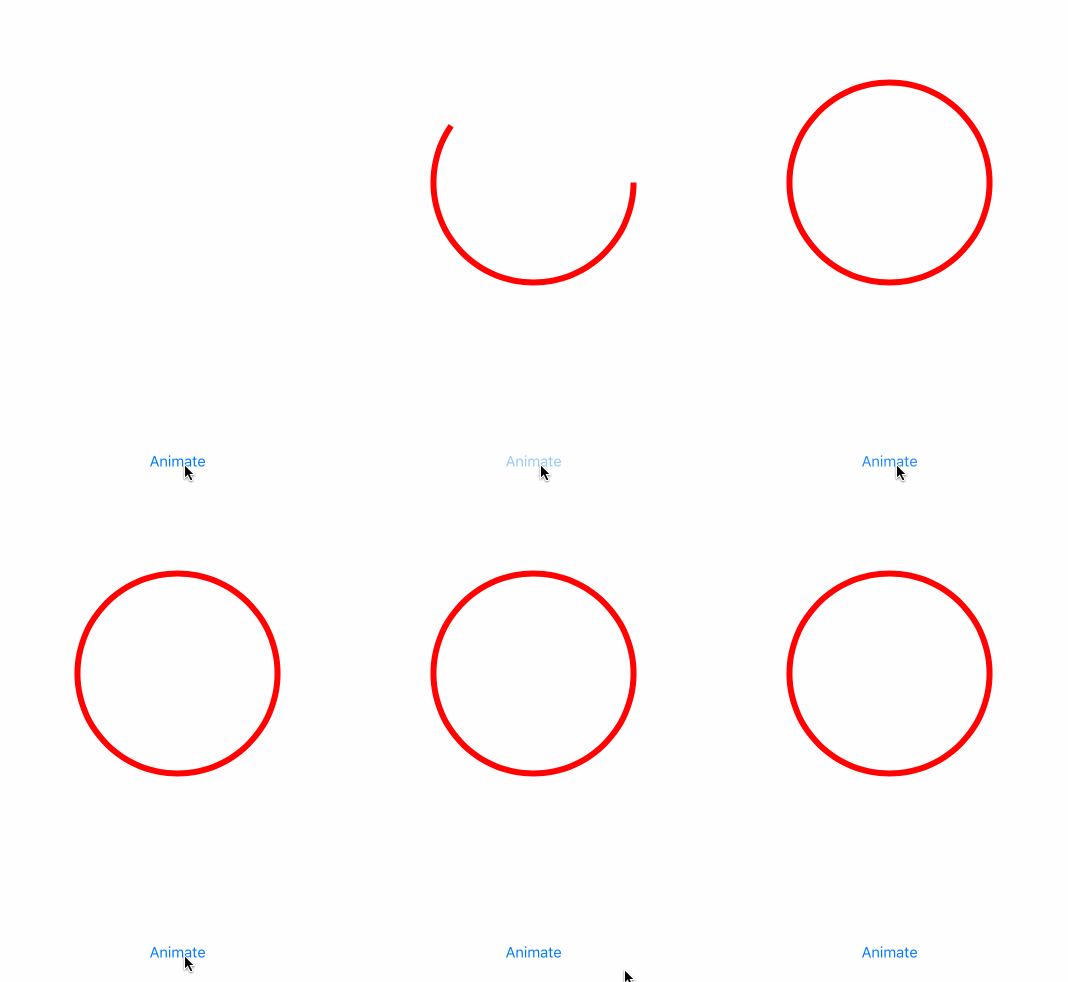
The CAAction protocol plays a crucial role behind implicit animations; that process is explained below. What happens to the model and presentation trees during this example? Since the default animation duration is 0.25 seconds, I set a timer to 0.05 seconds and inspect both trees on every callback:
@IBAction func actionToAnimate() {
    timer = NSTimer(timeInterval: 0.05, target: self, selector: #selector(timerCallback), userInfo: nil, repeats: true)
    NSRunLoop.currentRunLoop().addTimer(timer!, forMode: NSRunLoopCommonModes)
    layer.path = UIBezierPath(arcCenter: self.view.center, radius: 100, startAngle: 0, endAngle: 2*CGFloat(M_PI), clockwise: true).CGPath
    layer.strokeEnd = 1
}

@objc private func timerCallback() {
    print("========================\nmodelLayer: \t\(layer.modelLayer().strokeEnd)\ntpresentationLayer: \t\(layer.presentationLayer()!.strokeEnd)")
    if fabs((layer.presentationLayer()?.strokeEnd)! - 1) < 0.01 {
        if let _ = timer {
            timer?.invalidate()
            timer = nil
        }
    }
}
Console output:
========================
modelLayer: 	1.0
presentationLayer: 	0.294064253568649
========================
modelLayer: 	1.0
presentationLayer: 	0.676515340805054
========================
modelLayer: 	1.0
presentationLayer: 	0.883405208587646
========================
modelLayer: 	1.0
presentationLayer: 	0.974191427230835
========================
modelLayer: 	1.0
presentationLayer: 	0.999998211860657
When an implicit animation occurs, the modelLayer property immediately becomes the final value. The system calculates each frame's value from the duration and target, updating presentationLayer in sequence. The render tree, renderingTree, then uses those calculated values to render the animation onscreen.
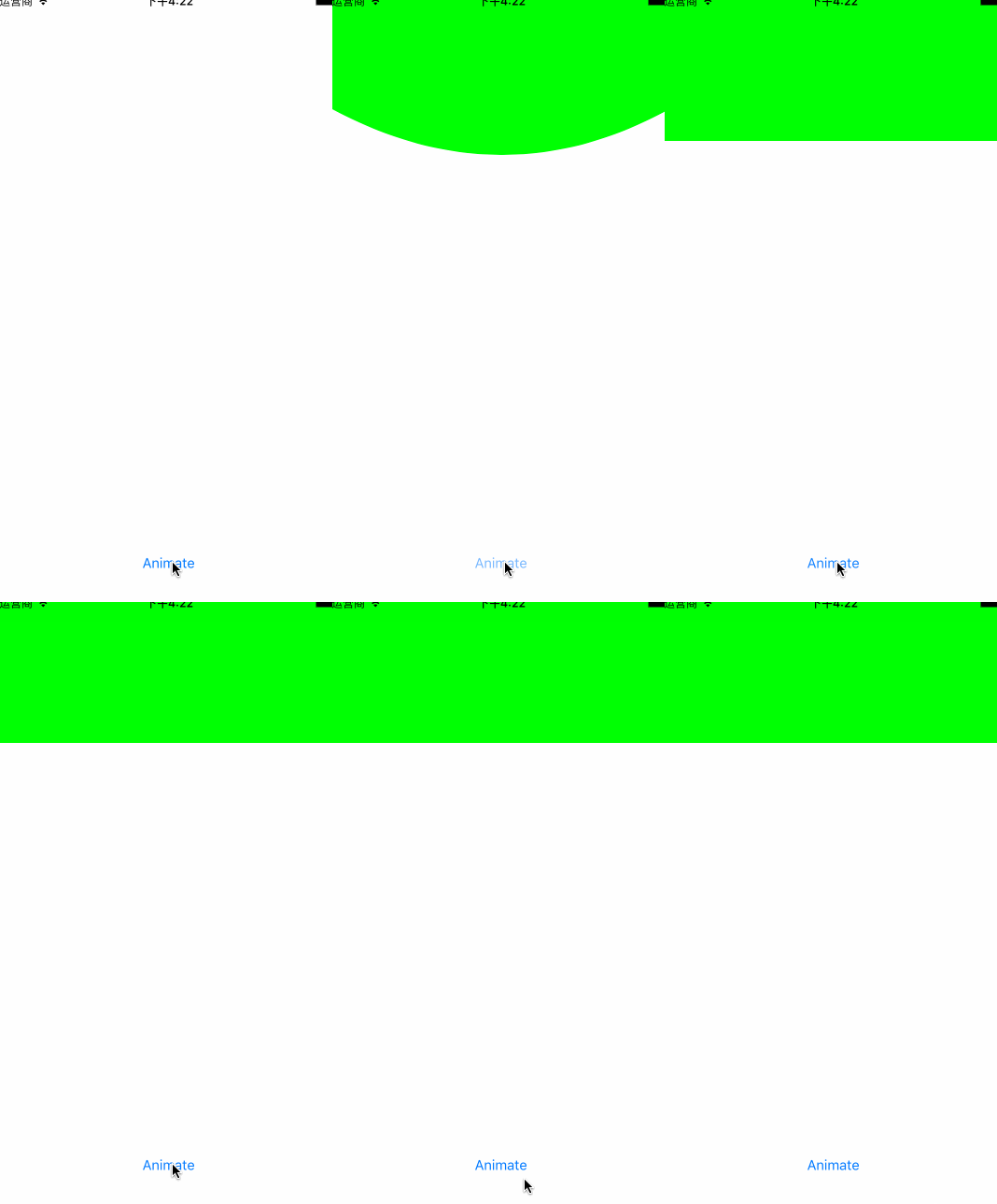
What can we create with these trees? For the sticky bouncing effect below, I add a CALayer at the left, right, and center of the interface. Tapping the button gives the two side layer objects a constant-speed downward position animation and the centerLayer a spring animation. A timer reads the presentation-tree coordinates of the three layer objects along the y axis and redraws the region to create this effect:
Other properties
Beyond the key properties above, I will only briefly introduce the following ones. Their detailed use and animation behavior will be covered in later relevant examples:
-
positionandanchorPointanchorPointis anxandyvalue ranges between0~1betweenCGPointtype. It determines the origin used for geometric affine transformations of the layer. The default is0.5, 0.5, performed byanchorPointandframecalculate the layer'spositionvalue. More information about these two properties is available in Understanding position and anchorPoint thoroughly -
maskandmaskToBoundsmaskToBoundsvalue totruemeans that all sublayers outside the layer's bounds are not rendered. When we setUIViewofclipsToBoundsactually modifiesmaskToBoundsthis property.maskThis property specifies a mask layer. Content outside the mask is not rendered. In the previous animation article,Fragment animation used inmaskViewactually modifies this property too -
cornerRadius,borderWidth, andborderColorborderWidthandborderColorset the layer border's width and color. These are not often used at thelayerlevel in ordinary cases. ThecornerRadiusproperty sets the corner radius, which also affects the border's shape. -
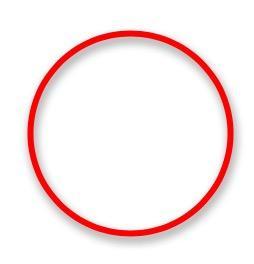
shadowColor,shadowOpacity,shadowOffset, andshadowRadiusTogether, these four properties create shadows. By default,
shadowOpacityis0, so the shadow remains transparent unless that value changes, even if the other three are set. Also, do not dwell on whyshadowOffset, which controls shadow displacement, usesCGSizerather thanCGPoint. The following code produces this shadow:layer.shadowColor = UIColor.grayColor().CGColor layer.shadowOffset = CGSize(width: 2, height: 5) layer.shadowOpacity = 1
-
Other properties
This includes the
transformtransform property. Unlike the same-named property onUIView, it can set values along thezaxis for additional geometric effects. Other properties such asboundandframeaffect the layer's display bounds; I will not elaborate further.
CAAnimation
CAAnimation subclasses
As noted at the beginning, CAAnimation is a base class whose primary purpose is to conform to two important animation protocols. Understanding animation types therefore starts with its subclass hierarchy. Apple's documentation lists these direct subclasses of CAAnimation:
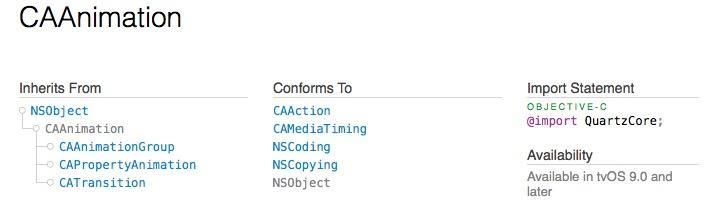
The diagram shows three subclasses:
CAAnimationGroupis an animation-group object. It combines severalCAAnimationinstances so a layer can perform multiple effects simultaneously. This article does not discuss it further.CAPropertyAnimation, the property-animation class, is the superclass of many Core Animation types and an abstract subclass ofCAAnimation—both parent and child are abstract. It provides the important ability to animate layer properties identified by key paths. Its many subclasses are essential tools for implementing animation.CATransitiontransition-animation class. In the current version, its role is rather awkward. InCATransform3Dand custom transition APIs are widespread, its contribution is limited. It may also cause私有apiissues can prevent App Store approval, but learning about the class is still useful. In this Using CATransition you can learn how to useCATransitionCreating animations
Class structure and properties
The diagram shows CAAnimation conforming to two protocols while declaring few properties itself. Most animation-related properties are declared in the protocols, with setter and getter generated dynamically in the implementation.
public class CAAnimation : NSObject, NSCoding, NSCopying, CAMediaTiming, CAAction {

    public class func defaultValueForKey(key: String) -> AnyObject?
    public func shouldArchiveValueForKey(key: String) -> Bool

    public var timingFunction: CAMediaTimingFunction?

    public var delegate: AnyObject?

    public var removedOnCompletion: Bool
}
The structure of CAAnimation divides into properties and methods, with properties deserving our main attention.
-
defaultValueForKeyandshouldArchiveValueForKeyTheir names suggest a connection with
NSCoding. The latter accepts a key, serializes the animation object for local storage, and returns whether it succeeded. The former retrieves that persisted animation object using the same key. -
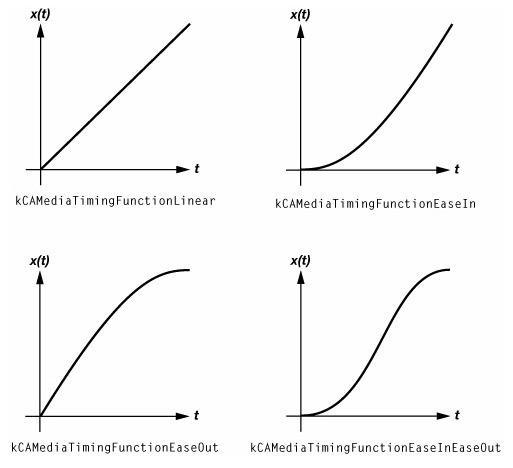
timingFunctionThis interesting property determines the animation's visual behavior. In Starting with UIView animations, I discussed visual animation effects, including
淡入,淡出and other effects, represented by strings:public let kCAMediaTimingFunctionLinear: String public let kCAMediaTimingFunctionEaseIn: String public let kCAMediaTimingFunctionEaseOut: String public let kCAMediaTimingFunctionEaseInEaseOut: String public let kCAMediaTimingFunctionDefault: String let timingFunction = CAMediaTimingFunction(name: kCAMediaTimingFunctionEaseInEaseOut)
-
delegateNSObjectimplements the callbacks forCAAnimation, includinganimationDidStartandanimationDidStop, among others. Thus any iOS object can serve as aCAAnimationdelegate. The delegate lets us perform operations such as removing an animation when it ends. -
removedOnCompletionThis determines whether the animation is removed from its layer afterward; the default is
true. Layer animation is effectively a visual illusion: usingCAAnimaitondoes not actually change the corresponding property, so the layer returns to its original state afterward. Setting this value tofalse, together with other configuration, can prevent that.
Animation protocol properties
In addition to CAAnimation's own properties, the other two protocols declare key settings for duration and behavior before and after animation:
public protocol CAMediaTiming {

    public var beginTime: CFTimeInterval { get set }

    public var duration: CFTimeInterval { get set }

    public var speed: Float { get set }

    public var timeOffset: CFTimeInterval { get set }

    public var repeatCount: Float { get set }

    public var repeatDuration: CFTimeInterval { get set }

    public var autoreverses: Bool { get set }

    public var fillMode: String { get set }
}
CAMediaTiming is a timing protocol that supplies time-related animation properties. These properties are explained in Controlling animation timing article explains this clearly, so I will not repeat it here. There is also another protocol,CAAction protocol:
public protocol CAAction {

    /* Called to trigger the event named 'path' on the receiver. The object
     * (e.g. the layer) on which the event happened is 'anObject'. The
     * arguments dictionary may be nil, if non-nil it carries parameters
     * associated with the event. */

    @available(iOS 2.0, *)
    public func runActionForKey(event: String, object anObject: AnyObject, arguments dict: [NSObject : AnyObject]?)
}
This method is called when the animation occurs, informing the layer of the action so it can respond, for example by rendering.
CAAction
Explicit animation
Earlier, I described implicit animation as the automatic transition triggered by changing an animatable property of a standalone layer. There is naturally an explicit counterpart: create an animation object and add it to the target layer. The code below creates a basic animation for layer.position.y, sets its final value to 160, and adds it to layer. The default duration is 0.25 seconds:
let animation = CABasicAnimation(keyPath: "position.y")
animation.toValue = NSNumber(float: 160)
layer.position.y = 160
layer.addAnimation(animation, forKey: nil)
Detailed animation coverage is beyond this article. Later Core Animation articles will explore different CAAnimation subclasses for specific situations. Here is the core code for the sticky popup shown above:
func startAnimation() {
    let displayLink = CADisplayLink(target: self, selector: #selector(fluctAnimation(_:)))
    displayLink.addToRunLoop(NSRunLoop.currentRunLoop(), forMode: NSRunLoopCommonModes)
    let move = CABasicAnimation(keyPath: "position.y")
    move.toValue = NSNumber(float: 160)
    leftLayer.position.y = 160
    rightLayer.position.y = 160
    leftLayer.addAnimation(move, forKey: nil)
    rightLayer.addAnimation(move, forKey: nil)

    let spring = CASpringAnimation(keyPath: "position.y")
    spring.damping = 15
    spring.initialVelocity = 40
    spring.toValue = NSNumber(float: 160)
    centerLayer.position.y = 160
    centerLayer.addAnimation(spring, forKey: "spring")
}
After adding downward animations to the three layers, create a CADisplayLink timer to update the popup effect in sync with the screen refresh rate:
@objc private func fluctAnimation(link: CADisplayLink) {
    let path = UIBezierPath()
    path.moveToPoint(CGPointZero)

    guard let _ = centerLayer.animationForKey("spring") else {
        return
    }

    let offset = leftLayer.presentationLayer()!.position.y - centerLayer.presentationLayer()!.position.y
    var controlY: CGFloat = 160
    if offset < 0 {
        controlY = centerLayer.presentationLayer()!.position.y + 30
    } else if offset > 0 {
        controlY = centerLayer.presentationLayer()!.position.y - 30
    }

    path.addLineToPoint(leftLayer.presentationLayer()!.position)
    path.addQuadCurveToPoint(rightLayer.presentationLayer()!.position, controlPoint: CGPoint(x: centerLayer.position.x, y: controlY))
    path.addLineToPoint(CGPoint(x: UIScreen.mainScreen().bounds.width, y: 0))
    path.closePath()
    fluctLayer.path = path.CGPath
}
What happens during implicit animation
As noted above, implicit animation occurs when an animatable property of a standalone CALayer changes. If the layer is already bound to a UIView, directly changing the layer property makes it jump from 旧值 to 新值 without an extra transition. The CoreAnimation programming guide explains: UIView默认情况下禁止了layer动画,但在animate block中重新启用了它们. That is the observable behavior, but examining the mechanism reveals the careful cooperation between view and layer. This brings us to CAAction.
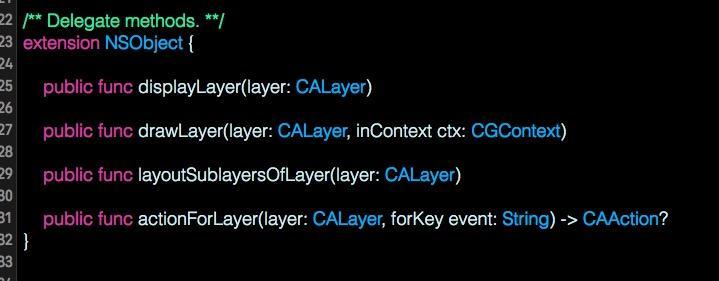
When any animatable layer property changes, the layer asks its delegate through actionForLayer(layer:event:) for a CAAction object corresponding to that change. The method can return three kinds of result:
- An object conforming to
CAAction, in which case thelayeruses that action to perform the animation. nil, which tells thelayerto continue searching elsewhere.- An
NSNullobject, which tells thelayerto stop searching and perform no animation.
Normally, when a CALayer is associated with a UIView, that UIView becomes the layer's delegate. When we change a layer property, the associated UIView therefore usually returns NSNull. Only within an animate block does it return an actual animation, providing an action for the layer to perform. Let's verify this in code:
print("===========normal call===========")
print("\(self.view.actionForLayer(self.view.layer, forKey: "opacity"))")
UIView.animateWithDuration(0.25) {
    print("===========animate block call===========")
    print("\(self.view.actionForLayer(self.view.layer, forKey: "opacity"))")
}
The console output confirms that inside the animation block, a CABasicAnimation object is returned to help carry out the effect.
===========normal call===========
Optional(<null>)
===========animate block call===========
Optional(<CABasicAnimation:0x7f8712d30c90; delegate = <UIViewAnimationState: 0x7f8712d304d0>; fillMode = both; timingFunction = easeInEaseOut; duration = 0.25; fromValue = 1; keyPath = opacity>)
A UIView inside an animation block usually returns such a Core Animation object. If it returns nil, however, the layer continues looking for another action. There are four stages in the full search, as explained in the CALayer header:
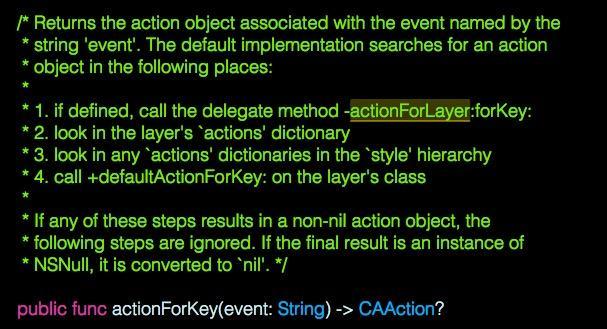
Once the layer finds an animation action for the property change, it calls addAnimation(_:forKey:) to begin the effect. We can subclass CALayer and override that method too:
class LXDActionLayer: CALayer {
    override func addAnimation(anim: CAAnimation, forKey key: String?) {
        print("***********************************************")
        print("Layer will add an animation: \(anim)")
        super.addAnimation(anim, forKey: key)
    }
}

class LXDActionView: UIView {

    override class func layerClass() -> AnyClass {
        return LXDActionLayer.classForCoder()
    }
}

override func viewDidLoad() {
    super.viewDidLoad()

    let actionView = LXDActionView()
    view.addSubview(actionView)
    print("===========normal call===========")
    print("\(self.view.actionForLayer(self.view.layer, forKey: "opacity"))")
    actionView.layer.opacity = 0.5
    UIView.animateWithDuration(0.25) {
        print("===========animate block call===========")
        print("\(self.view.actionForLayer(self.view.layer, forKey: "opacity"))")
    actionView.layer.opacity = 0
}
Console output:
===========normal call===========
Optional(<null>)
===========animate block call===========
Optional(<CABasicAnimation:0x7f8f00eb1850; delegate = <UIViewAnimationState: 0x7f8f00eb0e90>; fillMode = both; timingFunction = easeInEaseOut; duration = 0.25; fromValue = 1; keyPath = opacity>)
***********************************************
Layer will add an animation: <CABasicAnimation: 0x7f8f00eb2400>
You may wonder why the two printed CABasicAnimation addresses differ. To allow one animation object to run on multiple CALayer objects, every call to addAnimation(_:forKey:) makes the CAAnimation object undergo a copy operation. You can test this by subclassing CABasicAnimation and overriding copy.
Closing notes
I originally intended to begin explaining Core Animation with animation particles. However, a broader introduction to the framework should help both later articles and the creation of particle animations.
Recommended reading: Rich text with hyperlinks on iOS