
UIKit & graphicsHistorical technical note
Breaking Down a Complex iOS Animation: Objective-C and Swift
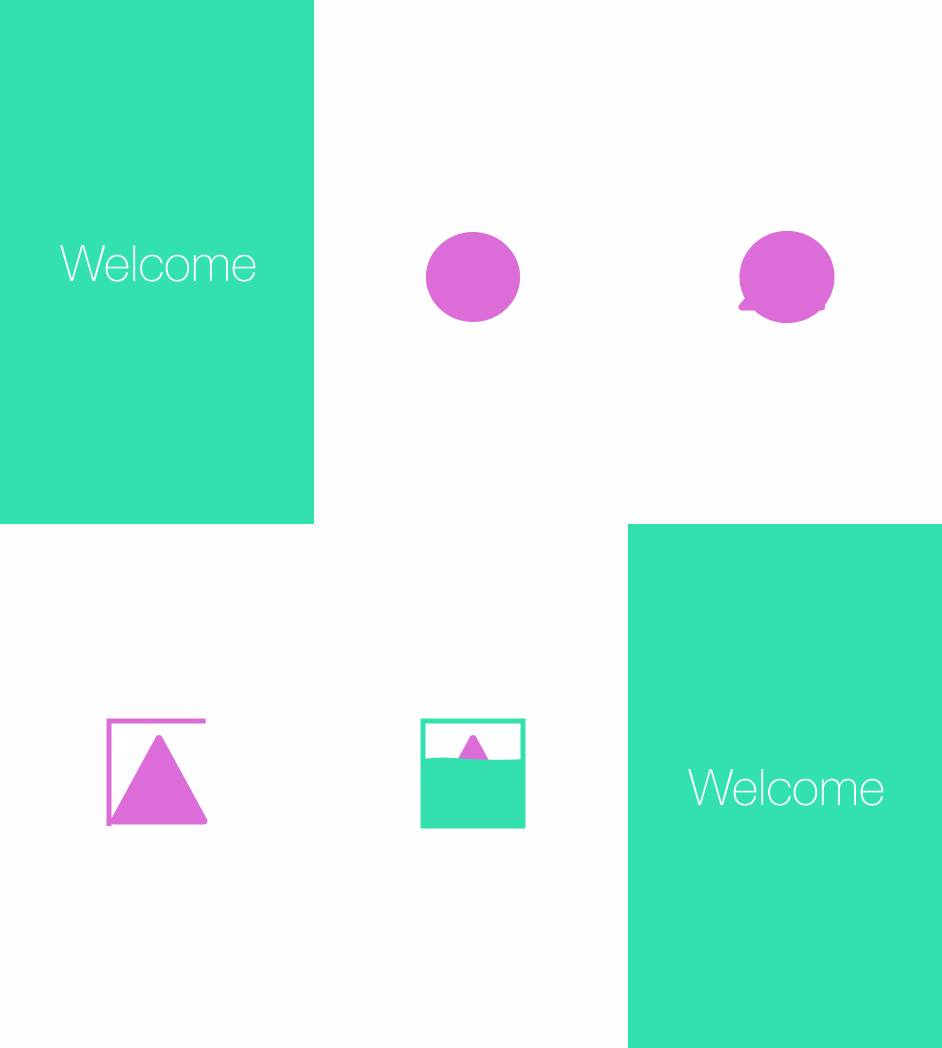
Breaks a welcome-screen animation into circular scaling, elliptical compression, edge bulges, rotation, and a wave fill. The article sequences layer and path changes to show how a visual effect can be translated into implementable animation steps.
Originally credited to HenryCheng; edited and archived by Bison.
Source listed in the originalOn this page
1. Introduction
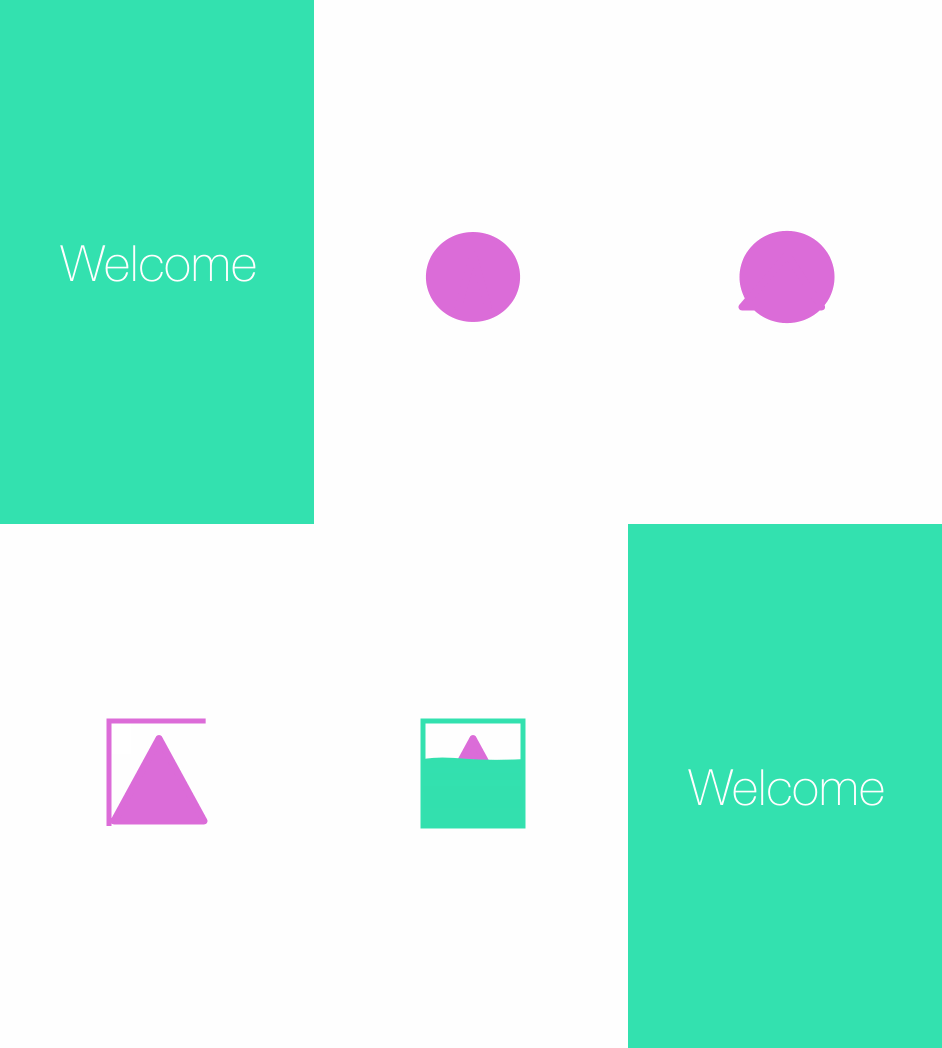
As developer numbers grow and time passes, the AppStore accumulates more and more apps, with many new releases every year. Yet people keep only a limited number on their phones, making user attraction an important part of product design. Impressive animation is one way to achieve this, and many good apps use it effectively. Animation can also be daunting: a good result takes time, patience, and a sound approach. Using the interesting example below, let us break it down and see how it is implemented.
Editor: Bison
Contributor: HenryCheng
2. Analysis
The animation above looks complicated at first. Break it down, though, and it is not so difficult. Looking closely reveals these broad steps:
1. A circle appears. 2. It is compressed horizontally and vertically into ellipses, then returns to a circle. 3. Small protrusions emerge in sequence at its lower-left, lower-right, and top. 4. The combined shape rotates once and becomes a triangle. 5. Two thick lines emerge successively from the triangle's left, enclosing it in a rectangle. 6. A wave fills the rectangle from bottom to top. 7. The filled rectangle expands to full screen, and Welcome appears. These are the main stages. We will implement them individually. The explanation below uses Swift; the demo includes both Objective-C and Swift implementations.
3. Animating between a circle and ellipses
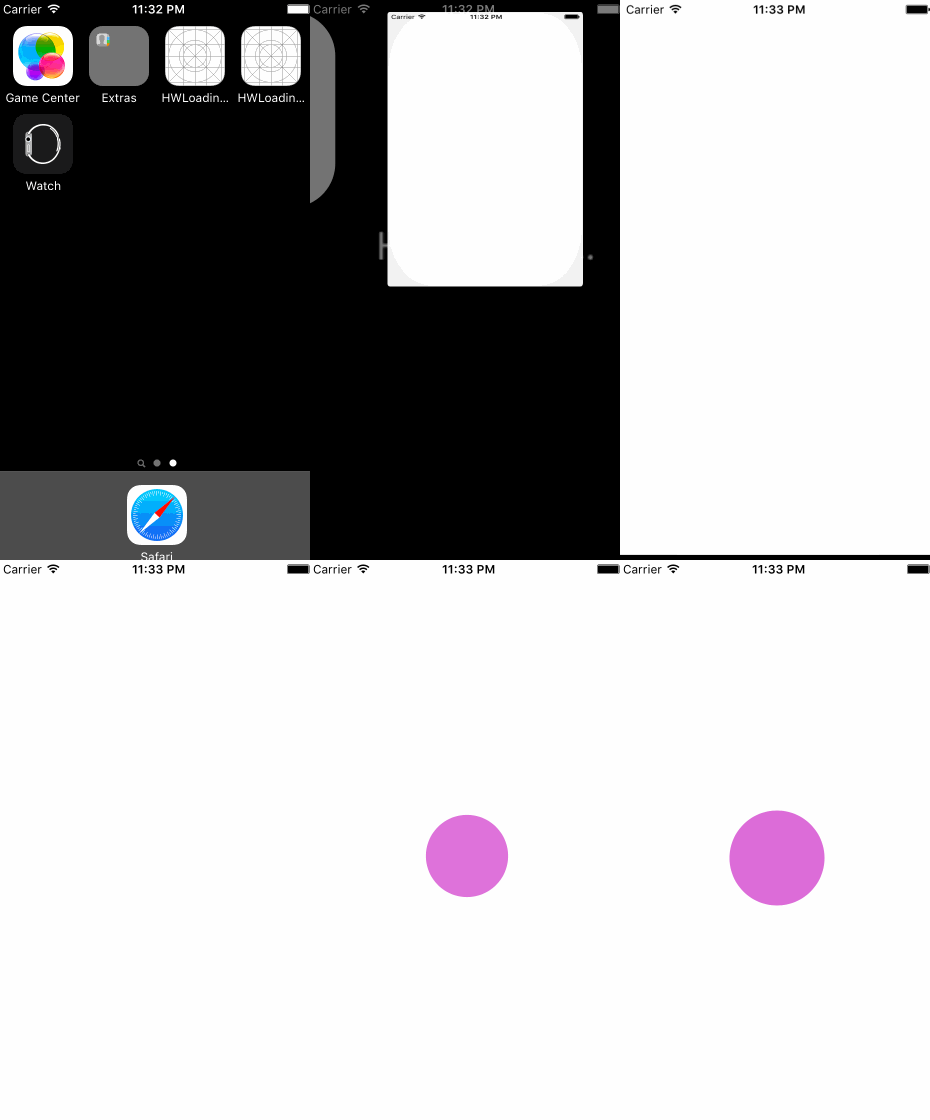
After creating a project, add an AnimationView subclass of UIView to display the animation. First add CircleLayer, a circular layer, and animate it growing from small to large.
 class AnimationView: UIView {

      let circleLayer = CircleLayer()

      override init(frame: CGRect) {
           super.init(frame: frame)
           backgroundColor = UIColor.clearColor()
           addCircleLayer()
       }

      required init?(coder aDecoder: NSCoder) {
           super.init(coder: aDecoder)
       }

      /**
       add circle layer
       */
      func addCircleLayer() {
           self.layer.addSublayer(circleLayer)
           circleLayer.expand()
       }
  }
The expand() method is as follows.
/**
 expand animation function
 */
func expand() {
    let expandAnimation: CABasicAnimation = CABasicAnimation(keyPath: "path")
    expandAnimation.fromValue = circleSmallPath.CGPath
    expandAnimation.toValue = circleBigPath.CGPath
    expandAnimation.duration = KAnimationDuration
    expandAnimation.fillMode = kCAFillModeForwards
    expandAnimation.removedOnCompletion = false
    self.addAnimation(expandAnimation, forKey: nil)
}
The result is shown below.
With the first step complete, move on to the elliptical deformation. Think of squeezing an elastic ball vertically and then horizontally. This is simply a grouped animation:
/**
 wobbl group animation
 */
func wobbleAnimate() {
    // 1、animation begin from bigPath to verticalPath
    let animation1: CABasicAnimation = CABasicAnimation(keyPath: "path")
    animation1.fromValue = circleBigPath.CGPath
    animation1.toValue = circleVerticalSquishPath.CGPath
    animation1.beginTime = KAnimationBeginTime
    animation1.duration = KAnimationDuration

    // 2、animation vertical to horizontal
    let  animation2: CABasicAnimation = CABasicAnimation(keyPath: "path")
    animation2.fromValue = circleVerticalSquishPath.CGPath
    animation2.toValue = circleHorizontalSquishPath.CGPath
    animation2.beginTime = animation1.beginTime + animation1.duration
    animation2.duration = KAnimationDuration

    // 3、animation horizontal to vertical
    let  animation3: CABasicAnimation = CABasicAnimation(keyPath: "path")
    animation3.fromValue = circleHorizontalSquishPath.CGPath
    animation3.toValue = circleVerticalSquishPath.CGPath
    animation3.beginTime = animation2.beginTime + animation2.duration
    animation3.duration = KAnimationDuration

    // 4、animation vertical to bigPath
    let  animation4: CABasicAnimation = CABasicAnimation(keyPath: "path")
    animation4.fromValue = circleVerticalSquishPath.CGPath
    animation4.toValue = circleBigPath.CGPath
    animation4.beginTime = animation3.beginTime + animation3.duration
    animation4.duration = KAnimationDuration

    // 5、group animation
    let animationGroup: CAAnimationGroup = CAAnimationGroup()
    animationGroup.animations = [animation1, animation2, animation3, animation4]
    animationGroup.duration = 4 * KAnimationDuration
    animationGroup.repeatCount = 2
    addAnimation(animationGroup, forKey: nil)
}
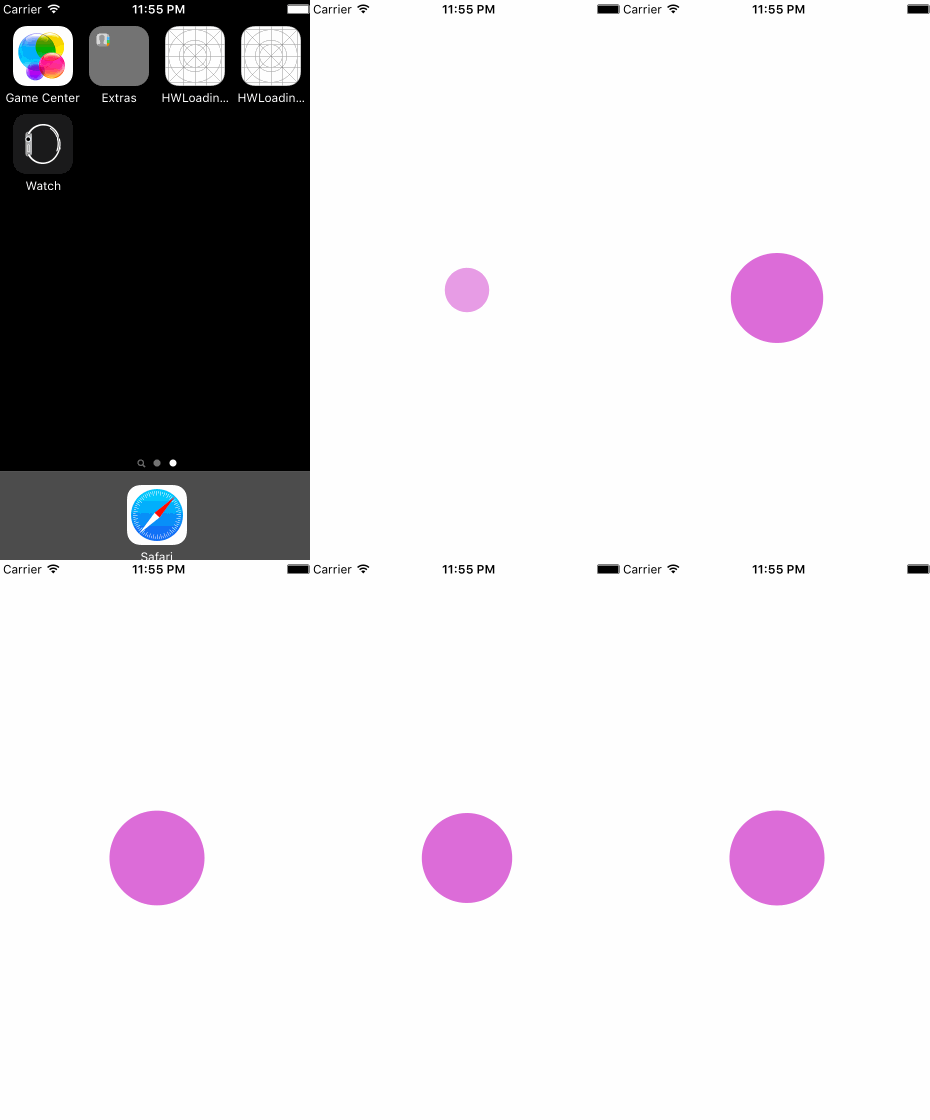
The code above combines circle → ellipse with a horizontal major axis → ellipse with a vertical major axis → circle into one animation. The result is:
4. Making the circle's edges protrude
The protruding shapes may look complicated at first, but the principle is simple. Look closely: joining their three tips forms a triangle. First, add a triangular layer to the existing shape, as follows.
import UIKit

class TriangleLayer: CAShapeLayer {

    let paddingSpace: CGFloat = 30.0

    override init() {
         super.init()
        fillColor = UIColor.colorWithHexString("#009ad6").CGColor
        strokeColor = UIColor.colorWithHexString("#009ad6").CGColor
        lineWidth = 7.0
        path = smallTrianglePath.CGPath
    }

    required init?(coder aDecoder: NSCoder) {
        fatalError("init(coder:) has not been implemented")
    }

    var smallTrianglePath: UIBezierPath {
        let smallPath = UIBezierPath()
        smallPath.moveToPoint(CGPointMake(5.0 + paddingSpace, 95.0))
        smallPath.addLineToPoint(CGPointMake(50.0, 12.5 + paddingSpace))
        smallPath.addLineToPoint(CGPointMake(95.0 - paddingSpace, 95.0))
        smallPath.closePath()
        return smallPath
    }
}
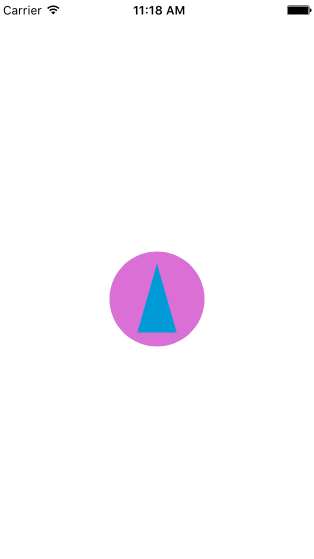
Then set the corner radius.
    lineCap = kCALineCapRound
    lineJoin = kCALineJoinRound
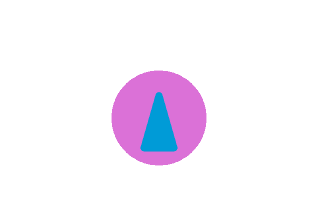
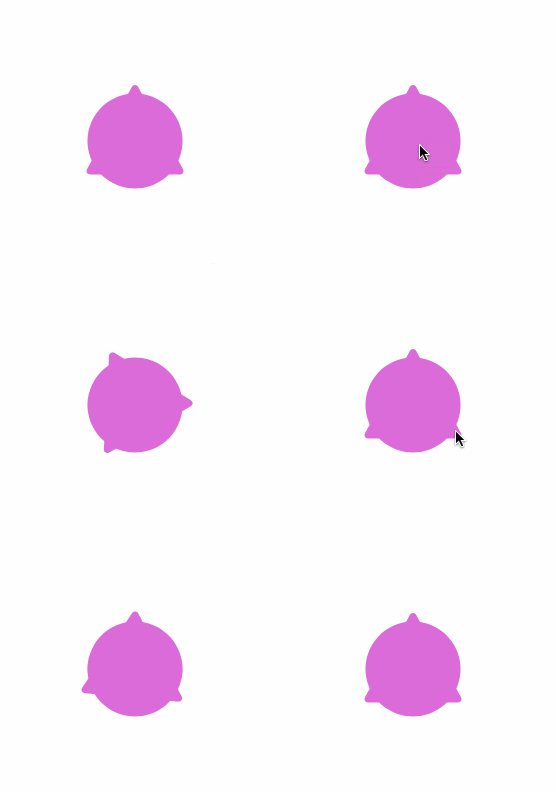
Now make the protrusion. The principle is simple: keep the triangle's center fixed and extend its left side farther left.
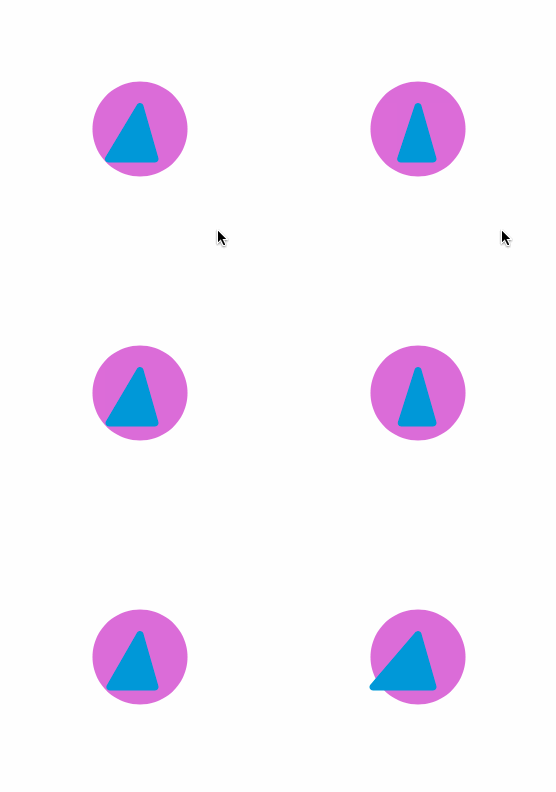
Then, keeping the center fixed, stretch it to the right and upward in sequence in the same way.
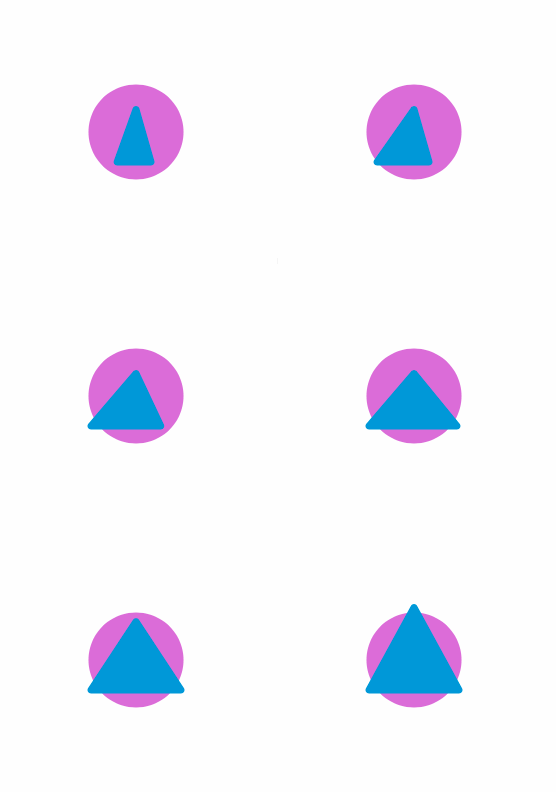
The process looks like this.
/**
 triangle animate function
 */
func triangleAnimate() {
     // left
    let triangleAnimationLeft: CABasicAnimation = CABasicAnimation(keyPath: "path")
    triangleAnimationLeft.fromValue = smallTrianglePath.CGPath
    triangleAnimationLeft.toValue = leftTrianglePath.CGPath
    triangleAnimationLeft.beginTime = 0.0
    triangleAnimationLeft.duration = 0.3
     // right
    let triangleAnimationRight: CABasicAnimation = CABasicAnimation(keyPath: "path")
    triangleAnimationRight.fromValue = leftTrianglePath.CGPath
    triangleAnimationRight.toValue = rightTrianglePath.CGPath
    triangleAnimationRight.beginTime = triangleAnimationLeft.beginTime + triangleAnimationLeft.duration
    triangleAnimationRight.duration = 0.25
     // top
    let triangleAnimationTop: CABasicAnimation = CABasicAnimation(keyPath: "path")
    triangleAnimationTop.fromValue = rightTrianglePath.CGPath
    triangleAnimationTop.toValue = topTrianglePath.CGPath
    triangleAnimationTop.beginTime = triangleAnimationRight.beginTime + triangleAnimationRight.duration
    triangleAnimationTop.duration = 0.20
     // group
    let triangleAnimationGroup: CAAnimationGroup = CAAnimationGroup()
    triangleAnimationGroup.animations = [triangleAnimationLeft, triangleAnimationRight, triangleAnimationTop]
    triangleAnimationGroup.duration = triangleAnimationTop.beginTime + triangleAnimationTop.duration
    triangleAnimationGroup.fillMode = kCAFillModeForwards
    triangleAnimationGroup.removedOnCompletion = false
    addAnimation(triangleAnimationGroup, forKey: nil)
}
Next, change the triangle's color.
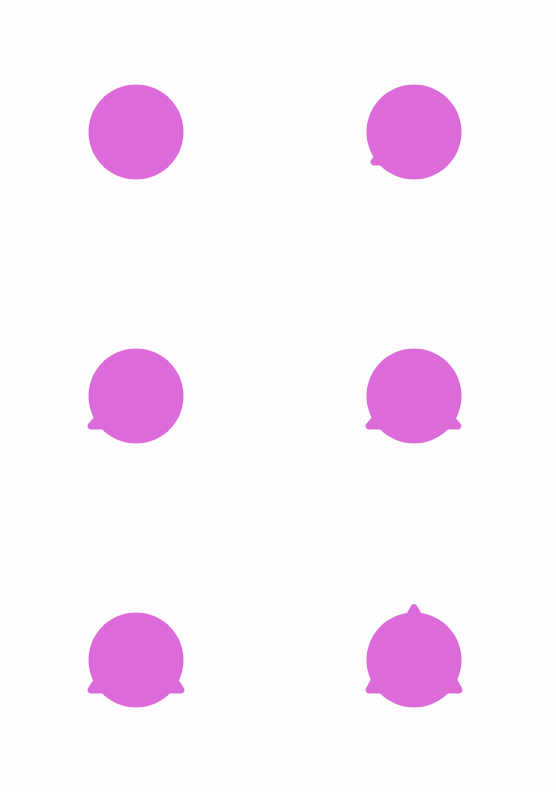
With matching colors, the protrusion becomes visible. Restore normal speed—I slowed it down for the demonstration—and combine all the preceding actions. The result so far is:

So far it looks good, and we are almost halfway through. On to the next step!
5. Implementing rotation and the rectangle
Rotation is simple and probably familiar. Rotate the shape formed above, taking care to set its anchorPoint.
/**
 self transform z
 */
func transformRotationZ() {
    self.layer.anchorPoint = CGPointMake(0.5, 0.65)
    let rotationAnimation: CABasicAnimation = CABasicAnimation(keyPath: "transform.rotation.z")
    rotationAnimation.toValue = CGFloat(M_PI * 2)
    rotationAnimation.duration = 0.45
    rotationAnimation.removedOnCompletion = true
    layer.addAnimation(rotationAnimation, forKey: nil)
}
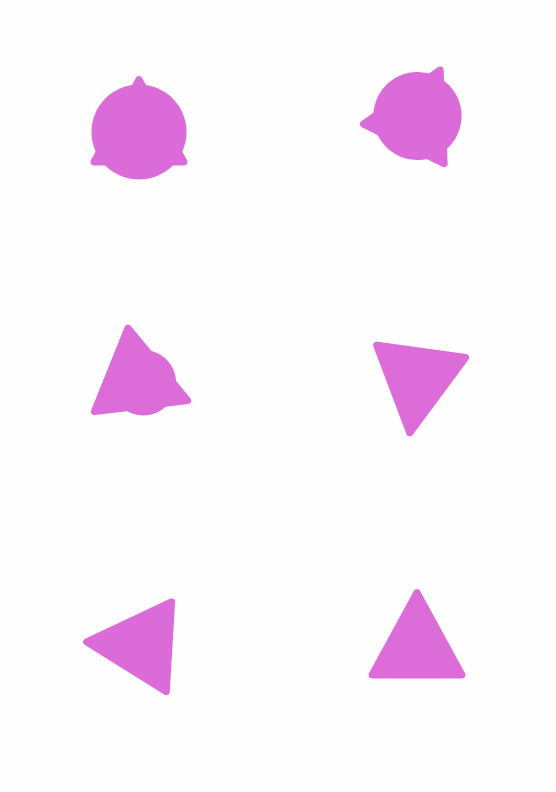
After rotation, the original shape becomes a triangle. The idea is to clip the original large circle using the large triangle's incircle.
/**
 contract animation function
 */
func contract() {
    let contractAnimation: CABasicAnimation = CABasicAnimation(keyPath: "path")
    contractAnimation.fromValue = circleBigPath.CGPath
    contractAnimation.toValue = circleSmallPath.CGPath
    contractAnimation.duration = KAnimationDuration
    contractAnimation.fillMode = kCAFillModeForwards
    contractAnimation.removedOnCompletion = false
    addAnimation(contractAnimation, forKey: nil)
}
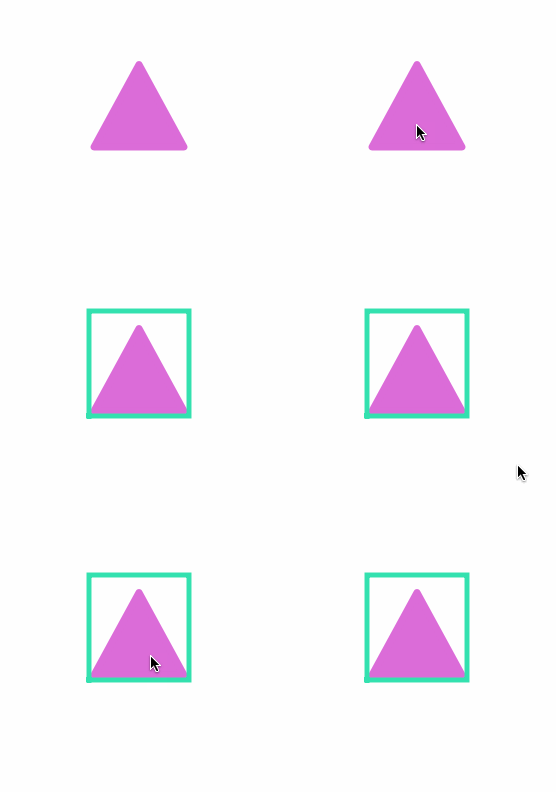
Next, draw the rectangle. Create a RectangleLayer and draw the lines.
/**
 line stroke color change with custom color

 - parameter color: custom color
 */
func strokeChangeWithColor(color: UIColor) {
    strokeColor = color.CGColor
    let strokeAnimation: CABasicAnimation = CABasicAnimation(keyPath: "strokeEnd")
    strokeAnimation.fromValue = 0.0
    strokeAnimation.toValue = 1.0
    strokeAnimation.duration = 0.4
    addAnimation(strokeAnimation, forKey: nil)
}
Finally comes the familiar wave animation. Here is the code directly.
func animate() {
     /// 1
    let waveAnimationPre: CABasicAnimation = CABasicAnimation(keyPath: "path")
    waveAnimationPre.fromValue = wavePathPre.CGPath
    waveAnimationPre.toValue = wavePathStarting.CGPath
    waveAnimationPre.beginTime = 0.0
    waveAnimationPre.duration = KAnimationDuration
     /// 2
    let waveAnimationLow: CABasicAnimation = CABasicAnimation(keyPath: "path")
    waveAnimationLow.fromValue = wavePathStarting.CGPath
    waveAnimationLow.toValue = wavePathLow.CGPath
    waveAnimationLow.beginTime = waveAnimationPre.beginTime + waveAnimationPre.duration
    waveAnimationLow.duration = KAnimationDuration
     /// 3
    let waveAnimationMid: CABasicAnimation = CABasicAnimation(keyPath: "path")
    waveAnimationMid.fromValue = wavePathLow.CGPath
    waveAnimationMid.toValue = wavePathMid.CGPath
    waveAnimationMid.beginTime = waveAnimationLow.beginTime + waveAnimationLow.duration
    waveAnimationMid.duration = KAnimationDuration
     /// 4
    let waveAnimationHigh: CABasicAnimation = CABasicAnimation(keyPath: "path")
    waveAnimationHigh.fromValue = wavePathMid.CGPath
    waveAnimationHigh.toValue = wavePathHigh.CGPath
    waveAnimationHigh.beginTime = waveAnimationMid.beginTime + waveAnimationMid.duration
    waveAnimationHigh.duration = KAnimationDuration
     /// 5
    let waveAnimationComplete: CABasicAnimation = CABasicAnimation(keyPath: "path")
    waveAnimationComplete.fromValue = wavePathHigh.CGPath
    waveAnimationComplete.toValue = wavePathComplete.CGPath
    waveAnimationComplete.beginTime = waveAnimationHigh.beginTime + waveAnimationHigh.duration
    waveAnimationComplete.duration = KAnimationDuration
     /// group animation
    let arcAnimationGroup: CAAnimationGroup = CAAnimationGroup()
    arcAnimationGroup.animations = [waveAnimationPre, waveAnimationLow, waveAnimationMid, waveAnimationHigh, waveAnimationComplete]
    arcAnimationGroup.duration = waveAnimationComplete.beginTime + waveAnimationComplete.duration
    arcAnimationGroup.fillMode = kCAFillModeForwards
    arcAnimationGroup.removedOnCompletion = false
    addAnimation(arcAnimationGroup, forKey: nil)
}
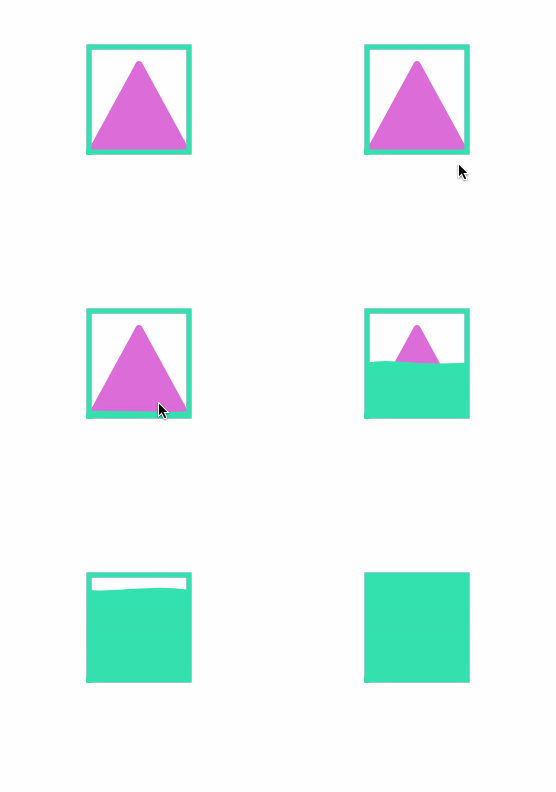
Choose control points for the wave and draw a Bezier curve. That nearly completes the effect. The final step is to expand it and display Welcome.
func expandView() {
    backgroundColor = UIColor.colorWithHexString("#40e0b0")
    frame = CGRectMake(frame.origin.x - blueRectangleLayer.lineWidth,
                       frame.origin.y - blueRectangleLayer.lineWidth,
                       frame.size.width + blueRectangleLayer.lineWidth * 2,
                       frame.size.height + blueRectangleLayer.lineWidth * 2)
    layer.sublayers = nil

    UIView.animateWithDuration(0.3, delay: 0.0, options: UIViewAnimationOptions.CurveEaseInOut, animations: {
        self.frame = self.parentFrame
        }, completion: { finished in
            self.delegate?.completeAnimation()
    })

}
After expansion, set the delegate and add the Welcome label in the main vc.
// MARK: -
// MARK: AnimationViewDelegate
func completeAnimation() {
    // 1
    animationView.removeFromSuperview()
    view.backgroundColor = UIColor.colorWithHexString("#40e0b0")

    // 2
    let label: UILabel = UILabel(frame: view.frame)
    label.textColor = UIColor.whiteColor()
    label.font = UIFont(name: "HelveticaNeue-Thin", size: 50.0)
    label.textAlignment = NSTextAlignment.Center
    label.text = "Welcome"
    label.transform = CGAffineTransformScale(label.transform, 0.25, 0.25)
    view.addSubview(label)

    // 3
    UIView.animateWithDuration(0.4, delay: 0.0, usingSpringWithDamping: 0.7, initialSpringVelocity: 0.1, options: UIViewAnimationOptions.CurveEaseInOut,animations: ({

            label.transform = CGAffineTransformScale(label.transform, 4.0, 4.0)
        }), completion: { finished in
            self.addTouchButton()
    })

}
All the animation is now complete.
6. Finally
As before, both Objective-C and Swift versions are provided. You can find them at Here, View the source!
I have always been interested in animation and hope to study it more deeply. Leave a comment or private message with suggestions, and please star the project if you like it. Thank you!
Recommended reading: Adding a launch advertisement to an iOS app